There are certain email messages you will send over and over again, like introduction emails, follow-ups, meeting recaps. These repeated emails are perfect use cases for templates.
Templates are previously created email messages that can be used anywhere you send an email in Salesloft. Whether you’re working on a Cadence email step, an email task, or composing a one-off email, templates are a ready-to-go draft that you can add to quickly send an email with quality messaging.
Before you can add email templates to emails, you need to create the templates. Creating templates is very similar to drafting an email. With templates, you get the benefit of re-using that email message over and over. The templates you use will gather metrics so you can assess how well a template performs.
In this article, you will learn how to create a template. This article includes:
- Only Salesloft admins or users with the Manage Team Templates permission can create, edit, copy, or archive a team template.
- By default, the standard Salesloft roles (admin and user) have the View Team Templates permission enabled.
- There are two types of email templates in Salesloft:
- Personal Templates – Templates that you create and own, accessible only to you.
- Team Templates – Created by a Salesloft admin or a user with team template permissions, these templates provide standardized messaging, such as marketing-approved content or objection-handling responses, ensuring consistency across the organization.
- When a team template is updated, it is updated across the entire platform, with users seeing the changes immediately. Any changes made to a team template will be time stamped with the date and by user made the changes.
- Team template metrics are aggregated across the entire team.
When you navigate to the Templates Page, the top tabs allow you to switch between Personal and Team templates for easy access and management.
Video - How to Create a Template
For a quick overview of how to create a template, check out this video:
To create a template, follow these steps:
- Navigate to the “Templates” Page: Hover over the Content tab on the top navigation panel. Select Templates. This will direct you to the Templates page.
- Select Personal or Team Templates: If you would like to create a personal template, click the Personal tab. If you would like to create a team template, click the Team tab.
- Select “Create Template”: Click Create Template in the upper right corner of the page.An email window will appear. This is where you will create your template.
- Create your email template: Include the following details inside the Create window:
- Name your template.
- Add a Subject Line.
- Draft your email. The body of your email will be laid out here. Just like when you are composing an email from your email server, Salesloft provides you with additional email features that can empower your messages like adding Dynamic Fields or gifs. You can learn more about editing your template in The Email Window Toolbar article.
- (Optional)From the preview window, send yourself a preview of the email if you would like to see how it will appear to your recipients.
- Add Tags at the bottom of the email message for quick filtering after the template is saved.
- Save the email template: Hit Save.
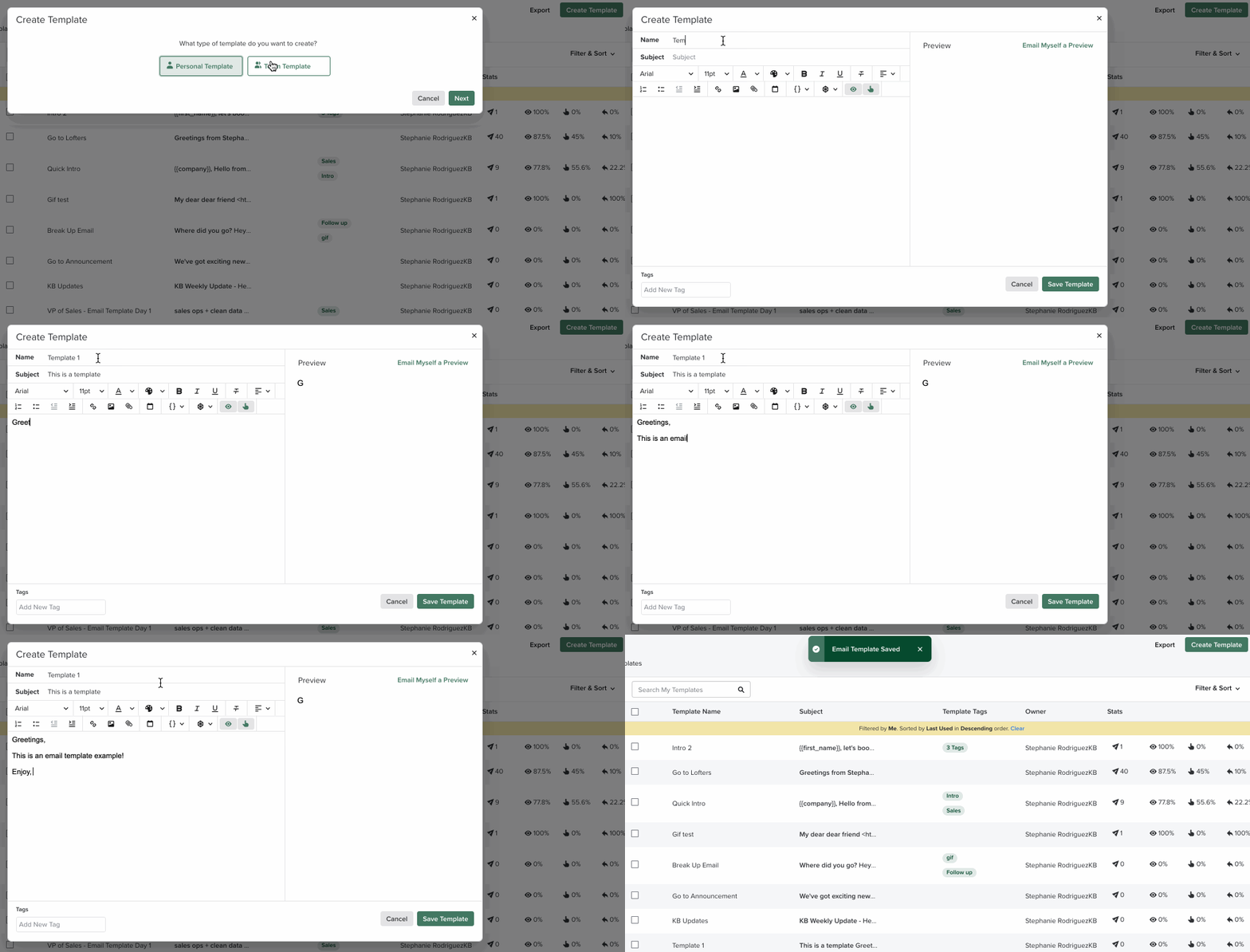
Figure 1: Create a Template on the Templates page.
- Use dynamic fields like {{First Name}}, {{Company Name}}, or other variables to personalize emails automatically.
- Use clear, descriptive names and tags so templates are easy to find.
