Salesloft's integration with HubSpot connects your team's sales engagement to another vital tool: their CRM.
By leveraging Salesloft for HubSpot, your team gains Salesloft’s CRM sync functionality which offers two-way sync for People, Accounts, Opportunities between systems, and one-way sync of Salesloft Activities to CRM.
Before your team can reap the reward from a connection between Salesloft and your HubSpot CRM, a team admin must set up the connection and configure your team’s sync settings and field mapping. Once the initial setup is complete, there are additional configurations you can perform as an admin to enhance your team’s connection between Salesloft and HubSpot.
Things to Note: Teams that have HubSpot Data Sync actively connected to your Salesloft Team must disable Data Sync in Hubspot prior to enabling Salesloft bi-directional Team Sync. Check out Migrate from HubSpot Data Sync to Salesloft CRM Sync for more information.
In this article, you will learn how to set up and manage your team’s Hubspot integration with Salesloft. We will walk through the following steps:
To complete the setup process, each Salesloft user that will be syncing activities to HubSpot CRM needs to connect to the CRM Personal Setting to their HubSpot Production environment, including you, the team admin.
Why is an admin's connection important? In order for the integration to be successful, our system authenticates the credentials entered by the admin. Once a successful connection has been created, then the credentials get locked down and the HubSpot instance is verified. If a connection is not successful, you will see an error message and your credentials will need to be altered.
You can learn how to connect Salesloft to your HubSpot Instance, check out Connect to Your HubSpot Account.
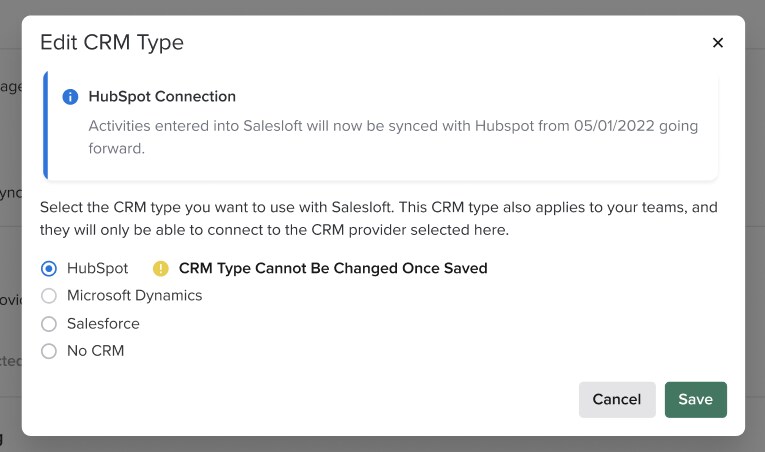
For the integration to work, you must designate HubSpot as a team’s CRM Type. A team can only have one CRM Type and cannot be integrated with both HubSpot and another CRM.
Once you’ve set the CRM Type, any features or settings in Salesloft specific to the CRM will be visible based on available with that CRM.
Salesloft user mapping matches a Salesloft user to the appropriate CRM User. Mapping all Salesloft Users to HubSpot Users is necessary to ensure features like Ownership Syncing, Opportunity attribution, etc. work properly.
Things to Note:
- We recommend mapping all Users from Salesloft to HubSpot CRM before any additional configuration steps are completed.
- Mapping a User after enabling the CRM Sync will not retroactively fix any issues with ownership/attribution.
Mapping users is completed inside the User Management. The good news is that automapping is available. To map Salesloft users to their HubSpot CRM ID via automapping, follow these steps:
- As an admin, go to your Settings and select the Users Settings page in Salesloft.
- Select all users.
- Click Auto-Map CRM Username.
- It will take a few minutes to process. You can proceed to another area of setup, but come back in a few minutes to ensure users were mapped properly.
- In the event that a user could not be mapped successfully, you will need to manually map the user to their email address in the CRM. Follow these steps:
- From the User Settings, use the “CRM Username: Unmapped” filter to find anyone who couldn’t be mapped successfully
- Try mapping those users manually by searching for their HubSpot username.
- Any new users created moving forward should be automatically mapped based on a matching user email address.
Field Mapping allows you to share recorded field data between Salesloft and HubSpot(based on your Configuration settings). HubSpot Contact fields map to Salesloft Person fields, HubSpot Company fields map to Salesloft Account fields, and HubSpot Deals map to Salesloft Opportunity fields.
As soon as your credentials are logged and your admin account is connected, Salesloft will sync up the HubSpot and Salesloft instances. As long as you have not completed any field mapping previously, Salesloft will auto-map standard fields .
Things to Note:
- Make sure all desired fields are mapped before enabling CRM Sync.
- Once Sync is enabled, if a new field is mapped, a backfill of newly mapped fields will require a data update to occur in Hubspot for each record.
- There is no activity field configuration with HubSpot. HubSpot allows data to their defined set of activity fields. These fields have already been accounted for in backend system fields when Salesloft logs an activity.
When fields are auto-mapped, they are mapped in one direction (from HubSpot into Salesloft). Keeping this in mind, you may want to edit your fields. Or there may be fields that you would like to custom create.
Field Mapping is managed from the Field Configuration tab. When Salesloft is connected to HubSpot, you will only see the options to configure Person and Account Fields. From the Field Configuration Settings, admins can view, edit, or clear field mappings. Here you also have the ability to create custom fields, in the event you would like to match a field that’s exclusive to your HubSpot instance.
For more information on how to edit field mapping and more, check out the following articles: Field Configuration Overview.
Things to Note: Only the Opportunity Amount field can be mapped to a different HubSpot currency field if needed. Custom Opportunity fields can be created as well if needed within the Salesloft platform. All field data sync is inbound only from HubSpot CRM to Salelsoft.
Once your Salesloft and HubSpot instances are connected and your data is matched correctly, it’s time to flip on bi-directional sync. Bi-directional Sync is the engine that pushes data between the two integrated systems.
When you’re ready for Go-live, follow these steps to properly set up bi-directional sync:
- Enable CRM Sync. Admins can go to Settings, then select the CRM Sync. Go to the Sync Management tab and Edit the CRM Sync option.
- Assign a CRM Sync Alert Contact. This is the User that should be notified via email for issues related to the Salesloft CRM integration.
- Set your Sync Frequency. The sync frequency determines the inbound sync polling interval for Contacts and Accounts in the CRM. Polling Intervals are available every 1, 5, or 10 minutes.
- (Optional) Enable CRM Merge and Deletion Settings. When these settings are on, records that are merged or deleted in HubSpot will also be merged or deleted in Salesloft.
After your CRM sync is set up and running, you can view a log of all bi-directional CRM Successes and Errors from the CRM Sync Logs.
HubSpot Activity Sync includes unique settings that apply strictly to HubSpot CRM users. These settings include the following:
Logging Salesloft Disposition as Call Outcome Setting
The standard HubSpot activity logs are strictly defined. Salesloft allows for the inclusion of the Salesloft Disposition field to the standard HubSpot Call Outcome field. To enable this setting, go to the CRM Sync Settings, Edit Logging Salesloft Disposition as Call Outcome so it's enabled. Once enabled, Salesloft calls logged with a disposition will populate the Call Outcome field in Hubspot.
Things to Note: If you Team enables Logging Salesloft Disposition as Call Outcome, please ensure the Salesloft Disposition values align with your Call Outcome picklist values in HubSpot.
Associating Activities with Companies in Salesloft
Salesloft will associate an activity logged to HubSpot CRM to the Company that is linked to the Person in Salesloft. Please note, we are using the Salesloft Person/Account relationship to define this activity relationship, so it is important their Person and Account relationships in Salesloft are aligned with their CRM.
Associating Activities with one or more Deals (Opportunities) in HubSpot CRM
When an activity is logged successfully to a Contact and Company via Salesloft, HubSpot will automatically associate the Activity with ALL Open Opportunities related to the Contact the activity is logged to.
Salesloft’s HubSpot integration includes the ability to create Automation Rules using data directly from your HubSpot CRM.
While the use of automation rules is not required, we strongly recommend setting up these rules to perform the mundane actions between Salesloft and your HubSpot CRM so that your team can focus their efforts on selling.
Let's walk through some Automation Rules examples you can implement for your team’s HubSpot CRM:
Things to Note: The following rules are examples. Your rule(s) might look different based on your needs and configuration.
Inbound Salesloft Person creation from HubSpot Contact
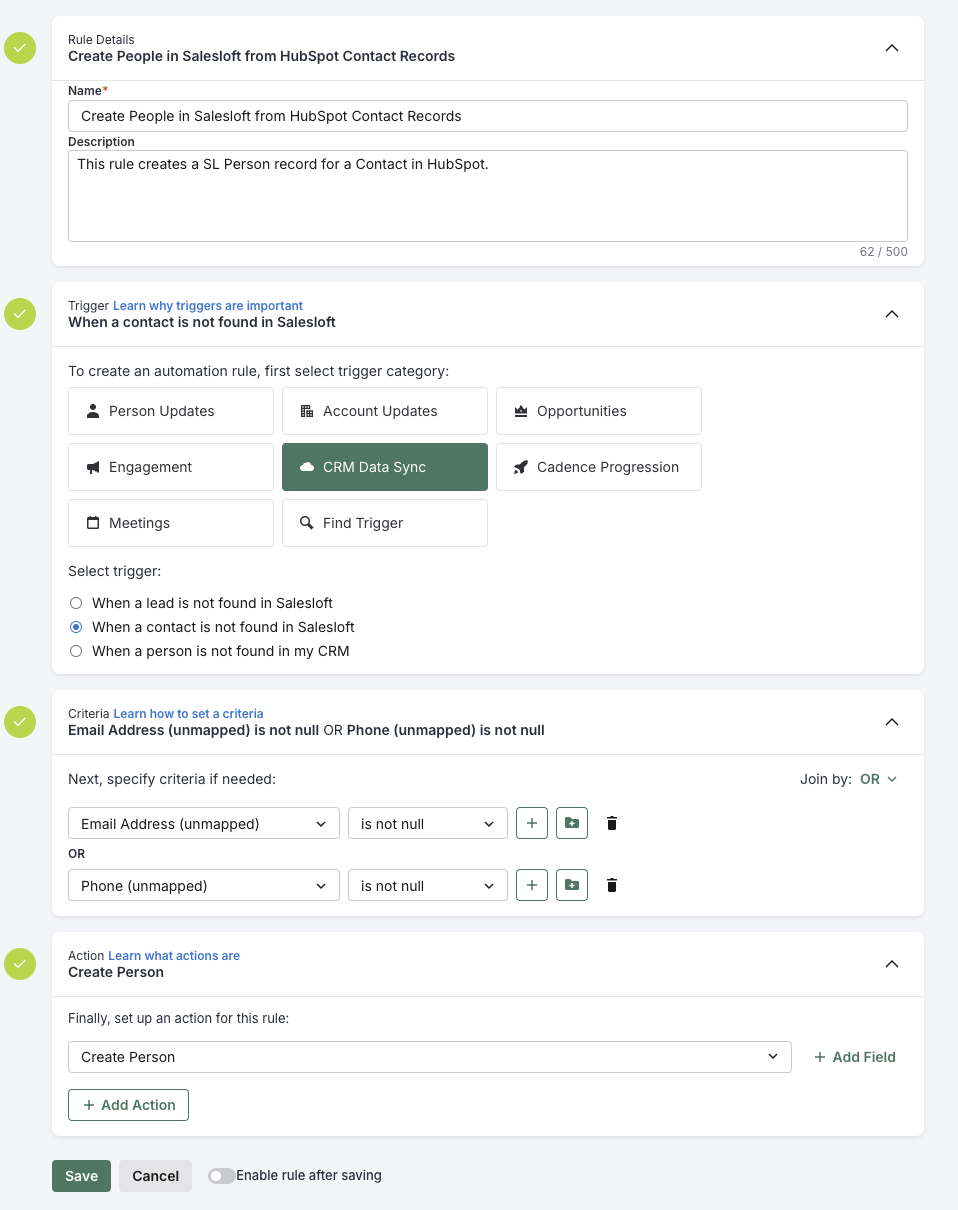
A Salesloft Automation Rule is needed to automatically import/create a Salesloft Person from a Contact in HubSpot, .
Things to Note:
- In order for a Person record to be created in Salesloft, it must have either an Email Address or partial name (First or Last) and Phone Number.
- Ownership for automatically created records will match the other system as long as the field configuration direction for “Owner CRM ID” is set up correctly.
- If the CRM Contact owner is unmapped or the “Owner CRM ID” Person field configuration is not correct, the Person owner will be the main connector user.
Adding to a Cadence is optional but can be highly useful. You can create multiple of these rules based on if/how you want specific types of records routed to specific Cadences.
Automation Rule Example: Create People in Salesloft from HubSpot Contact Records
Outbound HubSpot Contact creation from Salesloft Person
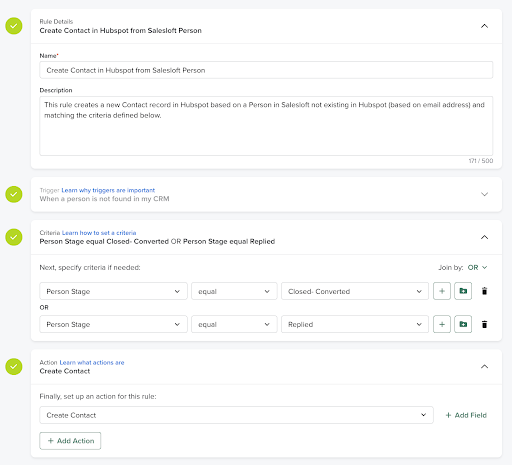
If a HubSpot Contact needs to be automatically created/imported from a Person in Salesloft, a Salesloft Automation Rule is needed.
For teams that only want “qualified” records to push from Salesloft to HubSpot (i.e. only create contacts who we’ve booked a meeting with), please consider what criteria indicates a record should be created in HubSpot, e.g. Criteria based on Person Stage or some other Person or linked Account field value.
Things to Note: If you have required fields for the Contact Object in HubSpot, ensure those fields are populated on a Person record using Rule Criteria before creating the Contact in Hubspot
⚠ If you would prefer Salesloft People are only created from the CRM and not in Salesloft, no not use this rule.
Automation Rule Example: Create Contacts in Hubspot from Salesloft People
Update Salesloft Person & Account ownership to align with HubSpot CRM
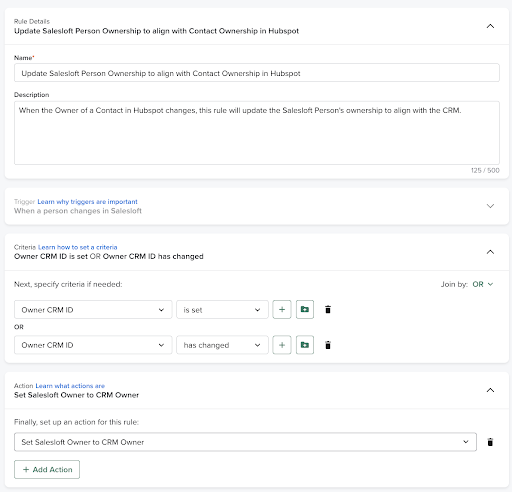
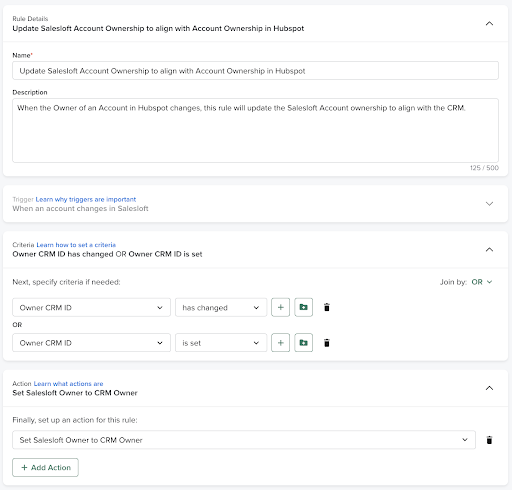
The typical best practice is to treat the CRM as the source of truth for ownership and map ownership one way, from CRM to Salesloft. These rules will ensure that any Contact or Company ownership changes that occur in HubSpot CRM are also synced to Salesloft Person and Account records.
Automation Rule Examples: If Person CRM Owner ID is set or changed, set Salesloft Owner to CRM Owner
Automation Rule Examples: If Account CRM Owner ID is set or changed, set Salesloft Owner to CRM Owner
Salesloft logs activities under their corresponding activity type in HubSpot.
All activities logged include the Timestamp (Date/Time activity was executed) and Owner (User that executed the activity).
The following activity types are included:
Calls
|
Salesloft Activity Type
|
HubSpot Properties
|
Sample
|
|---|
|
Calls +
Voicemails
|
Call Title
|
Call: Connected | Gatekeeper
|
|
Call Body
|
Spoke to Ron and he indicated the DM wouldn't be in office for another week.
|
|
Call Duration
|
125
|
|
Call To Number
|
5125550000
|
Things to Note: Call Title does not show up in the Activity Timeline on a Contact record or in most OOTB reports in HubSpot. It is only visible from the Calls list view and certain custom reports in HubSpot. For more information on custom reports, please contact Hubspot Support.
Emails
|
Salesloft Activity Type
|
HubSpot Properties
|
Sample
|
|---|
|
Emails + Replies
|
Email Subject
|
Email: Salesloft + HubSpot
|
|
Email Body
|
Hey Leslie -
I wanted to talk to you about Salesloft's HubSpot integration. . .
|
|
Email Direction
|
EMAIL
|
Meetings
|
Salesloft Activity Type
|
HubSpot Properties
|
Sample
|
|---|
|
Meetings
|
Meeting Title
|
Meeting Booked: Salesloft Intro Call
|
|
Meeting Body
|
Hi Leslie - looking forward to spending a few minutes reviewing our solution with you.
|
|
Meeting Location
|
https://salesloft.zoom.us/my/5481612515
|
|
Meeting Start Time
|
1/1/2022 10:00 AM
|
|
Meeting End Time
|
1/1/2022 11:00 AM
|
Notes
|
Salesloft Activity Type
|
HubSpot Properties
|
Sample
|
|---|
|
Notes
|
Note Body
|
DM out on maternity leave, but Ron filling in through end of month.
|
Tasks
Things to Note:
- Team admins must set up Hot Leads from the Hot Leads settings page.
- Conversations, SMS Messages, and Tasks activity types cannot be disabled.
|
Salesloft Activity Type
|
HubSpot Properties
|
Sample
|
|---|
|
Other Steps + Integration Steps
|
Task Subject
|
Other: Snail Mail
|
|
Task Body
|
Sent Leslie a box of chocolates
|
|
Task Status
|
Completed
|
|
Hot Leads
|
Task Subject
|
Hot Lead: Leslie Harper became a Hot Lead
|
|
Task Body
|
Leslie Harper at DGS Enterprises became a Hot Lead, and was assigned to Darcy Groom.
|
|
Task Status
|
Open
|
|
SMS
|
Task Subject
|
Message
|
|
Task Body
|
03:24:34 PM
Darcy Groom: Hi Leslie - just checking in. How did the proposal look?
03:44:56 PM
Leslie Harper: Thanks Darcy, looks good. Sending to legal now.
|
|
Task Status
|
Completed
|
|
Salesloft Conversations (i.e. conference calls)
|
Task Subject
|
Recording: Salesloft + DGS Enterprises
|
|
Task Body
|
dgroom@salesloft.com; kharper@dgsenterprises.com
https://www.app.salesloft.com/app/conversation-intelligence/recordings/9b83058-d827394-12847-29dksle
|
|
Task Status
|
Completed
|
View Failing CRM Activity Log
Both Administrators and Users can access the Failing CRM Activities log . Users can view their own failing activities, and Administrators can view all of Users’ failing activities.
