Play Outcomes tracks key performance metrics for Plays, offering a view of their impact on revenue outcomes. These metrics provide data on meeting success rates, opportunity progression, deal closure rates, and overall revenue contributions. By analyzing these metrics, users can identify high-performing Plays and optimize underperforming ones to drive greater success.
In this article, you will learn how to configure and manage Play Outcomes, including:
Play Outcomes leverages Salesloft’s influence model which takes any activity related to prospects and stakeholders (via contact roles), and connects them to the following key revenue metrics below.
Things to Note: The influence model does NOT leverage last touch attribution.
Key Metrics Included in Play Outcomes:
- Meeting Rate - The Meeting Rate shows the percentage of times People contacted on the Cadence ultimately booked a meeting
- Opportunity Rate - The Opportunity Rate shows the percentage of times People contacted on the Cadence ultimately resulted in the creation of an opportunity
- Avg. Win Rate - closed won opportunities / closed opportunities
- Avg. Sales Contract - total duration / closed won opportunities
- Pipeline Gen - total amount x probability
- Revenue Gen - closed won
You can view Play Outcomes in two primary locations:
Play Overview page
- Navigate to the Plays section in Settings.
- Select the specific Play you want to analyze.
- Review outcome metrics, click View Play Analytics for more details.
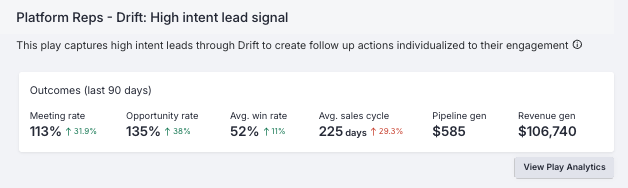
Things to Note: The metrics for the detail page will default to last 90 days. The change metrics compare the last 90 days to the previous 90 days to track changes over time.
Analytics Report
- Go to the Analytics > Content performance section of your workspace.
- Select the Plays tab.
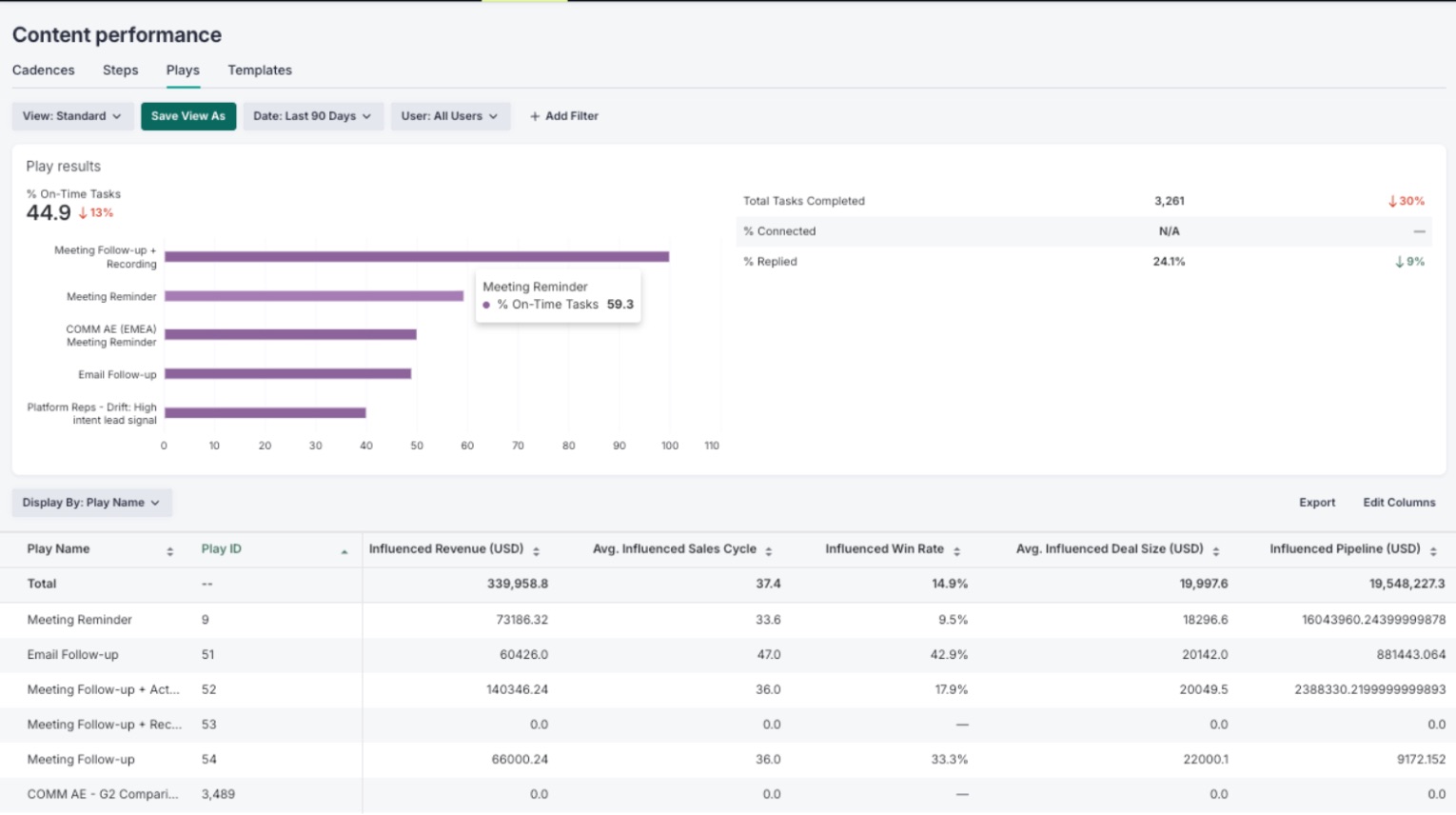
Play Outcomes data visibility may vary based on user roles. Here’s how to manage permissions for different roles:
Admins
Admins have full access to configure, view, and analyze Play Outcomes. They can also manage which team members have access to specific Plays and their outcome data via Plays: Manage permissions.
Team Leads
Team Leads can view Play Outcomes relevant to their team. They can also configure team-specific Plays and monitor their success metrics via Plays: Manage permissions.
Reps
Reps can view Play Outcomes for Plays they are assigned to in analytics. Reps can also be given the Plays: Manage permissions to create, edit, and analyze Plays.
Customize Visible Metrics in Analytics
Admins can select which metrics are displayed in Play analytics through filtering and sorting.
To set up and configure Play Outcomes, users need only to set up new Plays in settings. Play Outcomes will appear by default at the top of each created Play.
After configuring Play Outcomes:
- Optimize Plays: Use data insights to refine and improve Play strategies such as tasks completed, personalization %, etc.
- Monitor Performance: Regularly review outcomes to ensure continuous improvement.
