The Inside a Cadence view is where sales reps and managers execute, monitor, and configure an individual cadence. This reference covers every element across all tabs within the cadence view and links to step-by-step guides for common actions.
In this article:
Go to the Cadences Page: In the top navigation bar, hover over Content and select Cadences from the dropdown. This will take you to the Cadences page. From the Cadences list view, click the name of any cadence. The cadence opens on the Overview tab by default.
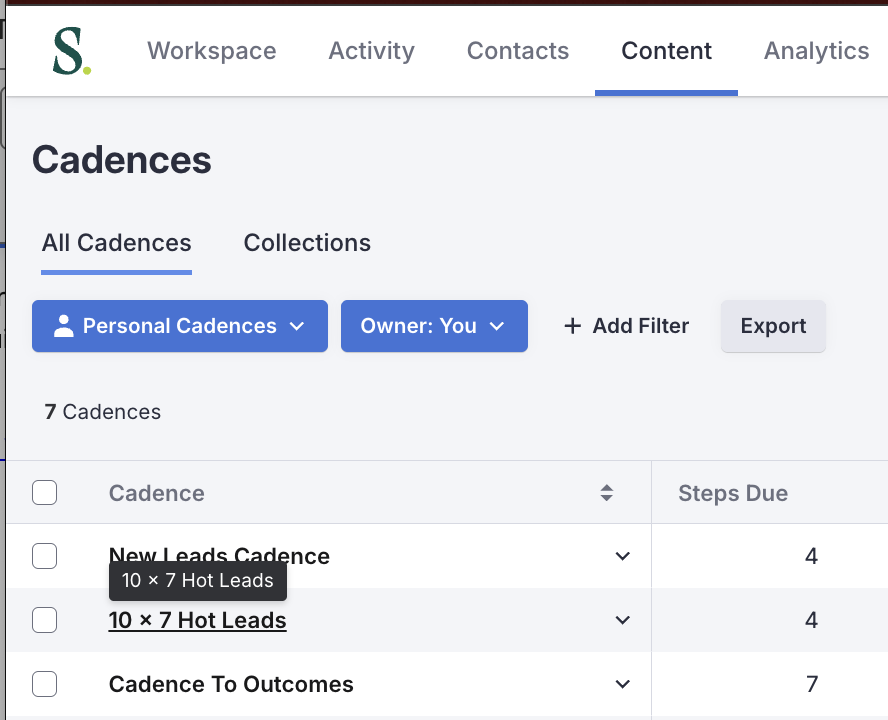
Figure 1: Cadence name link highlighted in the Cadences list view
Alternatively, you can select the name of a cadence from the Rhythm view or from a Profile page to land on the Cadence view.
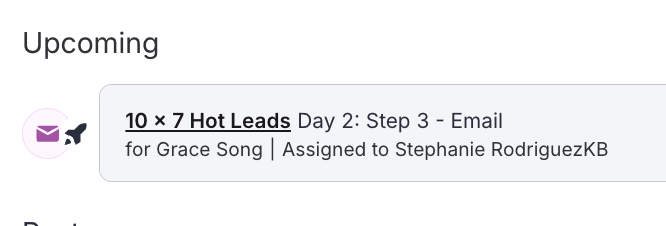
Figure 2: Cadence link from the Person Profile Page Activity Feed
The Inside a Cadence view is the same for all roles. However, the Cadence Actions menu is only visible to users with Manage Cadence permissions enabled on their role. Where this applies, it is noted inline in the relevant section below.
The cadence header is present across all tabs and provides the cadence name and top-level actions.

Figure 3: Cadence Header
|
Element
|
What It Does
|
Action
|
|---|
|
"Cadence"
|
Breadcrumb that takes you back to the Cadences page
|
Click to go to the Cadences list page. See: Cadences Page UI Reference
|
|
Cadence Name
|
Displays the cadence’s name in the top left corner across every tab. Team Cadences are marked with a Team Cadences label to the right of the name.
|
Display only — edit via the Cadence Settings tab or the Rename action
|
|
People Actions
|
Opens a dropdown menu to add or export people to the cadence
|
See: People Actions table below
|
|
Cadence Actions
|
Opens a dropdown menu of cadence-level actions. Only visible to users with Manage Cadence permissions.
|
See: Cadence Actions table below
|
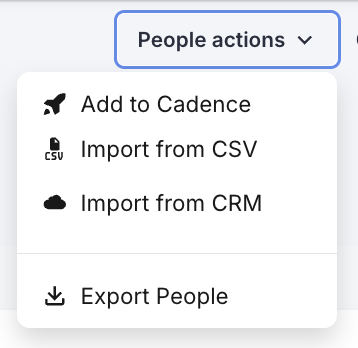
Figure 4: People Actions dropdown menu open
|
Action
|
What It Does
|
|---|
|
Add to Cadence
|
Manually add a person to the cadence. If the person doesn’t exist in Salesloft yet, you can create them here.
|
|
Import from CSV
|
Import a list of people from a CSV file into Salesloft and the cadence.
|
|
Import from CRM
|
Opens the Imports from Salesforce article. Imports happen within your CRM platform.
|
|
Export People
|
Downloads a CSV of all people currently in or who have completed the cadence.
|
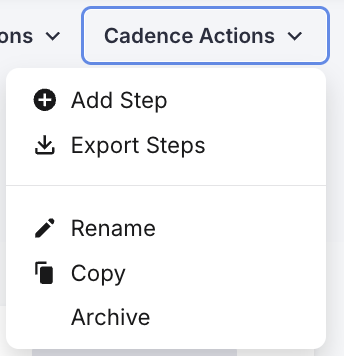
Figure 5: Cadence Actions dropdown menu open
|
Action
|
What It Does
|
|---|
|
Add Steps
|
Opens the Create Step module to add a new step to the cadence.
|
|
Export Step
|
Downloads a CSV of cadence-specific information including steps and metrics.
|
|
Rename
|
Edit the cadence name.
|
|
Copy
|
Creates a copy of the cadence as a starting point for a new one.
|
|
Archive
|
Removes the cadence from the active list while retaining all cadence data.
|
The Overview tab is the cadence’s home page. It shows the complete structure of the cadence including days, steps, templates, and instructions.
Overview Tab Layout
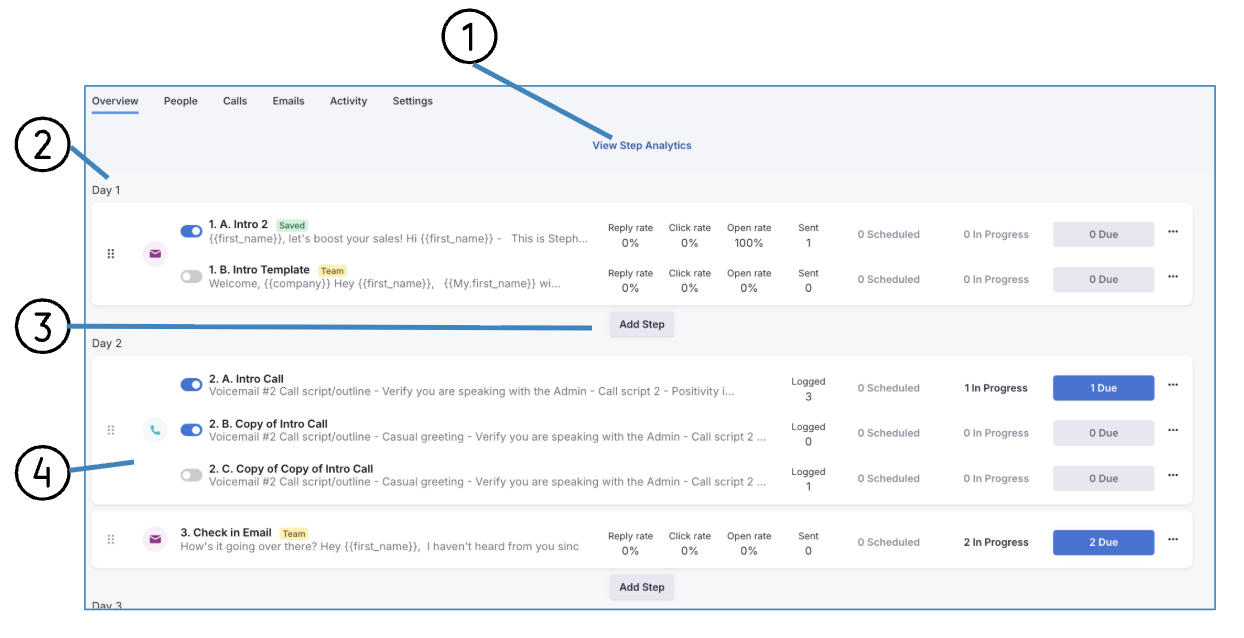
Figure 6: Cadence Overview Tab Layout with labels
|
#
|
Element
|
What It Does
|
Action
|
|---|
|
1
|
View Step Analytics
|
Links to the Cadence Step Analytics page for an in-depth view of step-level performance
|
Click to open Step Analytics
|
|
2
|
Cadence Day
|
The day on which steps are due to run after a person has been added to the cadence
|
Display only
|
|
3
|
Add Step
|
Opens the Create Step module
|
Click to add a new step
|
|
4
|
Step Tile
|
Displays each cadence step with its details — see Step Tile Elements below
|
See step actions below
|
Step Tile Elements
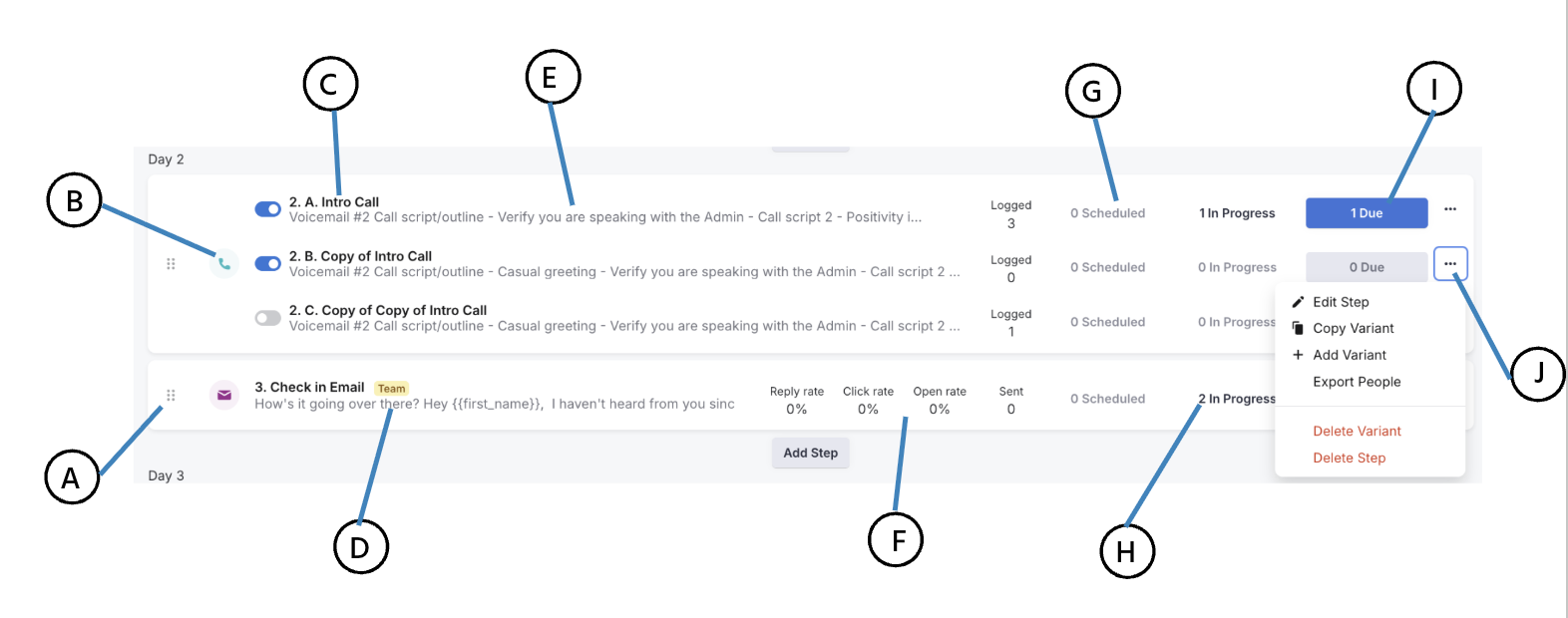
Figure 7: Cadence Step Tile Elements with labels
|
#
|
Element
|
What It Does
|
|---|
|
A
|
Move Step
|
Drag handle to rearrange the order of steps
|
|
B
|
Step Type Icon
|
Indicates the step type — Email, Phone, Other, or Integration
|
|
C
|
Step Number and Name
|
The order number of the step within the cadence and its name
|
|
D
|
Labels
|
Indicators for the step including "Automated" (this step is configured to run automatically when due), "Multi-touch" (the step is grouped to run back-to-back with another step), "Saved" (a template has been saved to this step), "Team" (step uses a Team Template).
|
|
E
|
Preview
|
Displays the opening text of the step description or email message
|
|
F
|
Metrics
|
Displays metrics pertaining to the step's performance. Step metrics will vary based on the step type.
|
|
G
|
Scheduled
|
Email steps only — number of people with emails scheduled for a future time
|
|
H
|
In Progress
|
People on this step whose step is not yet due
|
|
I
|
Due
|
People due to run this step today — these people appear in the Cadence Side Panel
|
|
J
|
Step Actions (…)
|
Opens the step actions menu: Edit Step, Copy Variant, Add Variant, Export People, Delete Step, Delete Variant (visible only on steps with more than one variant)
|
The People tab lists everyone who is currently in or has previously run through the cadence. It supports filtering, sorting, and bulk actions at the cadence level.
People Tab Controls

Figure 8: People Tab Controls
|
Element
|
What It Does
|
Action
|
|---|
|
Saved Views
|
Create and revisit lists of people using saved filter combinations
|
Select or create a view
|
|
Filters
|
Refine the people list by specified criteria. Defaults to People In Progress on Steps. Note: the Step: Removed filter only shows people who were removed after completing at least one cadence action.
|
Adjust filters to refine the list
|
|
Filtered Stats
|
Shows engagement metrics for the people in the current filtered list: Called, Emailed, Bounced, Opened, Clicked, Replied, and Starred
|
Display only
|
|
Search
|
Search cadence people by name, company, or email address
|
Enter search term
|
People List Columns

Figure 9: Cadence People List columns
|
Column
|
What It Shows
|
|---|
|
Checkbox
|
Select one or multiple people to perform bulk actions
|
|
Name
|
The person’s name
|
|
Account
|
The person’s linked Salesloft Account
|
|
Title
|
The person’s title in their Salesloft profile
|
|
Job Seniority
|
The person’s level within their company hierarchy
|
|
Step
|
The person’s current cadence step; shows most recent step if removed
|
|
Due
|
Date the most recent cadence step is due
|
|
Stage
|
The person’s most recent Person Stage
|
|
Tags
|
Labels attached to the person; click a tag to filter the list
|
|
Metrics
|
Engagement metrics for this person
|
|
Assignee
|
Salesloft user who assigned and performed the step
|
|
Owner
|
Salesloft user who oversees the activity for this person
|
|
CRM Owner
|
User assigned ownership in the CRM for the lead or contact
|
|
Time Zone
|
Time zone assigned to the person — may affect when steps are run
|
|
Last Contacted
|
Date and user that last contacted the person
|
People Actions (appear when one or more people are selected)
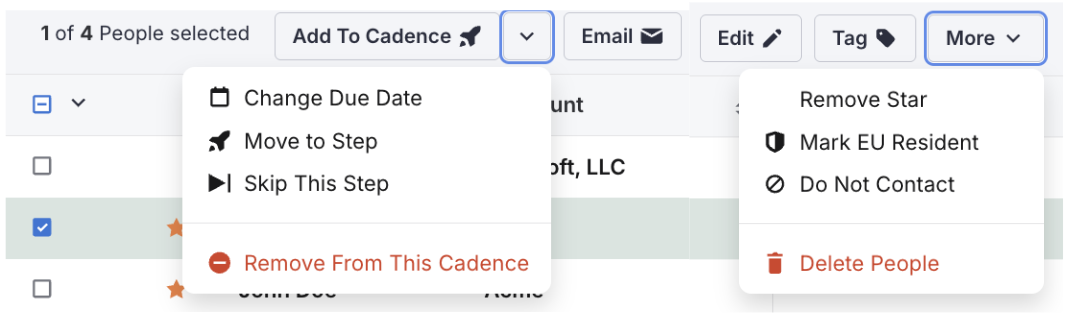
Figure 10: Cadence People Actions with dropdown menus open
|
Action
|
What It Does
|
|---|
|
Add to Cadence
|
Re-add the selected person or people to the current cadence
|
|
Change Due Date
|
Change the due date of a person’s step
|
|
Move to Step
|
Move the person to a different step in the cadence
|
|
Skip this Step
|
Advance the person to the next step
|
|
Remove from this Cadence
|
Remove the selected person or people from the cadence
|
|
Email
|
Send a one-off email to the person outside of the cadence
|
|
Edit — Accounts
|
Link the person to a Salesloft Account
|
|
Edit — Job Seniority
|
Update the person’s job seniority
|
|
Edit — Stage
|
Update the person’s stage
|
|
Edit — Tag
|
Assign a label to the person
|
|
Mark Star
|
Star the person to surface them at the top of the list
|
|
Mark EU Resident
|
Disables open tracking, click tracking, and Live Website Tracking for GDPR compliance
|
|
Do Not Contact
|
Adds the person to the Do Not Contact list — prevents emailing, calling, or adding to cadences
|
|
Delete People
|
Permanently delete the person from Salesloft
|
|
Reassign Remaining Steps
|
Change the assignee for remaining steps from one user to another
|
The Call tab shows call activity logged within this cadence, mirroring the general Calls page but scoped to this cadence only.
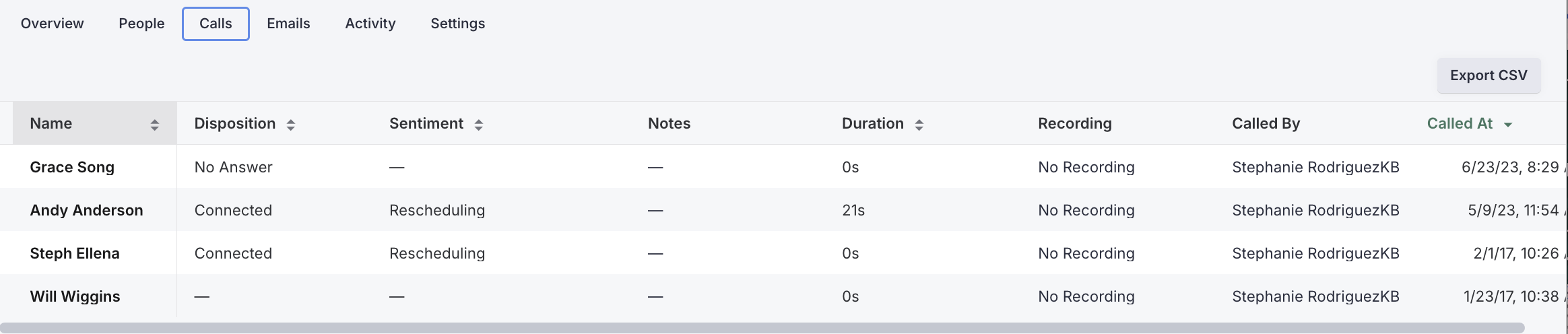
Figure 11: Cadence Call Tab list
|
Element
|
What It Shows
|
Action
|
|---|
|
Name
|
The person who was called
|
Display only
|
|
Disposition
|
The logged call disposition
|
Display only
|
|
Sentiment
|
The logged call sentiment
|
Display only
|
|
Notes
|
Any notes logged with the call
|
Display only
|
|
Duration
|
How long the call lasted, recorded in seconds
|
Display only
|
|
Recording
|
If recorded, click Listen to Recording to hear the call. Calls without recordings show No Recording.
|
Click to play
|
|
Called At
|
When the call took place
|
Display only
|
|
Export CSV
|
Downloads a CSV of all call data shown in the current view
|
Click to download
|
The Email tab shows email activity for this cadence, mirroring the general Emails page but scoped to this cadence only.

Figure 12: Cadence Email Tab list
|
Element
|
What It Shows
|
Action
|
|---|
|
To
|
The person who received the email
|
Display only
|
|
Subject
|
The email’s subject line
|
Display only
|
|
Status
|
Outcome of the email — Sending, Sent, or Cancelled
|
Display only
|
|
Sent At
|
Time the email was sent
|
Display only
|
|
Sent By
|
The Salesloft user who sent the email
|
Display only
|
|
Views
|
Number of times the email was opened
|
Display only
|
|
Clicks
|
Number of link clicks within the email
|
Display only
|
|
Replies
|
Number of replies received
|
Display only
|
The Activity Dashboard gives a comprehensive view of activity across a selected time range, split into three charts with listed metrics and period comparisons.
Each metric displays a period comparison — a percentage shown in green (increase) or red (decrease) relative to the selected date range.
|
Element
|
What It Shows
|
Action
|
|---|
|
Email Activity Chart
|
Trends for emails sent and bounces during the selected period. Metrics shown: emails sent and bounce rate. Hover over the chart to see daily totals.
|
Click legend items to show or hide metrics
|
|
Email Engagement Chart
|
Trends for opens, clicks, and replies. Metrics shown: open rate, click rate, and reply rate. Distinguishes between zero values and nulls.
|
Click legend items to show or hide metrics
|
|
Call Activity Chart
|
Trends for logged calls during the selected period. Metric shown: calls logged. Hover to see daily totals.
|
Click legend items to show or hide metrics
|
The Settings tab allows you to configure rules that apply to the entire cadence. The settings page mirrors the Create a Cadence page, so any setting defined at creation can be edited here.
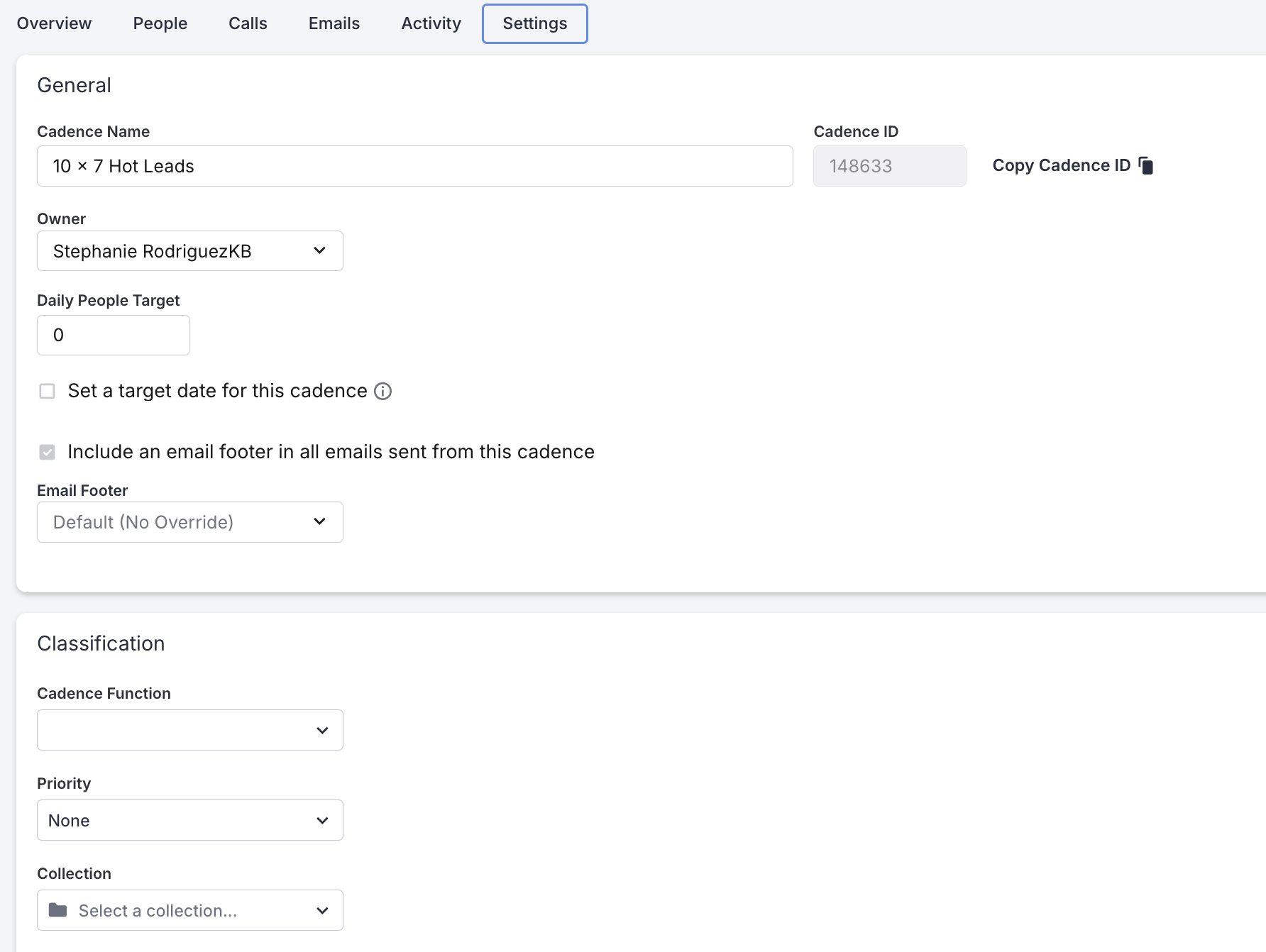
Figure 13: Top of the Cadence Settings Tab - General and Classification Settings
|
Element
|
What It Does
|
Action
|
|---|
|
General Settings
|
Edit the cadence name, owner, daily people target, and email footer settings
|
Edit and save
|
|
Artificial Intelligence Settings
|
Edit the cadence purpose and linked AI Knowledge Library files
|
Edit and save
|
|
Classification Settings
|
Edit the cadence function, priority, and tags
|
Edit and save
|
|
Sharing Settings
|
Edit the cadence type (Personal or Team) and group assignments
|
Edit and save
|
|
Automation Settings
|
Edit stage assignments and automatic removal rules for replies, bounces, meetings booked, and out-of-office detection
|
Edit and save
|
|
Advanced Settings
|
Edit the external identifier used for CRM reporting and activity field configuration
|
Edit and save
|
|
Archive Cadence
|
Removes the cadence from the active list while retaining all data
|
Click to archive — confirm in modal
|
|
Delete Cadence
|
Permanently deletes the cadence and all associated data. This action cannot be undone.
|
Click to delete — confirm in modal
|
Things to Note: Cadence Actions including Archive and Delete are only available to users with Manage Cadence permissions.
Understand the product:
- Salesloft Cadence — What cadences are, who uses them, and how they fit into your workflow
Take action from this view:
Related UI references:
