If you’d like to share People metrics outside of Salesloft, you may do so by exporting the People. Exporting will create a CSV file that can be downloaded and shared.
In this article, you will learn the various ways to export a People list and the information found in the People Export CSV file:
To export People records, you must have the Export People permission enabled for your role. This permission is enabled by default for the standard Salesloft admin and user roles.
If the permission is not enabled, you will not see the Export button on the People page.
The People Page contains a listview of People inside Salesloft. This list will show different results based on the filters applied to the list. By default, the list shows the people imported or assigned to you.
You may want to export People from the People page when you want to see a defined set of People since the export will comply with any set filter’s rules.
To export People from the People page, follow these steps:
- From the People page, filter and sort your list to your preferred view.
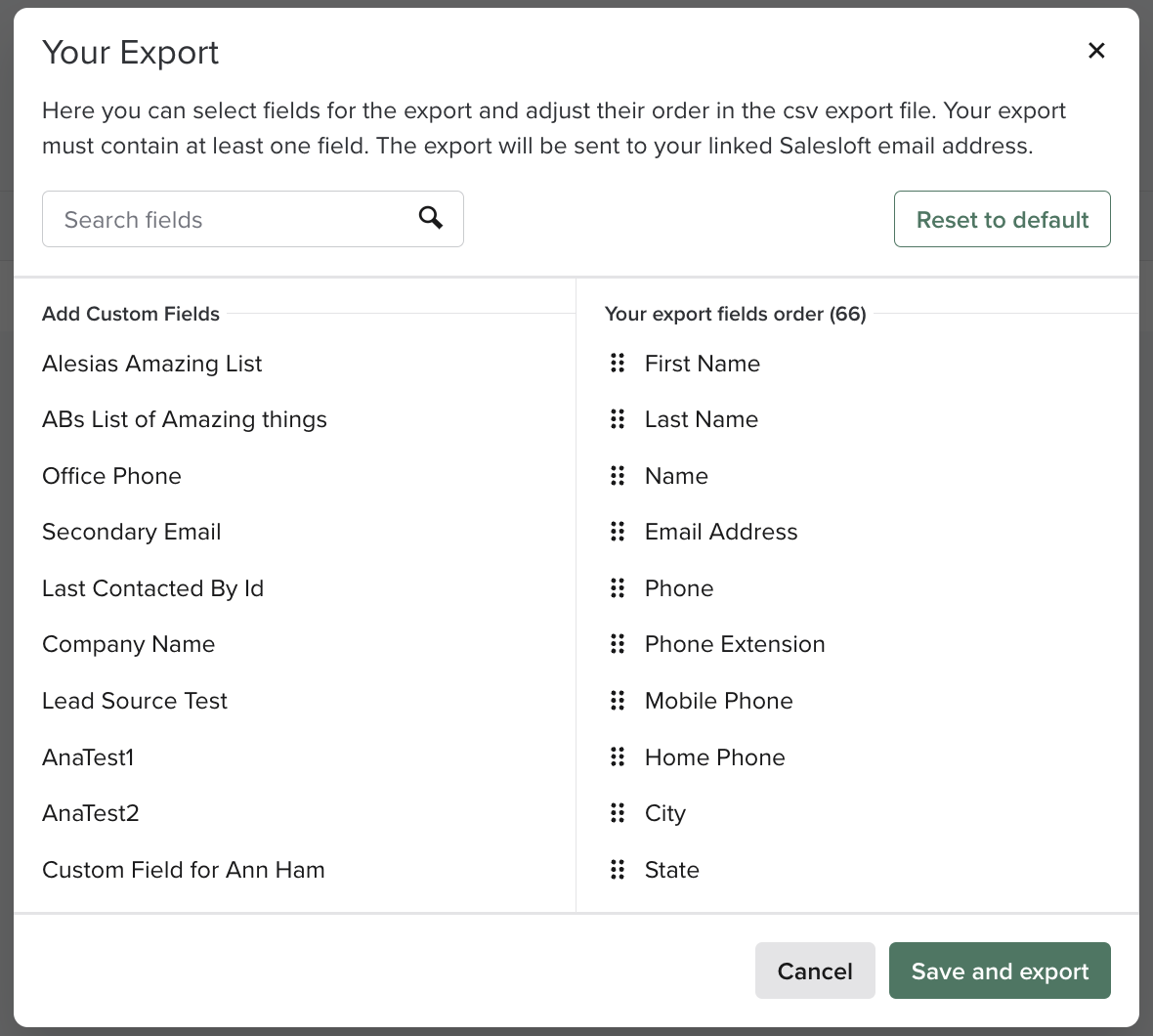
- Click Export in the right corner of the page. The Your Export window will appear.
- From the Your Export window, determine which fields will be included in the export. Here's what you can do:
- Search: Use the search bar to find specific fields and add them to the export.
- Add Custom Fields: Custom fields are listed in the left column. Hover over the custom fields then click the '+' icon to add them to the export.
- Remove Fields: The right column contains all of the fields that will be included in your export. By default, all of the standard fields are included. Hover over a field in this list and click the remove icon to remove it from the export.
- Once you've added your desired fields, click Export. A notification will inform you that the export will be delivered to your email.
- When you receive the email, click the link to download the export.
- Download the CSV included in the email.
Export People from a Cadence Overview
The People Actions in the upper right corner of your individual Cadence opens a dropdown menu so you can add or export People to the Cadence.
Exporting People from a Cadence is ideal if you need to share the impact of a specific Cadence.
Select Export People to create a downloadable CSV file of the People who are currently working or who have previously completed the Cadence.
Things to Note: The Export People function from the Cadence overview page will NOT export People that have previously completed the Cadence. If you would like to add filters to your export, you can do so only on the People Page or the Cadence People Tab.
When you click Export People, a notification will pop up informing you that the export will be delivered to your email address shortly.
Your People Export CSV file will include CSV standard fields and any custom fields you have created on the person record in Salesloft.
The standard fields found in your People Export CSV file include:
- First Name
- Last Name
- Name
- Email Address
- Phone
- Phone Extension
- Mobile Phone
- Home Phone
- City
- State
- Country
- Eu Resident
- LinkedIn URL
- Twitter Handle
- Personal Website
- Company
- Company URL
- Title
- Job Seniority
- Industry
- Work City
- Work State
- Work Country
- Has Replied?
- Has Bounced?
- Out of Office Till
- Do Not Contact
- Do Not Call
- Do Not Email
- Do Not Message
- Success
- Last Success date
- Last Contacted At
- CRM URL
- CRM ID
- Salesloft ID
- Time Zone
- Starred
- # Sent Emails
- # Email Views
- # Email Clicks
- # Email Replies
- # Calls
- Owner
- Owner CRM
- Person Stage
- Tags
- Created At
- Updated At
- Last Contacted By
- Last Contacted Type
- Import
- Import Name
- Active Cadences
- Most Recent Cadence ID
- Most Recent Cadence Name
- Last Completed Step Type
- Last Completed Step Number
- Last Completed Step Name
- Most Recent Cadence - Next Step Name
- Most Recent Cadence - Next Due Date
- Most Recent Cadence - Next Step Number
- Linked Account Name
- Linked Account Salesloft ID
- Linked Account CRM ID
- Linked Account Owner CRM ID
Consider Common Export Requests: Anticipate the types of People data your team might need to export and ensure the relevant custom fields are created and available for them to include in their exports.
