Archiving outdated or unused records in Salesloft allows you to declutter your workspace while retaining valuable historical data. Unlike deleting, archiving preserves important metrics and information associated with the records.
In this article, you will learn about archiving Salesloft records, including:
- To archive records, you must have a Salesloft account with the necessary permissions to archive objects.
- Once a Cadence is archived, any upcoming steps will appear as tasks in Rhythm.
- If an automated email was scheduled in a Cadence before the Cadence was archived, the automated email will still be sent at its scheduled time. You can cancel the email from the Emails Page.
- Any user assigned to a due or overdue step(s) associated with an archived cadence will no longer see those steps appear in their Rhythm Workflow or Cadence Focus Zone.
- Any Active Person in an archived cadence will be removed from that cadence.
- You can archive up to 100 cadences at once.
- By selecting the Archive and finishing out all remaining steps option, you will be able to edit cadence content up until all cadence steps are completed.
- Once a Cadence is archived, you cannot add People to it.
- When archiving a Cadence, if you choose the ‘Archive and finish out all remaining steps’ option, you will be able to edit Cadence content until all steps are completed.
Check out the following videos on how to archive objects in Salesloft:
Archive Accounts
Archive a Cadence
Archive Templates
Archive Snippets
Archive Object Instructions
You have the ability to archive, Accounts, Cadences, Templates, and Snippets inside Salesloft. Let's walk through the instructions to archive each object.
Archive Accounts
Salesloft offers the ability to archive Accounts. You may want to archive Accounts that are no longer in business or have gone through a merger. These use cases allow you to retain engagement metrics made toward the Account, and will keep you from contacting them again.
To archive Accounts, follow these steps:
- From the The Accounts Page, select the Account or Accounts by clicking the checkbox next to their name.
- Click the More button on the Account actions toolbar. A dropdown menu will appear.
- In the dropdown, click Archive.
- A prompt will popup to confirm that you wish to archive the Account. Click Archive.
Archive a Cadence
Salesloft allows you to archive cadences. Archiving cadences means you will no longer see the Cadence on your list view, but you retain all of your engagement metrics associated with that Cadence.
You should archive Cadences that are out of date, no longer relevant to your sales process, and even Cadences that performed poorly. All of those Cadences contain valuable data that should be saved.
Things to Note:
- Things to Note: Effective November 30, 2023, any Active Person in a cadence that was archived prior to June 12, 2023 will be removed from that cadence.
- Once a Cadence is archived, any upcoming steps will appear as tasks in Rhythm.
- If an automated email was scheduled in a Cadence before the Cadence was archived, the automated email will still send at its scheduled time. You can cancel the email from the Emails Page.
- Any user assigned to a due or overdue step(s) associated with an archived cadence will no longer see those steps appear on their Cadence Panel via the Home Dashboard.
- Users can leave people active, or remove them when archiving cadences.
To archive a Cadence:
- Open the Cadence list.
- From the Cadence list, there are three ways to archive Cadences, including:
- Check the box beside each Cadence you want to archive, then click Archive.
- Click the down arrow to the right of the Cadence Name, then select Archive.
Things to Note: Archiving a Cadence removes it from your Cadence list view, but you can view archived Cadences by selecting "Include Archived" under the filtering option.
Figure 1: Archive Cadence
Archive Templates
To archive templates:
- Select the template or templates by clicking the checkbox next to their name.
- Click the Archive icon. Archiving a template removes it from your template list view.
Archive Snippets
To archive snippets:
- Select the snippet(s) by clicking the checkbox next to their name. The actions will appear at the top of the table.
- Select More.
- Click the Archive icon. Archiving a snippet removes it from your list view.
Unarchive Object Instructions
If you ever want to bring a record out of the archive, you can "unarchive" the record.
To unarchive records, filter the listview to include Archived items. Select the archived item. Follow the same steps as you did when you archived the item, however this time the action will say Unarchive instead.
Once an item is unarchived, it will appear in your listview by default and you can perform actions with the item again.
Additional Information: Archive in Salesloft
- Archiving retains all data associated with the record, unlike deleting.
- Archived Cadences cannot have new people added to them.
Bulk Archive Cadences
You can also archive cadences in bulk. Bulk archiving cadences will remove them from the default cadence list and the add to cadence modal. It will also prevent any new people from being added to the cadences.
Things to Note:
- Effective November 30, 2023, any Active Person in an archived cadence will be removed from that cadence.
- You can archive up to 100 cadences at once.
- When cadences are bulk archived
To bulk archive cadences:
- Check the box beside each cadence you would like to archive. You can also check the box at the top of the cadences list to remove all cadences at once.
- Click Archive.
- Choose one of the following archive options:
- Archive and finish out all remaining steps
- Things to Note: By selecting the Archive and finish out all remaining steps option, you will be able to edit cadence content up until all cadence steps are completed.
- Users can leave people active, or remove them when archiving cadences.
- Archive and remove all remaining steps
- Things to Note: The Removing selected cadence(s) and all remaining steps option is not reversible.
- Hit Archive Cadences.
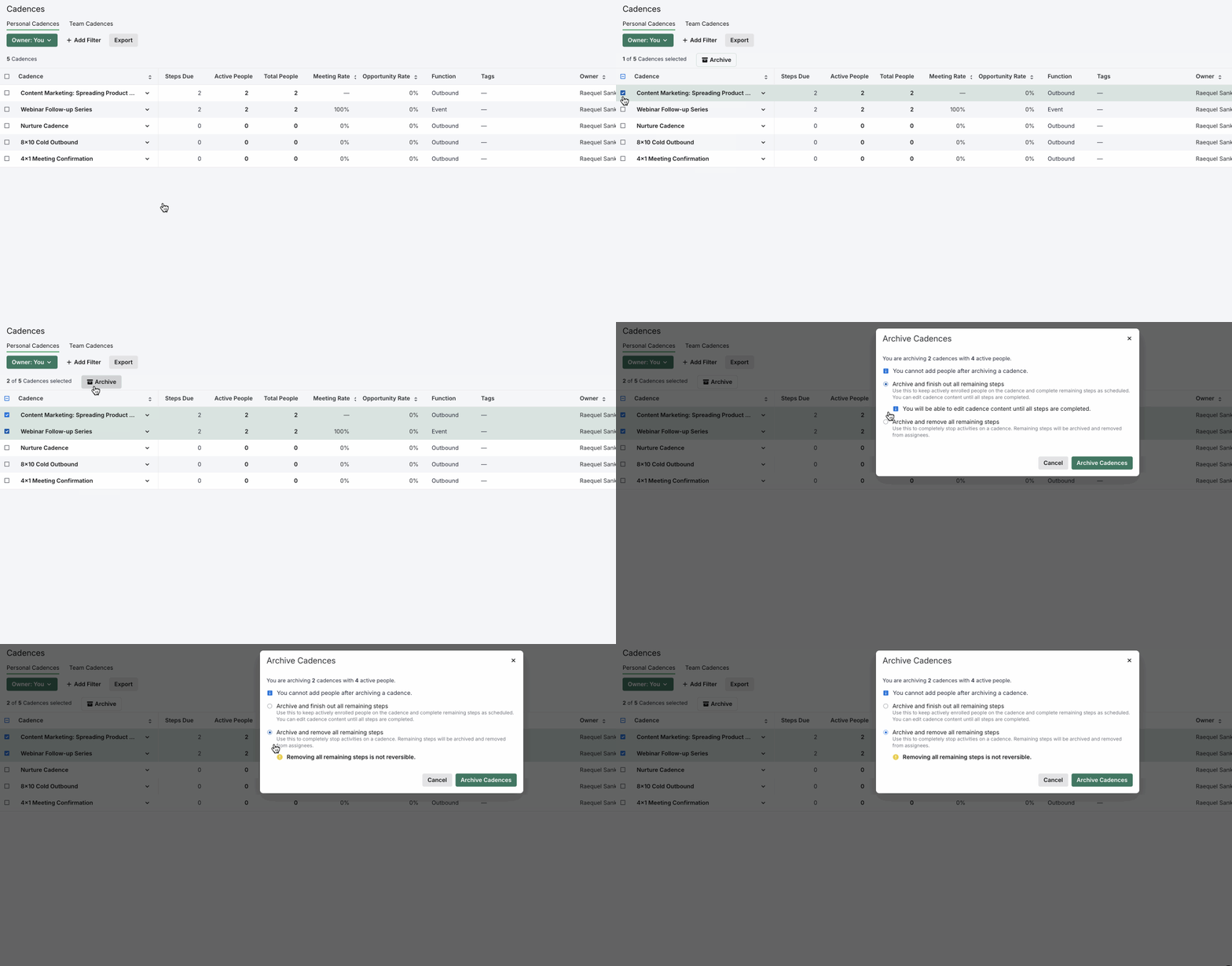
Figure 2: Archive Cadences in Bulk
Include Archived Items in your Listview
Once an Account has been archived, the Account will be hidden from the listview unless you add the Include Archived filter option. When archived Accounts appear, the archive icon will appear to the left of the name in the list.
Figure 3: Include Archived Filter
Next Steps
- Regularly review and archive outdated or unused records to maintain a clean and organized workspace.
- Utilize the "Include Archived" filter to access and analyze historical data.
