If you are on a call and learn about a new manager you should be communicating with, would you rather go through the bulk import steps or manually add that Person and their primary contact information so you can engage with them quickly?
In Salesloft, you can manually create a single Person. Manual adding a Person lets you create the Person in Salesloft using their contact information (phone number and/or email address).
In this article, you will learn how to create a Person in Salesloft. This article includes:
- You must have a Salesloft account with permission to create People.
- If you do not see the ability to Create a Person, ask a team admin to check the Import Options found in the General Settings. The Import Manually option must be enabled to allow individual Person creation.
- You must provide at least an email address or a partial name and phone number to create a Person.
- If you don't enter an email address, Salesloft checks whether a Person with the same first name, last name, and phone number already exists. If one does, the new Person isn't created. See Additional Information below.
- A unique email is required for each Person record. In Salesloft, an individual's email address serves as their unique identifier. Using the same or generic email address for multiple Person records may result in errors.
- Important: Admins in Salesloft have the ability to make any standard or custom Person field a required field via Field Configuration Settings. If a field is marked as required, you will not be able to save a Person record without completing that field.
- If you don't enter an email address, enter the first name, last name, and phone number so Salesloft can check for an existing Person.
- If Salesloft finds an existing Person with the same first name, last name, and phone number, a message tells you the Person already exists, and the new record isn't created. Select View to open the existing record.
- Salesloft matches on email first. If no email is entered, it matches on first name, last name, and phone number.
- If two different people share a name and phone number, add an email address to one of them so they aren't treated as the same Person.
To create a Person in Salesloft, follow these instructions:
- Go to the People Page: In Salesloft, navigate to the People page by going to Contacts in the top navigation bar and selecting People.
- Click "Create People": Click the Create People button in the upper right corner. A dropdown menu will appear.
- Select "Create Person": Choose the Create Person option. The Create Person module will appear.
- Enter Primary Details:
- Email Address: Enter the person's email address.
- First Name, Last Name: Enter the person's first and last name.
- Office Number and Extension: Enter their office phone number and extension (if applicable).
- (Optional) Additional Phone Numbers: Click "Show Additional Phone Fields" to add mobile or home phone numbers.
- Complete Additional Fields:
- Related Account: Link the Person to an existing Account or enter a Company Name (this will not create a new Account).
- Owner: Assign a Salesloft user as the owner of this Person record.
- Job Title: Enter the person's job title.
- Job Seniority: Choose to automatically set the job seniority or select a specific level from the dropdown.
- Location: Enter the person's city, state, and country.
- Timezone: Select the person's timezone.
- Things to Note: Depending on your Salesloft Admin's settings, you may be required to complete additional fields before you can create a Person. Required fields will be clearly indicated on the Person Creation form, and you will be unable to save a record without populating these fields.
- Create the Person: Complete the process and add the Person into Salesloft. You have the following options:
- Create Person: Click Create Person to add the Person to Salesloft.
- Create and Add Another: Click to create the Person and open a new module to add another Person.
- Cancel: Click to close the module without creating the Person.
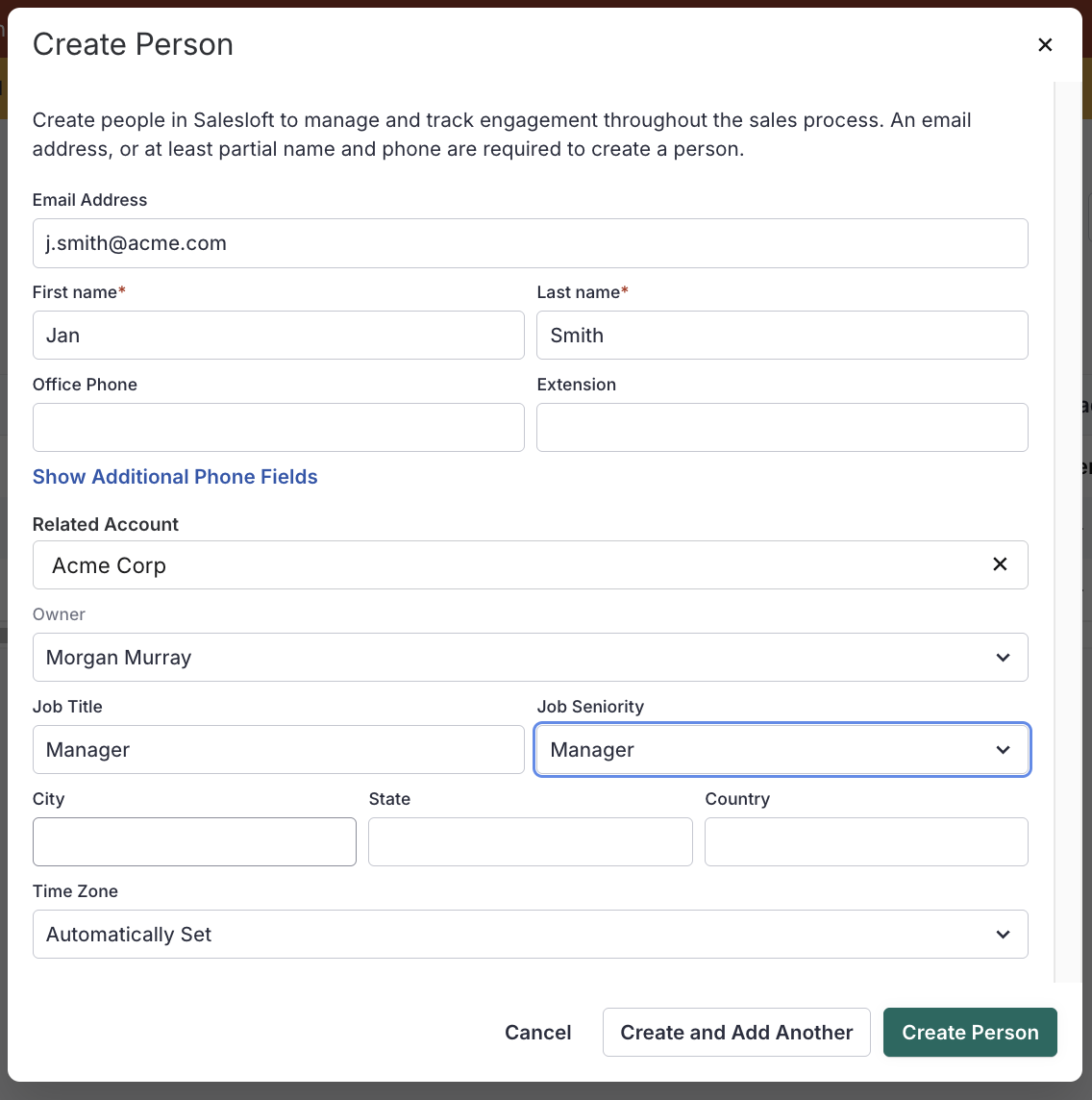
Figure 1: Create a Person
- The "Related Account" field links the Person to an existing Account in Salesloft.
- Salesloft Admins can make any standard or custom Person field a required field. This means that users will be unable to create a Person if these fields are not filled in.
- Link the Person to their CRM record
- Assign a task for the Person
- Add the Person to a Cadence
