An individual Person Profile Page is built up of smart panels that contain a whole lot of information and actions you can take to improve your engagement. The activities panel, located in the center of the profile page, holds the Activity Feed. This feed offers a detailed look into all of the activities logged on this Person.
The activities panel contains an overview tab followed by tabs that allow you to see specific activities at a granular level. The activity feed also displays information on how the activities were completed. You have complete visibility into a Person's Salesloft history with insights on whether an activity was completed manually by you or another Salesloft user, through a Cadence, or an Automation Rule.
The tabs at the top of the Activity Feed allow you to quickly access and view certain activities on one page. These tabs are perfect for filtering by a specific type of action. For example, you could review all of your calls logged to a Person or keep track of their Cadence activities.
In this article, you will learn all about the activities you can view and complete from the Person profile Activity feed, including:
Before you start viewing Person activities, there are some important things you should know:
- The View Account option will not appear if the Person is not linked to an Account in Salesloft.
- When an activity is pinned for a Person, it appears in the Pinned Activities section on the Person Profile and Account Profile.
- Only an admin or the user who originally pinned an activity can unpin it.
- The Expand All option will apply to the Calls and Notes tabs.
- Only Signals generated on or after the beginning of August 2025 will appear in the Activity feed.
- Signals seen in the activity feed include standard Salesloft signals (e.g., email reply, missed call) and signals that come through the Signals API (from both partners and customers).
- Signals in the activity feed do NOT include Opportunity records or No Code/CRM Signals.
The Person Activity Feed is the central hub for tracking all interactions with an individual Person in Salesloft. The first tab in the Activity feed displays recent activities relevant to the Person. To find specific activity types (Emails, Calls, Notes, etc.), use the dedicated tabs found at the top of the Person Activity feed.
To view Person activities on the Person Profile page, follow these steps:
- Navigate to the Person's Profile Page: Go to the Person's Profile page to view their Activity Feed. Any activity—from adding them to a Cadence to logging a call or marking them as a success—will appear in this feed.
- View the Activity Feed: The center panel of the Person Profile Page displays the main Activity Feed.
- View activities by Activity type: Use the Specific activity tabs for additional research. The Person Profile Page includes the following activity types:
- Emails Tab: Dedicated view for all sent emails, replies, and engagement metrics.
- Calls Tab: Dedicated view for all logged calls, notes, and recordings.
- Cadences Tab: Dedicated view for seeing current and past Cadences.
- Tasks Tab: Dedicated view for managing one-off tasks.
- Notes Tab: Dedicated view for creating and managing notes on the Person record.
- Reviews Tab: View any Review Record tasks assigned from Plays.
- Meetings Tab: The Meetings tab shows meetings that have been scheduled using calendar sync.
- Conversation Tab: Go to the Conversation tab to see recorded meetings logged to people on the account. You can view the meeting from the Activity Panel or access the full recording and details.
- Signals Tab: Shows all signals that come through the Signals API associated with a person or account.
- Live Web Tracking Tab: Shows a timeline of the Person's website activity (if enabled).
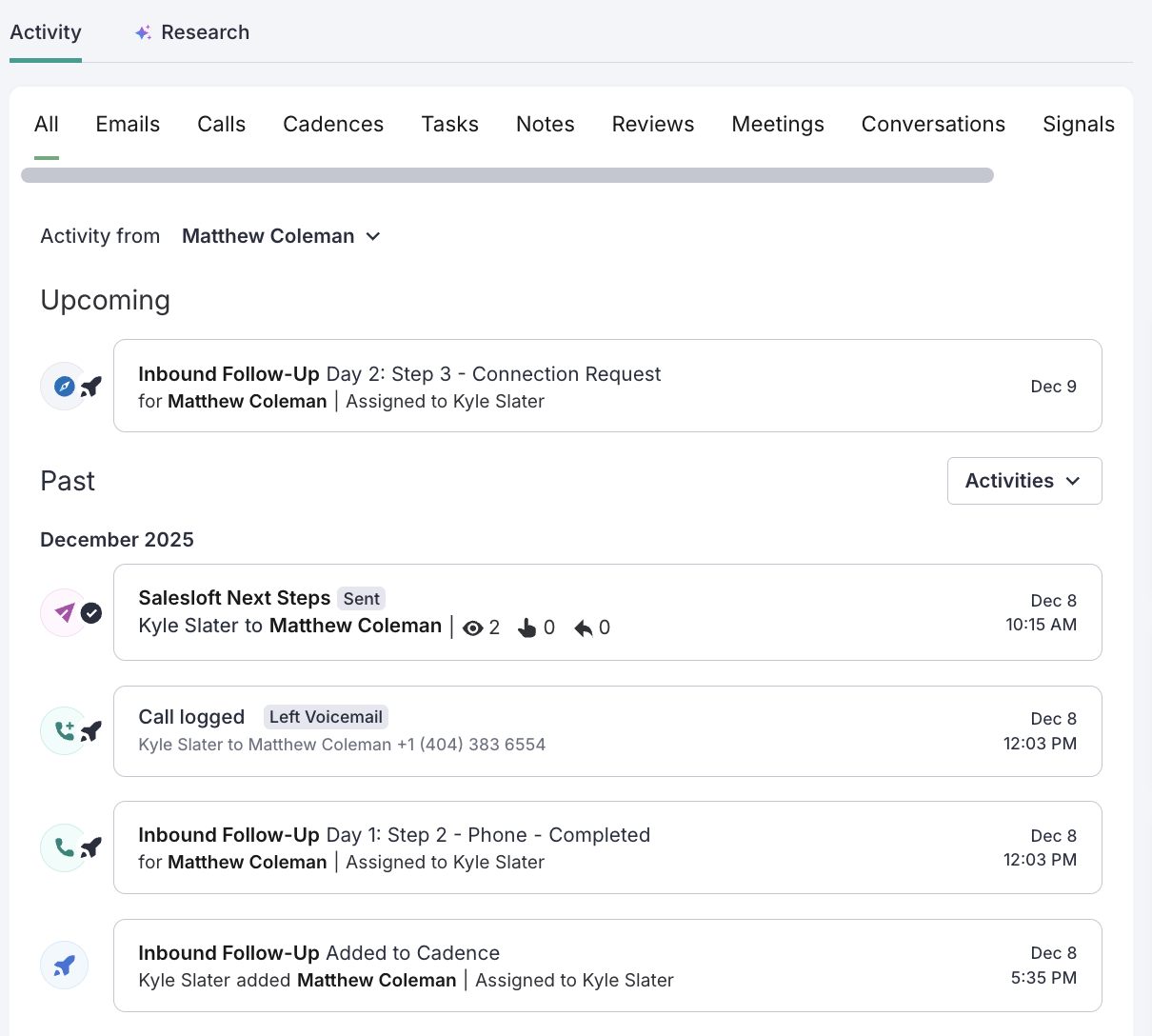
Figure 1: View the Person's activity feed
Switch Between Person and Account Views
You can switch the Activity Feed to show all activity related to the Person's linked Account, which is crucial for a complete sales history.
- Go to the Person's Profile Page: Ensure you are on the Person's Profile page.
- Locate the View Filter: In the upper left corner of the Activity feed, find the Person/Account filter. It defaults to the Person view.
- Switch to Account View: Click the button to open the dropdown menu, and then click Account to view the Account Activity history. The filter button will now display Account.
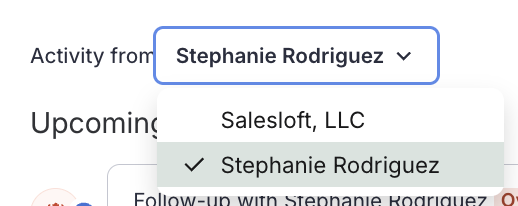
Figure 2: Switch between Person and Account Activities
By default, when you view email replies, notes, and calls, the full activity description is shown. This is known as the Expanded View of the activity since it shows more details like the entire email message or complete note.
If you would like to see less information in your activity feed, you can switch the Activity Feed to the Compact View. The compact view will show the first couple of lines of the activity. You can still click the activity to expand the details.
To switch to the Compact View in the Person activity feed, follow these steps:
- Go to the Activity Feed: Access the Person Profile Page and locate the activity feed in the center panel.
- Access the Settings: Select the cog icon (settings) in the upper right corner of the Activity Feed panel.
- Enable Compact View: Enable the Compact View option. This setting will apply to all Person and Account profiles you view.
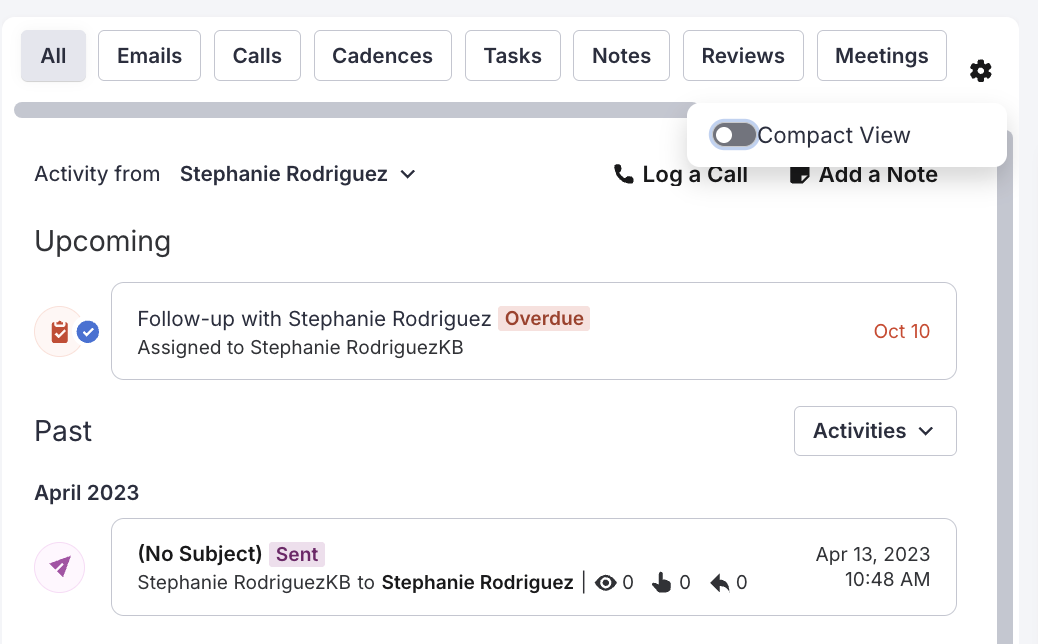
Figure 3: Enable Compact View
The Upcoming section displays Cadence steps and one-off Tasks that are assigned for a future date.
To see scheduled activities and tasks, view the Upcoming section of the Activity Feed.
- Go to the Person Profile Page Activity Feed: Access the Person Profile Page and locate the activity feed in the center panel.
- Locate the Upcoming Section: The Upcoming Actions will be displayed at the top of the Activity feed sections. By default, you will see three activity tiles.
- View All Future Actions (If applicable): If there are more actions scheduled than the three displayed tiles, click the View All button at the bottom of the Upcoming Actions to see all actions that are due.
- Perform Actions (optional): Hover over the upcoming task to view possible actions. Click the action name to open the activity and perform the action.
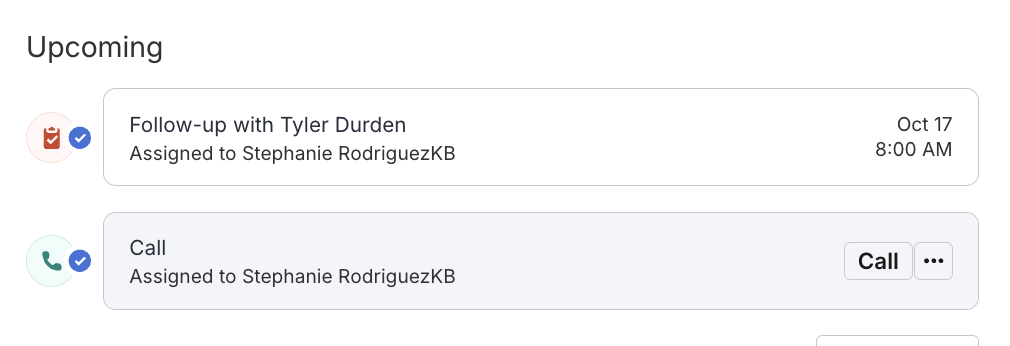
Figure 4: Upcoming activities
The Past section includes all activities that have been previously logged to the Person and will appear below all Upcoming Activities in the Activity Feed. You can modify the view to see specific types of activities.
To modify the past activities view, follow these steps:
- Go to the Person Profile Page Activity Feed: Access the Person Profile Page and locate the activity feed in the center panel.
- View the Past Section: Locate the Past section of any tab in the Activity feed. Past activities will be split by month in the Activity Feed.
- Filter Date (Optional): Click the Date button to filter past activities.
- Things to Note: The Date filter button will only appear in the Activity Feed for Meetings, Emails, Notes, and Conversations.
- Filter Activities (Optional): Click Apply to filter the view. The filter uses "and" logic, meaning if you select multiple options, you will see all activity types selected. Inside the Past section, you can filter activities by activity type:
- Engagement: History of touches and interaction.
- Cadences and Tasks: History of completed Cadence steps and Tasks.
- Other: Specific activities like Success, DNC, or EU Resident.
- Remove the Filter: To clear the filter, click the X listed on the filter button.
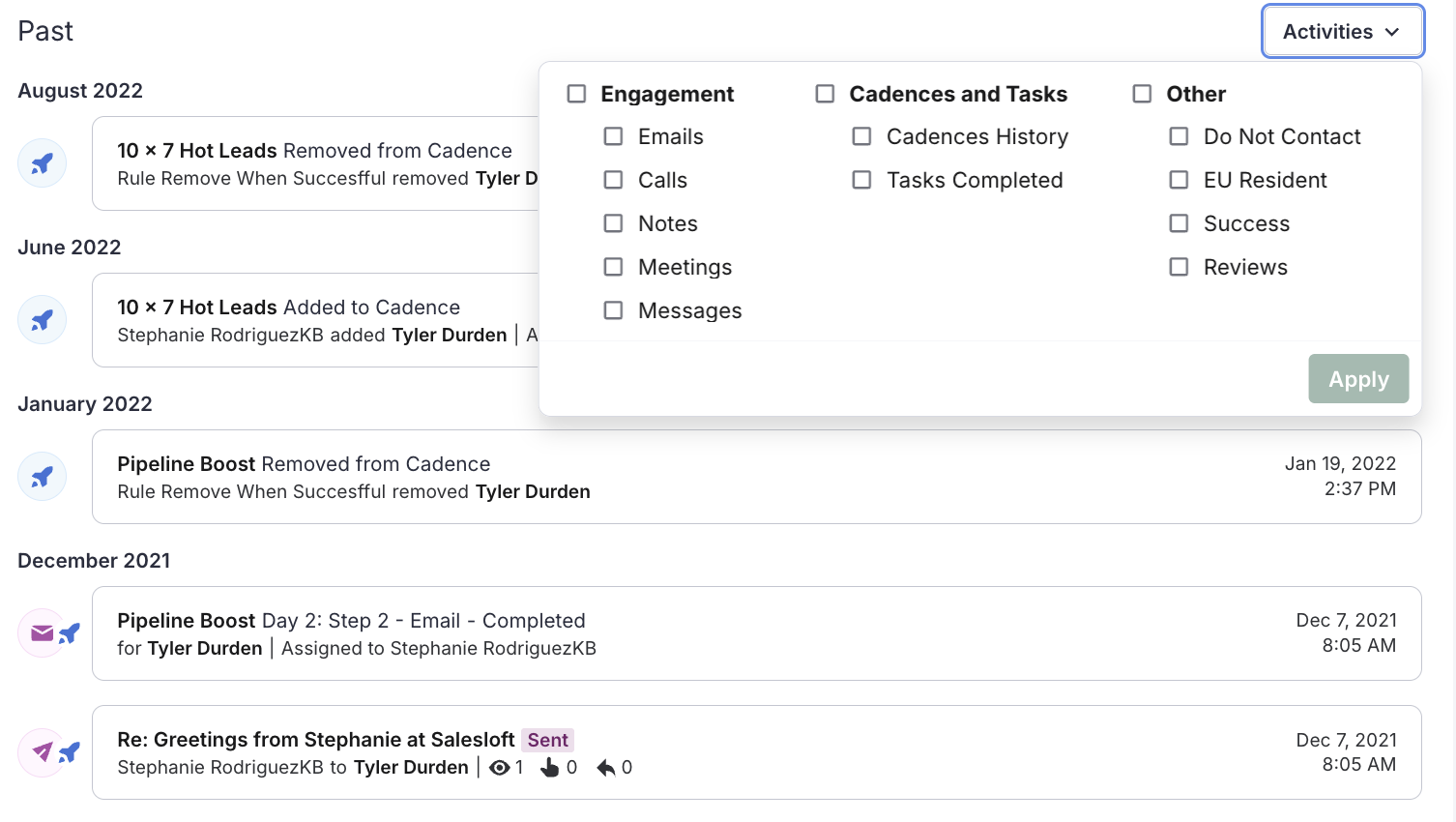
Figure 5: View Past Activities
To highlight and easily access important notes, calls, or emails, use the pin feature.
- Locate the Activity: Find the note, call, or email you wish to highlight in the Activity Feed or its dedicated tab.
- Pin the Activity: Hover over the activity and select the pin option. The activity will now appear in both the Pinned and Past sections.
- View Pinned Activities: Go to the Pinned section of the main Activity tab to see all highlighted items, sorted by the activity date (most recent on the top).
- Unpin the Activity (Optional): To remove an activity from the Pinned section, hover over it and select the unpin option.

Figure 6: Pin an Activity in the Person Profile Activity Feed.
To learn more about the various activity types and actions you can take from the Activity Feed, check out the Logged Activities Inside the Activity Feeds article.
Each activity tile displays the following:
- Activity icon
- Name of Activity
- Date and time: For upcoming activities, this will show the due date. Past activities will show when the activity was completed.
- Description of the Salesloft activity
- Salesloft user who performed or triggered the activity
- Email activities nestled under the Past section of the tab can be filtered to view specific types of email activities. To use the Email filter, select your preferred filter(s) from the following options:
- Sent
- Replies
- Received (Inbound Sync)
- Call activities nestled under the Past section of the tab can be filtered to view specific types of call activities: Calls Logged and Voicemails Received
