Job Seniority uses a predictive model that takes job titles and predicts the level a prospect is on within a company's hierarchy. Our model has been trained and tested on 1 million data samples of job titles with an accuracy of a 99.98% match to relevant seniority.
Only a new Person record being created will trigger the seniority prediction model.
If a Person’s title changes or the Job Seniority is incorrect (it happens), update the Person’s job seniority. This will not only keep your information up to date, but it also teaches the Job Seniority model.
In this article, you will learn about the job seniority field and how to update it, including:
Before you Updated Job Seniority
- The Job Seniorities cannot be edited. They are a set of defined data used for predictive behavior. See the list of available Job Seniorities in the Additional Information section.
- Before you can update job seniority, you must have the Generative Artificial Intelligence setting enabled.
- Job Seniority will only populate when a Job Title is provided upon a Person record being added (aka when you import or add a Person).
- Job Seniority can be predicted for a Person when they are created in Salesloft. The model uses a minimal amount of data to predict the job seniority.Examples of when the model will predict:
- When a Person is created through Salesforce Sync, and a job title has been added.
- When a Person is created manually in Salesloft, and a job title has been added.
- When a Person is created on import, and a job title has been added.
- Updating the job title on existing Person records will not trigger the model to predict a seniority. So, if a prospect is promoted and you edit their job title, you will also need to edit their Job Seniority.
For an overview of how to update job seniority, check out the video below:
While Salesloft will predict the Job Seniority of a prospect upon import, you can always manually change Job Seniority on a Person. Any changes will never be overwritten unless you manually change it again.
You can edit a Person's Job Seniority from the following places in Salesloft:
- People List found on the People page and the Cadence People tab
- Person Profile page inside the Edit Person Details page
To edit the Job Seniority from a People list, follow these steps:
- Go to a People List: Go to the People Page or the People tab Inside a Cadence.
- Select the Person (or People): Click the checkbox(es) next to the name(s) you want to update the Job Seniority for .When you select a Person, a line of People action items will appear at the top of your list.
- Select “Edit”: Click the Edit button from the top bar. The Edit People module will appear
- Choose the Job Seniority: Click the Job Seniority dropdown. Select a seniority level from the options.
- Save: Click Save. A message will appear to confirm the Job Seniority was updated.
To edit the Job Seniority from the Person Profile page inside the Edit Person Details page, follow these steps:
- Go to a Person Profile Page in Salesloft: You can access a Person’s profile page by selecting a Person’s name from anywhere within Salesloft.
- Open the Edit Person Details: Scroll down to the Person Details panel and click the Edit button.
- Edit the Job Seniority: Use the dropdown menu under Job Seniority to add or change the Job Seniority.
- Save: Click Save.
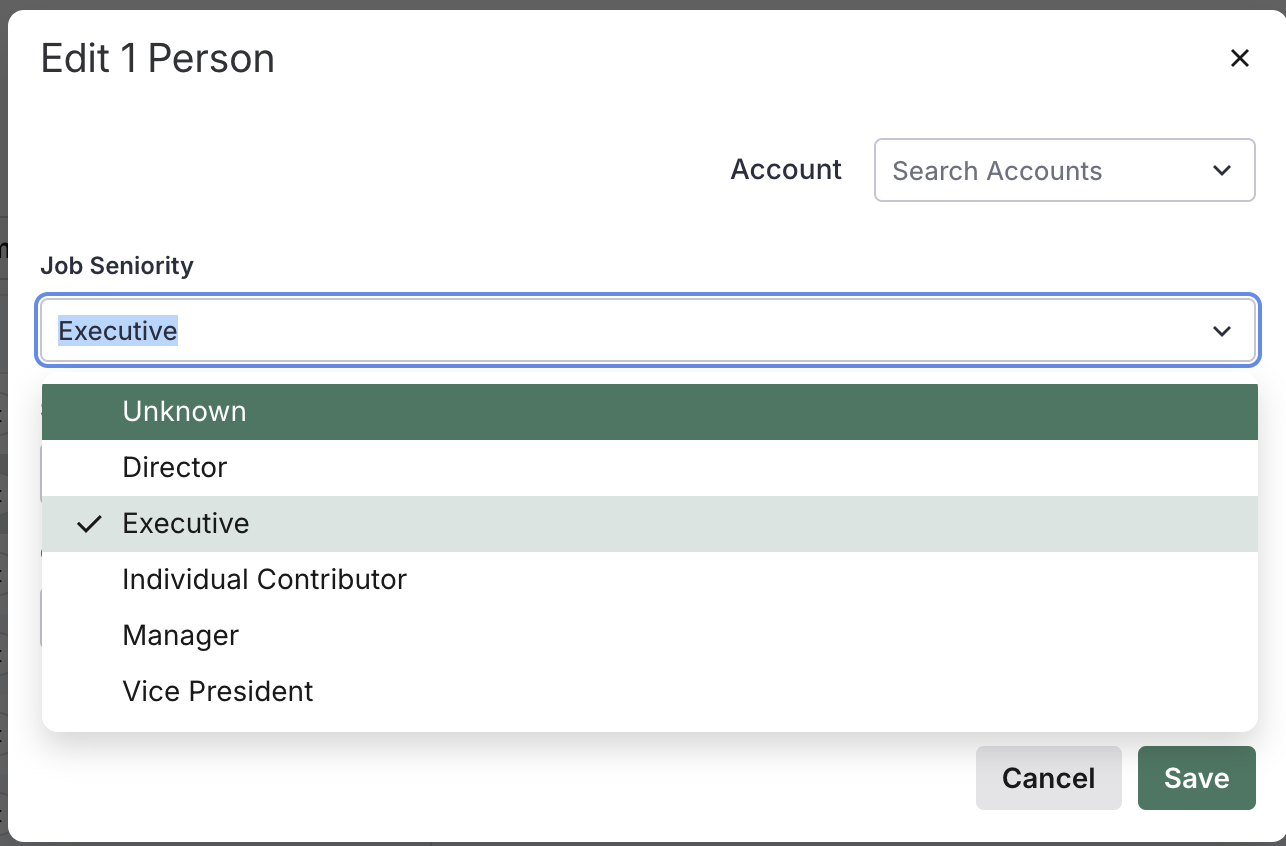
Figure 1: Job Seniority dropdown menu
Salesloft has defined a set of job seniorities that are standard across most industries. Using these seniorities, a sales rep is able to create a more targeted and customized Cadence for each persona.
The set of seniorities that Salesloft has identified to be the standard across many industries include:
- Individual Contributor: Examples include Sales rep, Sales Analyst, Account Executive
- Manager: Examples include Sales Manager, Senior Manager of Marketing
- Director: Examples include Director of Sales, Director of Engineering, Marketing Director
- Vice President: Examples include Vice President of Services, VP of Sales
- Executive: Examples include CEO, COO, Chief Human Resources Officer
- Unknown: Unknown means that the job title provided was not recognized by our algorithm. A purple diamond will appear next to the word Unknown on the People page and the Person Profile page. Click the diamond to select an applicable Job Seniority.
Figure 3: Job Seniority Column in a People list)
- Review Existing People Records: Look at your existing People records. Identify which ones have the "Job Seniority" field populated and which do not.
- Identify "Unknown" Seniorities: Look for the purple diamond icon next to "Unknown" in your People lists and Person profiles. Click on these and try assigning the correct seniority to teach the model.
