Salesloft tracks your activities and associates them with the relevant People. The Shared Activity Syncing setting extends this capability, and allows you to associate activities with multiple People.
Shared Activity Syncing ensures that emails and meetings involving multiple People are accurately recorded in Salesloft and Salesforce, providing a complete view of interactions across your team and contacts. This feature is crucial for maintaining data integrity and gaining accurate insights.
In this article, you will learn how to associate activities with multiple People, including:
- An admin must enable the Shared Activity Syncing setting in Salesloft and the Shared Activities setting in Salesforce. Check out these articles for details on enabling settings inside Salesloft and Salesforce:
- These settings allow all email recipients and meeting attendees who have a Person Profile Page in Salesloft and a Contact Record in Salesforce to be recognized and associated with any activity that includes them.
Salesloft will only log recipients who have a Person Record. - Salesloft will only log recipients who have a Person Record.
Multiple People can be associated with both Email and Meeting activity. Let’s walk through how to associate multiple people with both types of Activity.
Associate Multiple People with an Email
Once Shared Activity Syncing is enabled in Salesloft and the Shared Activities setting is enabled in Salesforce, Salesloft will automatically begin associating all email recipients who have a Person Record with activities that involve them.
To begin associating multiple people with an email activity, start by composing an email in Salesloft.
From the email window, you can click the dropdown in the CC field to see a list of potential recipients, i.e. email addresses in the same account as the recipient in the To: field. The name of CC recipients who have a Person Record in Salesloft will be highlighted in green. This also means that their email will log to SFDC.
You can also type the email address of a different account and Salesloft will identify if that person exists in Salesloft - if they do, the recipient’s email address will appear in the same format of First Name Last Name in green pill.
If an email address does not correspond to an existing person record in Salesloft, their name in the CC field will appear gray to indicate that no logging will occur.
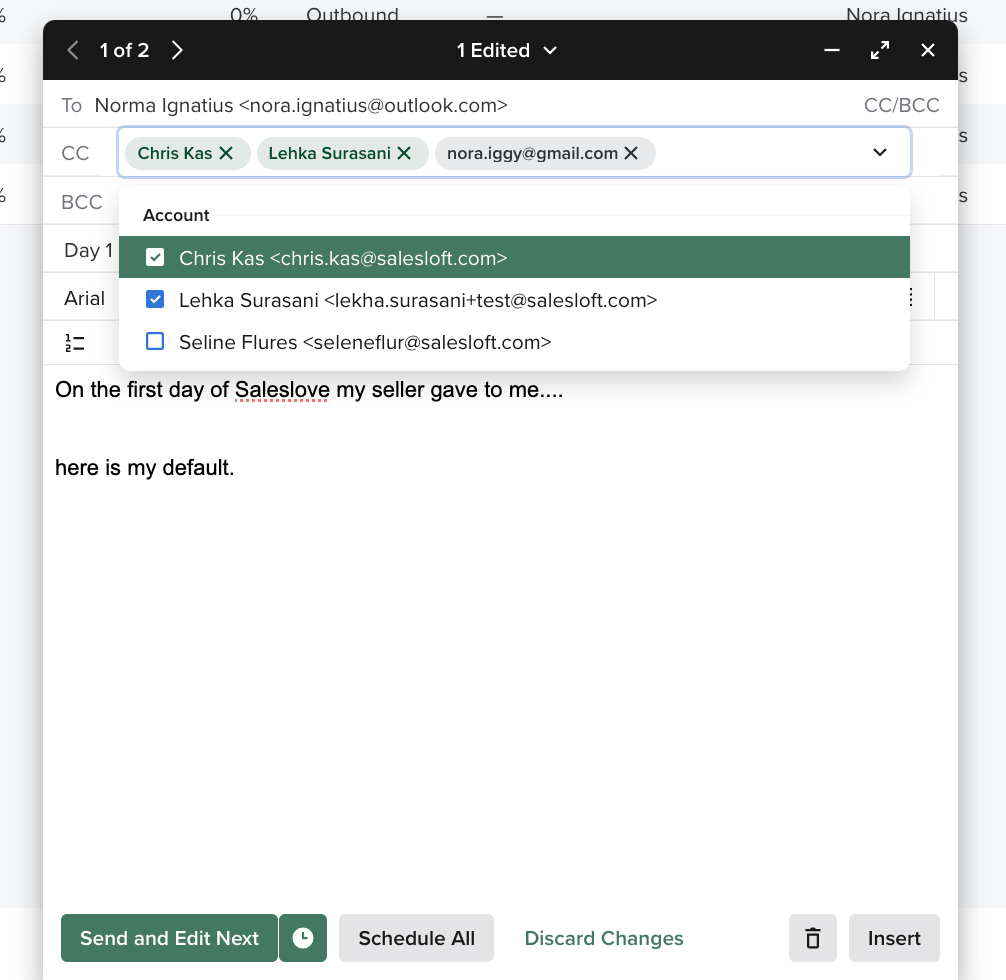
Figure 1: Associate Multiple People with an Email
Associate Multiple People With a Meeting
Once Shared Activity Syncing is enabled in Salesloft and the Shared Activities setting is enabled in Salesforce, Salesloft will automatically begin associating all meeting attendees who have a Person Record with activities that involve them.
To begin associating multiple people with a meeting, you’ll want to start by scheduling a meeting with someone in Salesloft.
You can add additional attendees from the Attendees section of the meeting invite. The activity will appear on the profile page of any additional attendee who also has a Person Record.
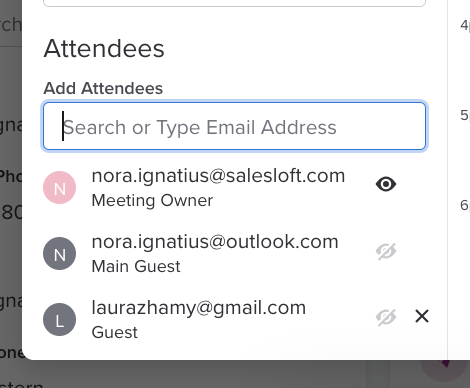
Figure 2: Associate Multiple People With a Meeting
Additional Information: Associate Multiple People with an Activity
Shared Activity FAQ
Here you can find frequently asked questions and answers regarding how shared activity logs to Salesforce.
Q - Does shared activity sync log to multiple lead records as well as contacts?
A - Enabling shared activities in Salesforce allow you to relate multiple contacts to Events and Tasks, up to 50 contacts but only one lead.
Q - Will shared activity sync create duplicate activities when reporting in Salesforce?
A - With shared activities enabled a single event in Salesforce will be created, encompassing all associated contacts. If shared activities is disabled and users have calendar sync enabled, parent and child events will be created and you can filter these out in reporting.
Q - Do internal participants in meetings sync to Salesforce? What does that look like with this enabled or disabled?
A - With standard activity logging, all leads and contacts associated with a person in Salesloft and linked to Salesforce will be automatically added as an attendee if they are included in the meeting invite. If the record exists in Salesloft but not in Salesforce, an attendee will not be added and vice versa. Internal attendees will be added to the event as an attendee if they have a Salesforce connection and Calendar Sync enabled. With shared activities enabled Salesloft will no longer populate the attendees field in Salesforce. If you want to see internal participants, you would have to create a Salesforce record for those internal attendees.
Q - What needs to happen for the meeting event to sync to Salesforce if the meeting is booked outside of Salesloft?
A - In order to sync the event to Salesforce, the organiser of the event must have calendar sync enabled and have Salesforce connected.
View Shared Activities in Salesforce
With the Shared Activities Syncing setting enabled in Salesloft and the Shared Activities setting enabled in Salesforce, emails and meetings will automatically be synced to related Contact Records inside Salesforce.
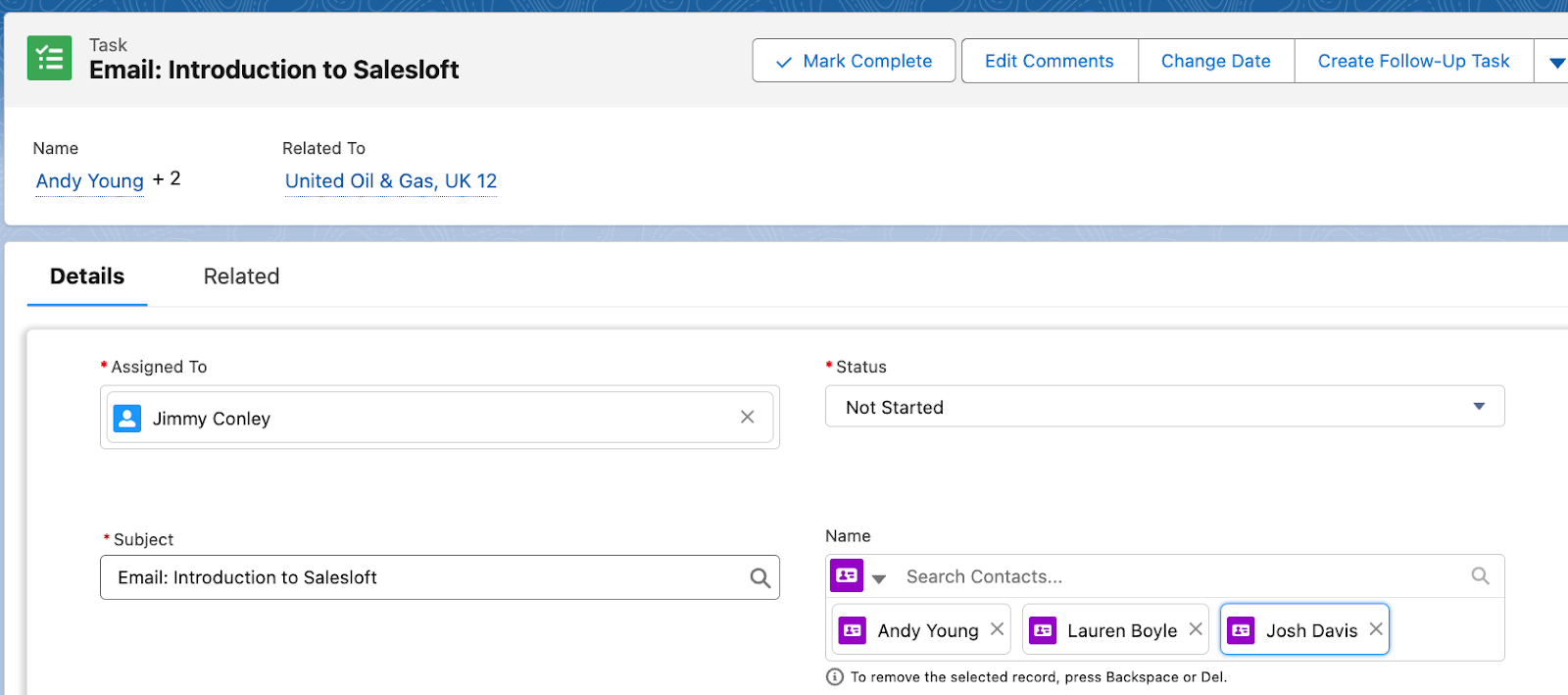
Figure 3: Shared Activities in Salesforce
