Running a task in Salesloft executes the action — opening the Dialer, launching an email compose window, or prompting you to log a general activity — and automatically logs the completed event to your CRM. Use this guide to run tasks from the Person profile page, the Rhythm Focus Zone, or the Rhythm Sidebar.
After completing this guide, you will be able to:
Run a Call, Email, General, or LinkedIn Sales Navigator task from a Person profile page
Execute tasks from the Rhythm Focus Zone
Work through your task queue using the Rhythm Sidebar
This article includes:
From the Person Profile Page:
1. Navigate to the Person record: Open the profile page of the Person the task is assigned to.
2. Locate the task: Find the task in the Upcoming Activities panel and hover over it.
3. Run the task: Click the action button that appears based on task type:
- General Task: Click Open, a task window appears with any notes you added at creation. Choose one of the following to complete it:
- Log and Complete: logs the task to the Person record and creates a notes artifact if notes were added
- Complete Only: creates a notes artifact if notes were added; does not log to the Person record
- Log Only: logs the task to the Person record without creating a notes artifact
- Call Task: Click Call: the Salesloft Dialer opens with the Person's number pre-populated
- Email Task: Click Email, an email compose window opens; type a message or insert a template
- LinkedIn Sales Navigator Task: Click Open, a LinkedIn Sales Navigator window opens to complete the action
Things to Note: If you complete a task outside of Salesloft — for example, using an external dialer or replying to an email rather than sending a new one — click Mark as Complete to manually close the task.

Figure 1: Task card on Person profile page with action button visible on hover
From the Rhythm Focus Zone:
1. Navigate to the homepage: Go to your Salesloft homepage and click the Rhythm Focus Zone tab.
2. Select a task: Find the task you want to run. Either click the task tile or hover over it and click the play button.
- Things to Note: If the Person is associated with an open opportunity in Deals, you'll be directed to Deals. If not, you'll be directed to the Person's profile page.
3. Complete the task: Execute the action from the window that appears.

Figure 2: Rhythm Focus Zone with task tile highlighted and play button visible on hover
From the Rhythm Sidebar:
1. Open the Rhythm Sidebar: Click any task in the Rhythm Focus Zone — you'll be directed to the Person's profile page and the Rhythm Sidebar will appear alongside it.
2. Select the next task: Click any task in the Rhythm Sidebar to navigate to that Person's profile page and complete the action.
Things to Note: As you complete tasks, the Rhythm Sidebar updates automatically — removing completed tasks and surfacing the next one in your queue.
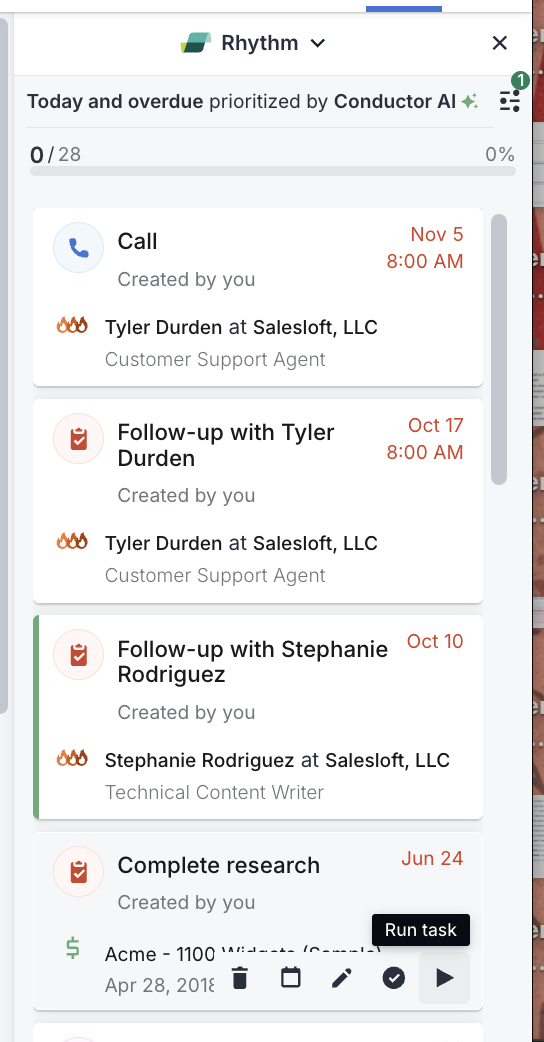
Figure 3: Rhythm Sidebar open alongside a Person profile page
You've successfully run a task when:
- The task is removed from your Rhythm Focus Zone and Rhythm Sidebar
- The completed activity is logged on the Person's profile page
- The completed task syncs to Salesforce as a completed activity
- Mark as Complete for external actions: If you complete the underlying action outside of Salesloft, such as calling from a different dialer or replying to an email in your inbox. Use Mark as Complete so the task is closed and logged correctly.
- Rhythm Sidebar continuity: You don't need to return to the Rhythm Focus Zone between tasks, the Sidebar keeps your full queue visible as you work through People one by one.
- Connect for Salesloft: You can run tasks from the Connect for Salesloft extension inside Salesforce.
Next: Reschedule a Task in Salesloft: How to push a task to a later date if you're not ready to run it
Related: Tasks in Salesloft: What Tasks are and how they fit into your workflow
Related: Edit a Task in Salesloft: How to update a task's subject, due date, or assignee
