The People table is your comprehensive list within the People Page. From the People list, you can quickly view primary People info and select People to take specific actions on. You can also filter or sort by these options.
Things to Note: If fields are missing information, the information will appear blank.
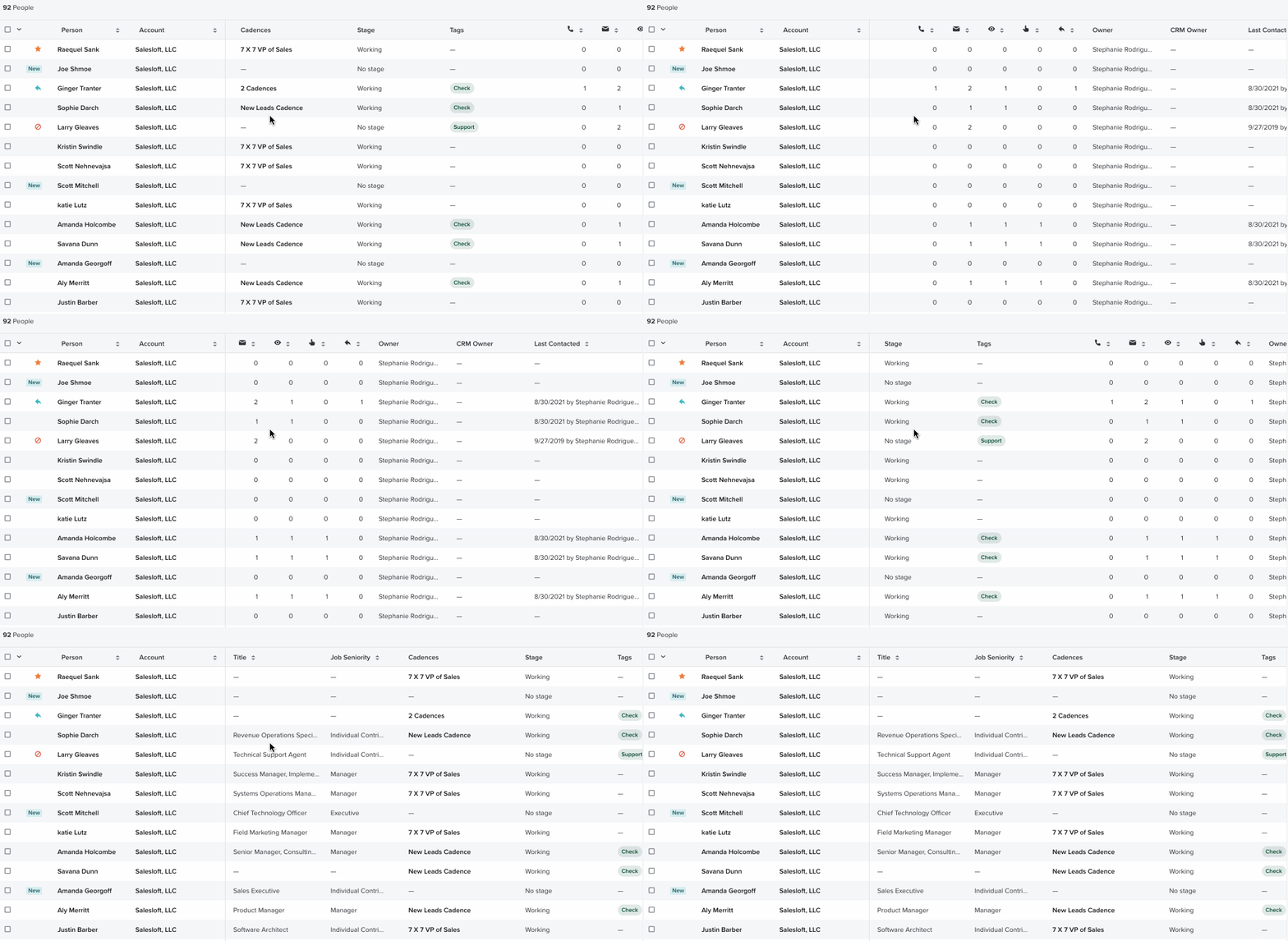
In this article, we will take a look at the different data columns that are on display in the People table, including:
The Status column displays icons that show different Salesloft People status updates.
Status updates may occur due to a manual update, Automation Rule, or an activity on the Person's end (like a bounced email).
To learn more about the status options, check out The Person Status Labels article.
The first column of the People table shows the Person's name. Under the Name column you can find the following:
Things to Note: You can edit the Person's name from the Person Details page.
By clicking on the actual name of the Person, you will be redirected to their Person Profile Page.
The Person's Account will show the Person's linked Salesloft Account. The Account will contain company-related data.
You may select the Account name to view the Account Profile Page.
The Person's title shows the title you have for that Person in their Salesloft profile. The Person's title can help to indicate whether or not they are the appropriate Person to contact at an Account.
Since promotions and job changes happen, you can always change the title by going to the Person's Profile page.
Things to Note: If any of the fields do not have data (for example, if a Job Title has not been entered), that piece of information will not be listed.
Job Seniority uses a predictive model that takes job titles and predicts the level a prospect is on within a company's hierarchy. Our model has been trained and tested on 1 million data samples of job titles with an accuracy of a 99.98% match to relevant seniority.
Only a new Person record being created will trigger the seniority prediction model.
Things to Note: Job Seniority will only populate when a Job Title is provided upon a Person record being added (aka when you import or add a Person).
Examples of when the model will predict:
- When a Person is created through Salesforce Sync, and a job title has been added
- When a Person is created manually in Salesloft, and a job title has been added
- When a Person is created on import, and a job title has been added
The set of seniorities that Salesloft has identified to be the standard across many industries include:
- Individual Contributor: Examples include Sales rep, Sales Analyst, Account Executive
- Manager: Examples include Sales Manager, Senior Manager of Marketing
- Director: Examples include Director of Sales, Director of Engineering, Marketing Director
- Vice President: Examples include Vice President of Services, VP of Sales
- Executive: Examples include CEO, COO, Chief Human Resources Officer
- Unknown: Unknown means that the job title provided was not recognized by our algorithm. A purple diamond will appear next to the word Unknown on the People page and the Person Profile page. Click the diamond to select an applicable Job Seniority.
Using these seniorities, a sales rep is able to create a more targeted and customized Cadence for each persona.
While Salesloft will predict the Job Seniority of a prospect upon import, you can always manually change Job Seniority on a Person. Any changes will never be overwritten unless you manually change it again.
Things to Note:
- Updating the job title on existing Person records will not trigger the model to predict a seniority. So, if a prospect is promoted and you edit their job title, you will also need to edit their Job Seniority.
- Job Seniority data backfilled based on existing job titles on people created from up to 90 days prior to June 28, 2019. People added to Salesloft prior to that day will not have a Job Seniority listed.
The Cadence column in the People table lists any Cadences the person is currently on.
Typically, the Cadence name will be the only thing to appear in the column. The Cadence name links to the Cadence Overview page.
If the Person is working through multiple Cadences, there will be an icon that displays the number of Cadences. When you select the number, a dropdown will appear with a list of all of the Cadences that Person is running through. You can click on a Cadence name from the dropdown to view that Cadence People page.
A Person stage defines where a Person may fall in your engagement process. The Stage column shows the Person’s most recent stage. You can then filter your list by a certain stage and then take necessary action.
Tags are labels attached to the Person. With tags you can designate the groups that the People you communicate are in. So if your workload is divided by region or industry or a specific type of business, you can use tags to keep track of People associated with those groupings.
The tags are separated into their own buttons. If you select a tag, the People table will filter the list by that tag. This way you have an organized list easily available to you.
There are individual columns for each Person activity metrics.
The metrics will show the "all time" stats. This means that any numbers you see related to the Person are the number of times that activity has occurred since they were imported into Salesloft.
The stats shown include:
- Calls Logged
- Emails Sent
- Emails Opened
- Emails Clicked
- Emails Replied
Owner denotes the Salesloft user who owns the Person. The owner defaults to the user who imported the Person unless they are reassigned.
To learn more about the Salesloft owner, check out the Understanding Salesloft and CRM Ownership article.
The CRM owner column shows which the CRM account that is linked to the Person record.
Things to Note: CRM owner is determined based on the CRM User Management assignments set by a team admin. This assignment determines which CRM account is linked to each Salesloft user.
This column is intentionally located next to the Person Owner column. You can view the columns to confirm that the same user is assigned to working with a Person in Salesloft and your CRM.
The final column in the People table is Last Contacted. The Last Contacted column tells you when communication with this Person was last attempted.
You may sort the People table by the Last Contacted column in ascending or descending order.
The Date Added column lets you know when the Person was added to Salesloft. The Person may have been imported in a batch or created as a one-off. Either way, the date is known as the date they were added to Salesloft.
