With the Salesforce Integration, organizations have the option to turn on the Salesforce Revenue Dashboard. This is an infographic chart* that displays the Opportunities, Pipeline, and Closed Won in Salesforce that were influenced by Drift. The metrics are entirely revenue driven and it's a great tool for proving ROI by Drift.
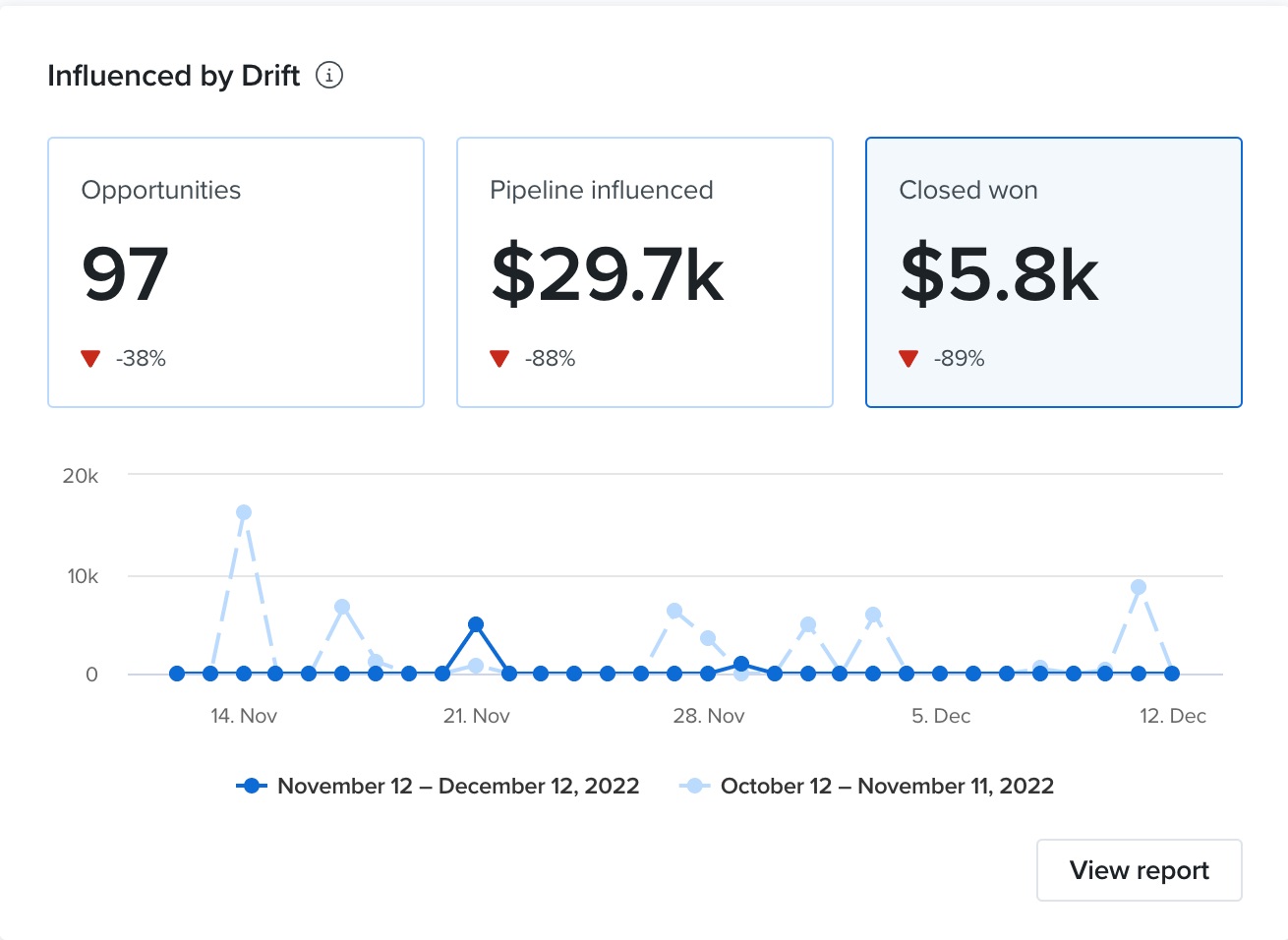
*all revenue figures in Drift reports are in USD, converted from their initial currency type in Salesforce.
Billing Plan: The Salesforce Global Dashboard is available on our Premium, Advanced, and Enterprise plans and requires a connection with the Salesforce integration.
In this article, we'll cover
If you're looking for a helpful guide on how to optimize your sales and marketing engine with Salesforce, we've got a guide for you to check out here!
For decades, marketers have argued with sales teams about what makes a lead qualified. They’ve fought about what influenced a sale: a marketing campaign or a sales call? Marketers know this pain, so we're alleviating it by centering reporting around revenue - one metric sales and marketing can align on.
To turn this on from right within your Dashboard, look to the right of your Drift Overview Dashboard and click the Connect Salesforce Account button.
If you don't see this option, then you can also configure this from within your Integrations settings (see below).
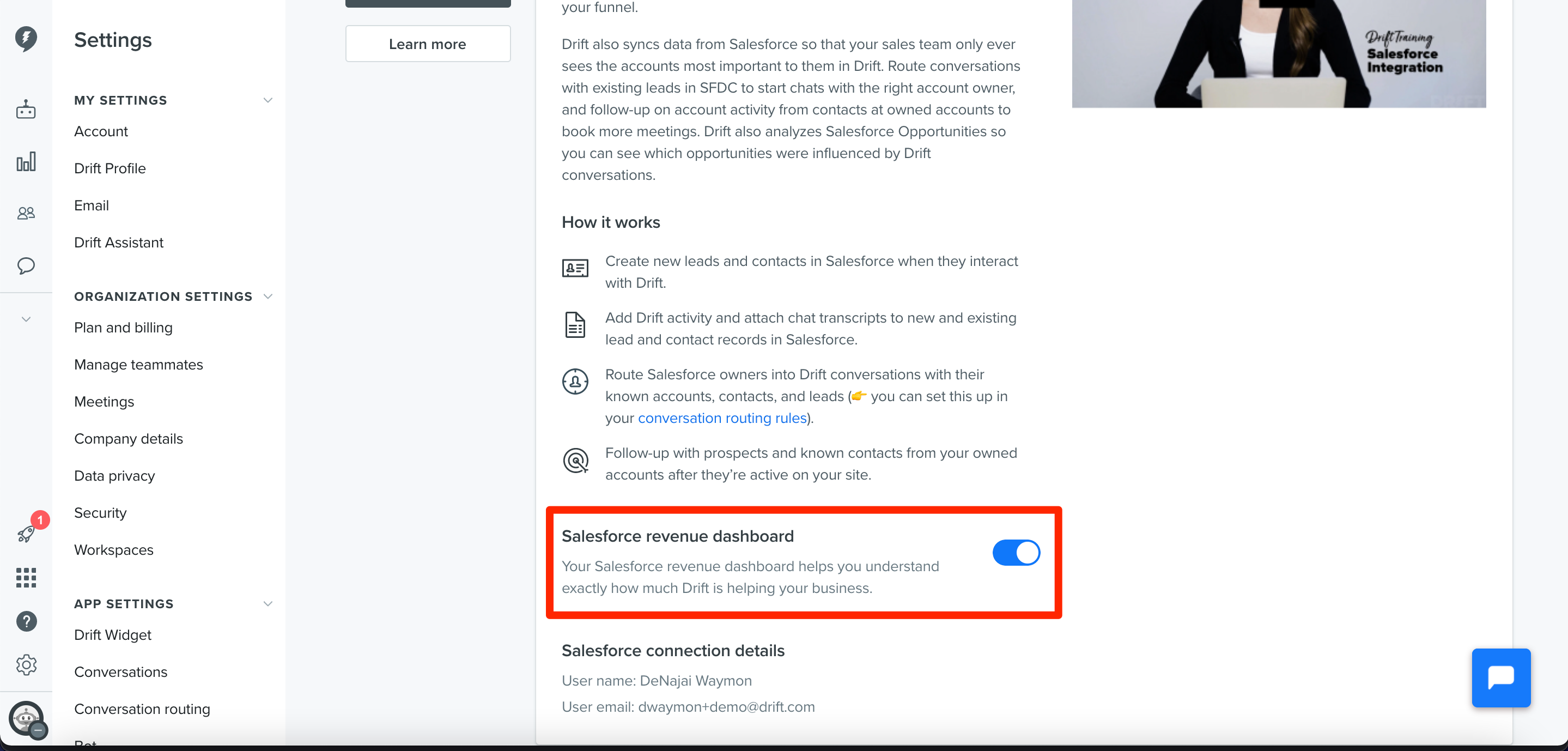
To turn this on from within your Settings, head to Settings > App Settings > Integrations > Salesforce, or click here. Find and enable the Salesforce Revenue Dashboard toggle. Next, navigate to Settings > App Settings > Integrations > Salesforce > Sync Settings and ensure that you have "Send Drift chat activity data to Salesforce" selected to make sure that your opportunities populate within Drift.
Now navigate back to your home screen and your Drift Dashboard should now include the Influenced by Drift chart to the right of the Drift Overview chart.
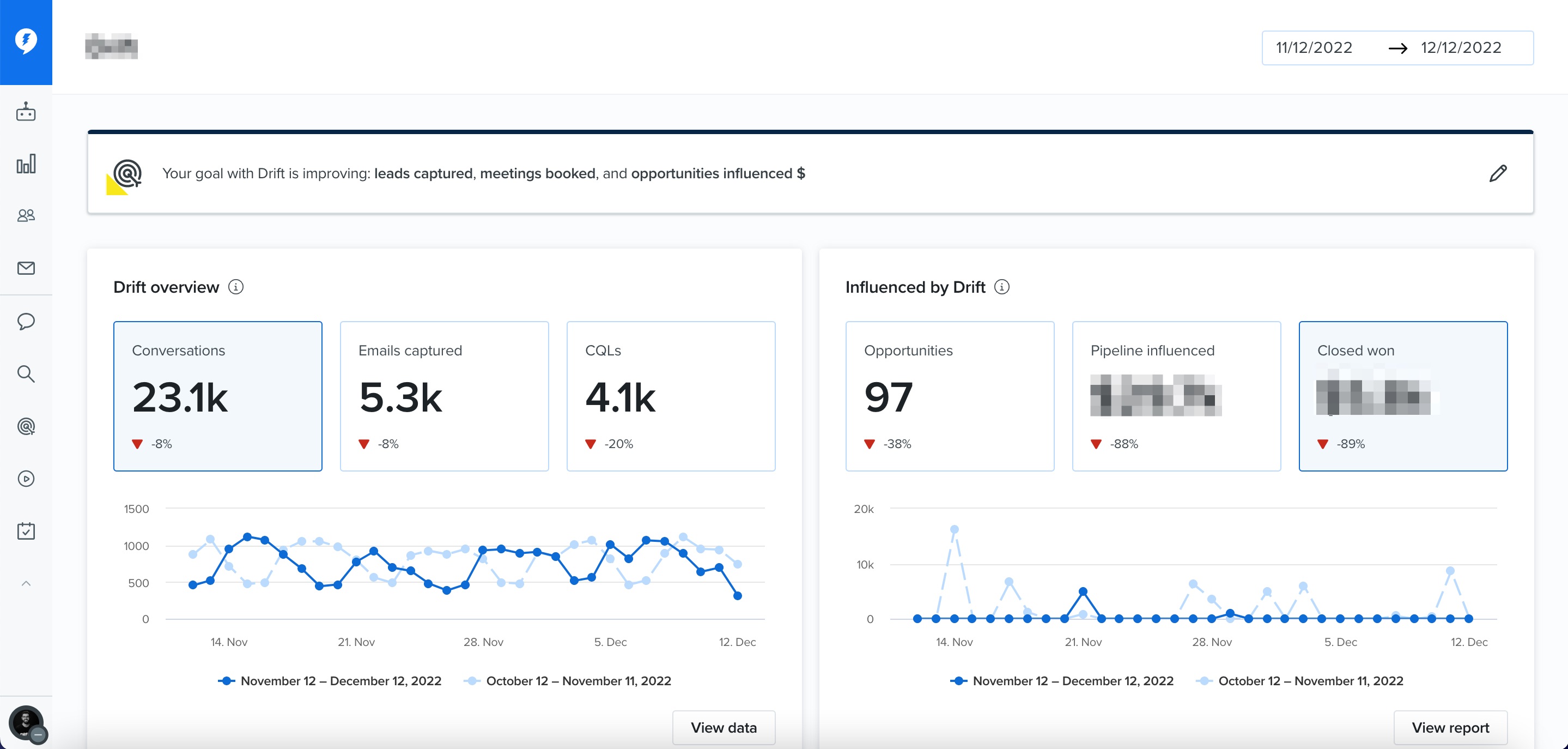
The Dashboard has three main metrics: Opportunities, Pipeline, and Closed Won.
Note: We only show Opportunities which have a Contact-Role individual who had a chat in Drift.
- Opportunities: the number of sales and pending deals that you decided to track in SFDC which were influenced by Drift
- Pipeline Influenced: the sum of revenue attached to all said Opportunities which were influenced by Drift.
- Closed Won: the total revenue from deals marked as closed-won in SFDC (in which a contact has inked the deal and become your customer) which were influenced by Drift.
Don't worry, we'll dedicate the whole next section to going over what exactly "Influenced by Drift" entails. Let's first nail down interacting with the Dashboard:
Interacting with the Dashboard
Here are the things you'll want to pay attention to in the SFDC Dashboard: Time frame, percent increase and decrease, hovering over data points, and seeing specific opportunities influenced by account name. Let's go over what each of these looks like:
Time Frame Filter
By default, the Dashboard (both Drift Overview and Influenced by Drift) will be filtering by the last 30 days. You can change this by selecting the Filter dashboard at the top of the screen.
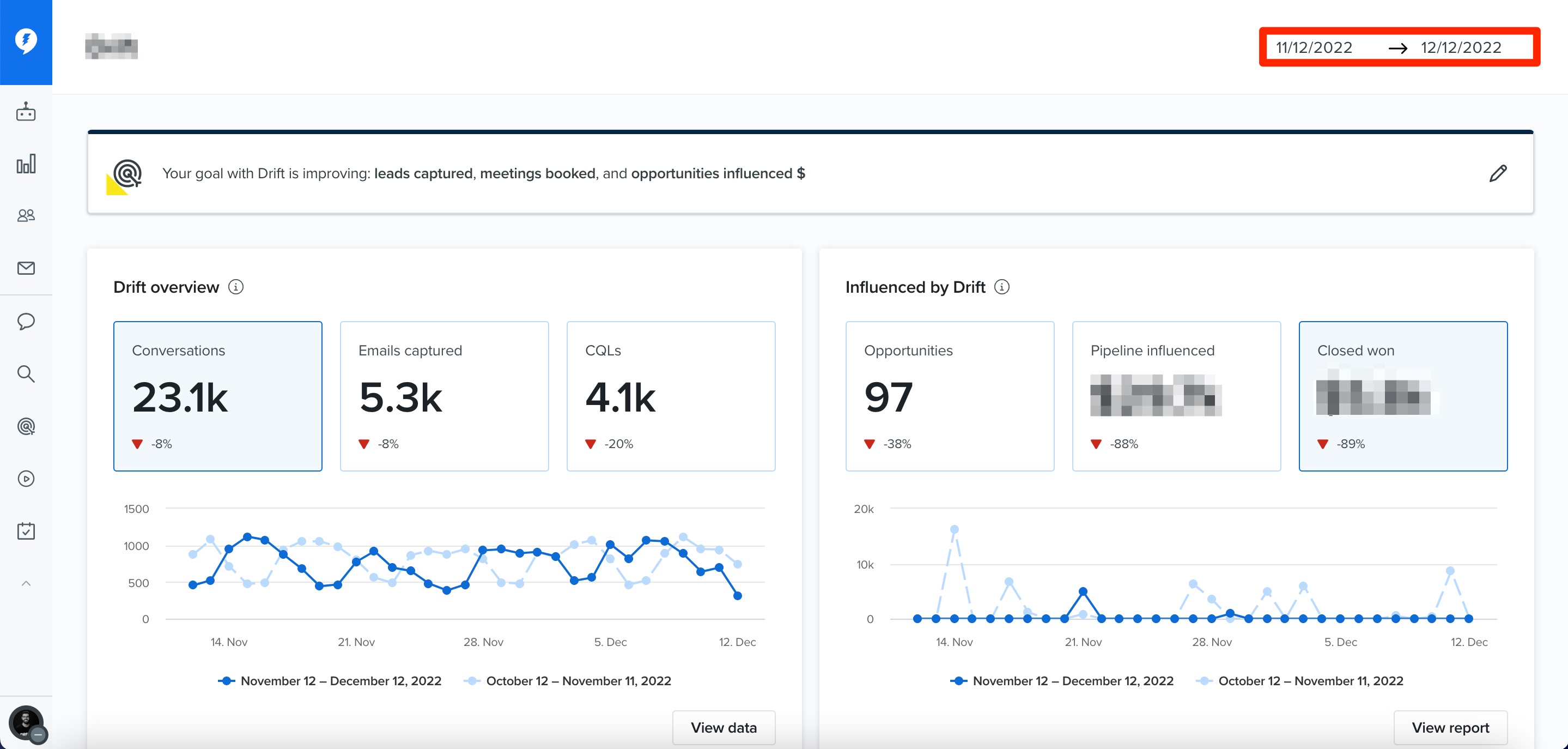
As an example of customization, here is the timeframe to find the metrics for the second half of April. The dotted line graph you see in a lighter blue is a time frame of the same length but before your selected dates.
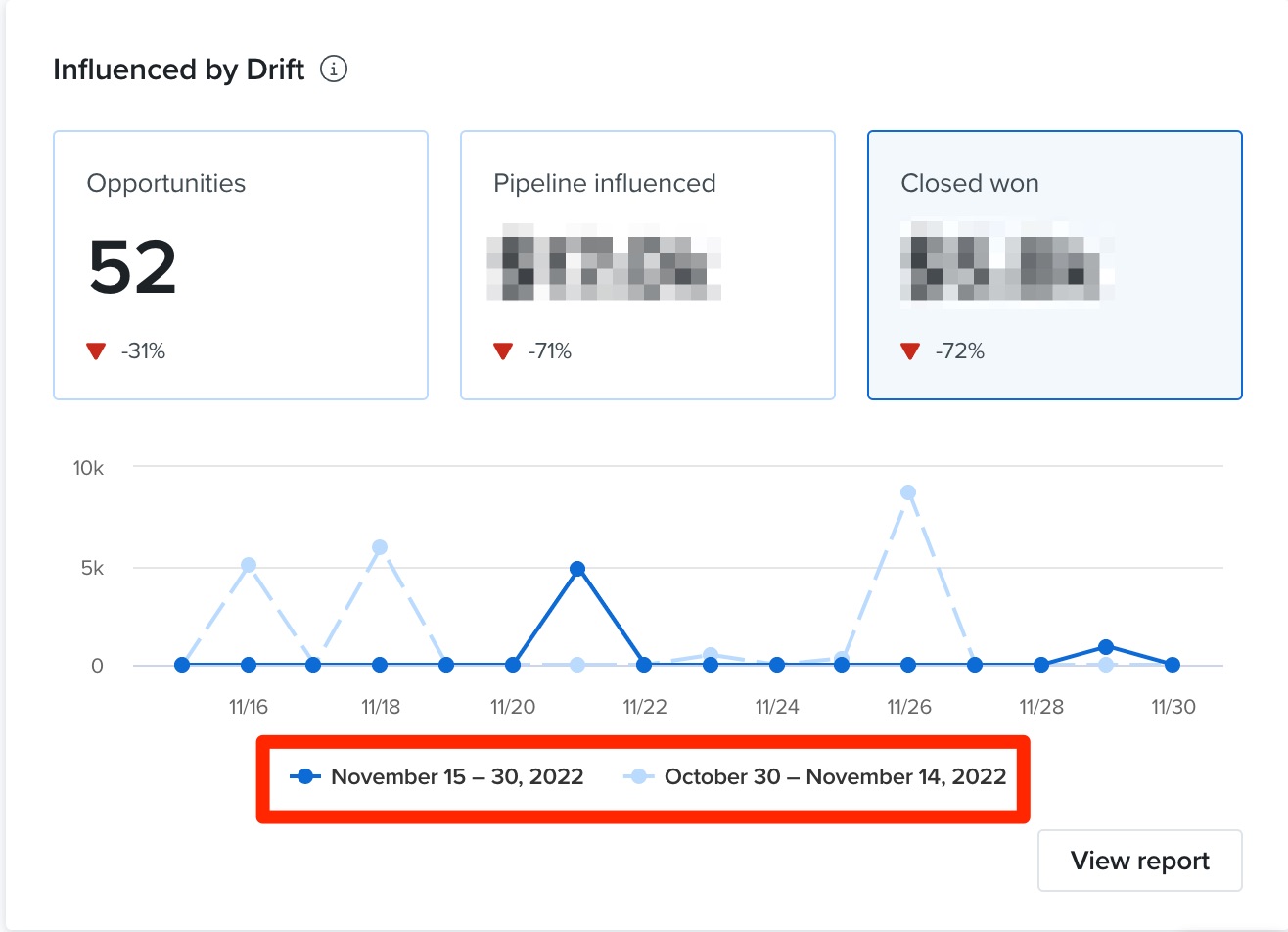
Drift auto-creates these so that you can see the % increase and decrease month-over-month, week-over-week, etc.
Percent Increase and Decrease
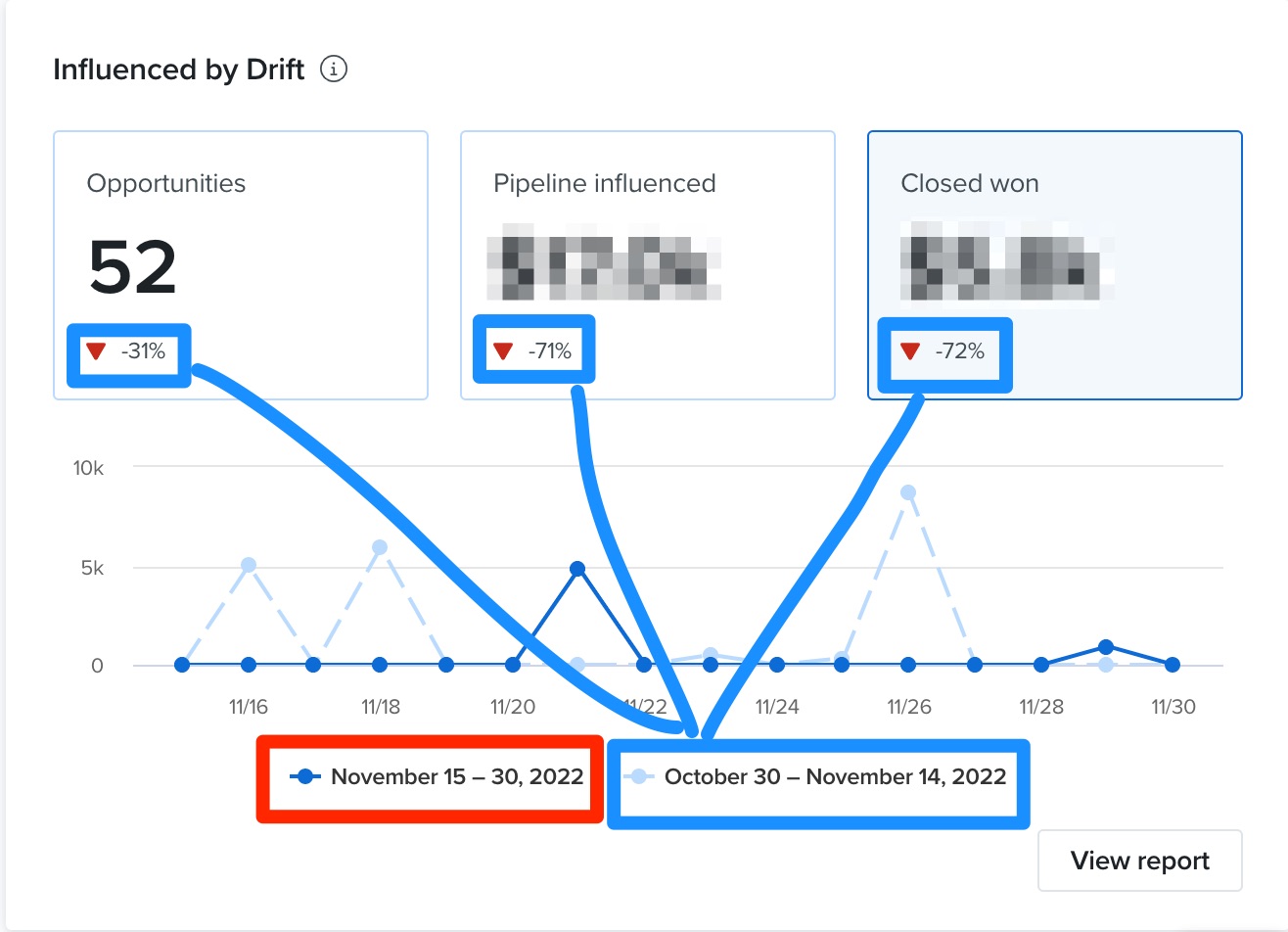
Now, you might've also noticed that these graphs are not static...
Hovering Over Data
- Hover: Within the Salesforce Dashboard, you can hover over specific data points and see the closed won revenue, as well as % increase and decrease since the last time period matching the one you have currently set. The exact dates are specified in the hover box.
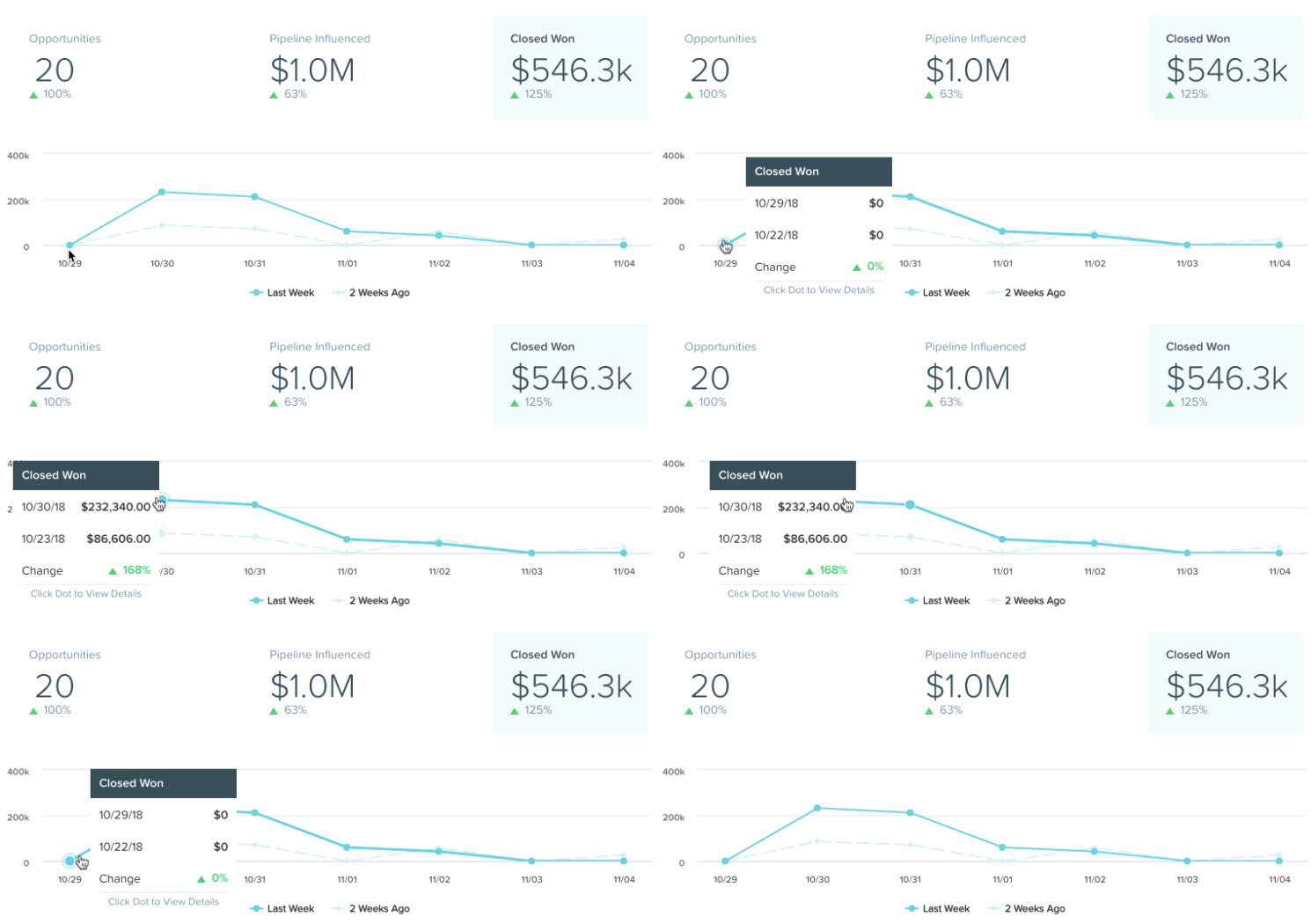
For users of SFDC, you have the ability to dive deeper into your data with multiple sales reports. The first report we’ll cover is the overview report. To view this report use the left-hand navigation pane to find Reports > Sales Results > Overview.
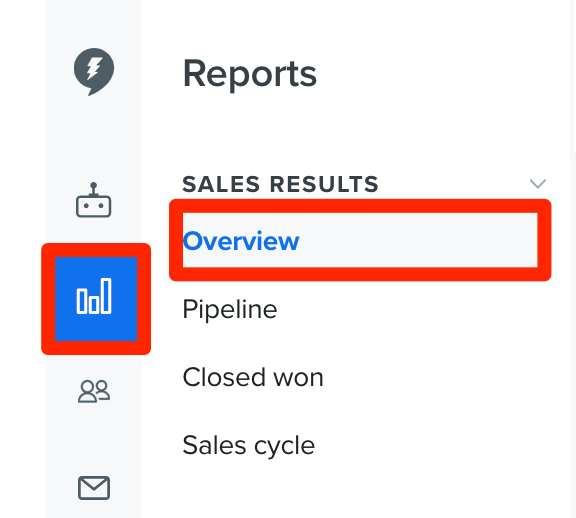
The Overview Report was created to provide a consolidated view of all three of our standalone sales reports. This report also helps to provide guidance around how Drift influenced and Sourced opportunities compare to all of your Salesforce opportunities.
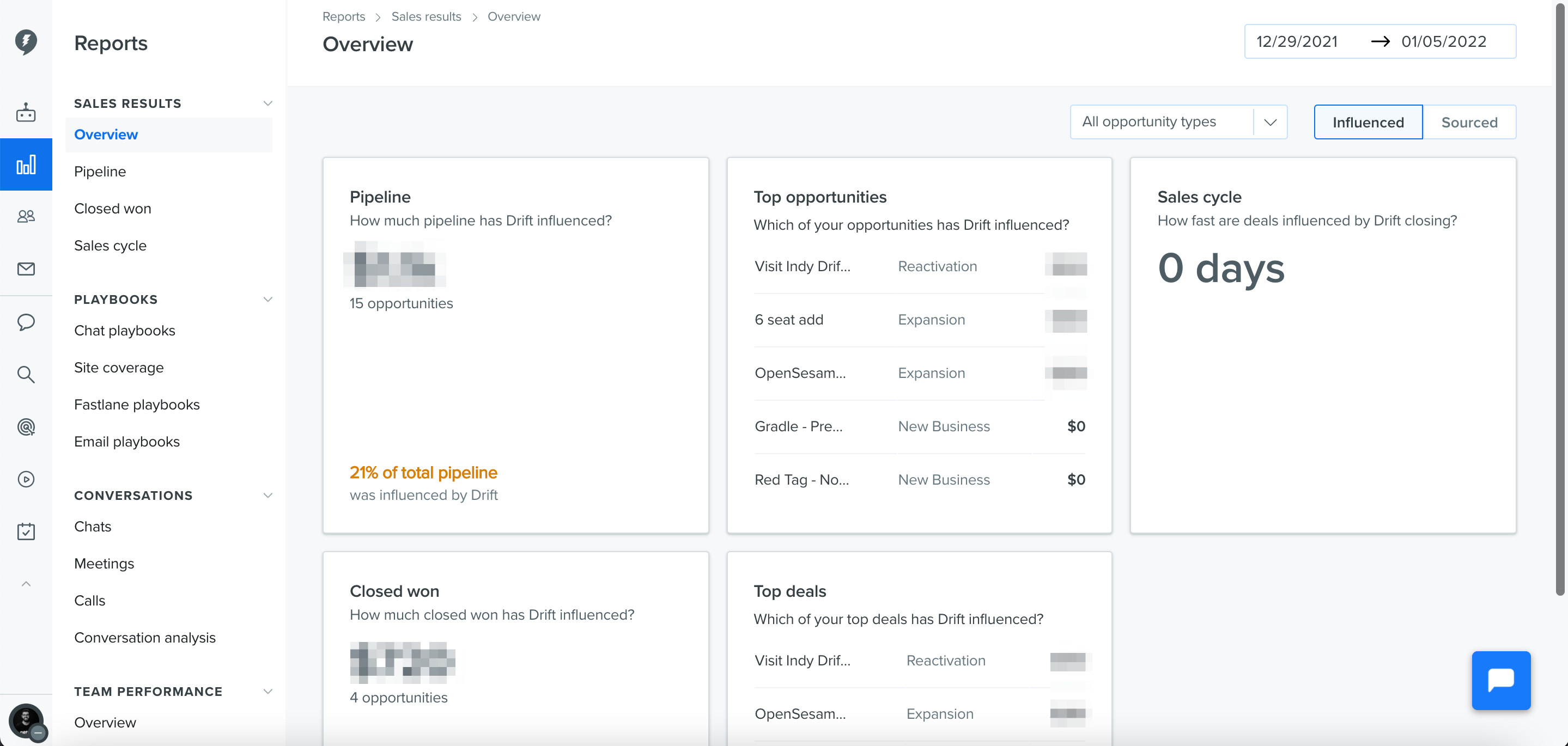
This report and its underlying reports, contain the following filters: Date Range, Opportunity Type, and Sourced or Influenced. Clicking on a card will take you to its corresponding report.
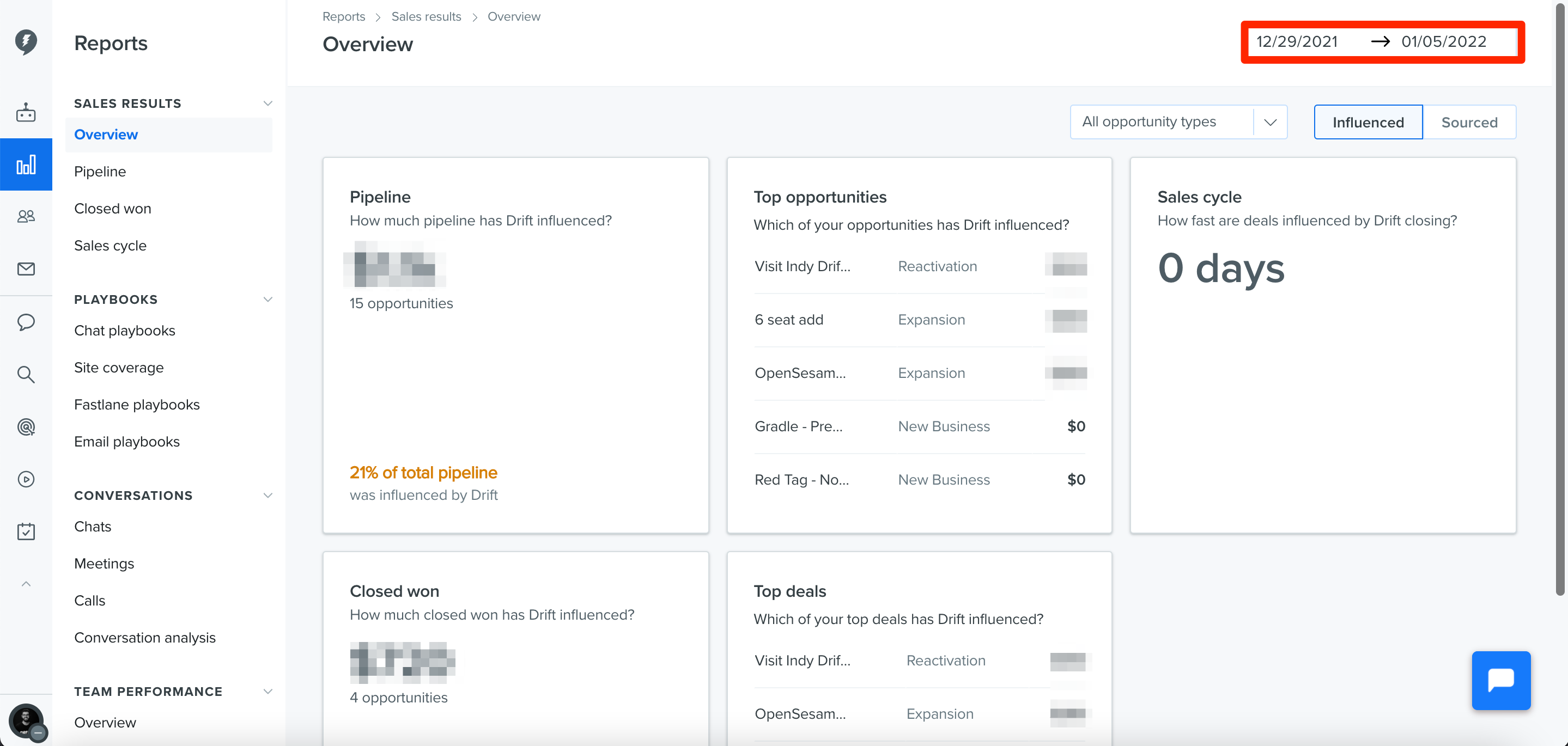
To change the timeframe of the report (if an opportunity was created in the timeframe, it will appear in the reports), click on the date box at the top of the screen. Note: we look at conversations six months prior to the time frame start date when determining influenced and sourced.
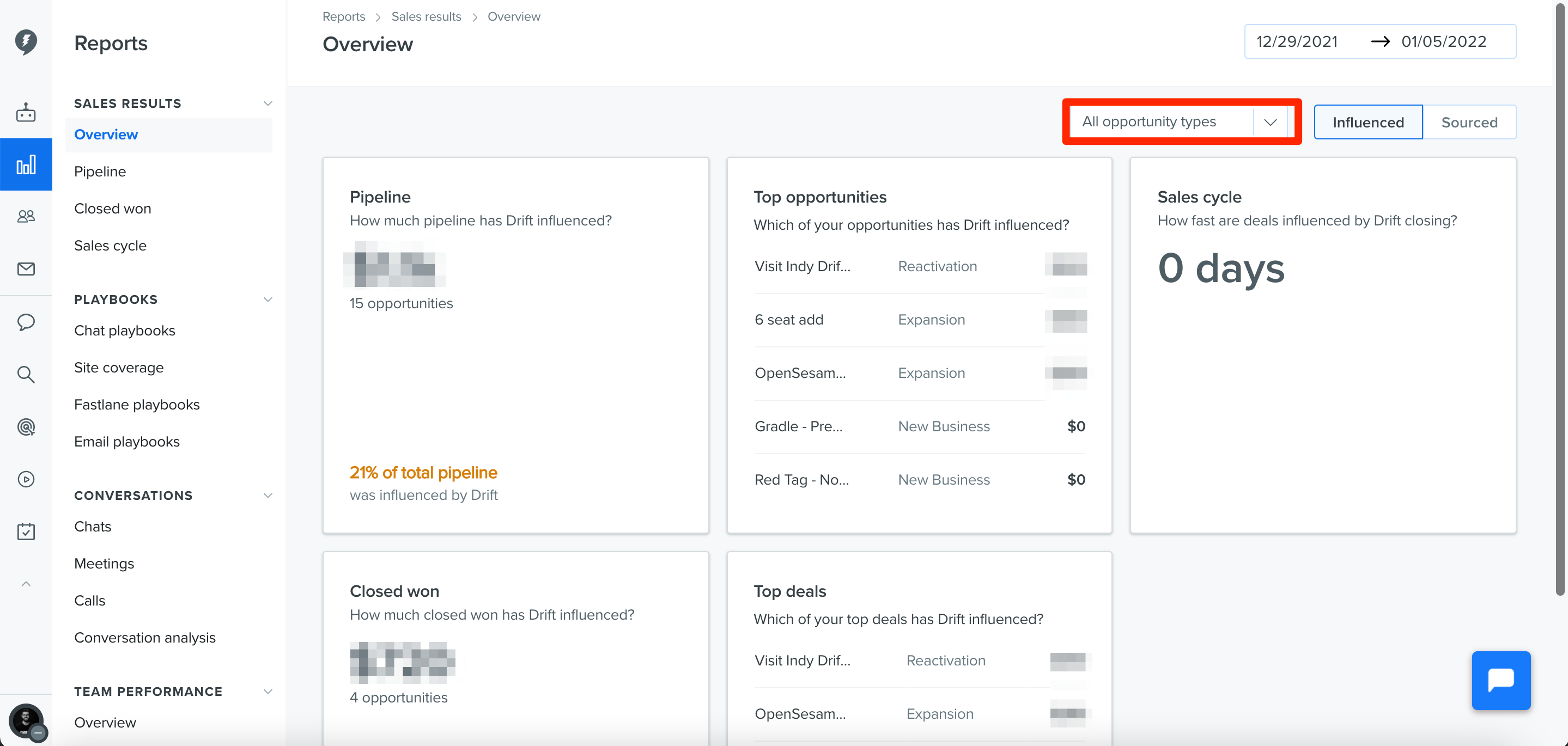
To change the Opportunity Type (based on your pre-defined opportunity types in Salesforce), click on the filter at the top of the screen.
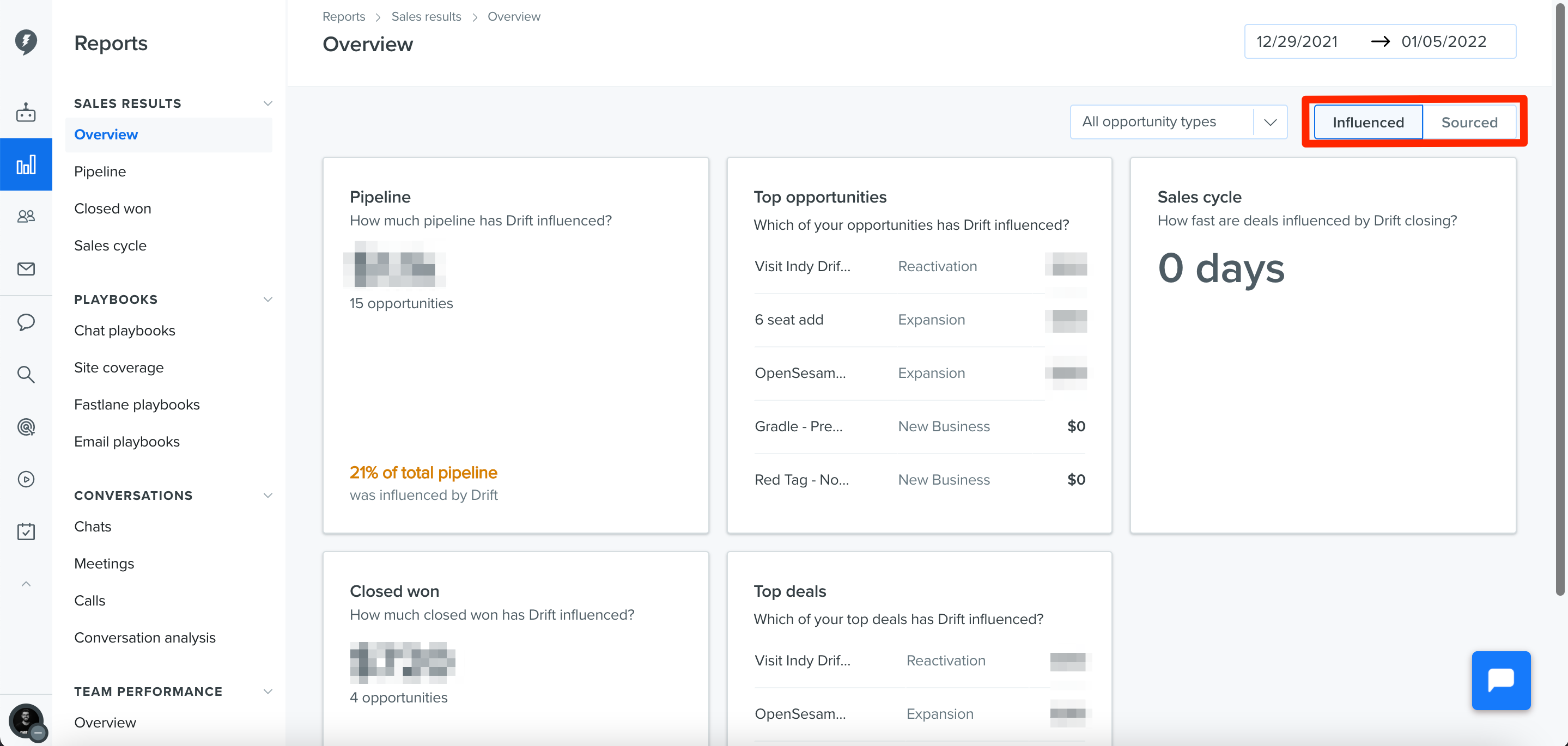
To change between ‘Influenced’ and ‘Sourced’, use the toggle at the top of the screen. As a reminder, we have a whole section at the end explaining what exactly ‘Influenced’ or ‘Sourced’ by Drift means.
The Overview Report consists of 5 “cards”:
- Pipeline
- Closed won
- Top Opportunities
- Top Deals
- Sales cycle
The Pipeline, Closed won, and Sales cycle cards display the aggregate metric from the underlying reports, calculated according to the selected criteria: Date Range, Opportunity Type, Influenced or Sourced.
At the bottom of the Pipeline and Closed won cards, you will find a description of how each metric compares to all of your Salesforce Opportunities. This helps show Drift’s impact in the context of your overall sales funnel. We are able to provide this metric by aggregating all of your opportunities and retrieving only the Total Opportunities and Dollar Amount.
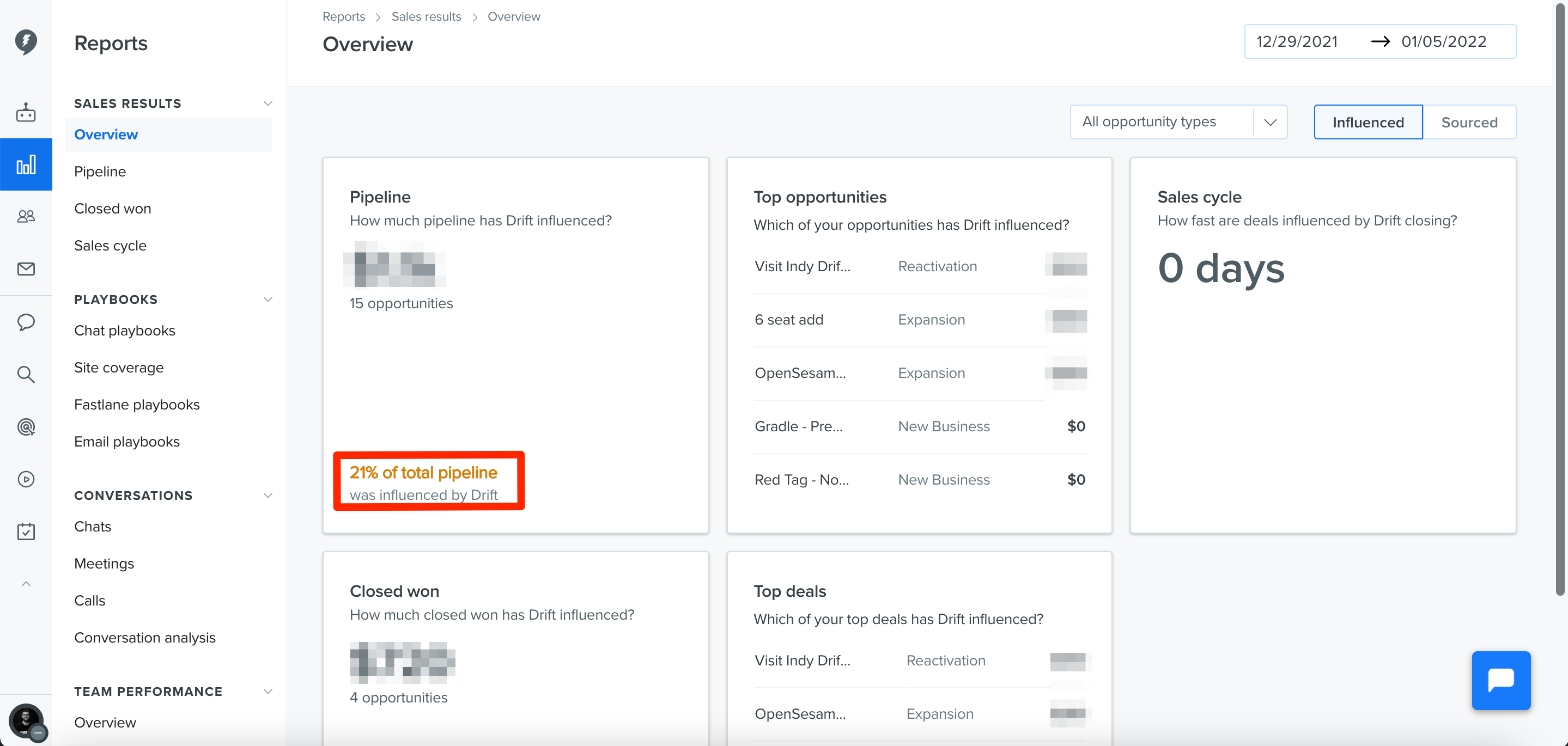
The Top Opportunities and Top Deals displays the top five opportunities by amount from the Pipeline Report and Closed won Report, respectively. Clicking on these cards will take you to the corresponding report, which will be pre-sorted by descending amount.
Now, let’s take a closer look at the three underlying reports, starting with the Pipeline report.
The first standalone report we’ll review is the Pipeline revenue report, which shows you the Drift influenced and sourced Pipeline opportunities and corresponding revenue amount. To view this report, use the left-hand navigation pane to find Reports > Sales Results > Pipeline.
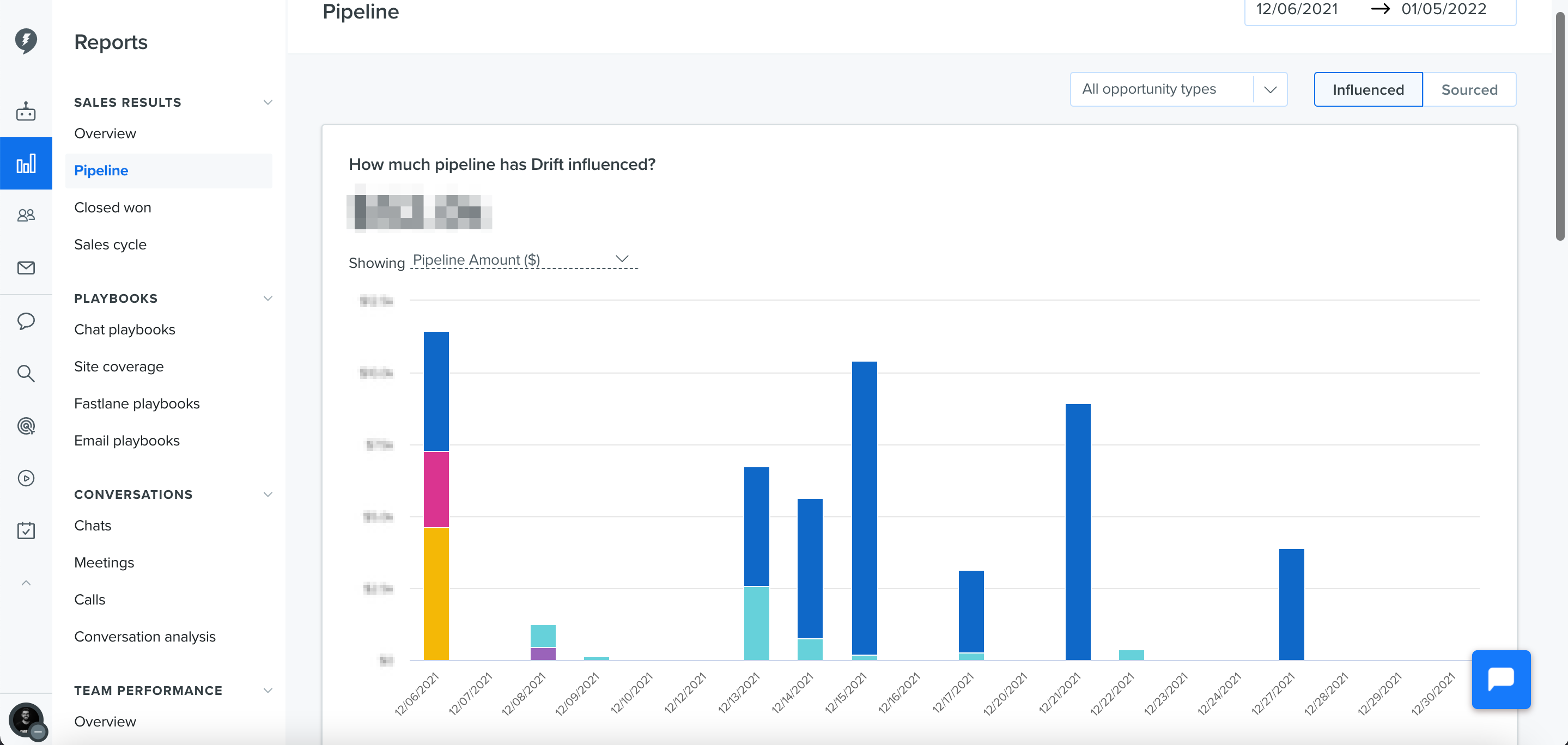
This report has the same filters as the overview report: Date Range, Opportunity Type, Influenced or Sourced. Please refer to the overview report section above to understand how to use the filters.
Note: Seeing some discrepancies in your Pipeline Report? Drift pulls data for this report based on when a conversation associated with an opportunity is opened and closed. If a conversation started in January and an opportunity was created from that conversation in February, you would not see that opportunity if you filter for just February because the conversation that led to the opportunity started in January.
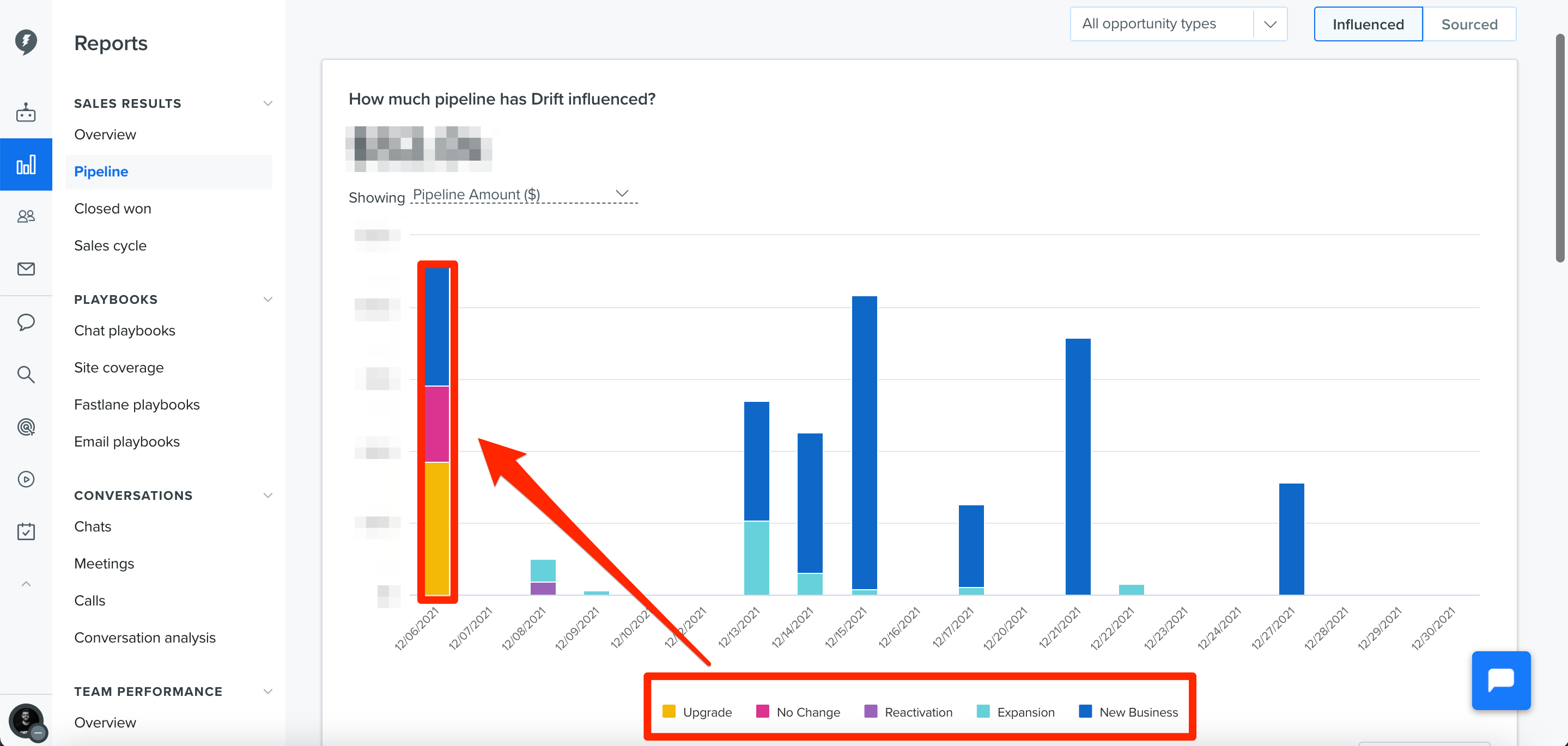
To drill down further and examine this report in more detail, you can hover over any of the bars on the graph to see a breakdown by opportunity type.
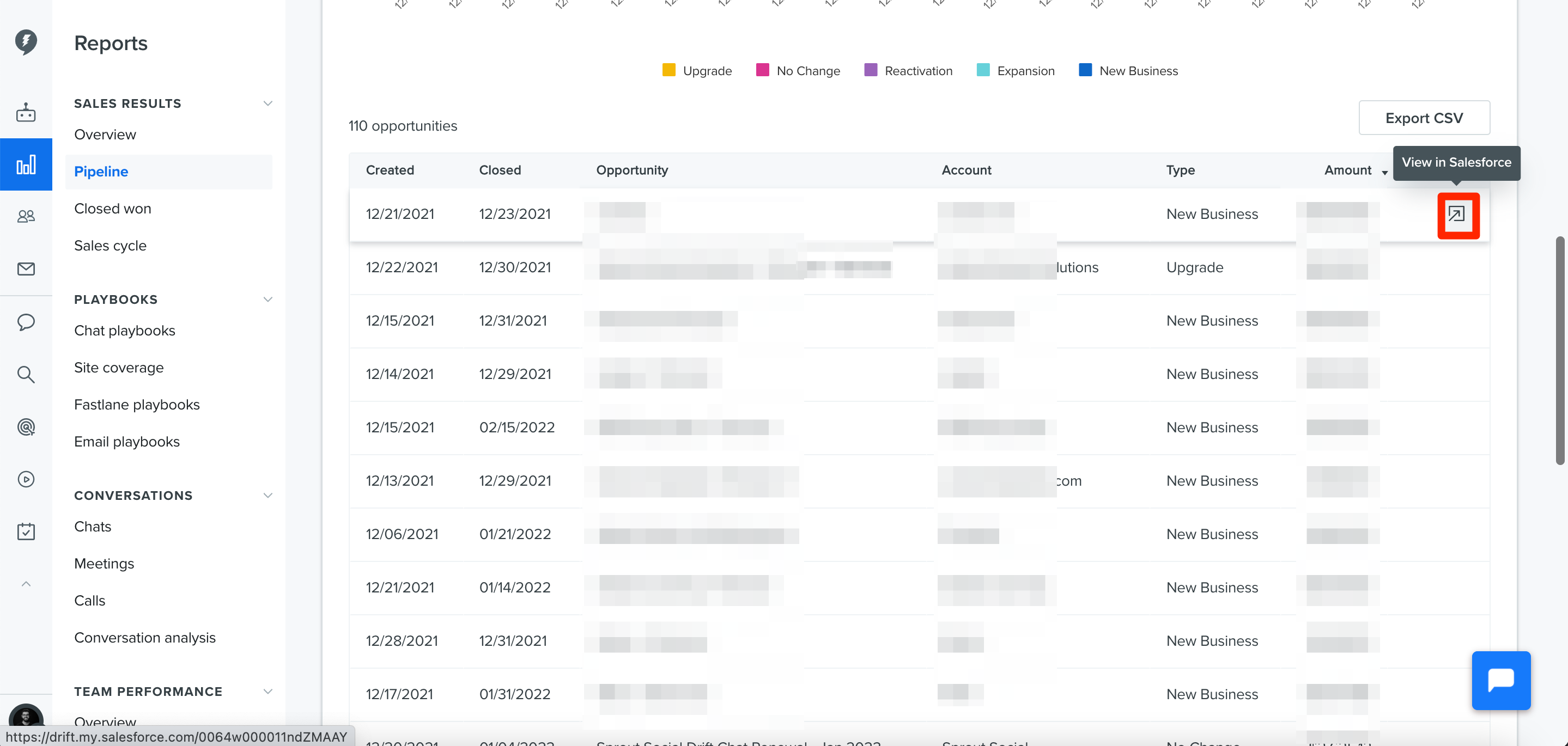
Additionally, if you scroll down on this screen, you'll see a table with information about your opportunities including the ‘date created’, ‘date closed’, ‘account name’, ‘type’ and ‘amount’. You can also view the opportunity in Salesforce by hovering over the item and selecting the appropriate icon.
Note: If an opportunity was closed lost/closed won in the same day it won't surface in in-app repoting, it will only surface in Salesforce. To fix this, manually update the close date to the following day!
And to export any of the data, simply click the "Export CSV" button below the graph.
Exporting Just What You Want:
When you click the Export CSV button, it will export the data shown on your screen. For example, if you'd like the data for just New Business, select New Business from the drop down, and then click Export CSV.
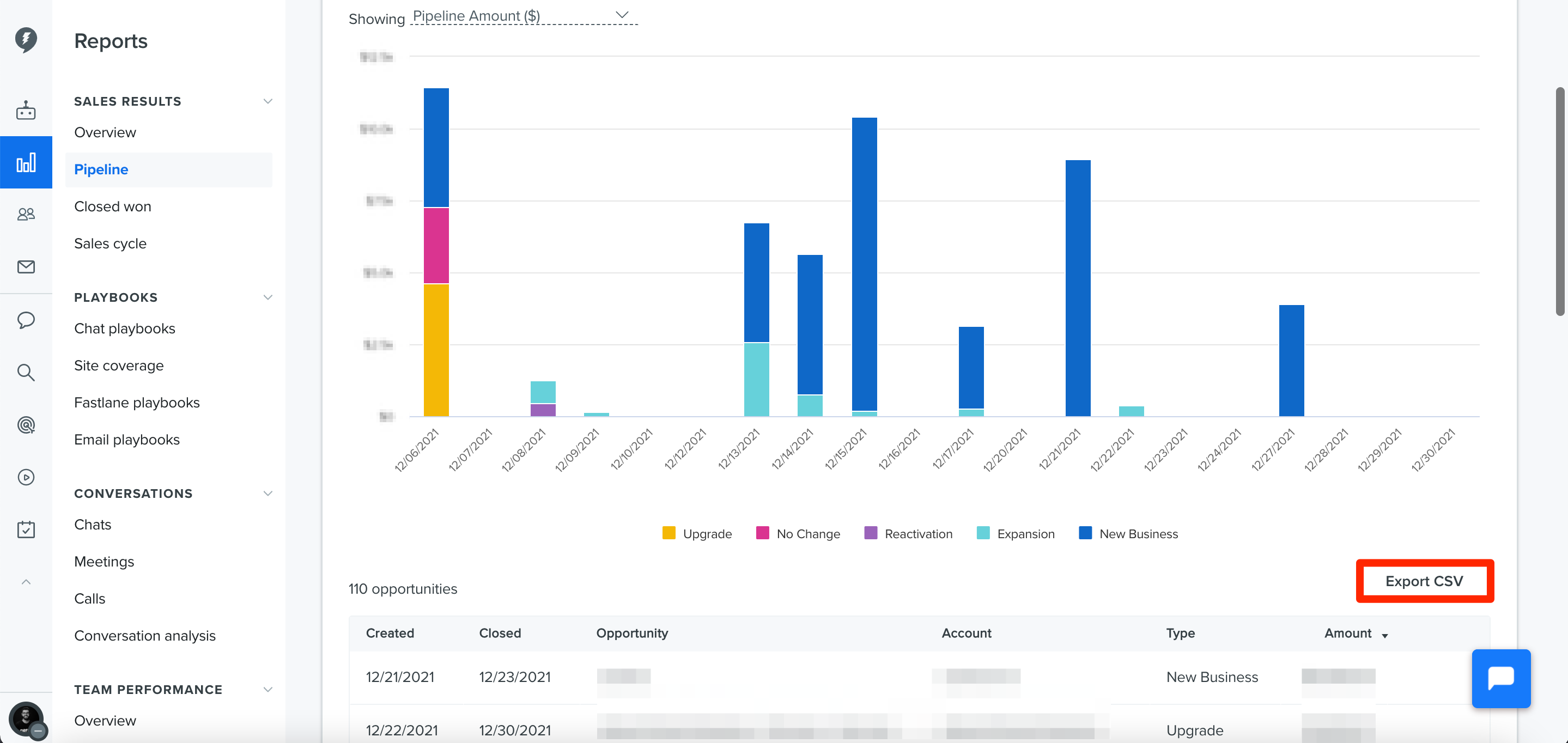
The exported CSV contains more data fields than what is shown in the Pipeline report table. If you would like to understand what each field means, continue reading, otherwise please skip ahead to learn about the Closed won revenue report.
The Pipeline and Closed won revenue reports allow you to export a CSV file for the values within the filter parameters (Time Frame, Opportunity Type, Sourced or Influenced). The reports contain additional data fields that are not visible within the report view. Below is a list of the data fields contained within the CSV export, along with their definitions.
- Id
- Name
- AccountId
- AccountName
- Amount
- Type
- Opportunity Type (based on your fields)
- IsWon
- Identifies whether opportunity is closed and won
- IsClosed
- Identifies whether opportunity is closed
- Campaign
- Owner
- StageName
- CurrencyIsoCode
- Currency of the Amount field
- IsSourced
- TRUE==Sourced Opportunity
- FALSE==Influenced Opportunity
- ContactEmail
- List of contacts’ emails on the opportunity who had Drift chats
- [Primary] label is appended if the contact is a primary contact
- [Sourced] label is appended if the contact was sourced by drift
- ContactId
- List of contacts’ ids on the opportunity who had Drift chats
- TotalContacts
- Total number of contacts on the opportunity
- ConversationDate
- List of dates - one per each conversation with each contact associated with the Opportunity
- CreatedDate
- CloseDate
- Conversation
- List of Drift URLs to actual conversations associated with the Opportunity
- PlaybookName
- PlaybookId
- ConversationMetaData
- [MeetingBooked] attached if the meeting was booked during the conversation
- [CqlScoreAssigned] attached if the CQL score was assigned to the conversation
- [EmailCaptured] attached if the email was captured during the conversation
- DaysToClose
- Number of days between Opportunity Created and Close dates
- ChatToOpportunity
- Number of days between first conversation and Opportunity Created dates.
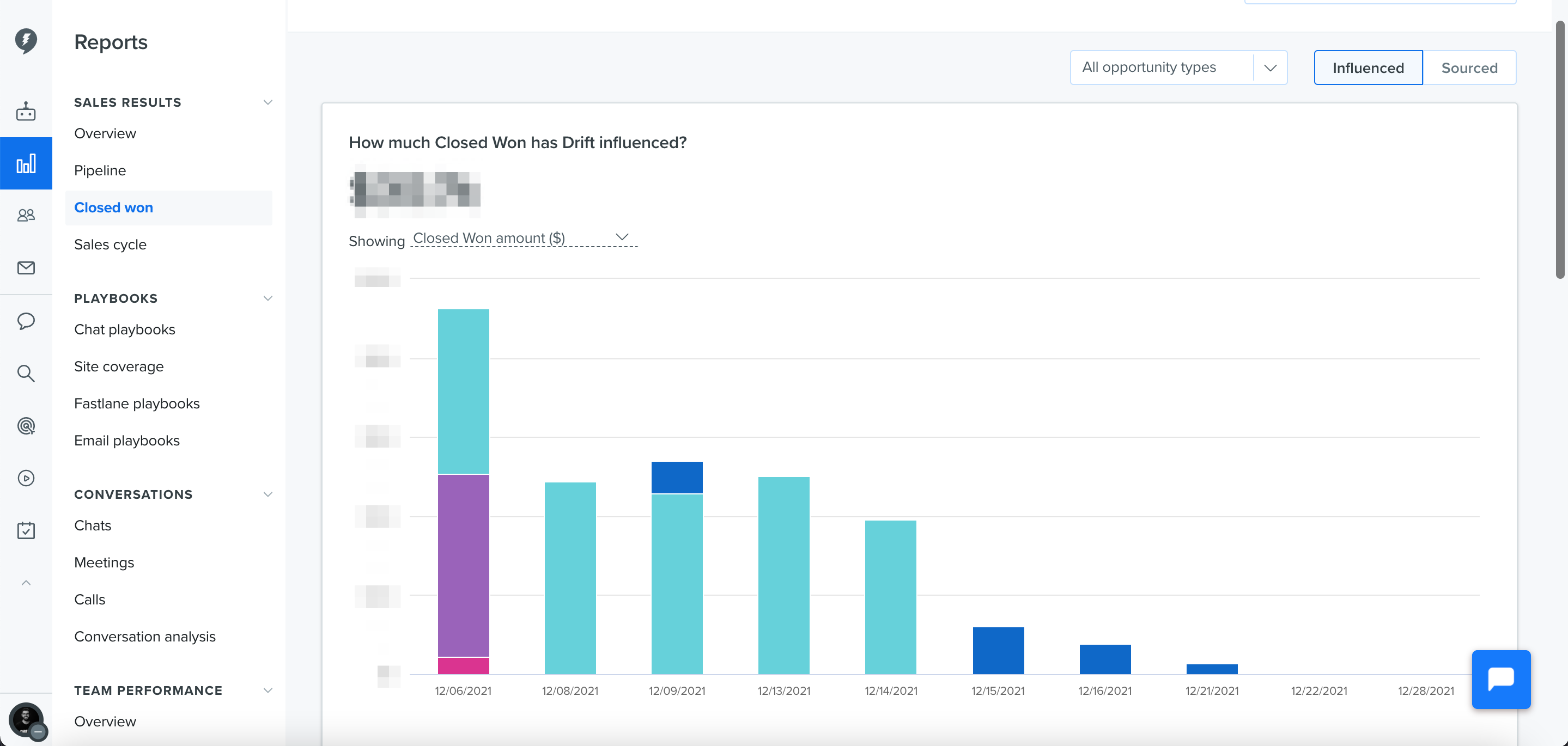
To view this report use the navigation pane to find Reports > Sales Results > Closed won.
The Closed won revenue report works exactly like the Pipeline revenue report above. The difference is that this report only shows opportunities that are in the closed won stage in SFDC (Closed won opportunities are a subset of Pipeline opportunities).
To view this report use the navigation pane to find Reports > Sales Results > Sales cycle.
The Sales cycle report shows the average number of days between the date the opportunity was created and the closed won date. This will show you how fast you are closing opportunities over time.
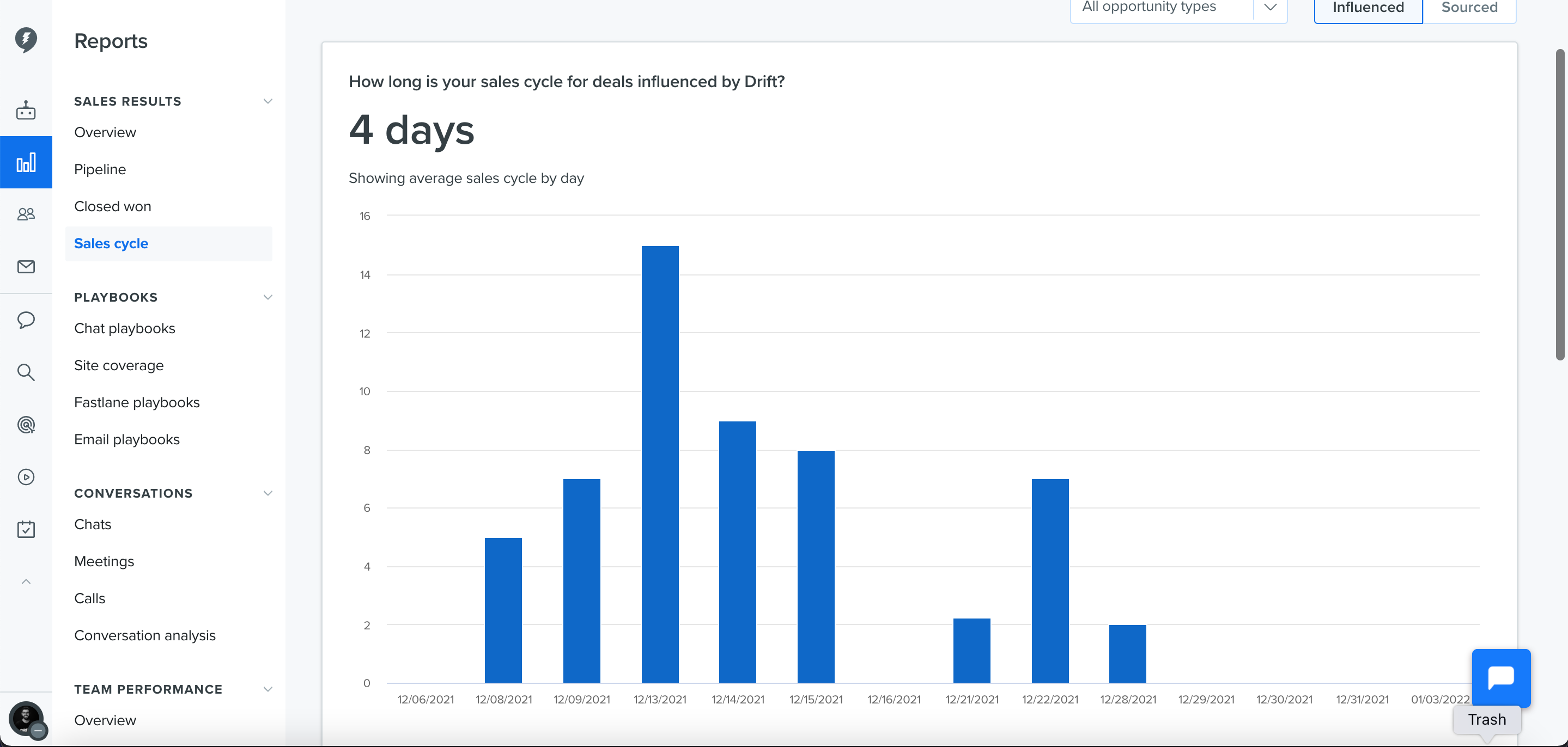
Similar to the Overview, Pipeline, and Closed won reports, you can filter based on date, opportunity type, and influenced or sourced. Please refer to the overview report section above to understand how to use the filters.
Now we can dig into how exactly we calculate ‘Influenced’ and ‘Sourced’ by Drift!
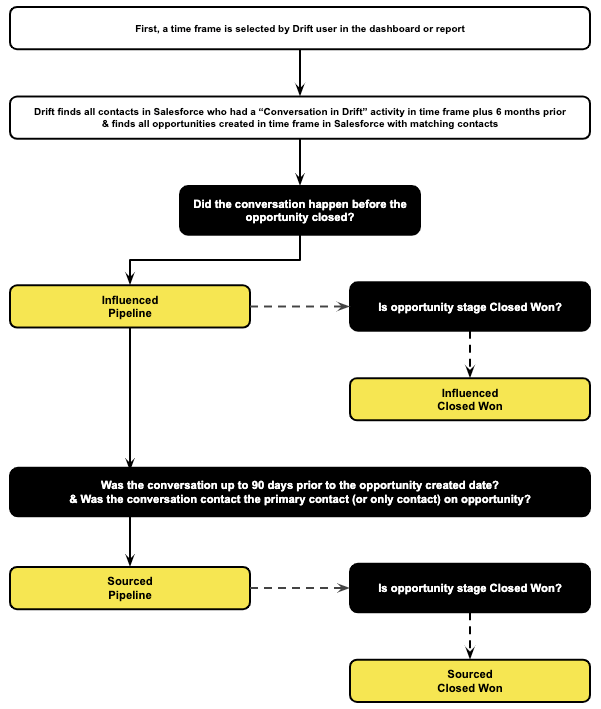
The elusive definitions of ‘Influenced’ and ‘Sourced’ are not so elusive! We have a public developer document on the queries that our team uses on the data in your Salesforce instance. However, it's also worth describing in plain English.
‘Influenced’ by Drift: any Opportunity that has Drift Activity attached to it via the Contact-Role on the Opportunity.
Basically, if there was a conversation through Drift Chat before a deal was closed, then Drift has influenced that opportunity.
‘Sourced’ by Drift: any Opportunity that was created up to 90 days after the primary contact for that opportunity had a conversation in Drift.
In other words, when a person chats in Drift, any opportunities created in the following 90 days that identify this person as the primary contact (or only contact on an opportunity) are counted as sourced.
Here is how we achieve these definitions logistically:
Sourced by Drift is not the same as Drift being the Lead Source in Salesforce. When an agent closes a conversation with a lead whose email isn't already associated with a lead or contact in Salesforce, Drift creates a Lead in Salesforce with Lead Source “Drift." If you would like to confirm whether a contact’s email address was sourced by Drift, export the Pipeline or Closed won report CSVs and check the ‘ContactEmail’ field for the ‘[Sourced]’ label.
- Does revenue reporting work retroactively?
Yes, so long as you’ve had the Salesforce and Drift integration set up, you’ll see how Drift has influenced and sourced revenue from pipeline and opportunities closed before your Dashboard was turned on.
- Do I need Salesforce?
Yes, today you need Salesforce and an Essential (or higher) plan to see influenced revenue reporting.
- This wasn't the dashboard I was looking for... How do I see my Conversations Reporting Dashboard?
Visit https://app.drift.com/reports. The conversations dashboard is available to all customers and free users and it works retroactively – you can see the data for however long you’ve been using Drift.
- What if multiple Opportunities are created on an account?
We look at each opportunity individually. If there are two opportunities on an account, but only one opportunity had a contact who chatted in Drift before that opportunity closed, we only count the value of that opportunity as ‘Sourced’ or ‘Influenced’
- Are ‘Sourced’ and ‘Influenced’ opportunities mutually exclusive?
No, Sourced opportunities are a subset of Influenced opportunities.
6. Will meetings booked from a Drift profile appear in reporting?
No. They will sync to Salesforce but will not appear within reporting.
