We know that customers want to dive deeper into Drift and see how it is working for them. That is why we have a series of reports, that show you Drift's performance.
In this article, we'll cover:
- the types of reporting Drift offers and what those reports contain
This doc links to several others related to reporting, but serves as a high-level introduction to reporting in Drift!
Playbooks, Meetings, and Revenue Reports
Revenue Reports - Available on the Premium plan and above.
Drift offers revenue dashboards and reports that are powered by our Salesforce Integration.
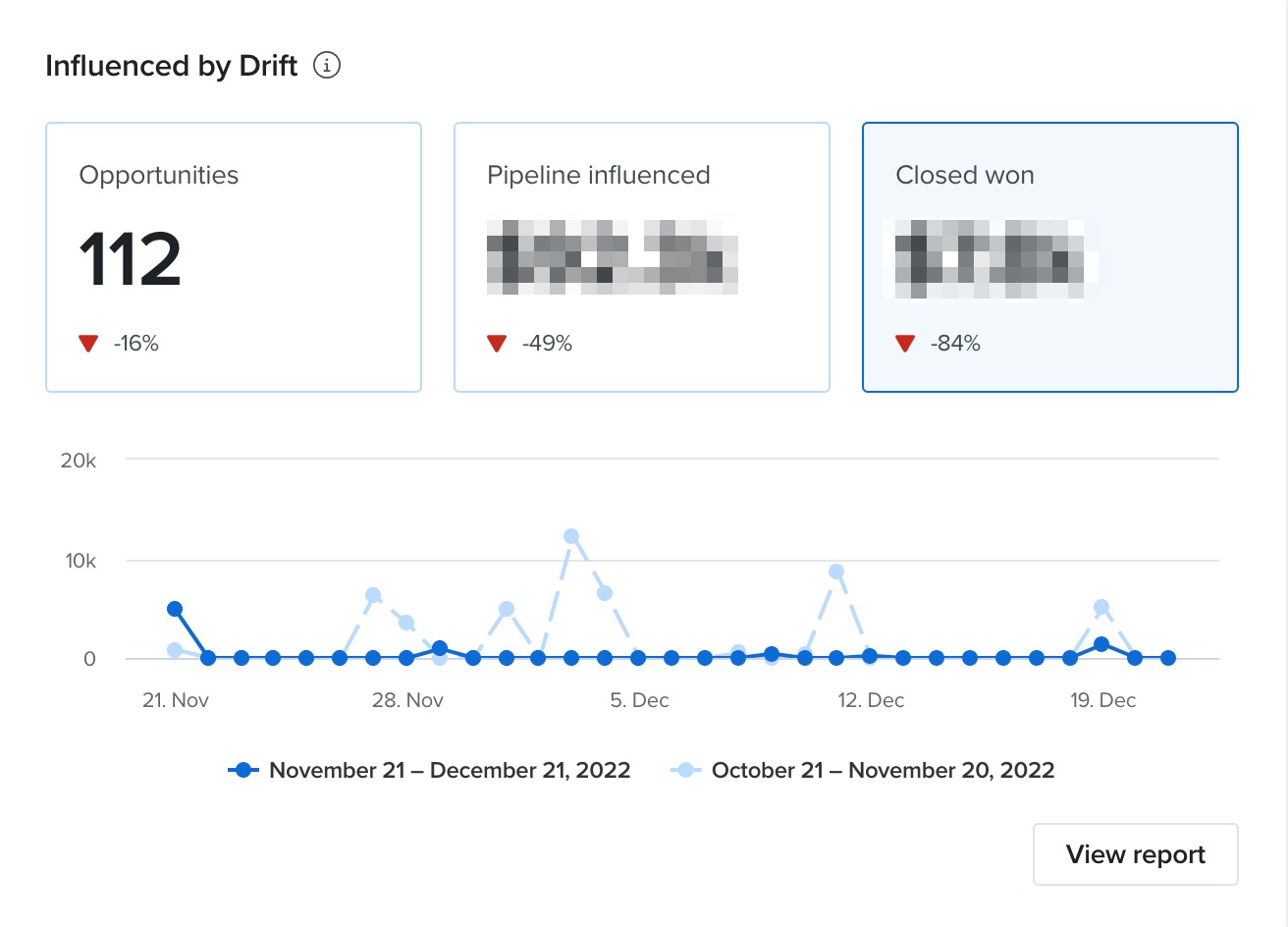
You’ll find the ‘Influenced by Drift’ dashboard on your homepage for an aggregate view of Drift Influenced Opportunities, Pipeline, and Closed won revenue.
The Overview report can be found in the left-hand navigation pane, under Reports > Sales Results > Overview. This report compares your aggregate Drift metrics to the rest of your Salesforce opportunities.
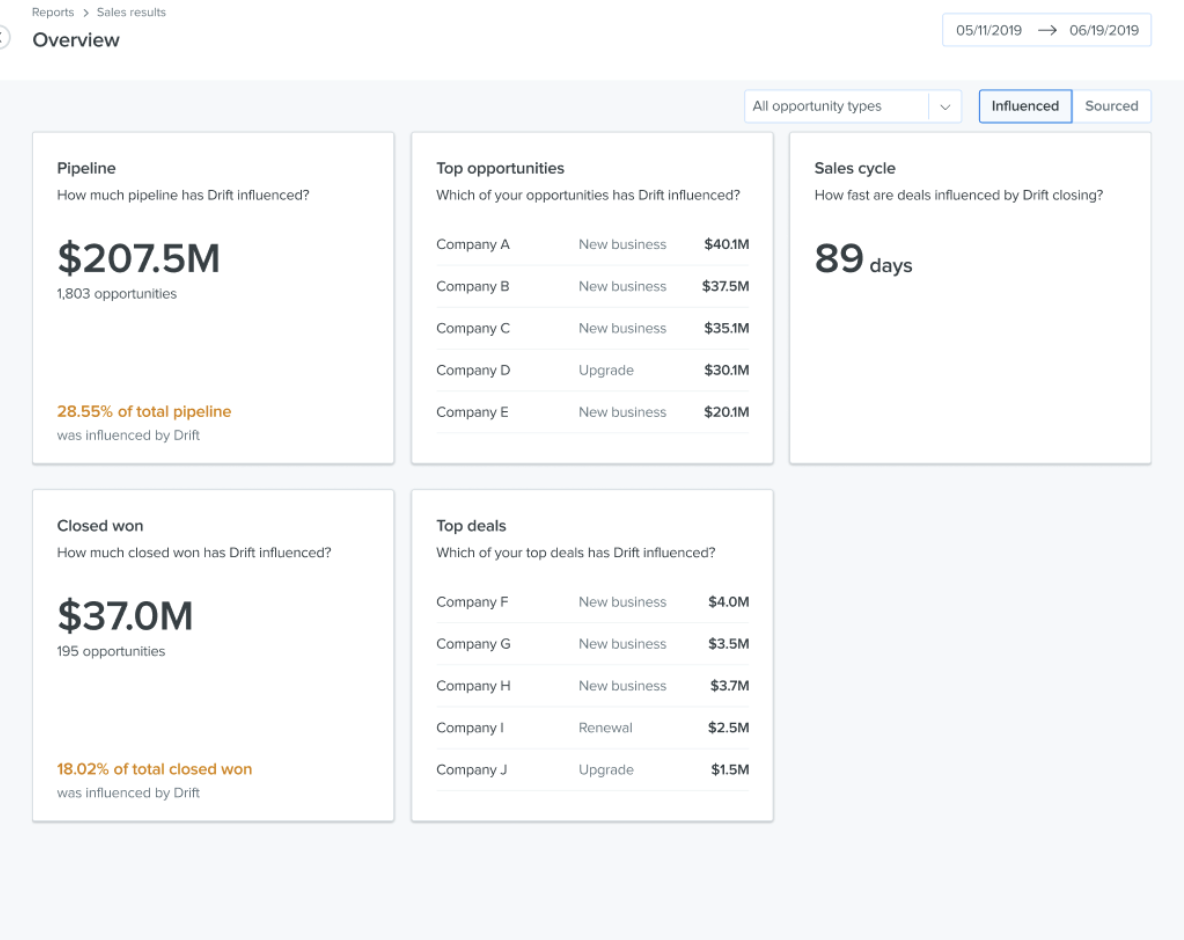
From the overview report, you can click into three additional revenue reports: Pipeline, Closed won, and Sales cycle.
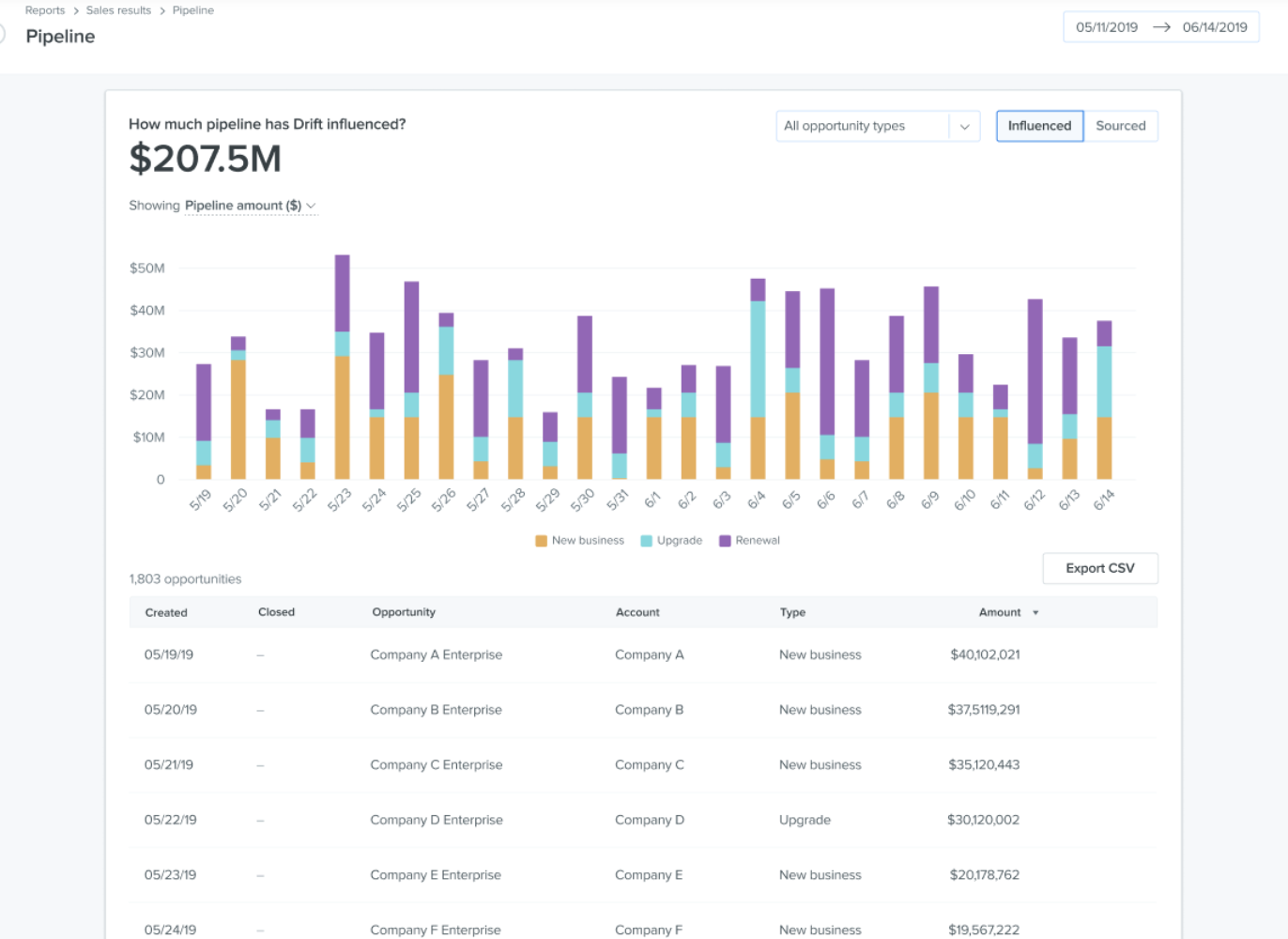
The Pipeline report shows Drift-Influenced opportunities across all stages. It can be accessed from the Overview report’s ‘Pipeline’ and ‘Top Opportunities’ cards, or from the left-hand navigation pane, under Reports > Sales Results > Pipeline.
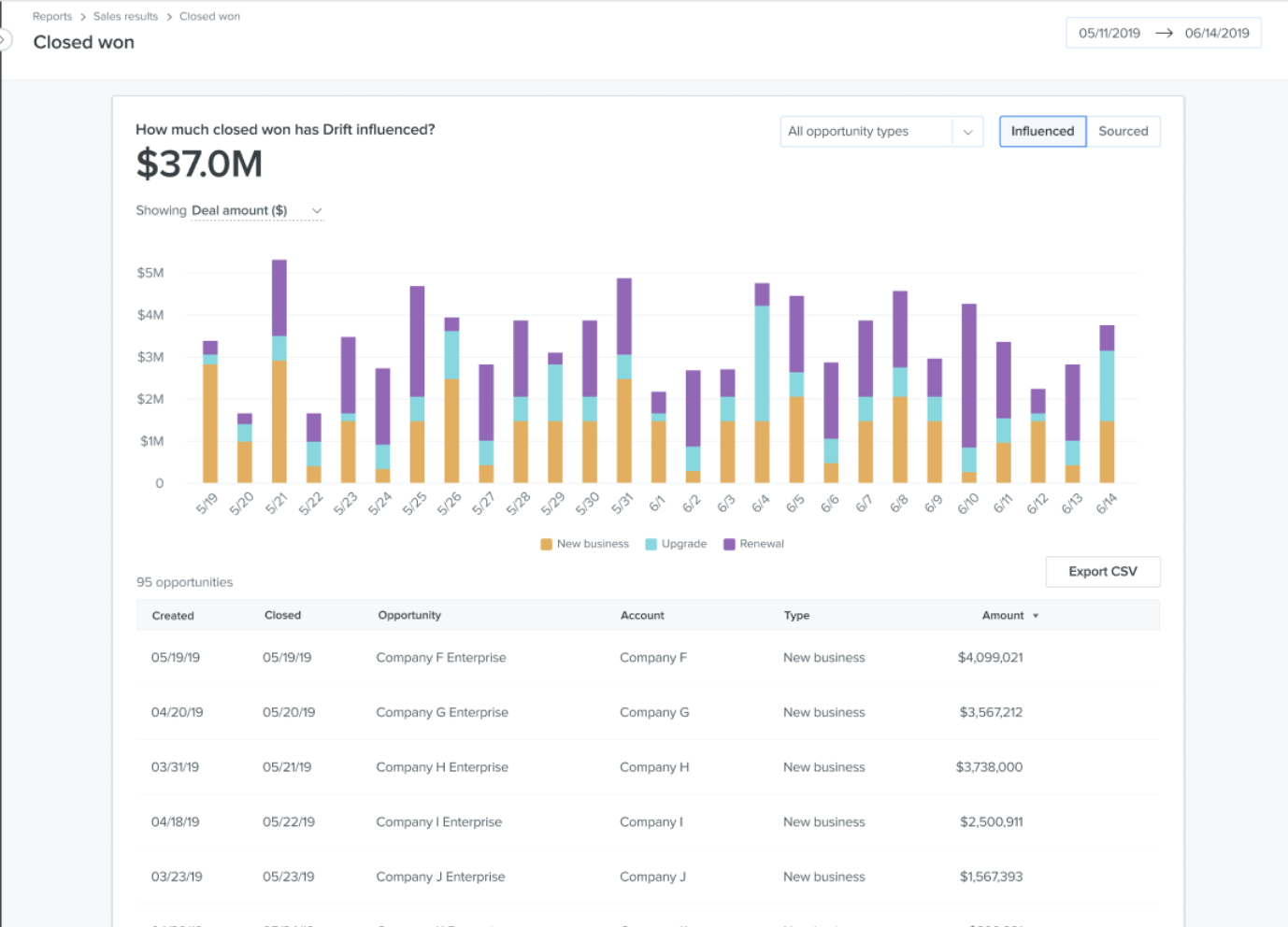
The Closed won report shows Drift-Influenced opportunities at the closed won stage. It can be accessed from the Overview report’s ‘Closed won’ and ‘Top Deals’ cards, or from the left-hand navigation pane, under Reports > Sales Results > Closed won.
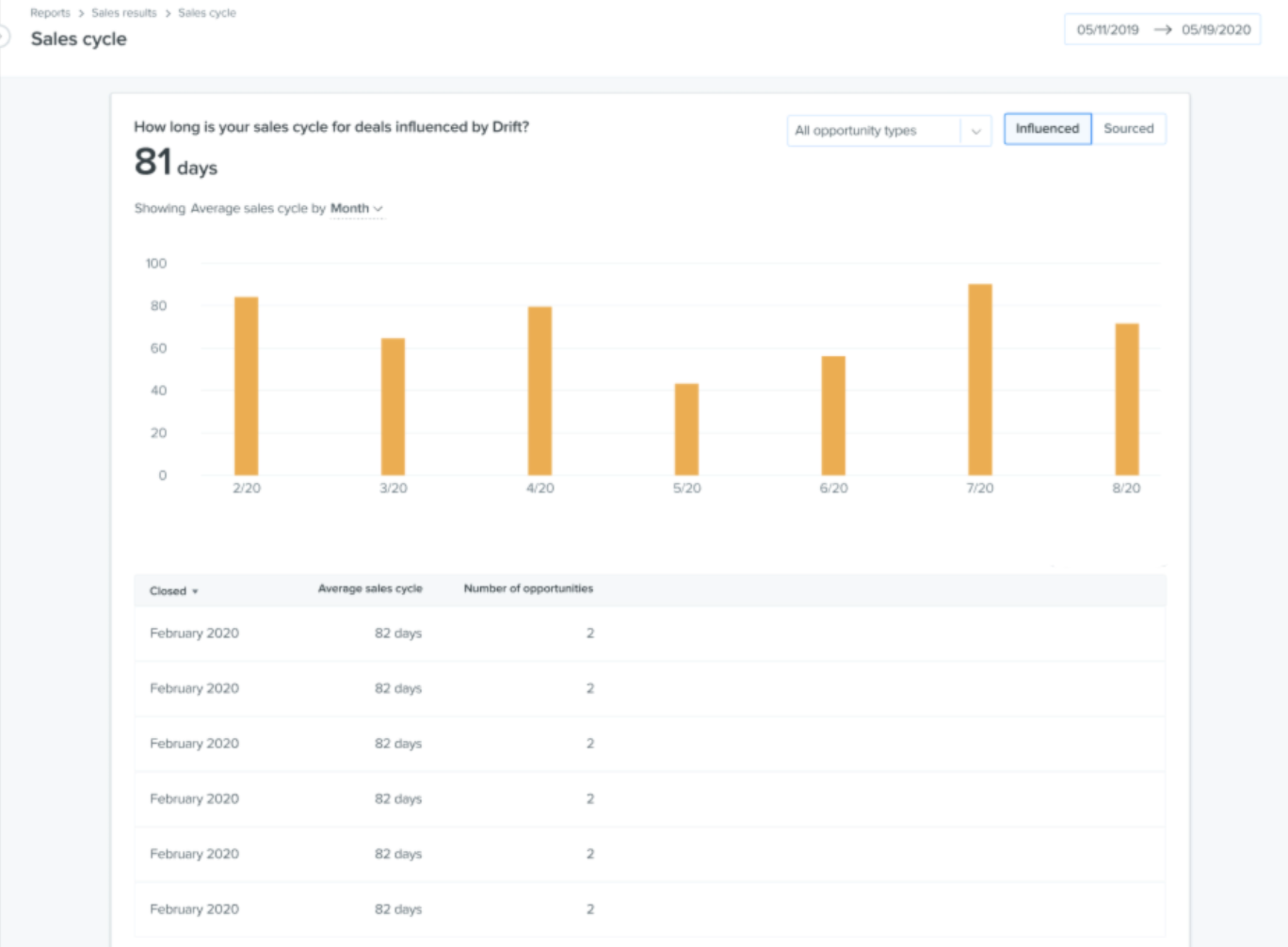
The Sales cycle report shows the average days between Drift-Influenced opportunities’ creation and closure dates. It can be accessed from the Overview report’s ‘Sales cycle’ card, or from the left-hand navigation pane, under Reports > Sales Results > Sales cycle.
Meetings Report
In the Meetings Report, you can see which of your teammates is booking the most meetings over a customizable period of time, recently booked meetings, the outcome of all of your meetings and which companies are booking meetings with you! This data can be exported by clicking Export to CSV.
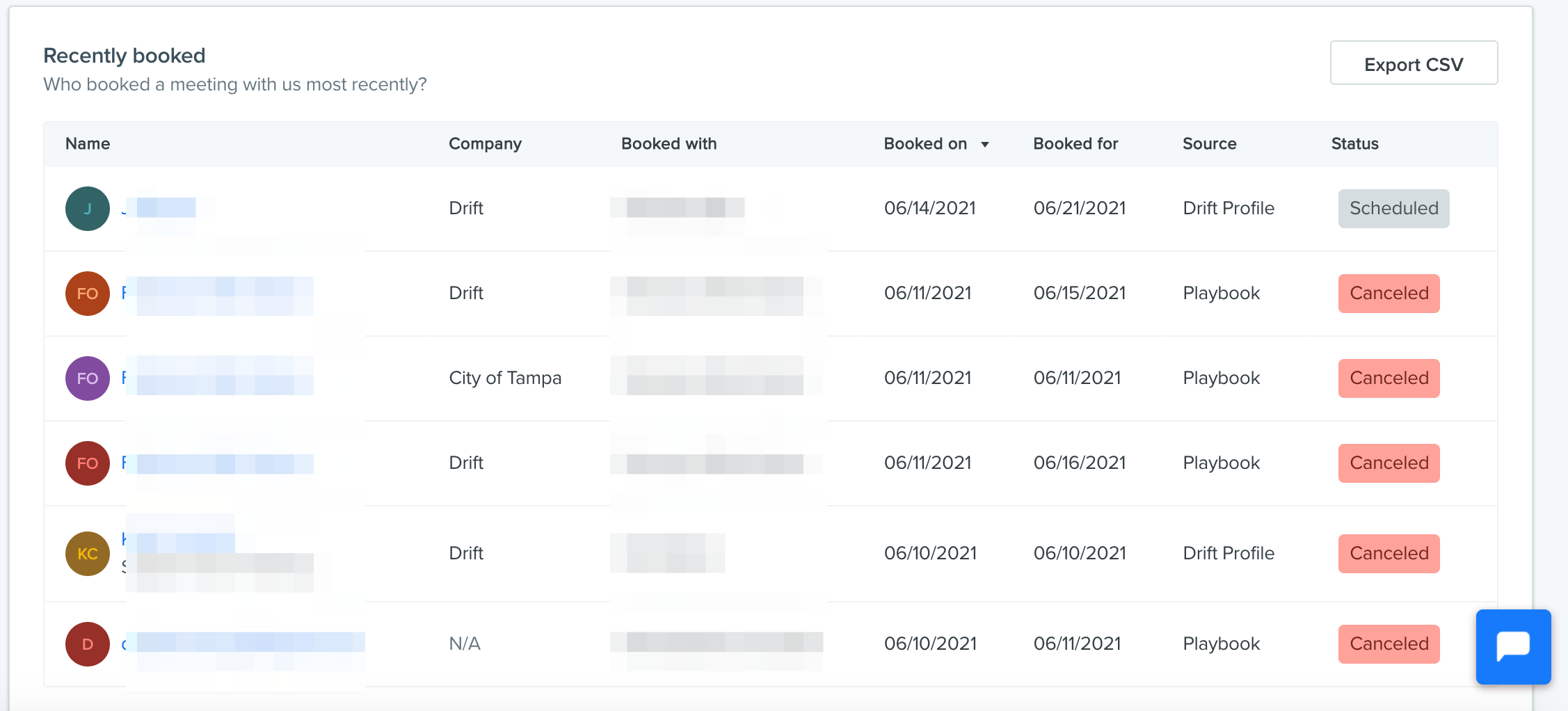
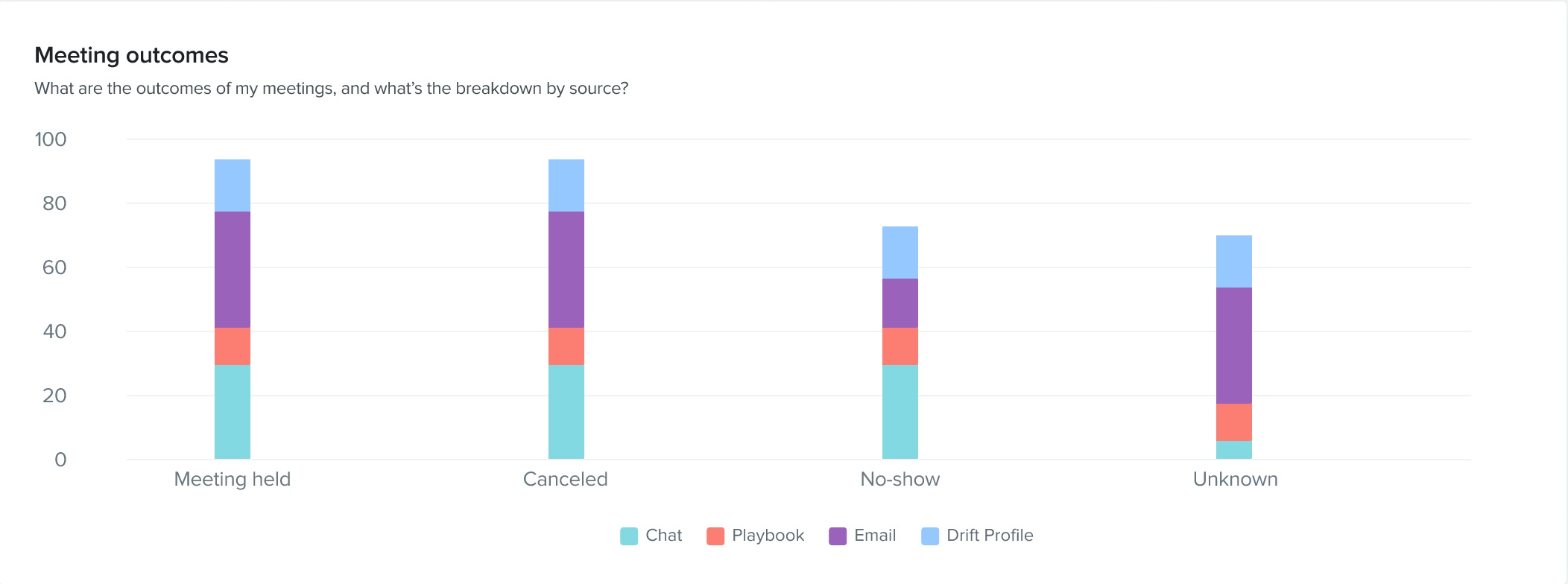
You must be integrated with Salesforce to use the Meeting Outcome report and to view recently booked meetings.
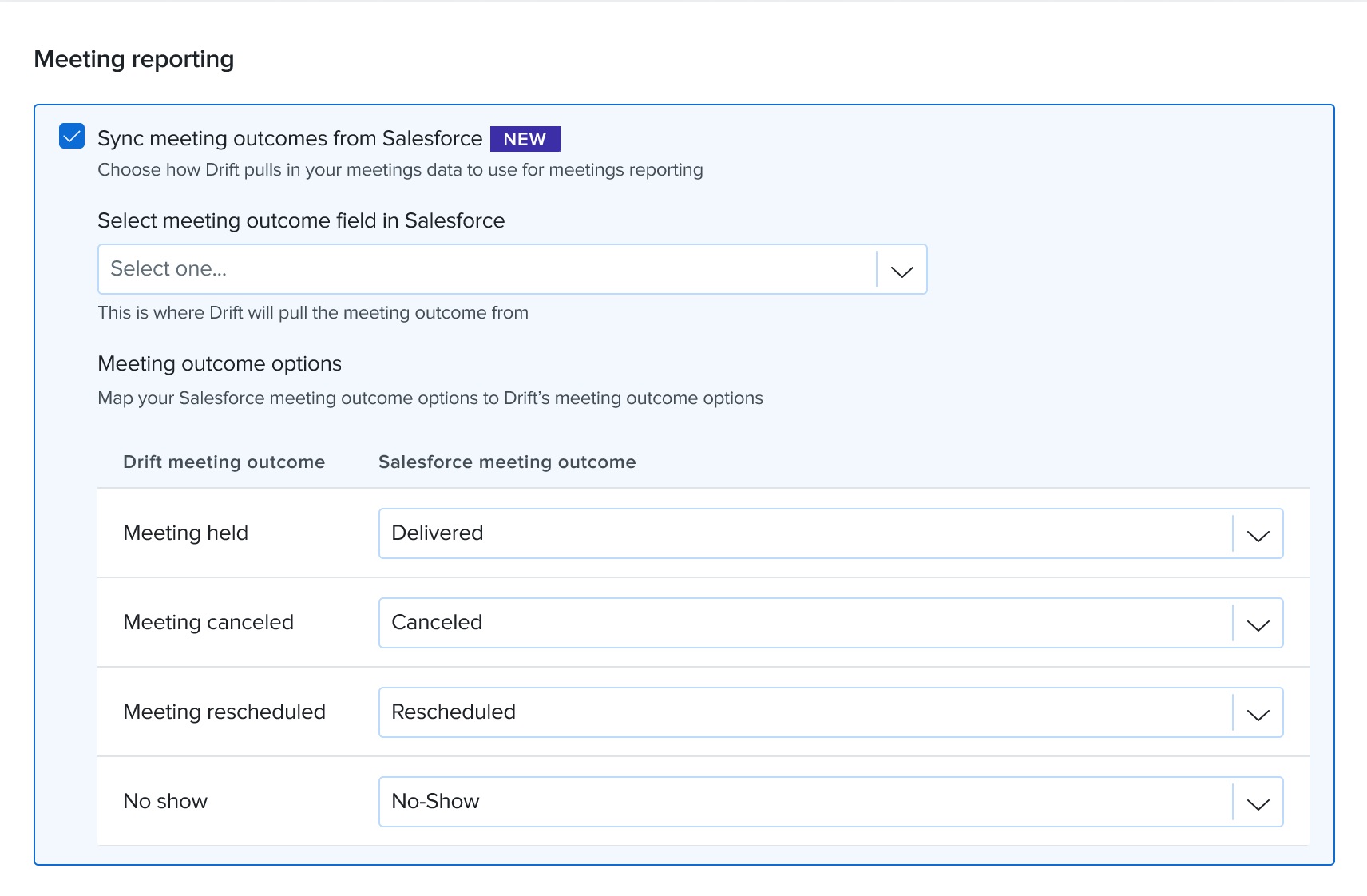
In order to enable these reports and enable a sync between Drift and Salesforce, navigate to Settings > Integrations > Salesforce > Sync Settings. Scroll down to find the Meeting Reporting section.
Use the dropdown's to select the field in Salesforce that Drift will pull meeting outcome information from and to map your Salesforce meeting outcome options to Drift's meeting outcome options.
Meeting Source and Status Definitions
Sources:
- None - The meeting was booked after the site visitor chatted in via a welcome message
- Playbook_Drop - Meetings booked using existing routing rules. Also meetings booked from playbooks.
- Playbook_Drop_Team: Speed prioritized meeting setting found here: https://app.drift.com/meetings/organization
- Profile_Drop - The meeting was booked via a Drift Profile link
- Reschedule - The meeting has been rescheduled via Drift
- Email Drop - The meeting was booked in an email sent with the Drift Email Extension
- Sequence Drop - The meeting was scheduled from a Drift Email related playbooks.
Status:
- Scheduled - The meeting has been scheduled and has not occurred yet
- Canceled - The meeting has been canceled
- Rescheduled - The meeting has been rescheduled
Playbook Report
For any Bot Playbook, we provide detailed reports and flow analytics so you can see how people are interacting with your Playbooks, how many people are clicking each button, and where people are dropping off in the flow.
Within any Bot Playbook, click View Report
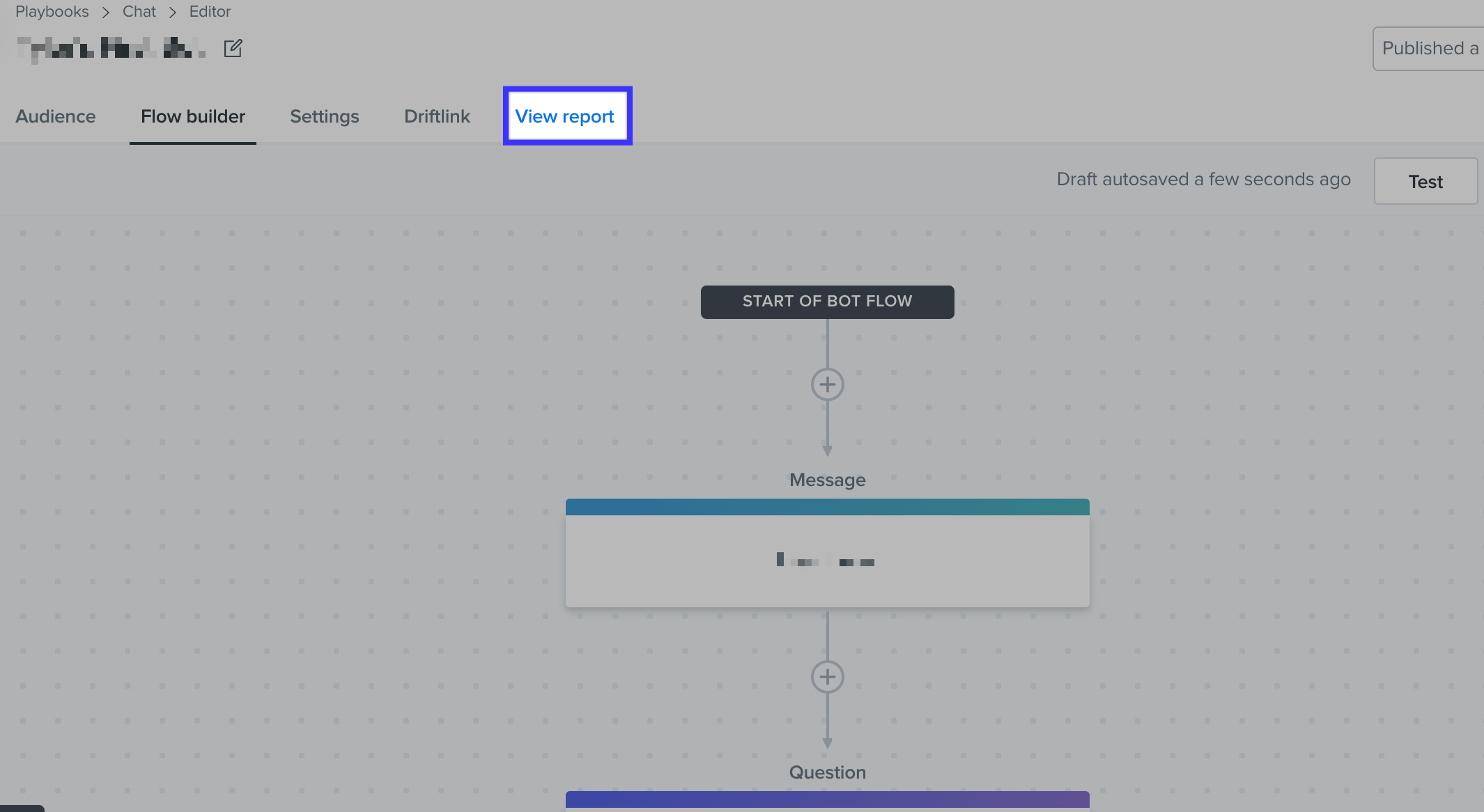
You'll see how many people were targeted, how they interacted, bot conversation ratings, and more! For more details on Bot Playbook reporting check out this help doc
Conversations Reports
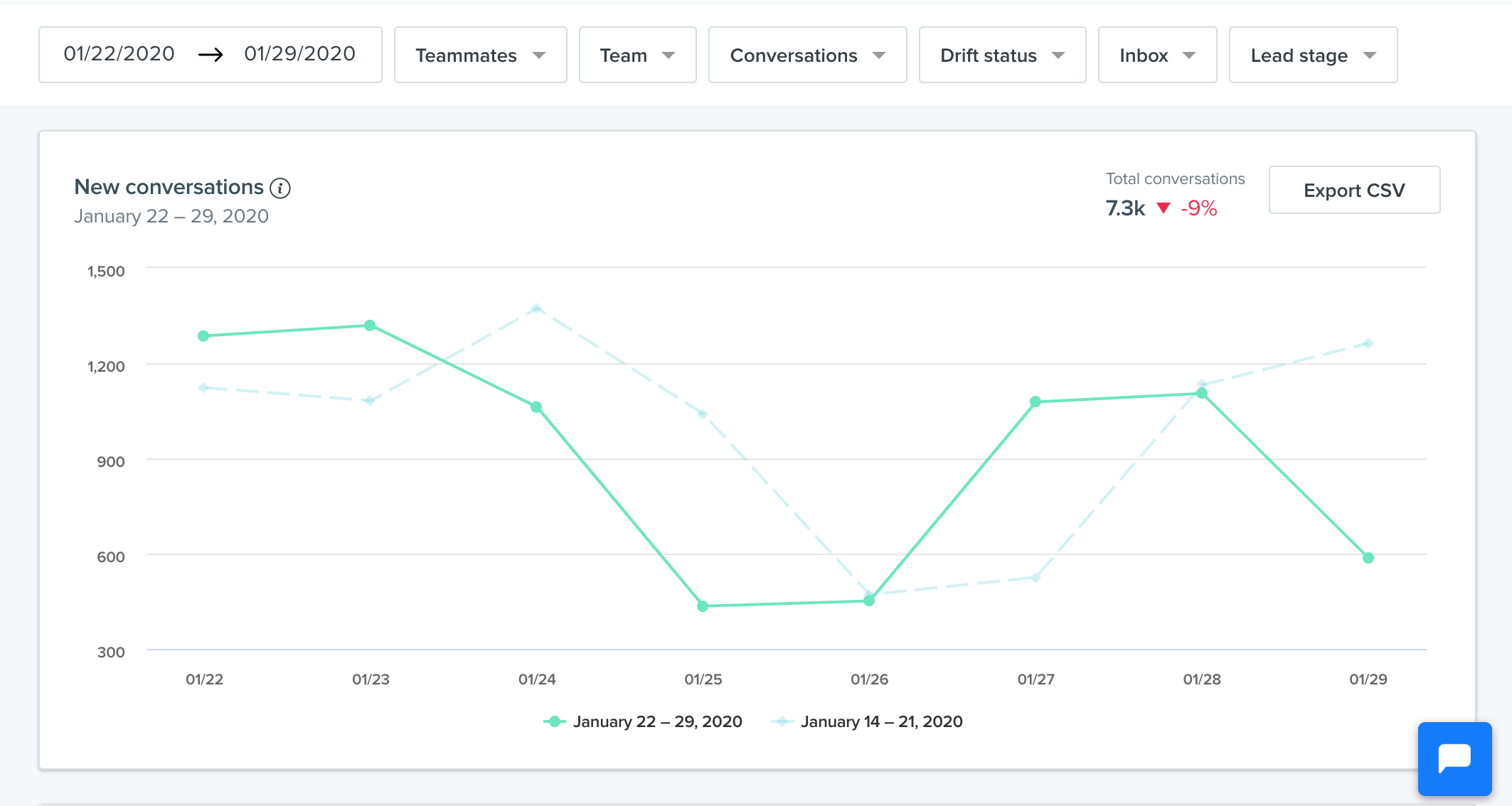
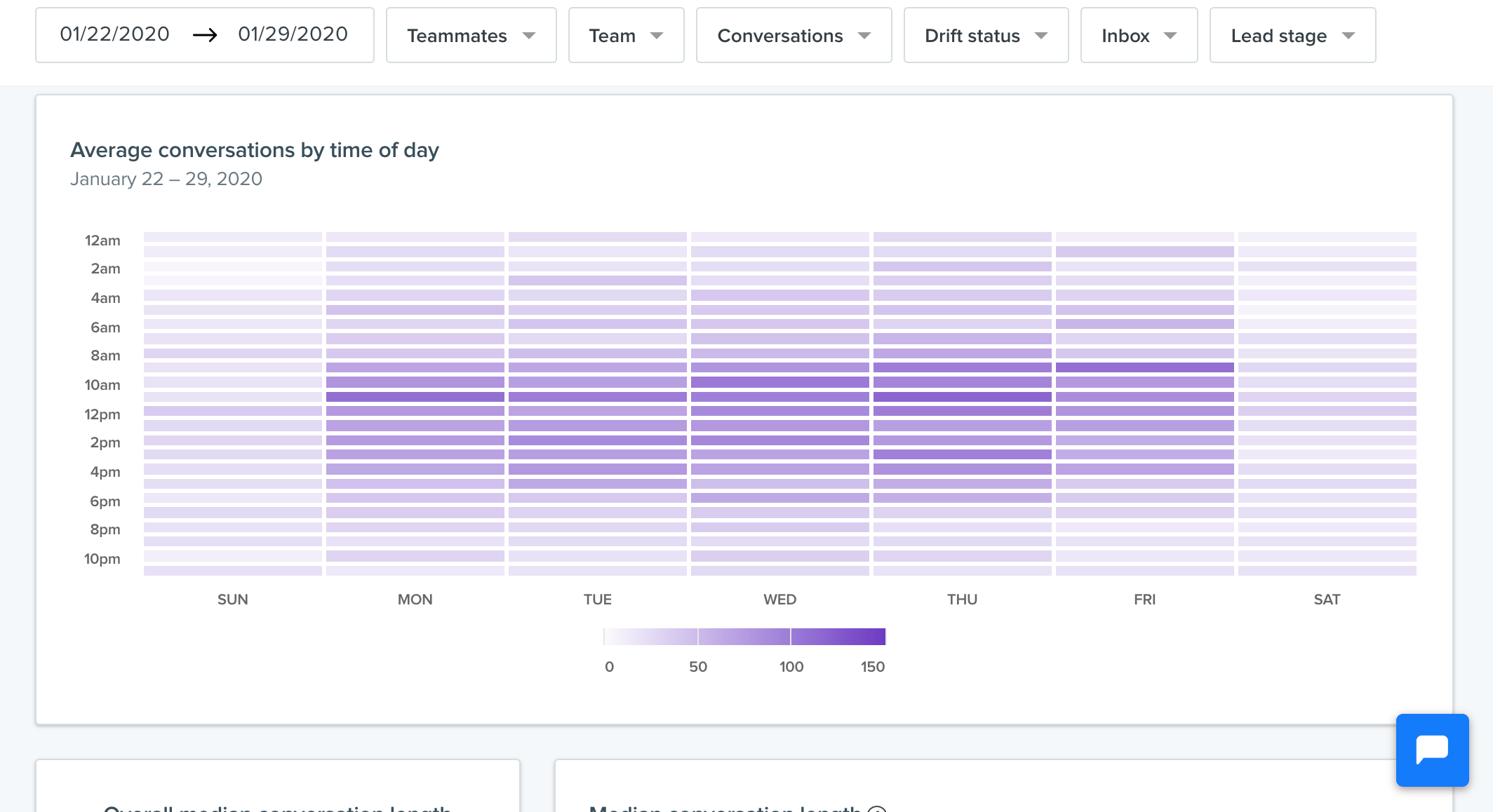
You can see a full breakdown of all the following conversation reports within this doc
- chart of new conversations and conversations by time of day
- where conversations are happening
- who is responding to the most conversations
- how conversations are being tagged
- team performance
- routing rules
Fastlane Reporting
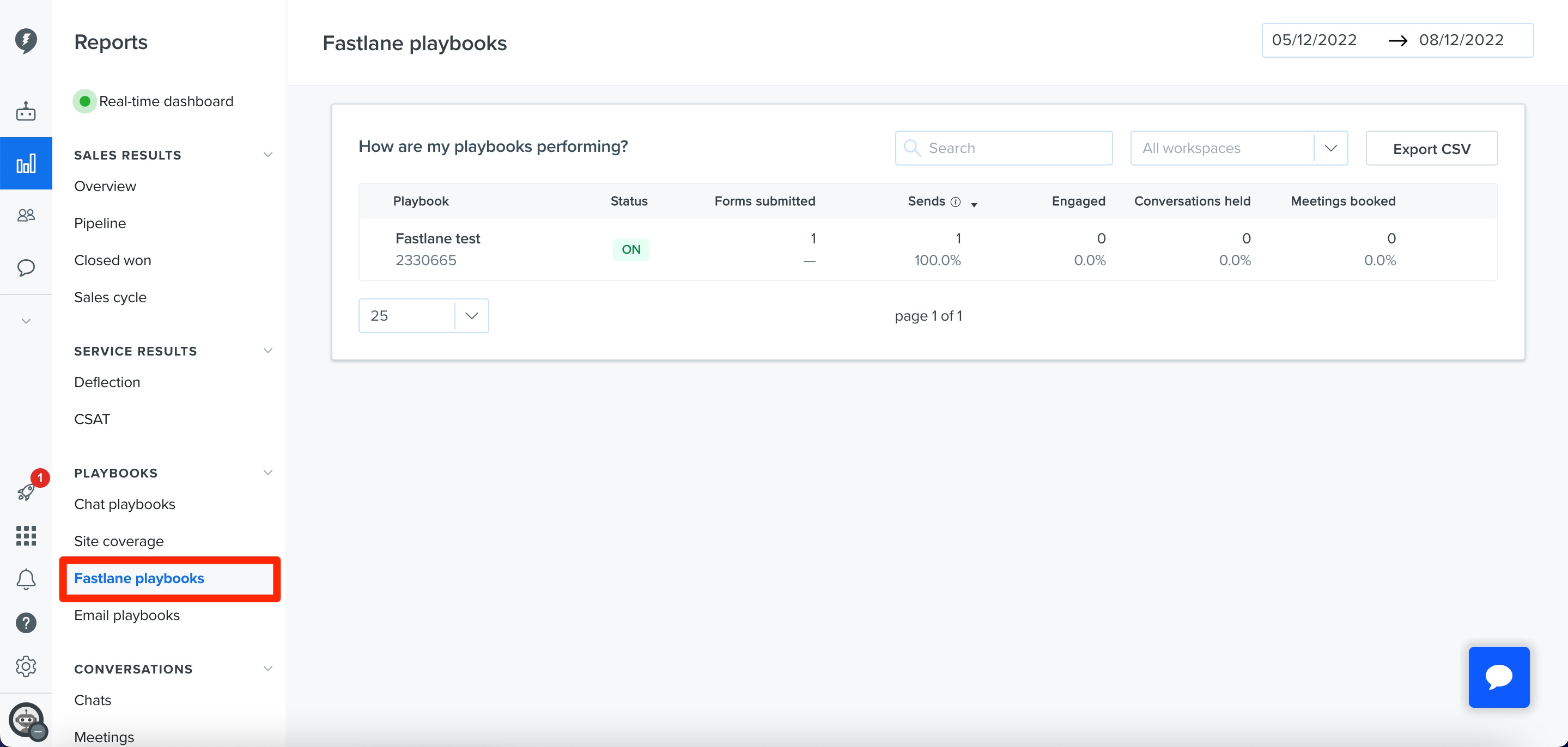
Here you can find data on your Fastlane playbooks. Use the button in the top right corner of the report to export it. We provide the following data for Fastlane playbooks:
-
Forms Submitted - The number of forms submitted
-
Sends - Number of visitor sessions where this playbook was shown
-
Engaged - Number leads that start a chat and/or book a meeting
-
Conversations Held - Number of conversations started from the playbook. Messages must be sent between the site visitor and agent
-
Meetings Booked - Number of meetings booked from the playbook
More to Come
Our team is working to make reporting more robust and actionable. We're excited for what's to come!
