Workspaces allows you to easily segment your Drift instance by function, business unit or geography. Each workspace will have their own inboxes, teams, and target audience
Billing Plan: Workspaces are available for users on the Enterprise billing plan, and is available as an add-on to the Advanced plan.
In this article we'll go over:
- Setting up a new workspace
- Setting up Inboxes and Teams for your workspace
- Assigning Playbooks to your workspace
- Reporting on workspaces
Note: Please note that accounts with workspaces added after November 30th, 2022, will not have access to Audience URL targeting and will not have a Default Audience tab visible in workspace settings. Please adjust URL targeting for Playbooks in the workspace on the Playbook level.
Setting up a new workspace
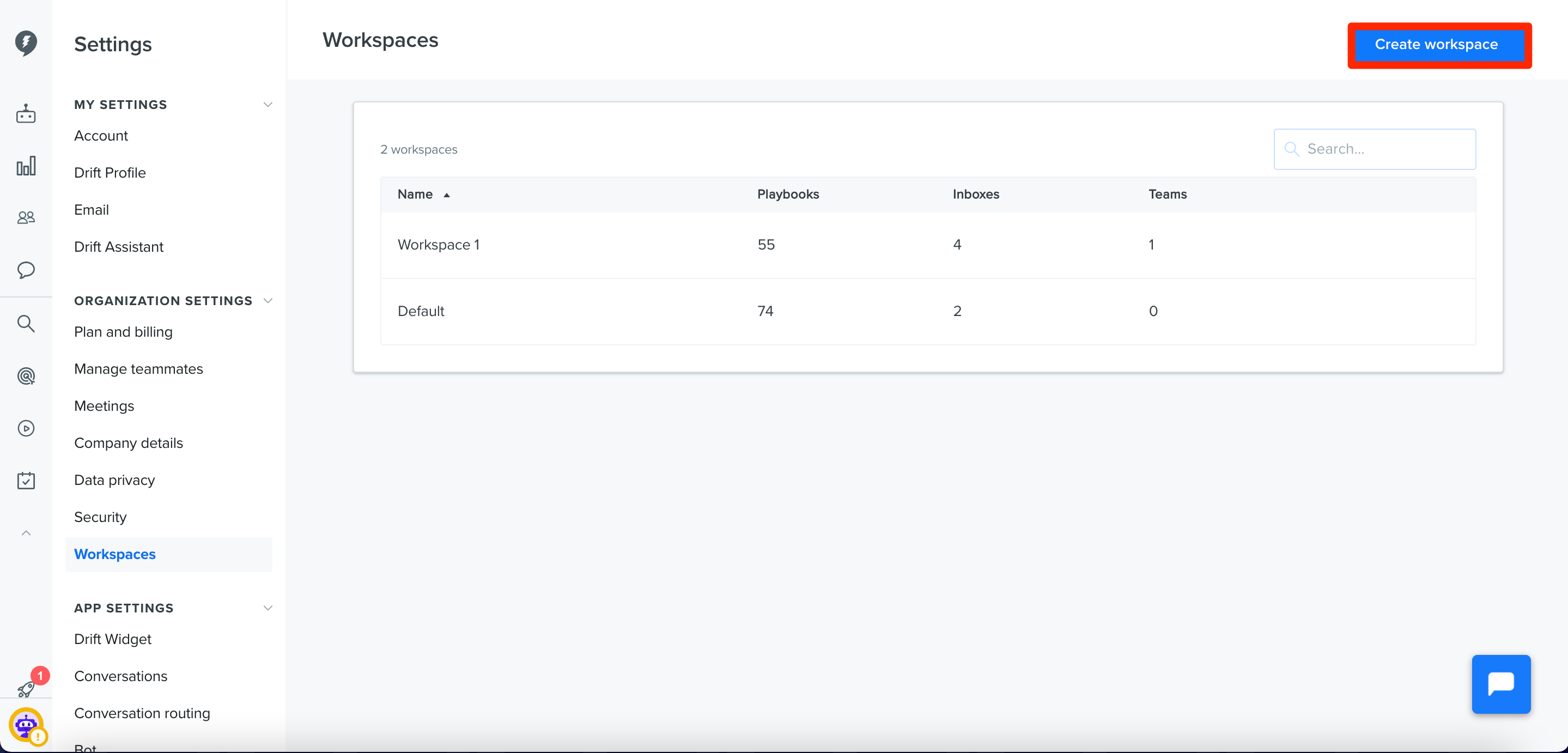
To set up a new Workspace, your Admin will go to Settings > Organization Settings > Workspaces and select Create Workspace.
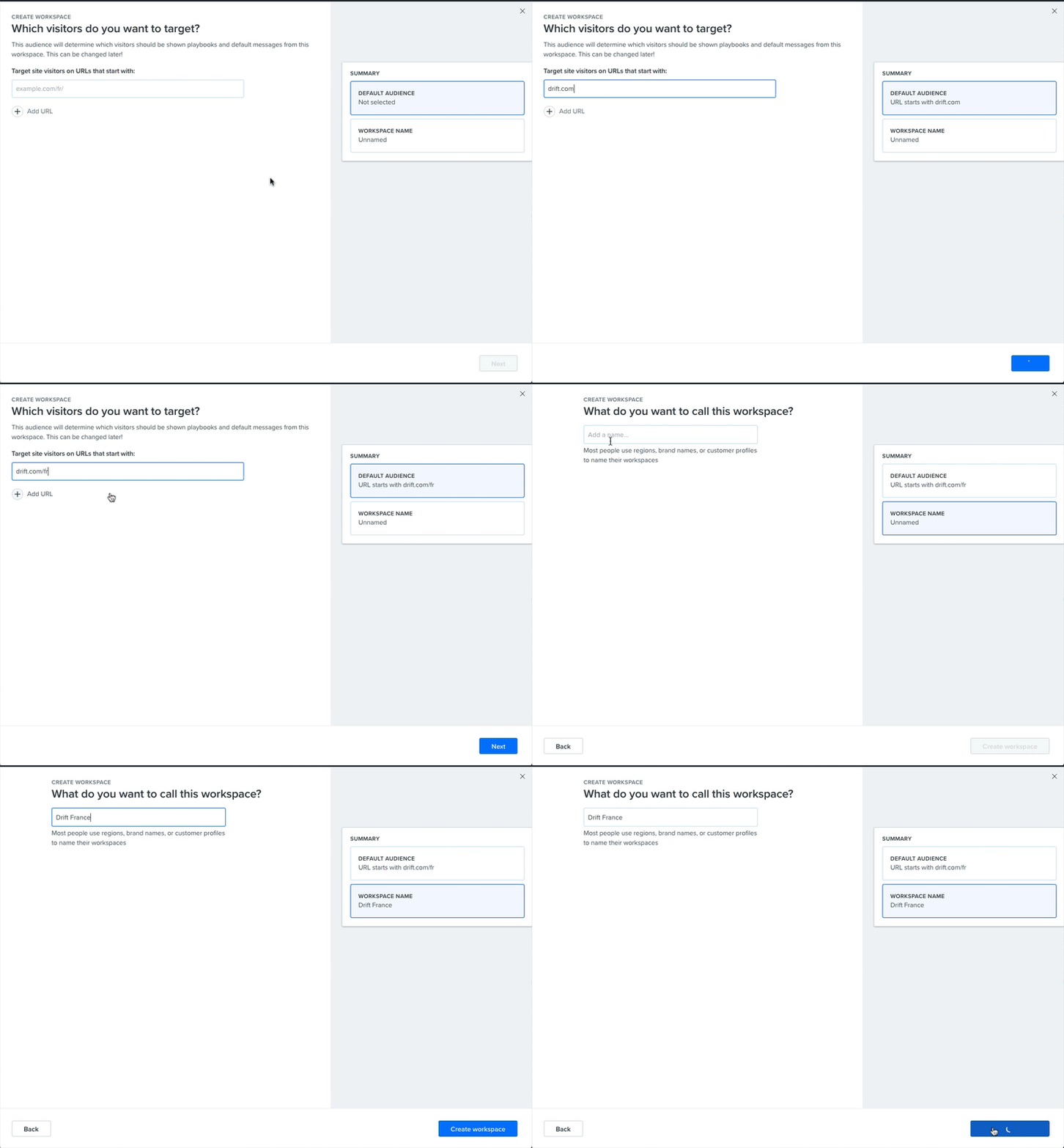
 Next, you'll select your Target Audience, and fill out your Workspace Name. The Target Audience is the set of domains that the function, business unit or geography owns - the playbooks in that workspace can only target URLs and subdomains defined in the default audience. This makes sure that marketing teams are presenting consistent messaging to their target audience.
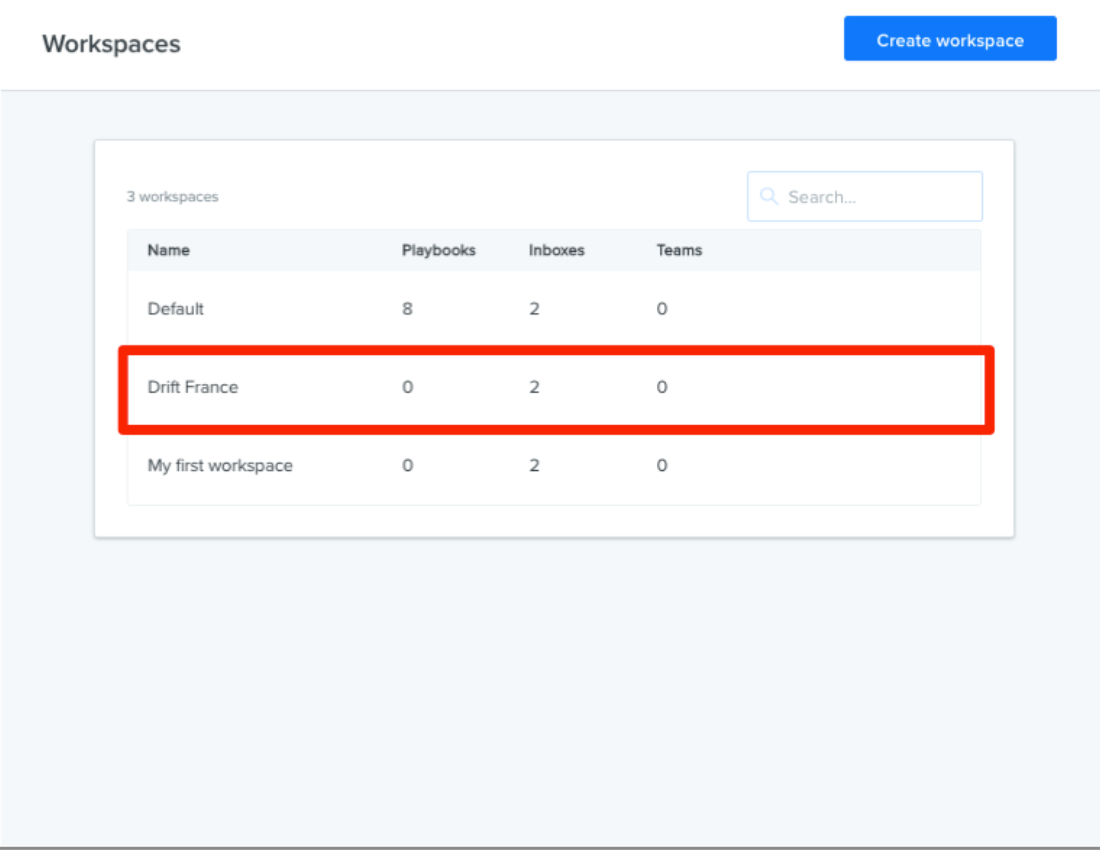
Once completed, you'll see your new workspace settings on the Workspace screen.
Now you're ready to start populating your workspace with Playbooks, Inboxes, and assigning teams.
Setting up Inboxes and Assigning Teams
Every workspace can have its own Playbook, Inboxes, and Teams.
To set up Inboxes for your workspace, select your workspace from the Settings > Organization Settings > Workspaces screen, and then select Create Inbox from the Inbox tab.
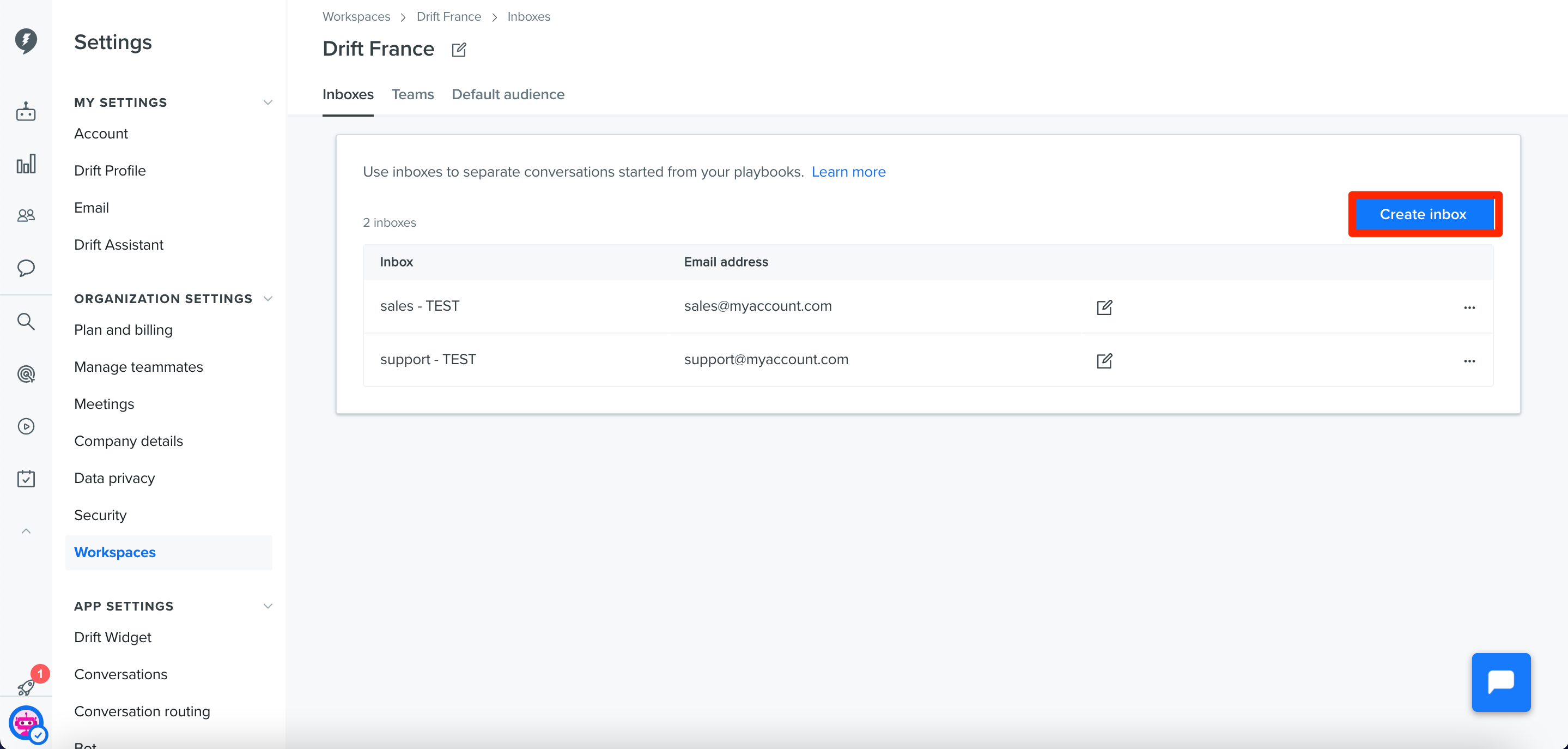
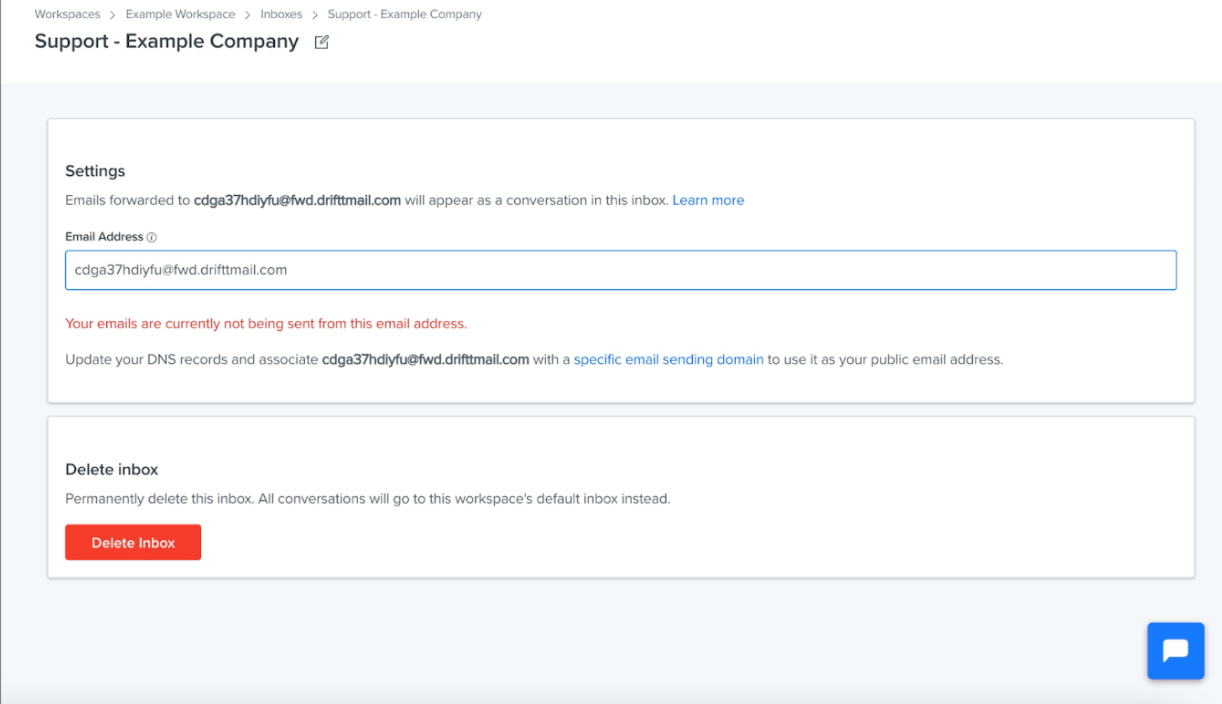
You'll be brought to a page where you can name the inbox and set up the public email address associated with it. The public email address associated with that inbox will allow people to reply to conversations or contact you there via email.
Allowing Drift to Send Emails from your Domain
You can whitelabel Drift to send emails from this inbox and on behalf of your domain through DKIM! For detailed information on setting this up, read the help doc here .
Configuring DKIM is available on our Premium plan and above.
Setting up an Inbox to Receive Fallback emails
To ensure that you can receive replies to your fallback emails after changing the public address from the default, you'll need to set up DKIM for the domain on that email address. You can find the full directions on configuring DKIM here.
Finally, on the email provider's side, go to that public email address you set for your Drift inbox and set that email to forward to the forwarding address you see within that Drift inbox's settings.
This is to ensure that email replies from your conversations populate in your inbox.
Adding a Team
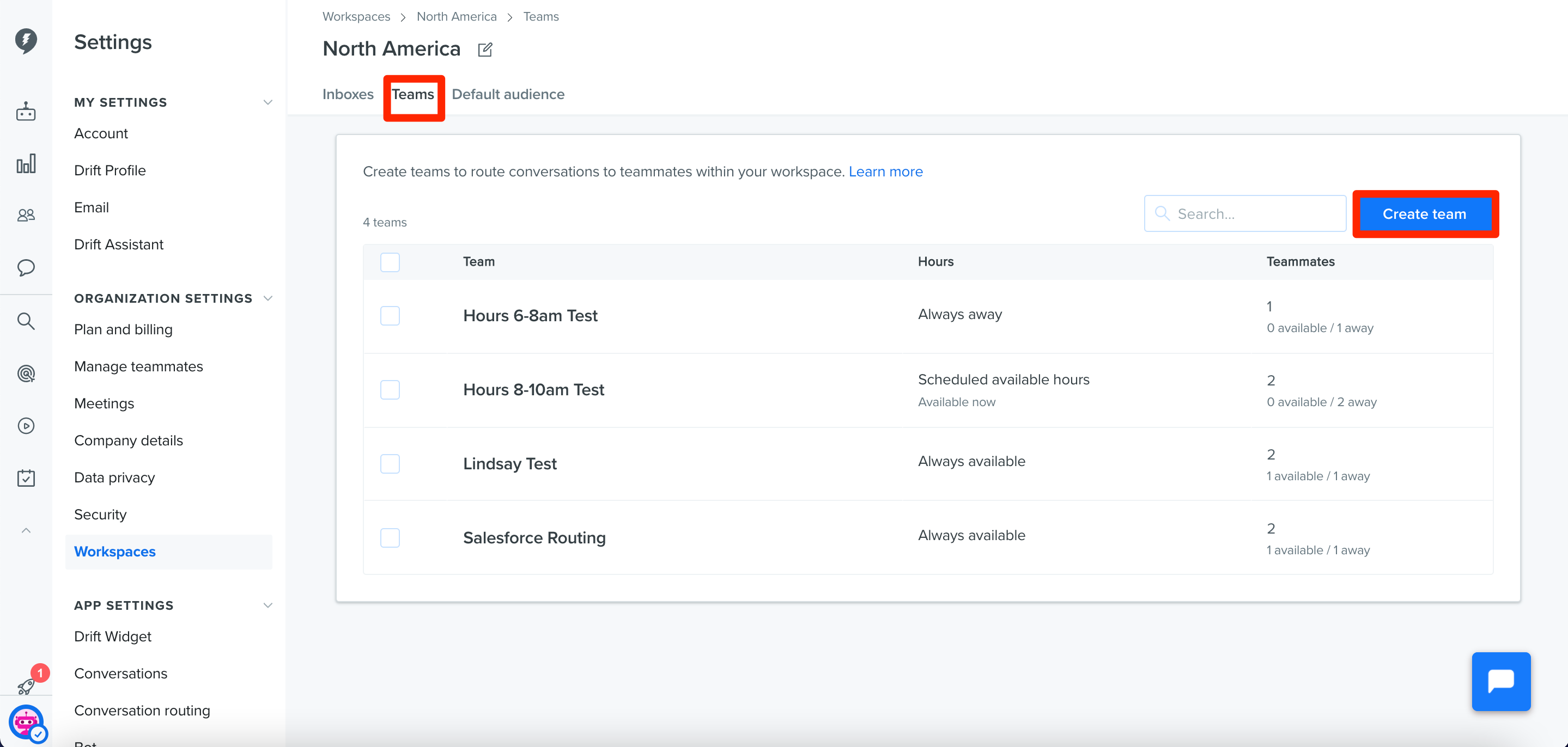
To add a team to your workspaces, select the Teams tab, and then click Create Team.
From here, you can select what teammates to add to the team.
Once your teams are set up, you're ready to assign your playbooks to the appropriate workspace.
Assigning Playbooks to Workspaces
Each workspaces can utilize their own playbooks. For example, your French Playbooks would fire on your french domain, while your German Playbooks would fire on your German domain.
To create a new playbook for a workspace.
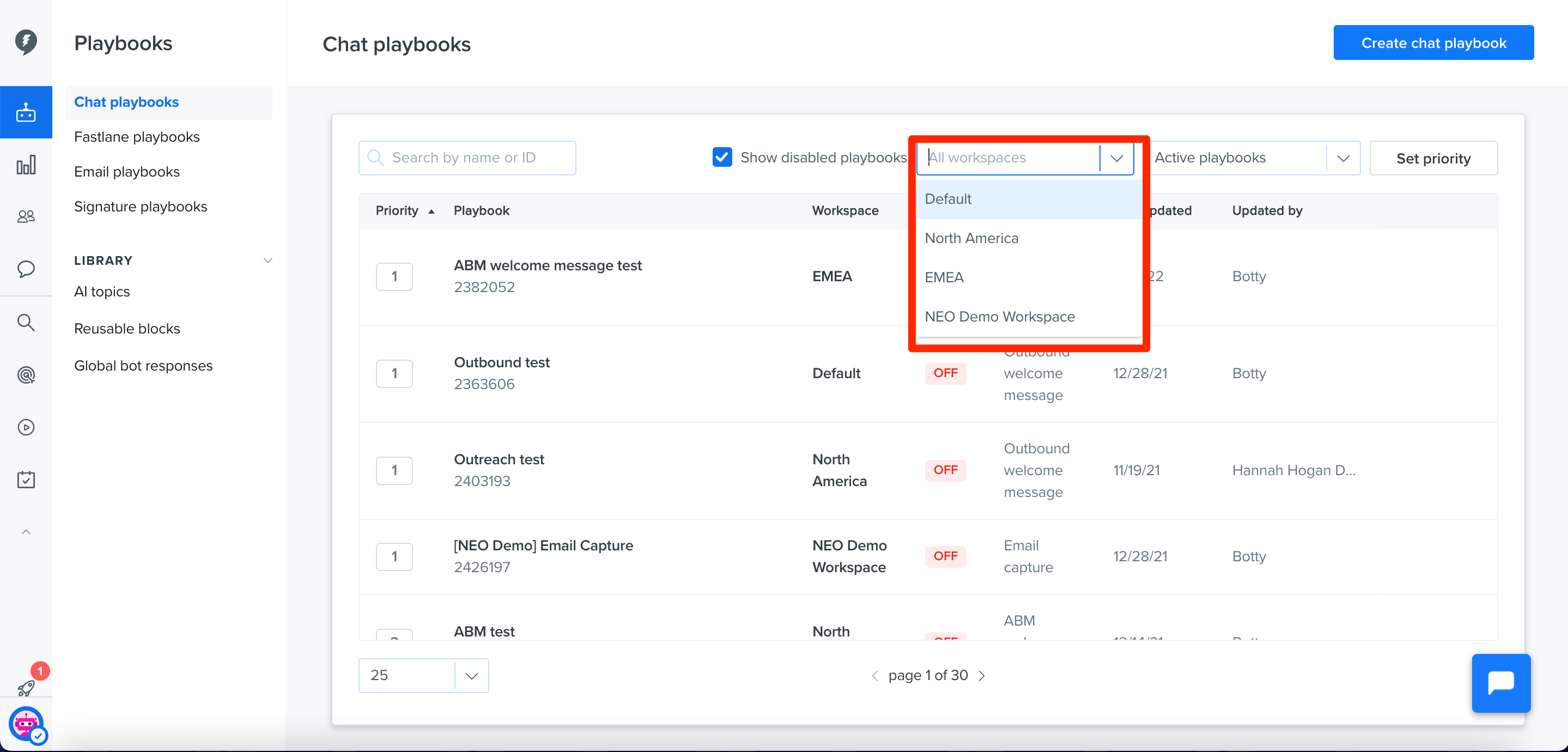
Go to Playbooks. From here, you can filter all you playbooks via your workspace, or create a new playbook for your workspace via the Create Chat Playbook button.
For more info on creating a playbook, check out our playbook help docs here
Reporting on Workspaces
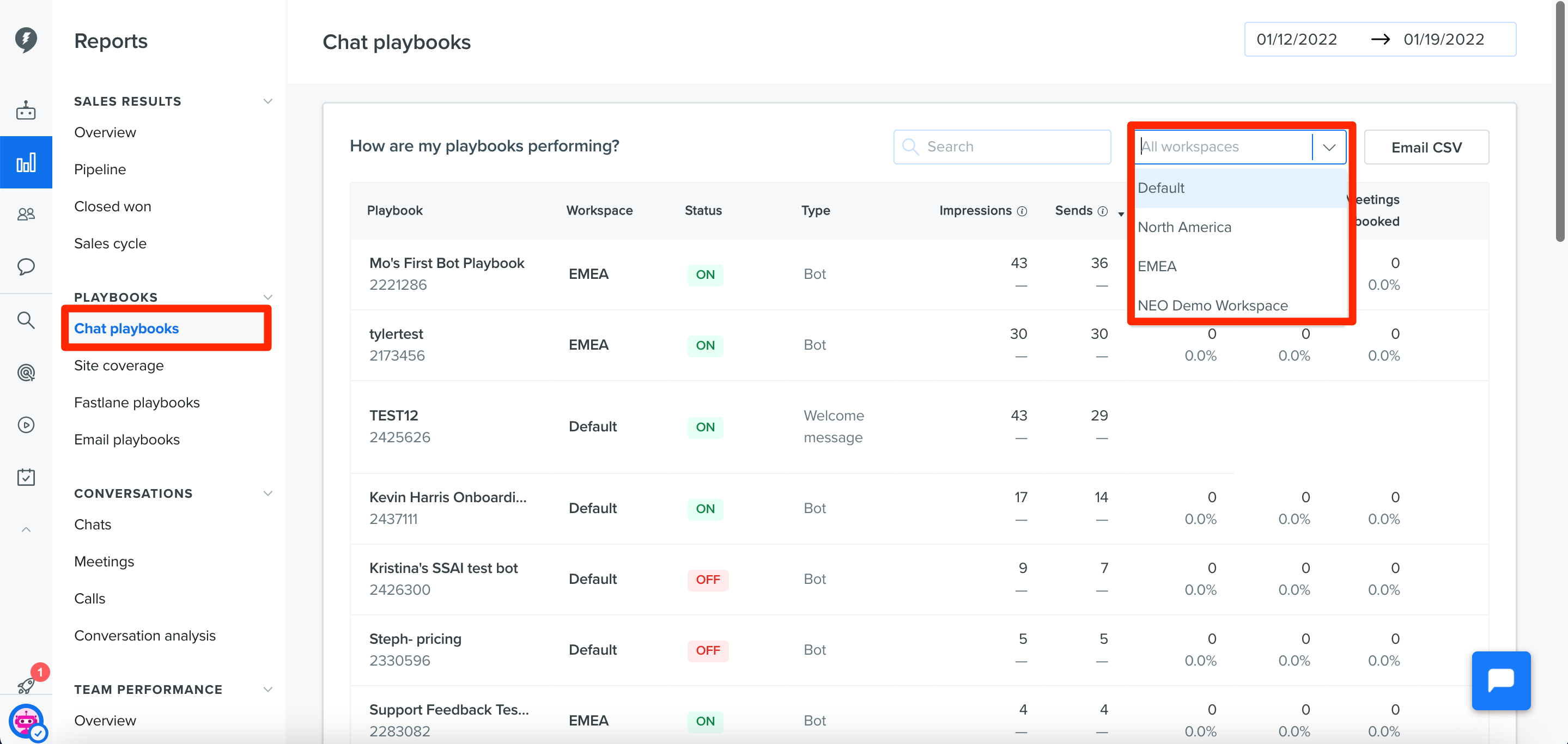
Once you have your workspaces set up and running, you'll want to see how well they are doing. You can filter your reporting based on workspaces.
To run your report, go to Reports, and select your workspace from filter menu at the top of the screen.
For more detail on the info contained on your report. Check out our help doc here on reporting.
