Site Concierge delivers multi-faceted digital experiences unique to each web visitor based on their individual interests, intent, and stage. This results in more relevant experiences for them, and more quality pipeline for you, all with less effort from your marketing team.
Billing Plan: Site Concierge is currently available to all plans as an add on to your account.
In this article, we’ll cover:
Setting Up Site Concierge: Content Recommendations
To be able to utilize Content Recommendations, you must upload content to your Content Library within Drift. This is where Site Concierge will pull the recommended content from. Please see our Content Upload help doc for more detailed information on uploading content into Drift.
Note: If you have not uploaded any content to the Content Library, it is expected that no content will be recommended by the Site Concierge.
Once you have uploaded your content into Drift, you can enable Content Recommendations. Navigate to Playbooks > Site Concierge > Content Recommendations and click the button in the upper right corner to enable or disable Content Recommendations.Once you click the button, Site Concierge will start recommending content to visitors. By default, it will pull from all of the content you have added to your content library. 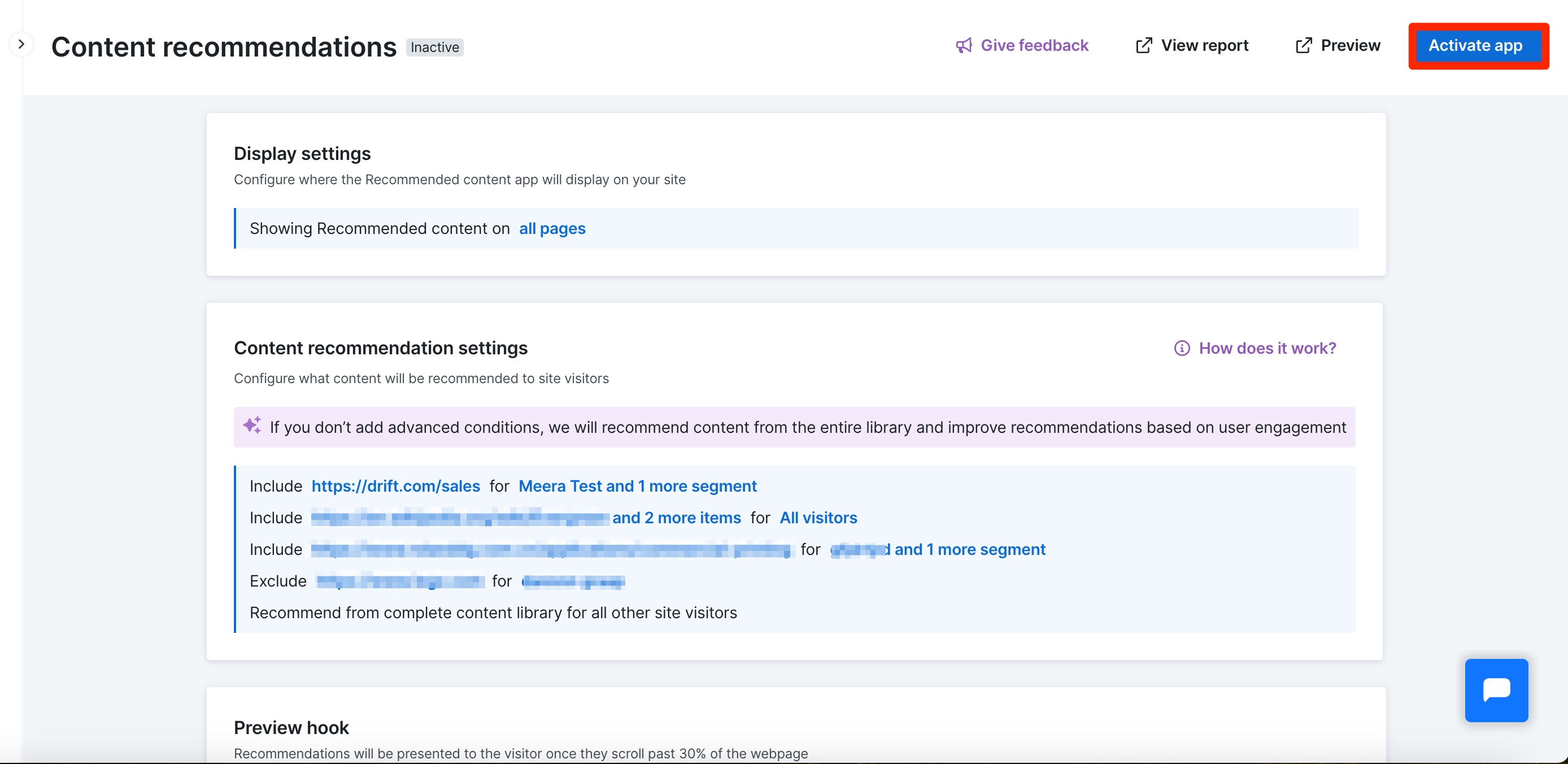
Content Recommendation will be shown on all pages of your site by default. Click on "
all pages" to change the display settings for Content Recommendation. You can select from:
- Show on all pages - Content Recommendation will show on all URLs of your site.
- Include on pages - Content Recommendation will show only on the URLs you list here.
- Exclude on pages - Content Recommendation will show on all URLs of your site excluding the ones you list here.
Click on the blue box shown under
Content recommendation settings to set conditions for specific pieces of content to show for site visitors. Use the drop downs under
Include to select which pieces of content you want to promote and use the drop down next to
for to select the audience segments you want the content to show for. This will ensure that the selected pieces of content only show for the audience segments you select.
Scrolling down in the window will allow you to set
Exclude conditions so that certain pieces of content will not show for the audience segment you select.
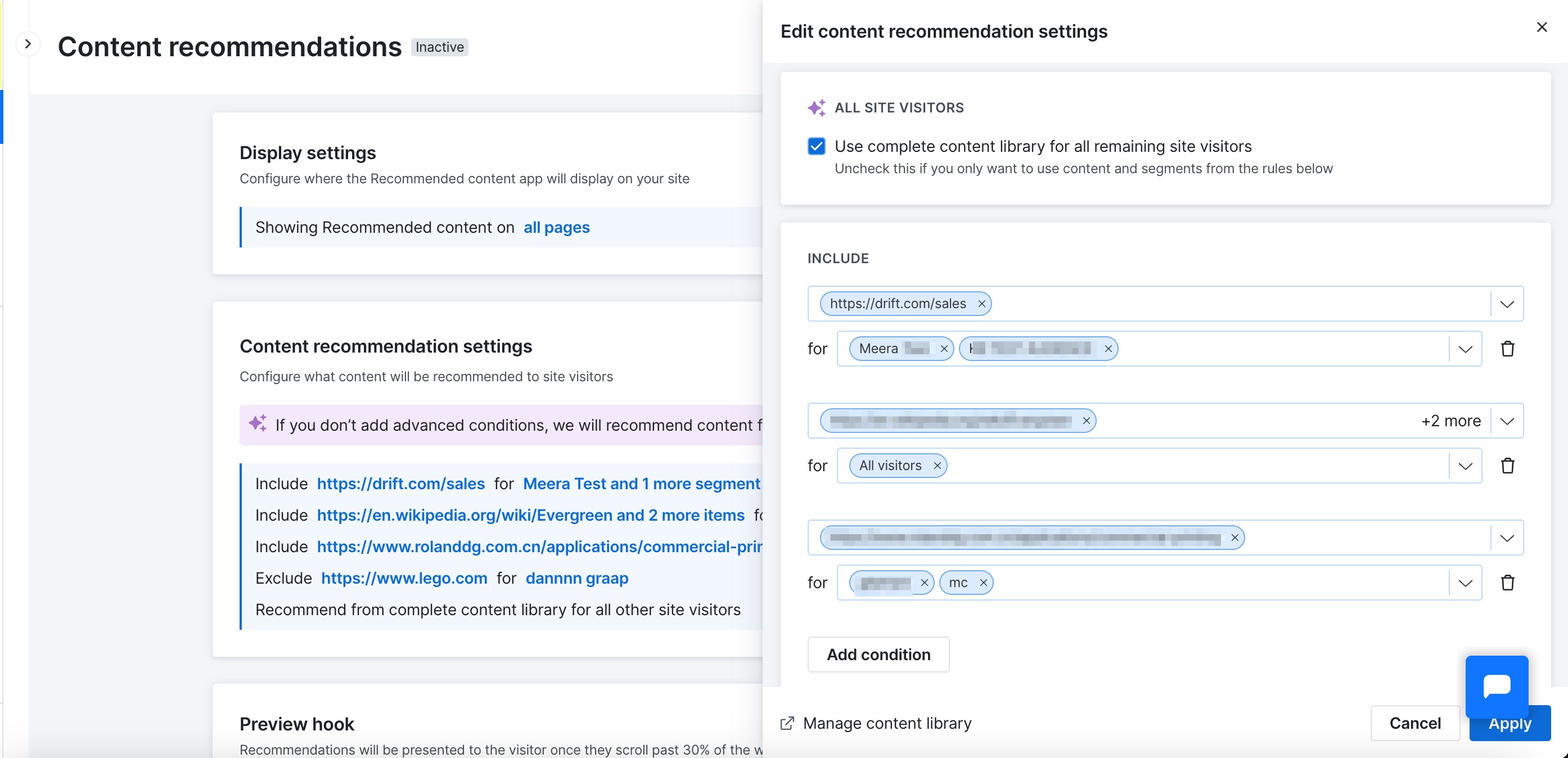
Check the box at the top of the window to allow Site Concierge to pull content from the whole content library for site visitors who are not included in any of the segments you have created conditions for.
Note: If you do not set any conditions then Site Concierge will pull from all of the content in your content library.
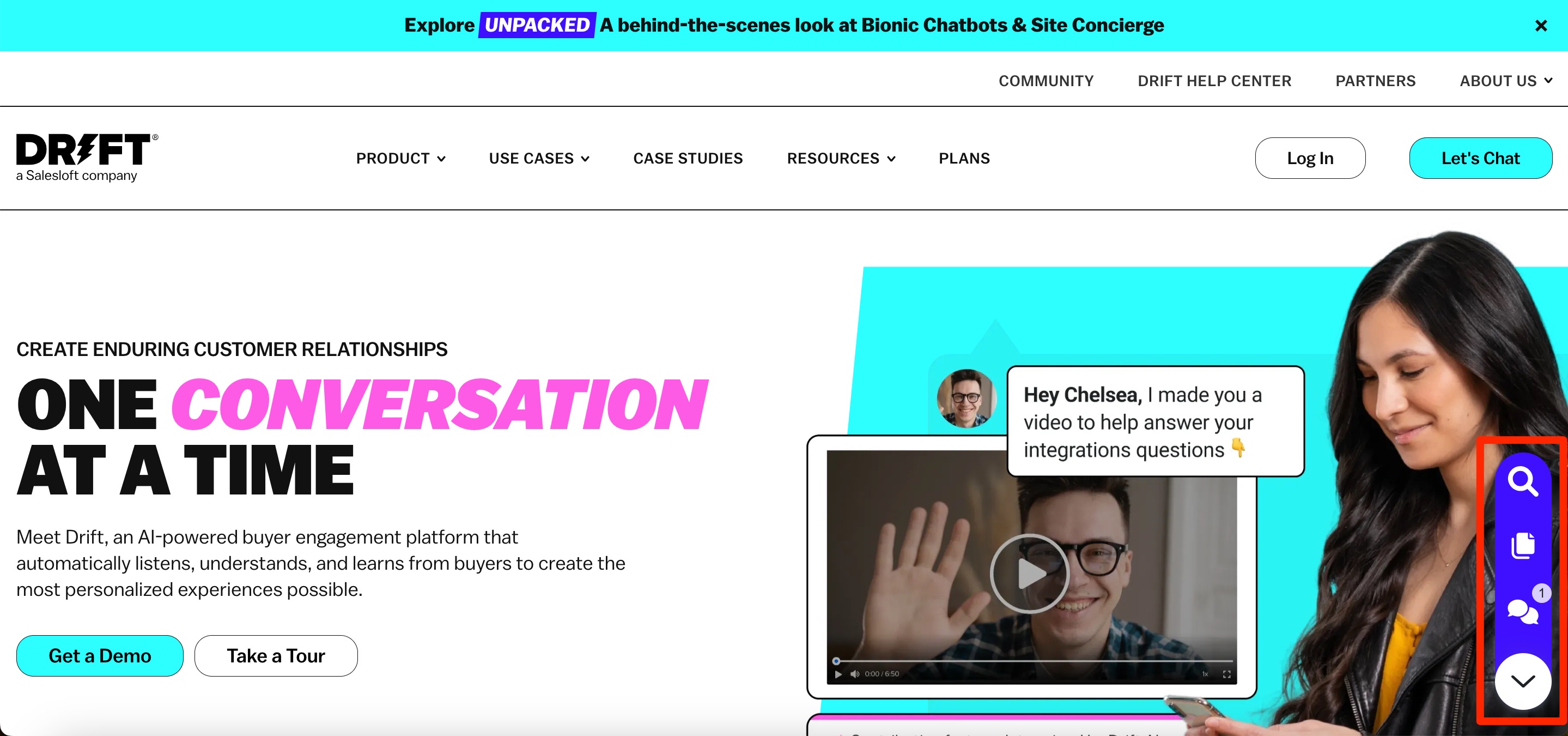
Once you enable Content Recommendations, your Drift widget will change to show two buttons, the chat button and the content button (as seen in the screenshot below). You can use the arrow button to collapse the widget.
Site visitors will be shown a piece of recommended content after scrolling through 60% of the page or they can click on the content button to see the recommended content at any point (as seen in the screenshot below). At the top of the widget site visitors will be able to click between top recommended content, trending recommendations and recently viewed recommendations.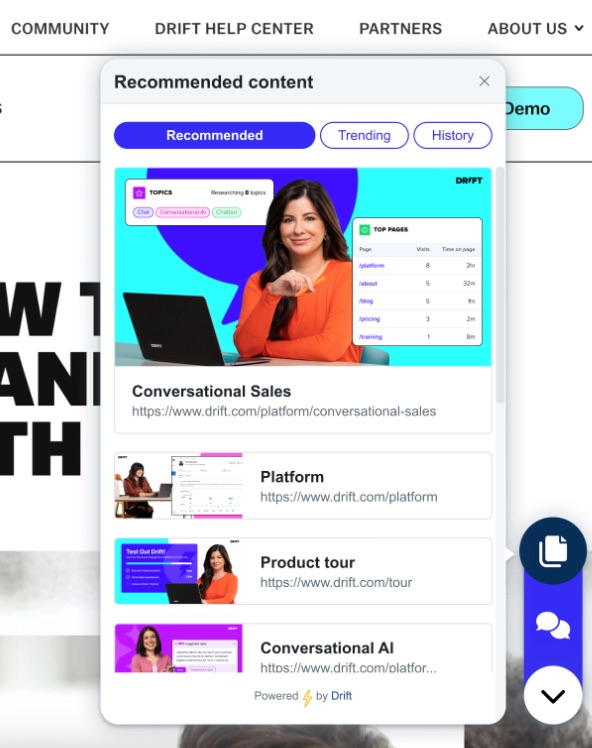
You can find metrics regarding your Recommended Content by navigating to Reports > Site Concierge > Content recommendations
At the top of this report you'll find the following metrics:
- App button impressions - How many times was the content recommendation button shown to site visitors?
- Preview impressions - How often was a content recommendation preview automatically shown to site visitors?
- Content click-throughs - How often did site visitors click through to view the content recommended to them?
Scroll down to see a metric breakdown for each individual piece of content. Here you'll find the name and a link to each piece of content. You will also see
Preview impressions and
Content click-through metrics that were described above as well as the
Content click-through rate which shows a percentage breakdown of click-throughs for each piece of content. You can use the
Export CSV button to export the report.
If multiple resources are uploaded into Drift, how does the widget prioritize which one to send?
Site concierge selects and displays a piece of content that a user has not viewed yet, and is most likely to click on. It looks at factors such as previous site interactions and site visitor metadata to determine what pages a site visitor has viewed previously as well as what they have shown interest in
