Understanding how your chat playbooks are performing on your web site is a key part of increasing the number of conversations you have, leads you capture, and meetings you book.
Billing Plan: Bot Playbook reporting is available on all paid Drift plans.
In this article we'll cover:
Note: You can view up to two years worth of data via Drift's reports.
Five metrics are available via the Drift Chat app for chat playbooks. They are defined below:
Sends
The number of visitor session where this playbook was shown. Sessions begin when a user first visits a page with the Drift Widget and ends when the user has not visited a page for 30 minutes or at midnight UTC.
Conversations
The number of conversations that were started as a result of the playbook.
When a site visitor engages with a chat playbook, they start a conversation. They can engage by clicking a button or sending a message in response to a bot playbook, providing their email via an announcement playbook, or by initiating a conversation from a welcome message playbook.
This is a great metric to use as a numerator when calculating an engagement rate for your playbooks.
Emails captured
The number of emails captured within a conversation started by the playbook.
A site visitor can provide their email via a email capture bot skill or by simply typing it into chat. When Drift recognizes that an email has been sent by the site visitor as part of a conversation, it will be represented as a single email capture by the playbook that initiated the conversation.
If a contact had an email associated with it prior to a conversation or a Drift cookie associated with their email, it will not count as an additional capture if they provide their email again in the latest conversation.
Routed Chats
The number of chats from a given Playbook that had routing occur.
Meetings booked
The number of meetings that were booked within a conversation started by the playbook.
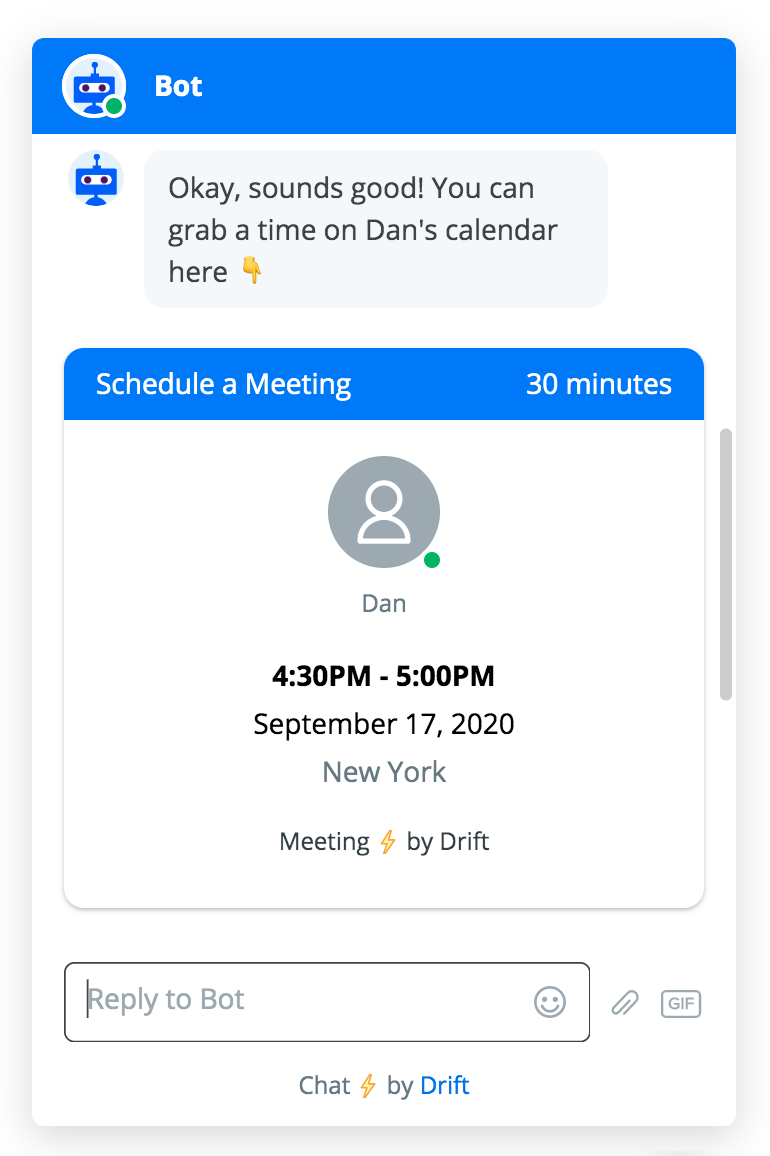
Any meeting that is scheduled as a part of conversation started by the playbook will be counted toward this metric. Scheduling cards sent by bot playbook skills, or by humans will both be counted.
Chat playbook reports are available at https://app.drift.com/reports/chat-playbooks
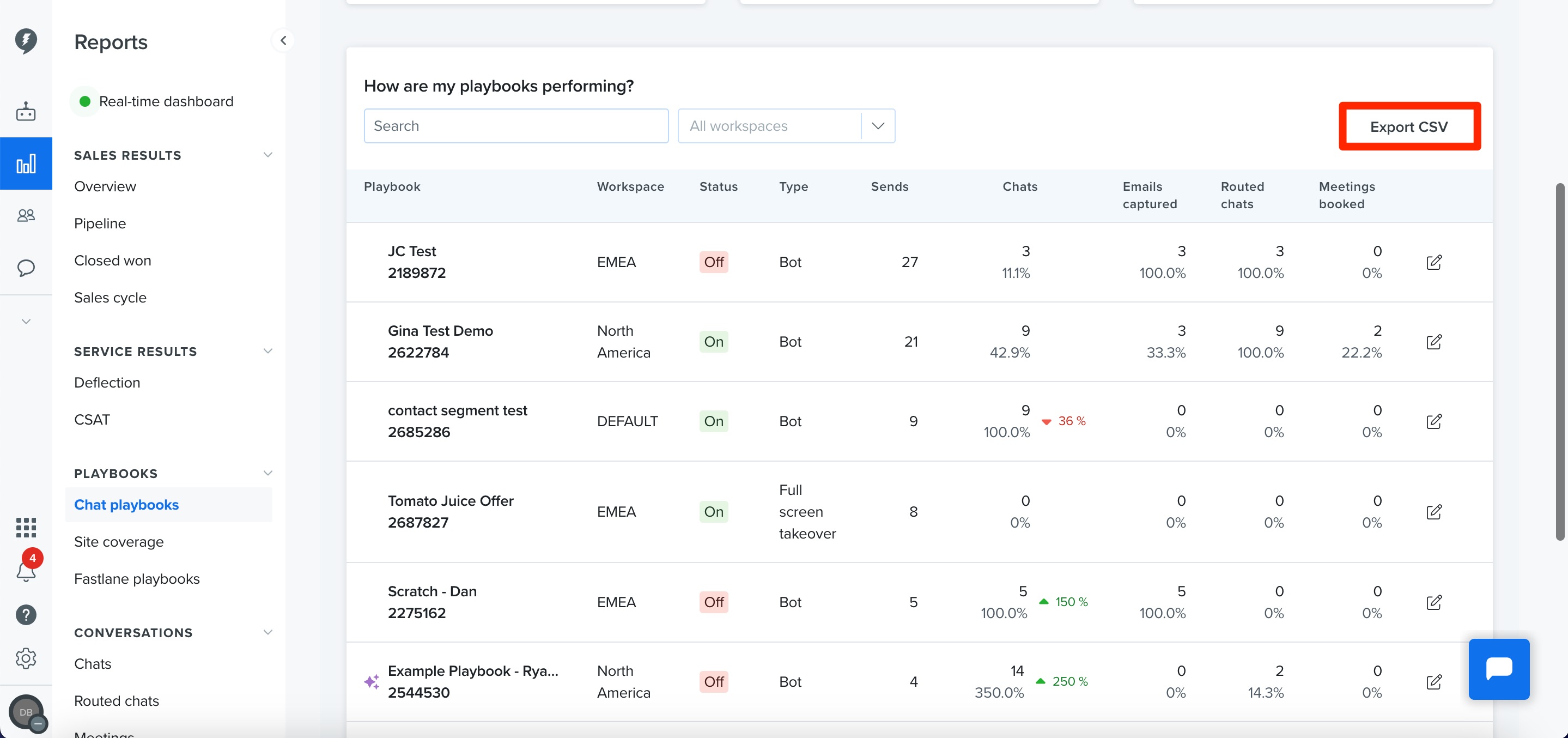
The homepage for chat playbook reporting shows you a snapshot of how your Playbooks are performing and lists your top 25 highest performing playbooks for the time range selected. This report does not reflect real time interactions on your website, but the table is updated on a regular schedule throughout the day. Use the filter button at the top of the page to filter your Playbook reports by Country or by mobile device. The metrics shown at the top of the homepage are:
- Conversations - How many conversations did site visitors engage in?
- Leads Captured - How many leads were generated from those conversations?
- Meetings Booked - How many meetings did those leads book?
- Visitor Sentiment - The overall visitor sentiment for conversations.
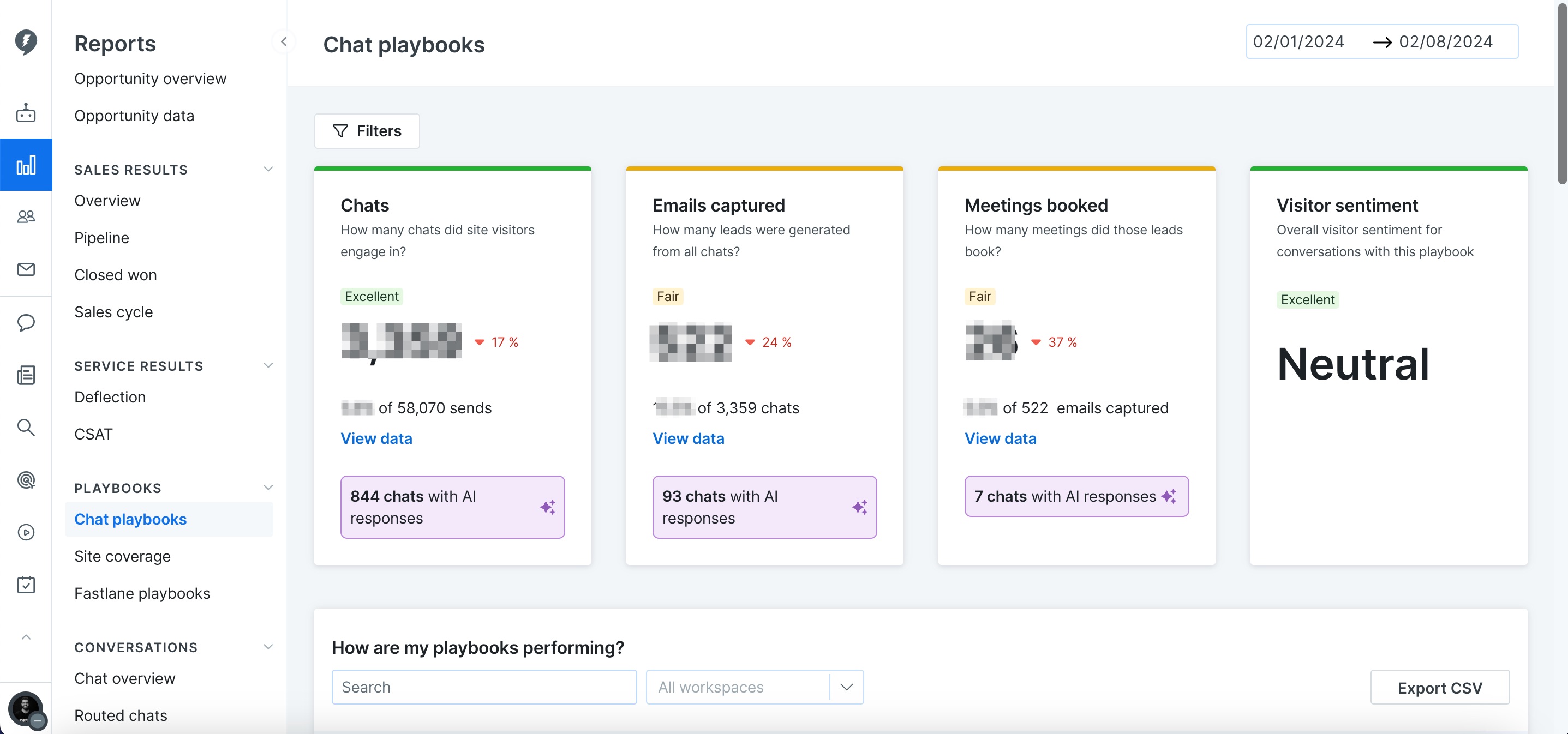
For each playbook, you'll find the five keys metrics that represent different key moments of a visitor's engagement with the playbook.
Clicking on a row will take you to a report for that particular playbook broken out by time period (day, month, or year).
Underneath some of the metrics you'll find pre-calculated conversion rates between different metrics so you can easy benchmark two playbook's against one another. See below for details.
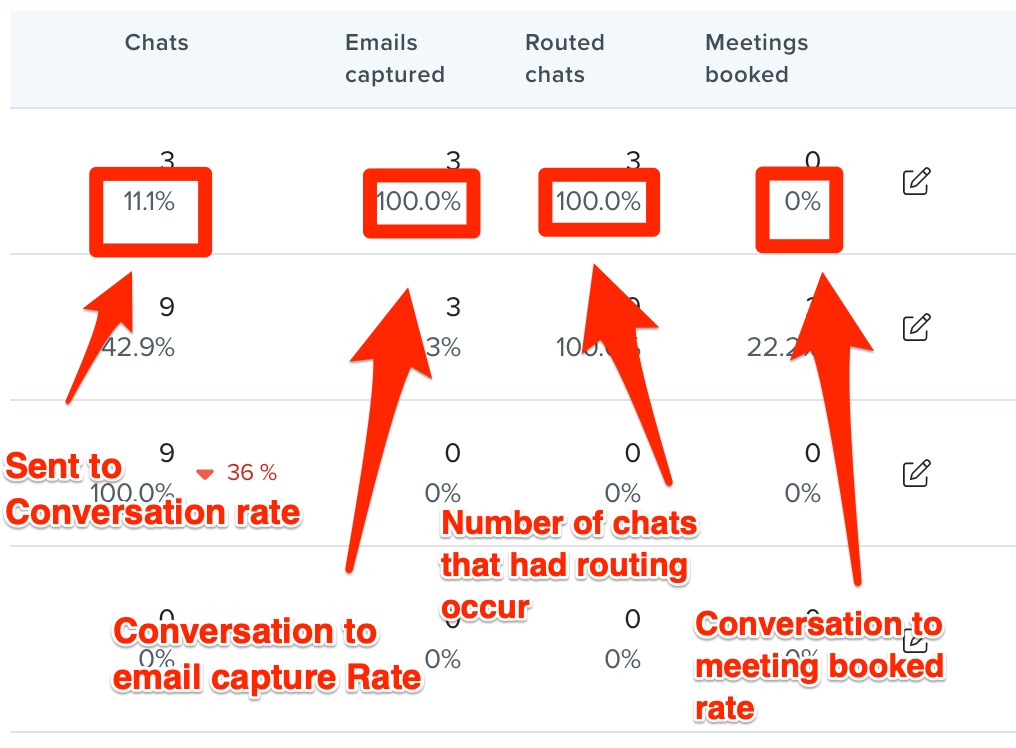
Chats - Sent to conversation rate
Emails Captured - Conversation to email capture rate
Routed Chats - Number of chats that had routing occur
Meetings Booked - Conversation to meeting booked rate
Performance report
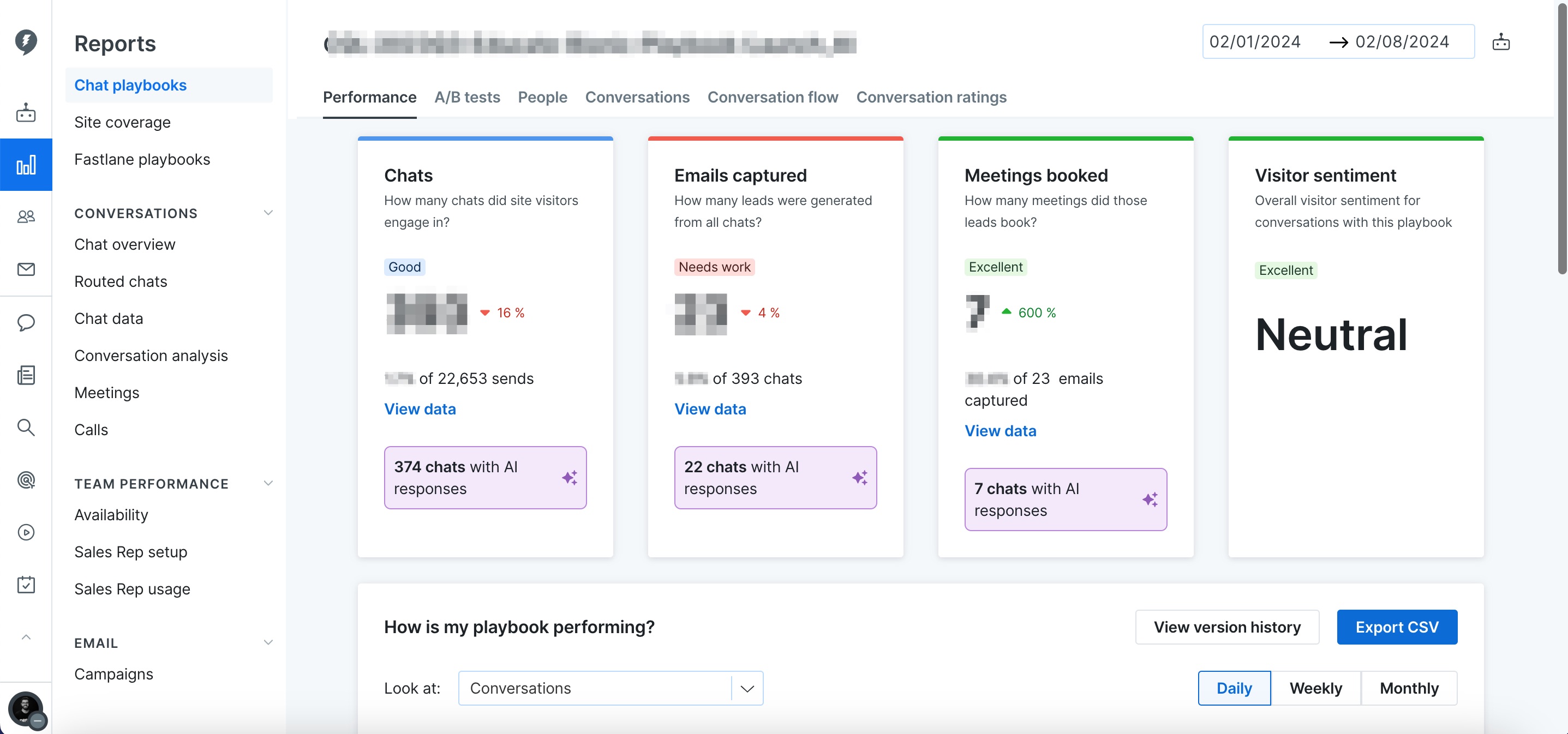
The performance report provides data on a single playbook but broken out by time periods. The metrics show on the cards and in the table are the same five core metrics shown on the playbook overview report. This report is also not in real time.
Here you can also find a trend chart which includes a historical view of playbooks published against performance trends such as conversations, emails captured, and meetings booked.
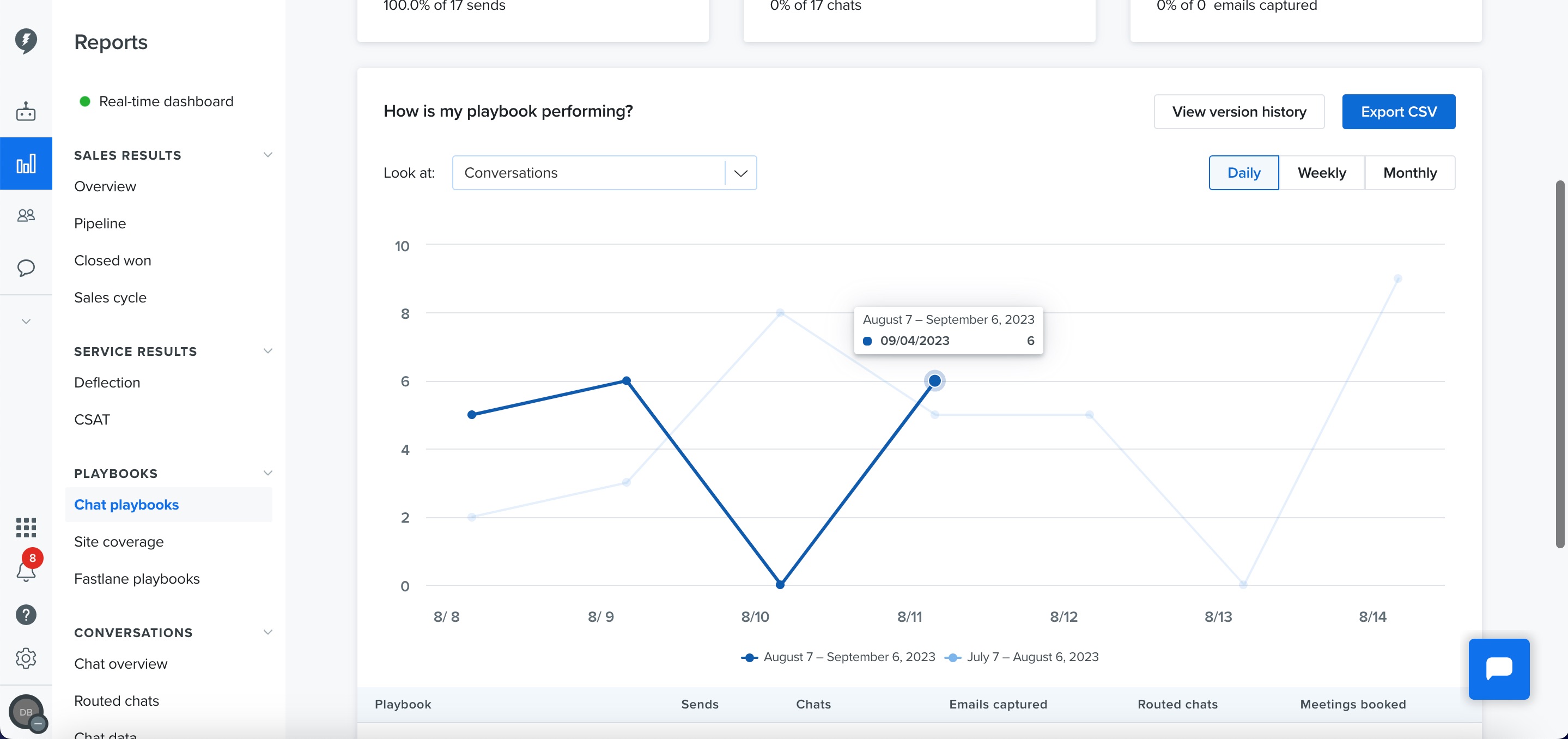
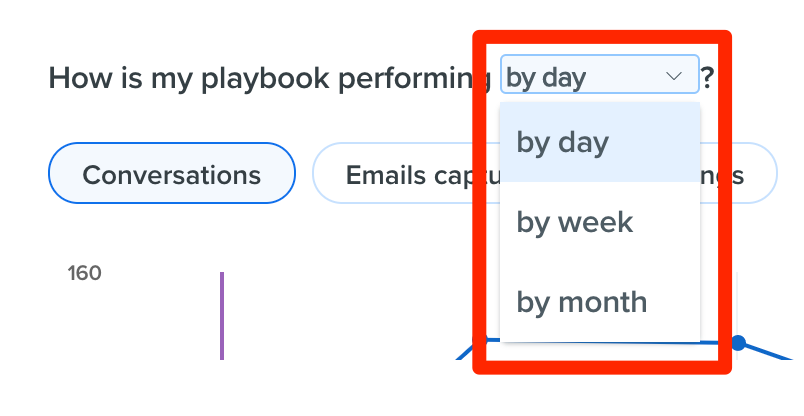
The default time period is by day, and you can switch the time period to week or month with the dropdown at the top left of the chart.
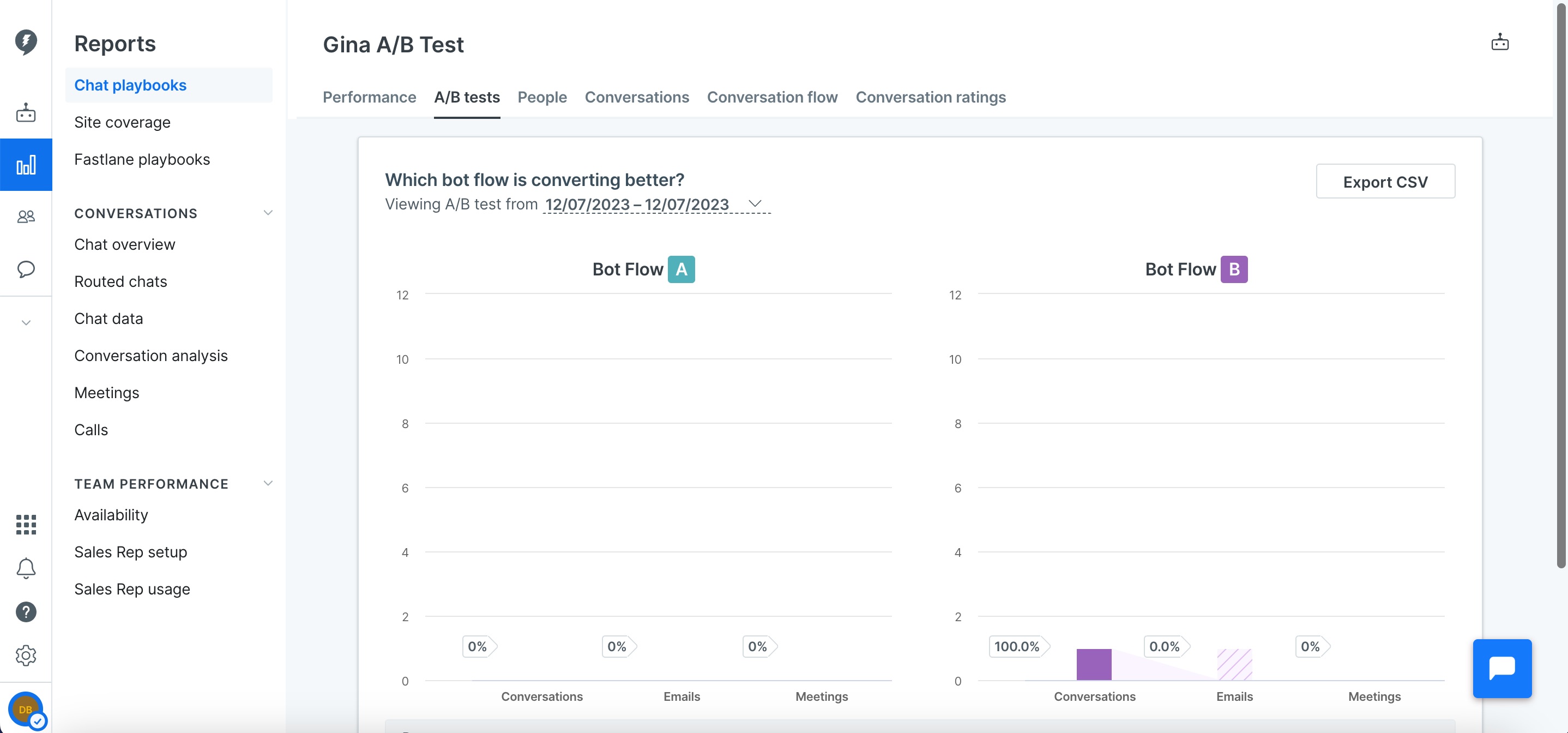
A/B Test
If you have run an A/B test on your Playbook you can compare the results of it in the A/B tests tab. In each chart you can view the number of conversations, emails captured, and meetings booked that each Playbook flow had.
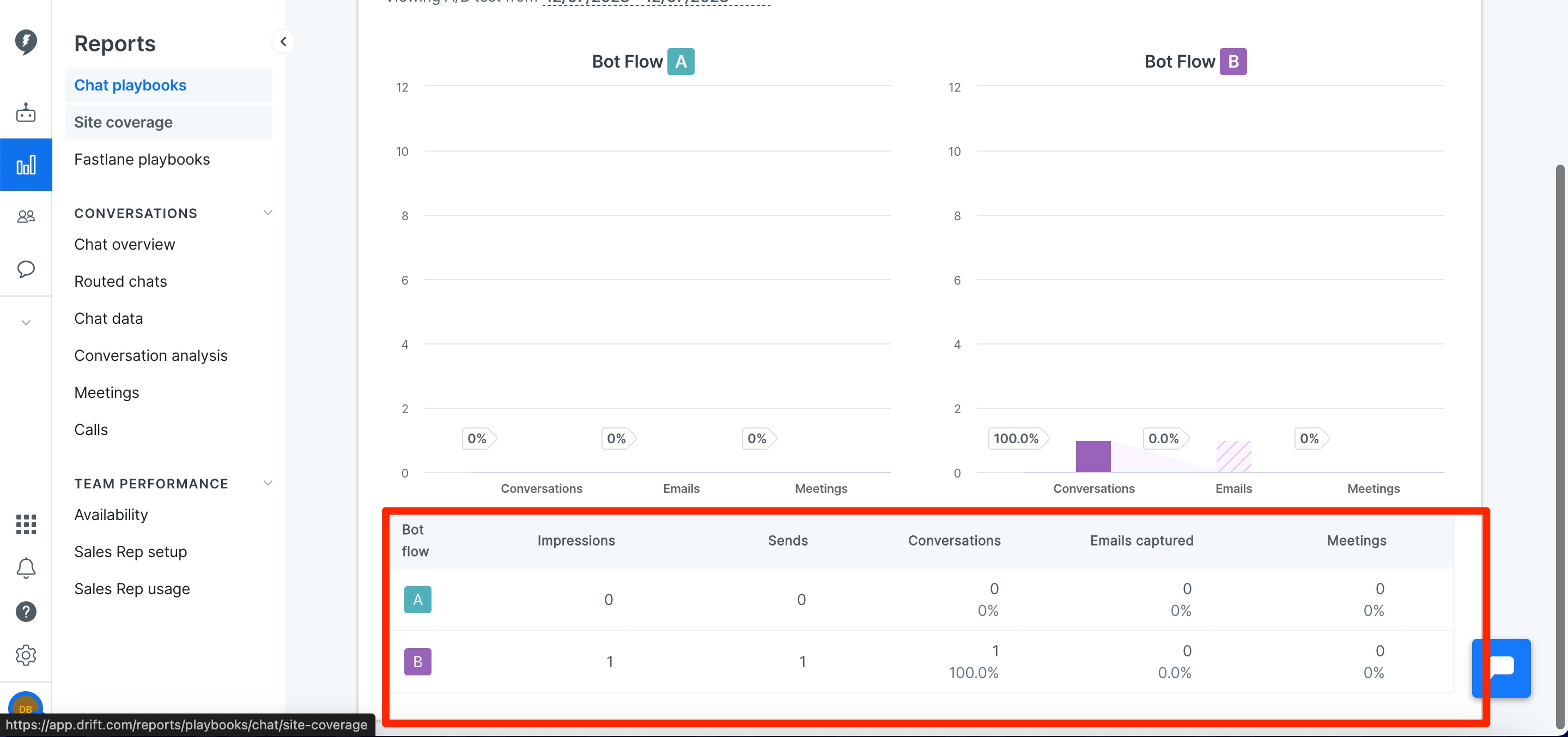
Scrolling down will show you a break down of the following metrics:
- Impressions - The number of times a Playbook fires
- Sends - The number of times a Playbook is shown in a session
- Conversations - The number of conversations started from the Playbook flow
- Email Captured - The number of emails captured by each Playbook flow
- Meetings - The number of meetings booked by each Playbook flow
The Send metric and the Impression metric may sound similar but they track two different things. For example, let’s say you go to salesloft.com and see Playbook A. One send and one impression will generate. Within those 30 minutes of a session, if you keep refreshing the same same causing Playbook A to fire again, then we have two impressions and still one send.
People report
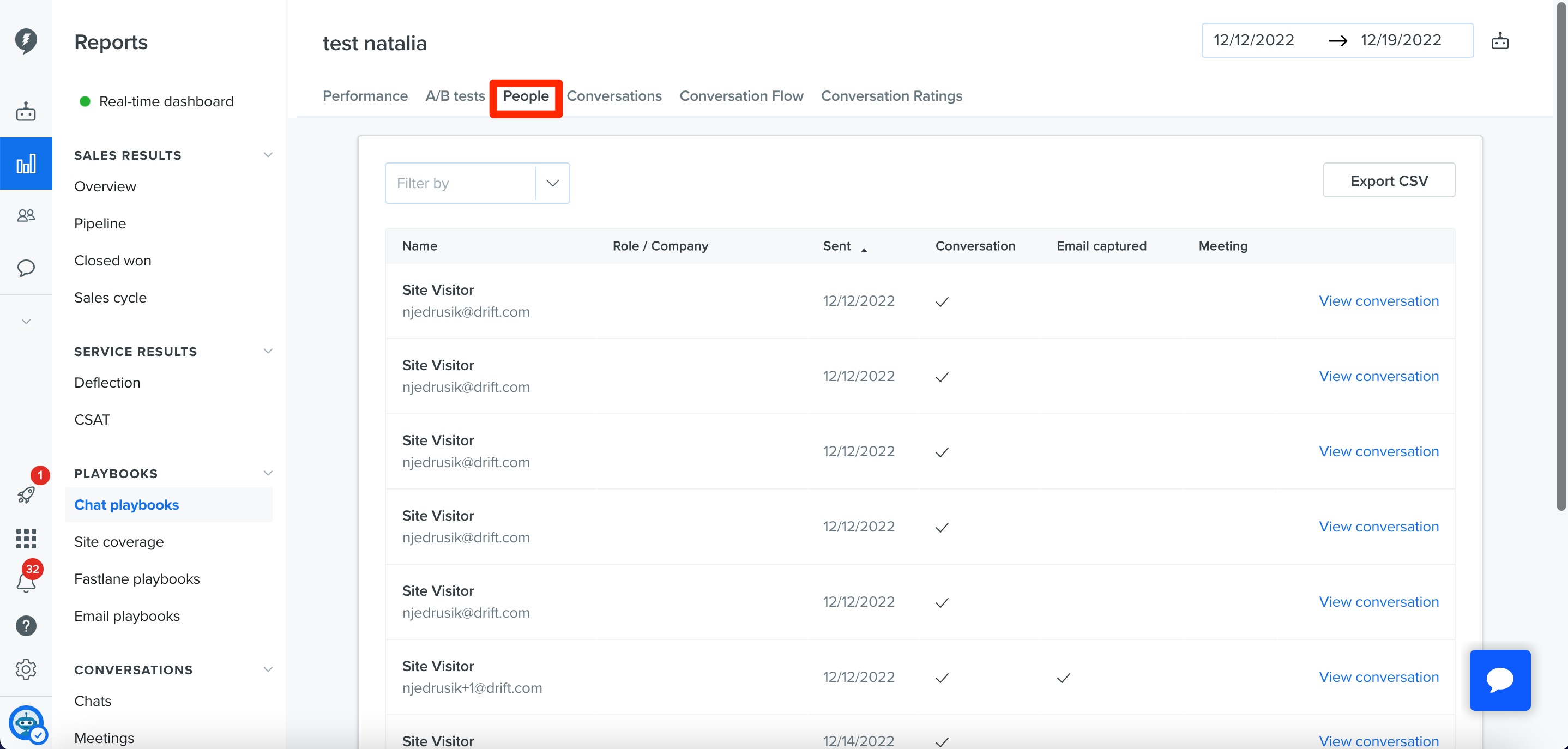
The People tab will bring you to a list of people, anonymous or not, who have interacted with the particular playbook!
On this page you'll see their name if available, their role/company if available (as supplied by Clearbit), when the playbook was sent, whether they had a conversation, had an email captured, or booked a meeting! There is also a link to the conversation that each person had with this playbook. Here you can also set the date range and export a CSV of this report using the buttons at the top of the page.
Conversations report
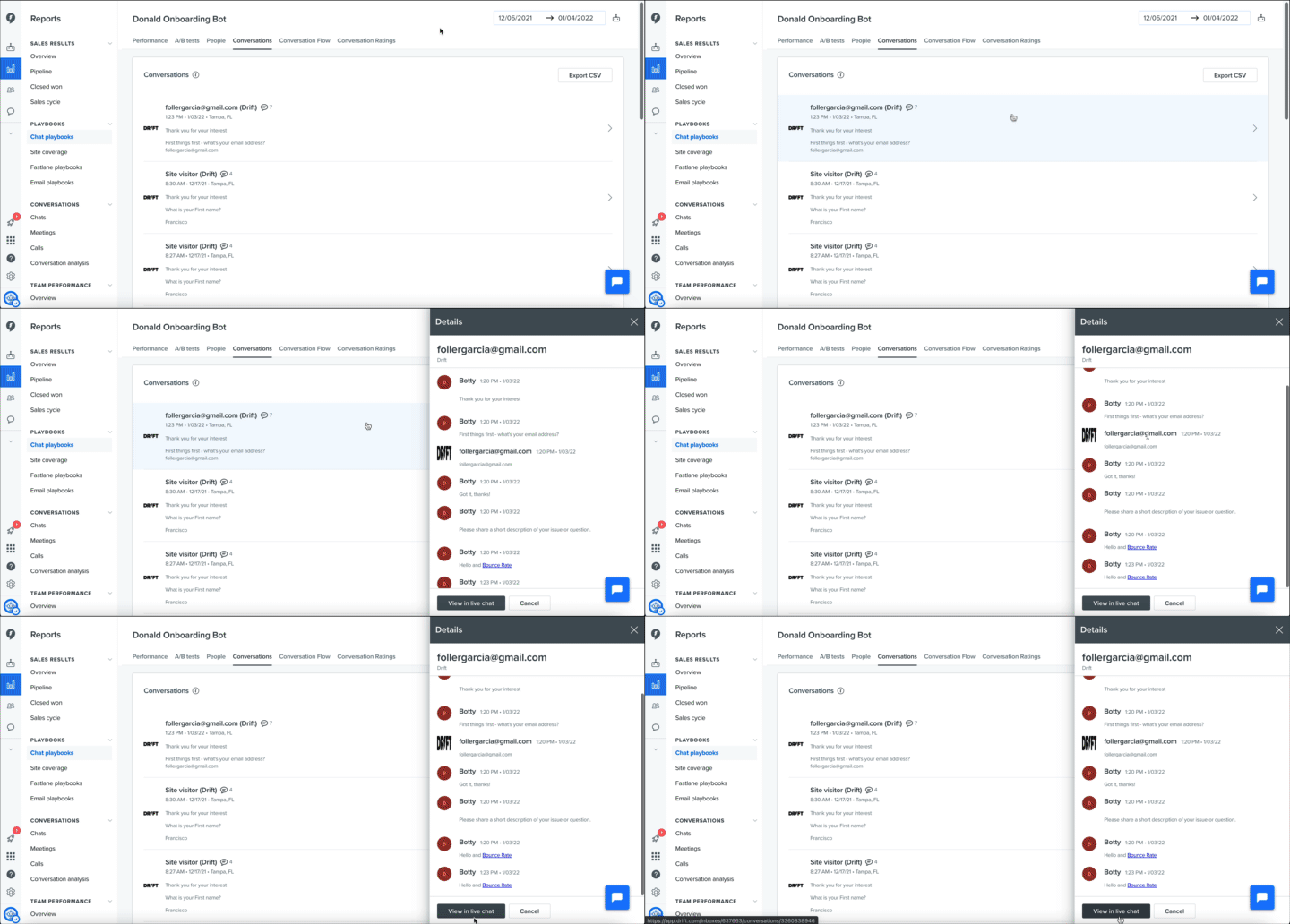
The Conversations tab will show you conversations that people have had with a specific playbook and you can even view the conversation from the reporting screen just by clicking on a specific user along with a button that will open the conversation in the live chat view!
You can also change the date range and export a CSV of this report using the buttons at the top of the screen
Conversation flow report
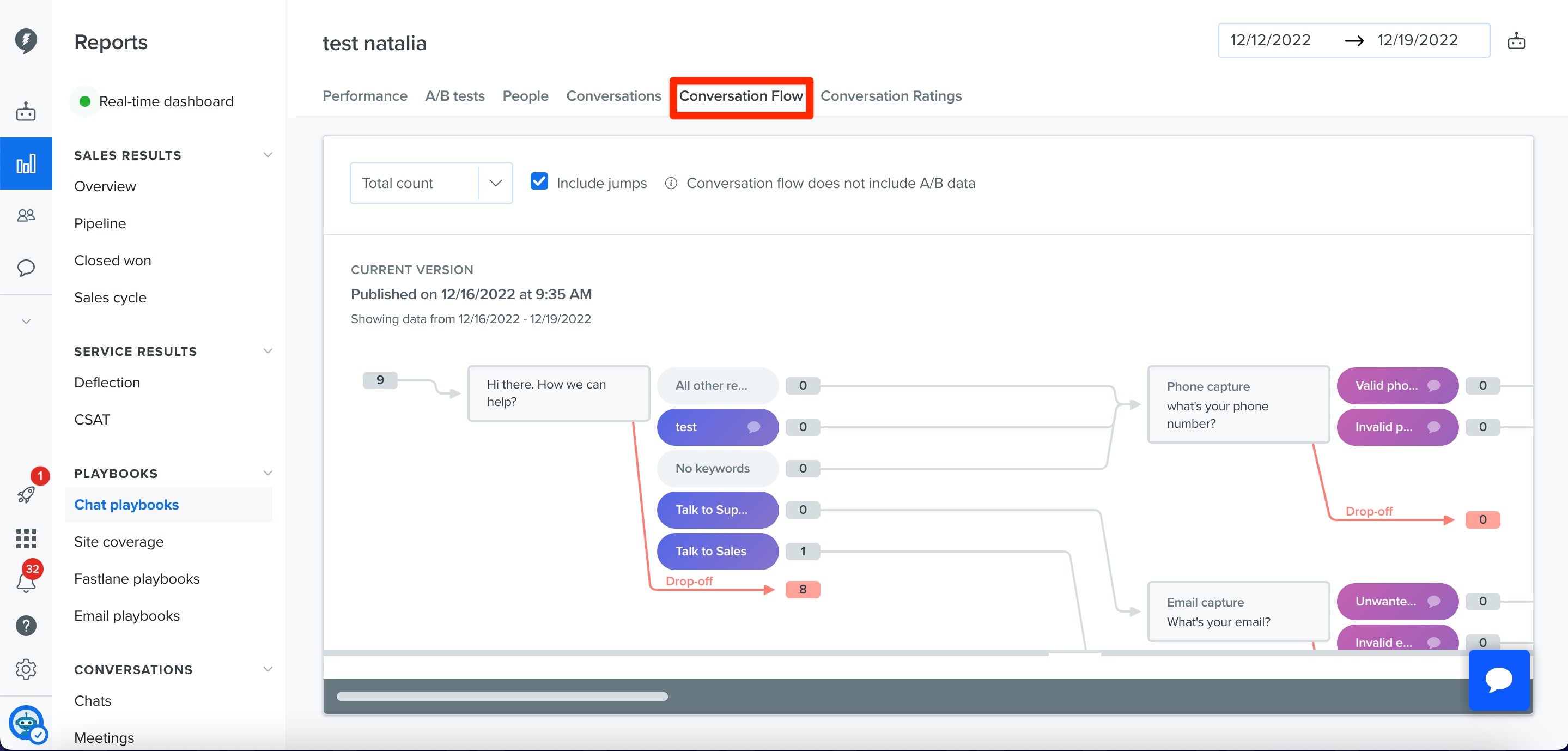
The Conversation flow tab will show you a breakdown of the flow of your bot so you can view which paths site visitors are going down and where they are dropping off.
With this, you can fully optimize your playbooks!
Conversation ratings report
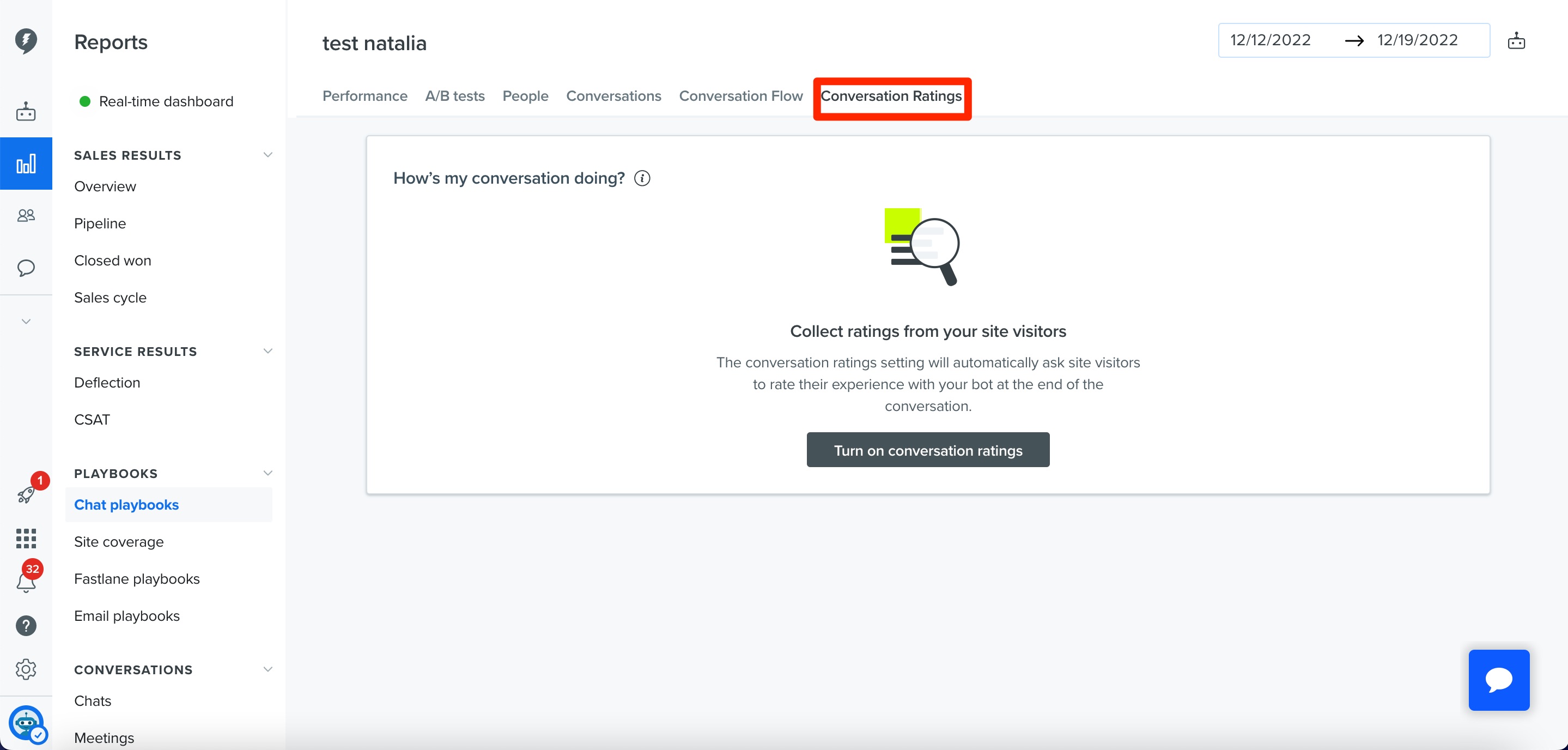
If you have conversations ratings enabled for any of your bot playbooks, then you will find data on those ratings in the Conversations ratings tab!
Exporting playbook data
From the Drift Chat app
Playbook data is available for export within the Drift Chat app via a CSV that will be delivered via email. Click the 'Export CSV' button (as shown below) and follow the prompts to send the CSV.
The playbook overview report, and various reports for a single playbook will allow you to export data via a similar Email CSV method.
