Drift allows you to see where the most conversations are started on your site, what time of day is most popular for chatting in, and much more in your conversation stats dashboard.
Billing Plan:
Basic Reporting is available on all Drift plans
In this Article we'll go over:
Note: The times shown in these reports is based off of the timezone of the user pulling the report.
Note: You can view up to two years of data via Drift's reports.
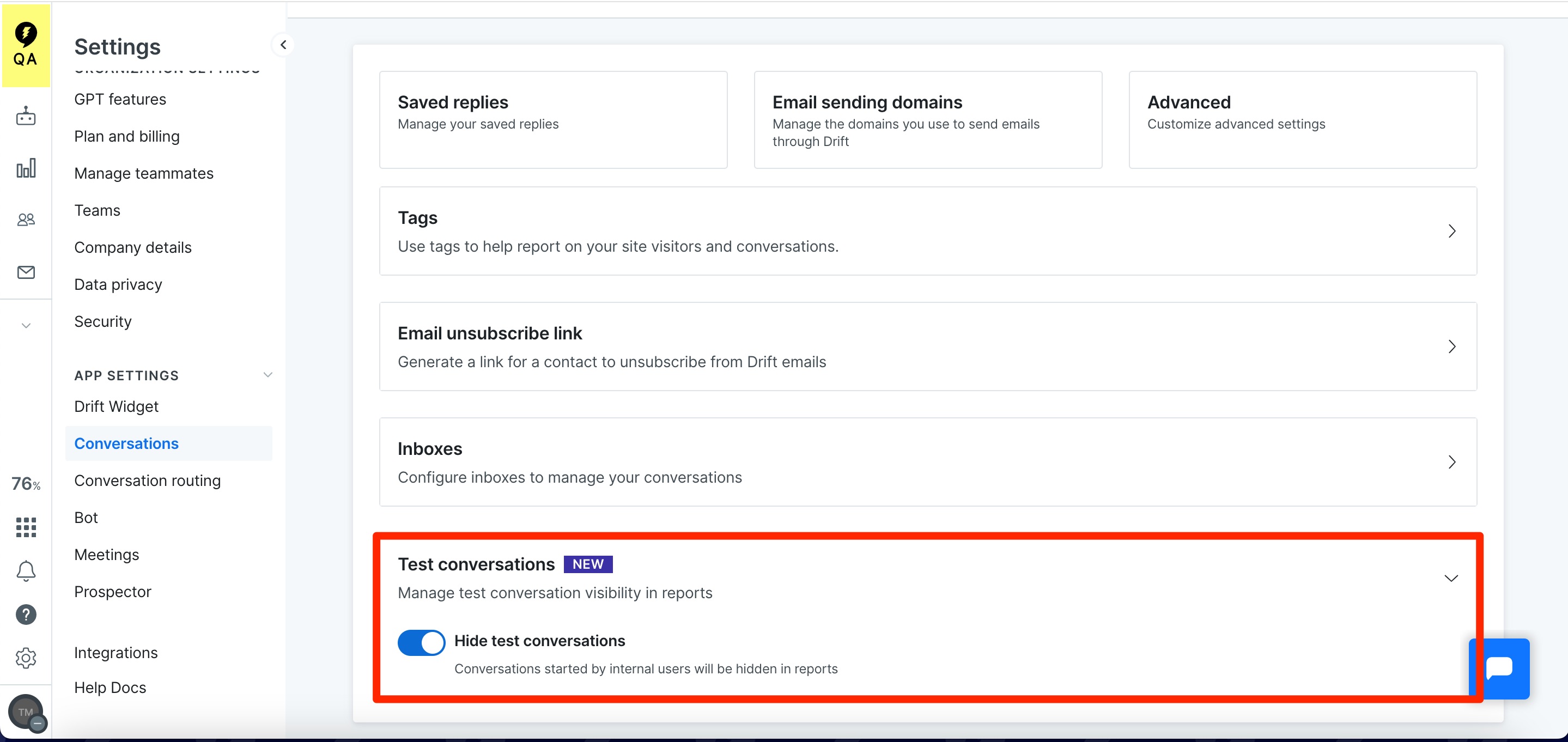
Note: Any conversation started through the playbook testing workflow or through driftlinks will be hidden by default. If you wish to change this you can navigate to Settings > Conversations > Test conversations and click the toggle.
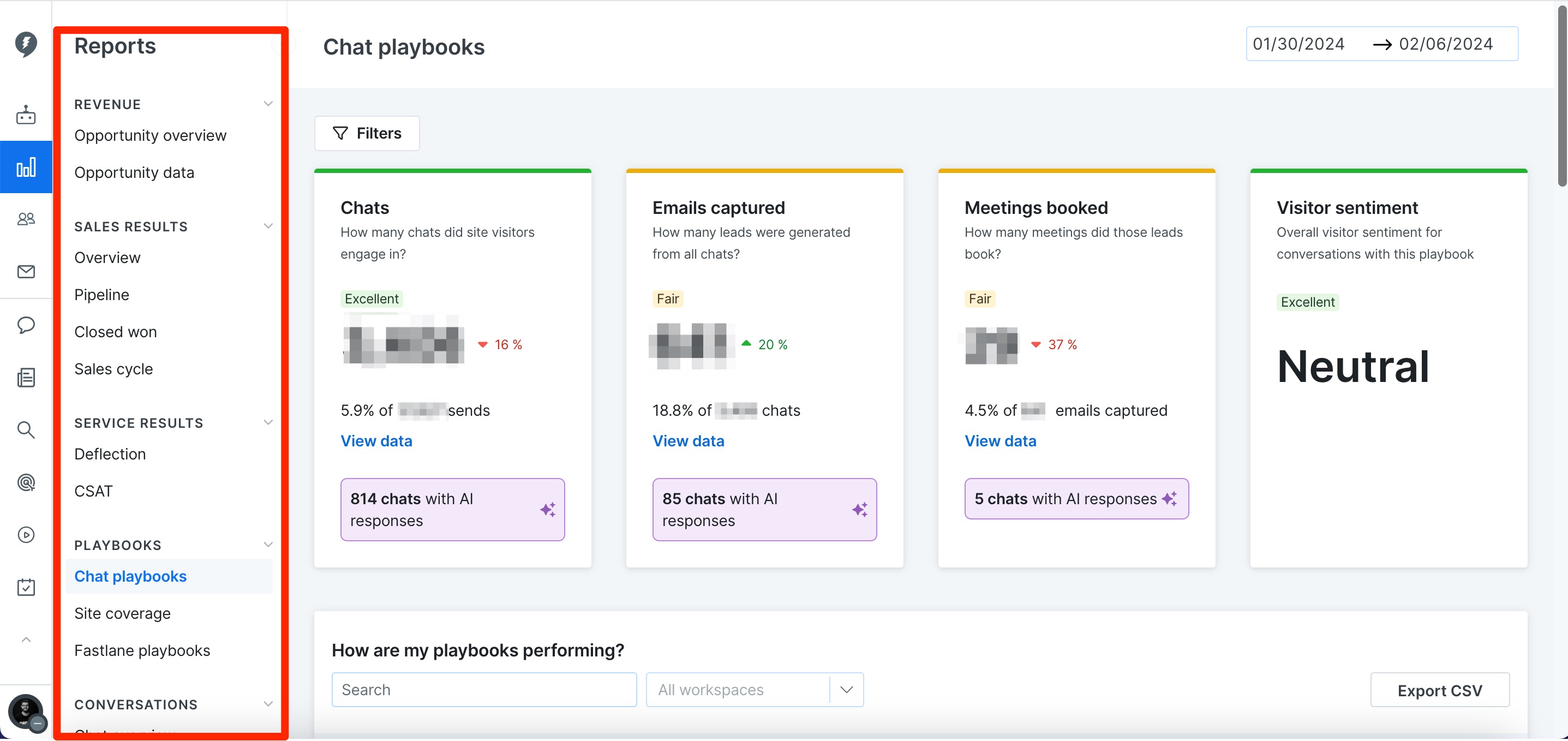
You can view the statistics for all of your conversations by navigating to the Reports tab and clicking on an area to explore on the sidebar.
Chat Overview
We don't count email conversations in these stats. Any conversations that are started by emailing your Drift inbox will not count toward overall numbers.
These are metrics related to your conversations in general - when they're started, where they're started, and who they're routed.
The timeframe of this report can be changed to show for conversations from this week, last week, this month, last month, the last 30 days, or a custom range.
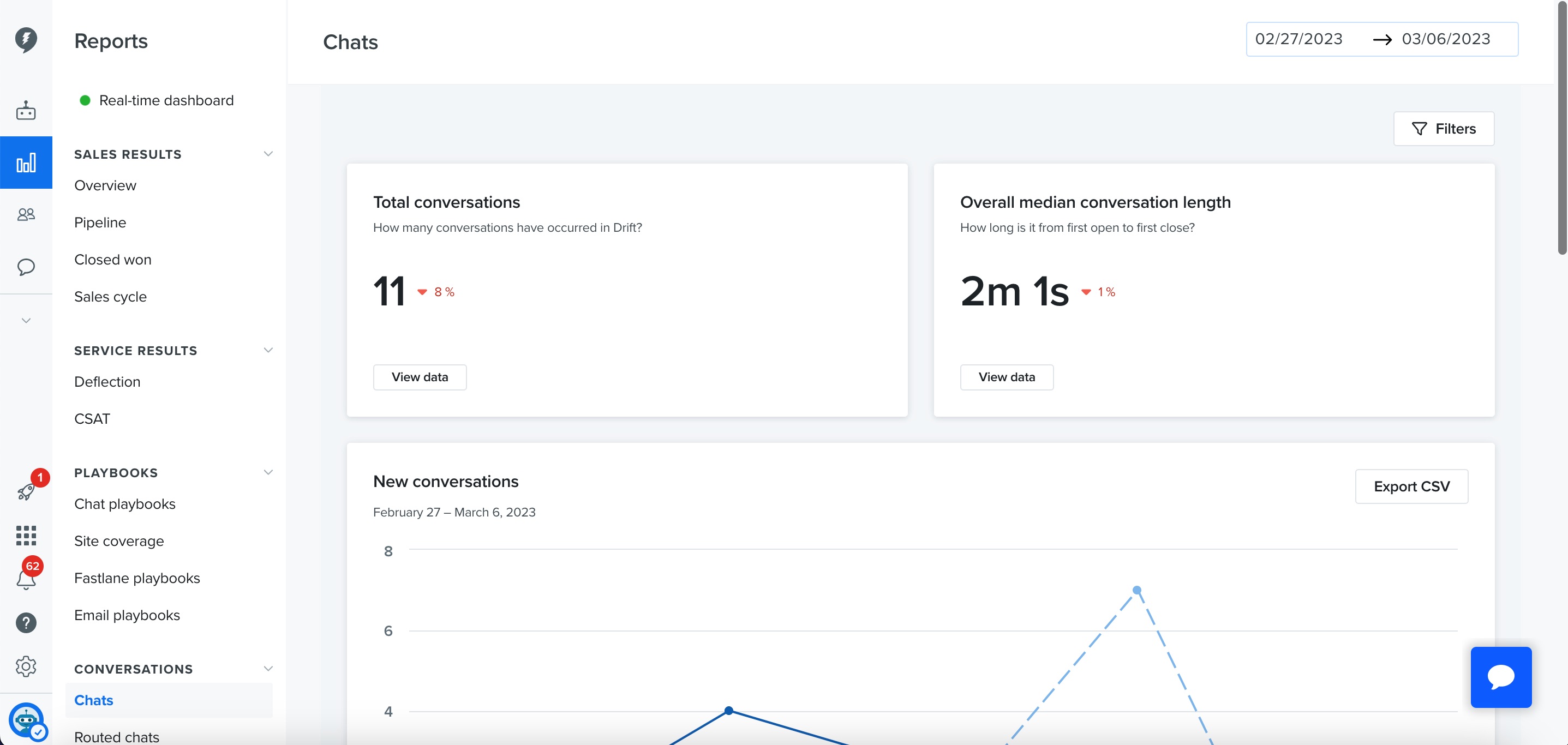
There are also a set of advanced filters that can be applied, such as filtering by participant type, playbook, team, teammate, lead stage, and inbox.
Total Conversations
This shows how many conversations have occurred in Drift for the timeframe you have selected. Click on View data to be taken to the Chat data page for a more in-depth breakdown.
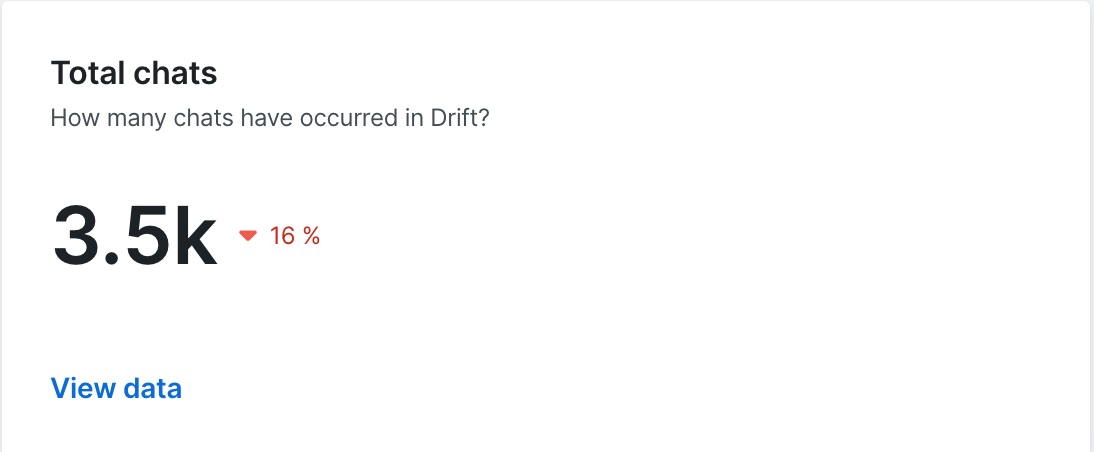
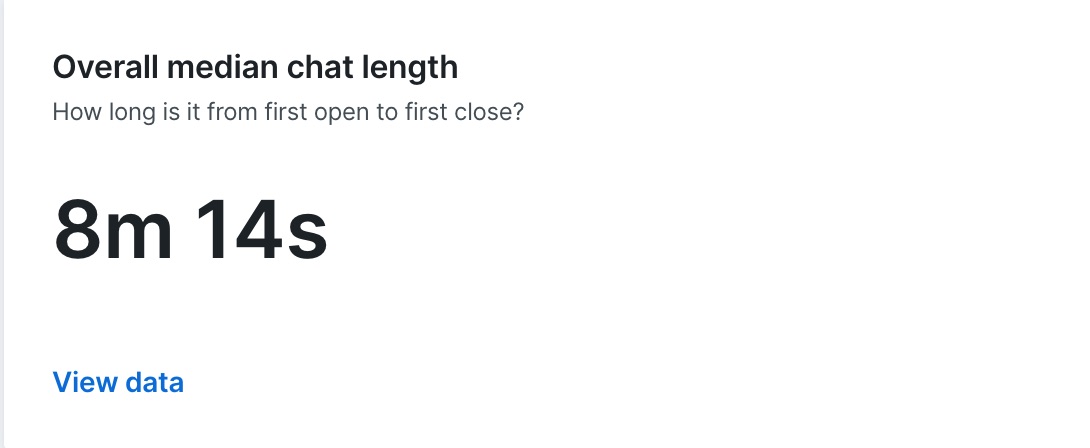
Overall Median Chat Length
The median time from when a chat first opens to when a chat first closes. Click on View data to be taken to the Chat data page for a more in-depth breakdown.
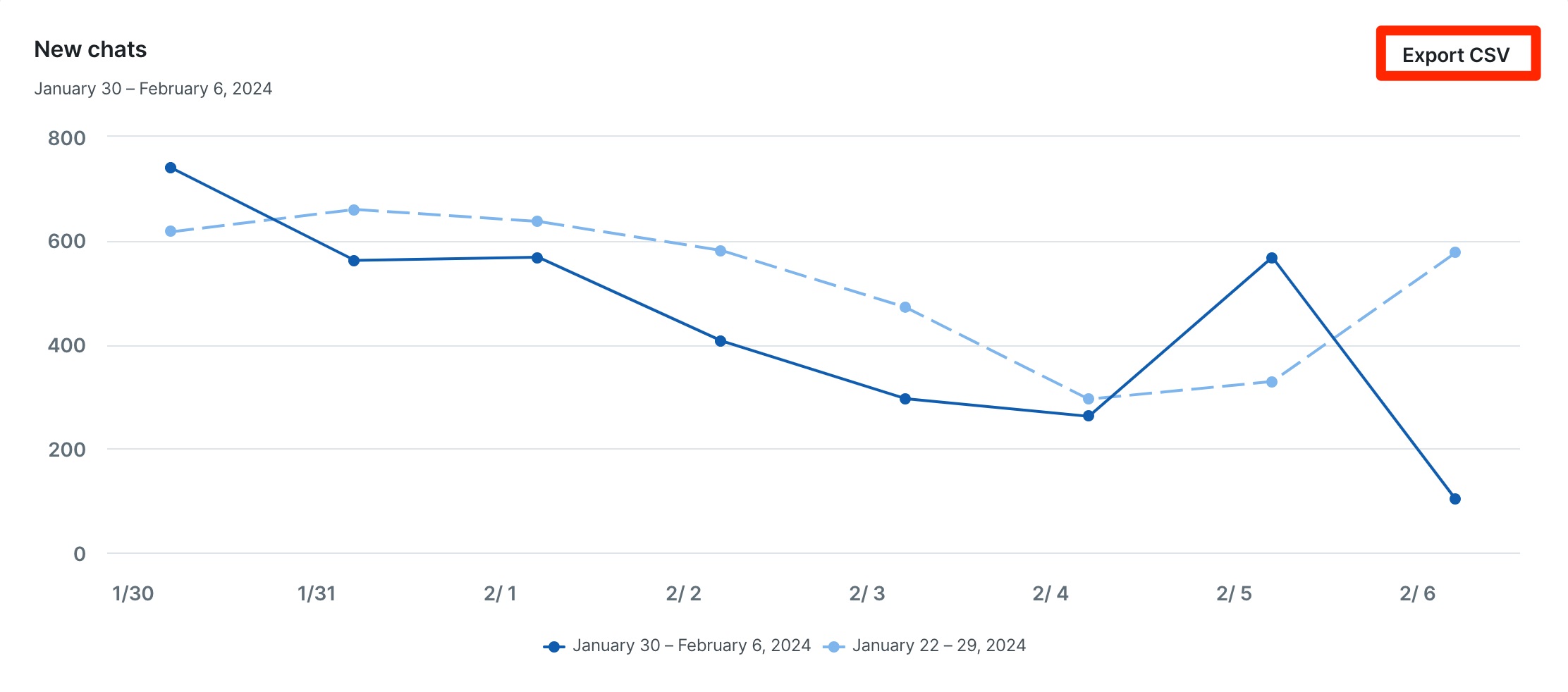
New Chats
This chart shows how many new conversations were started each day over the selected timeframe. Hover your mouse over the line at each day to show exact numbers and the percentage difference between this day and the same day the previous cycle.
Can I export this report? Yes, to a CSV! It will show you each conversation's: ID, Conversation Link, Status, Date Closed (24H), First Agent to Respond, Agent Name, End User, End User Email, Region, Country, Agent First Response Time, Playbook ID, CQL Score, Lead Stage, Tags, Page URL, and Bot Participation (Bot Only, Bot Assisted, or Human Only). 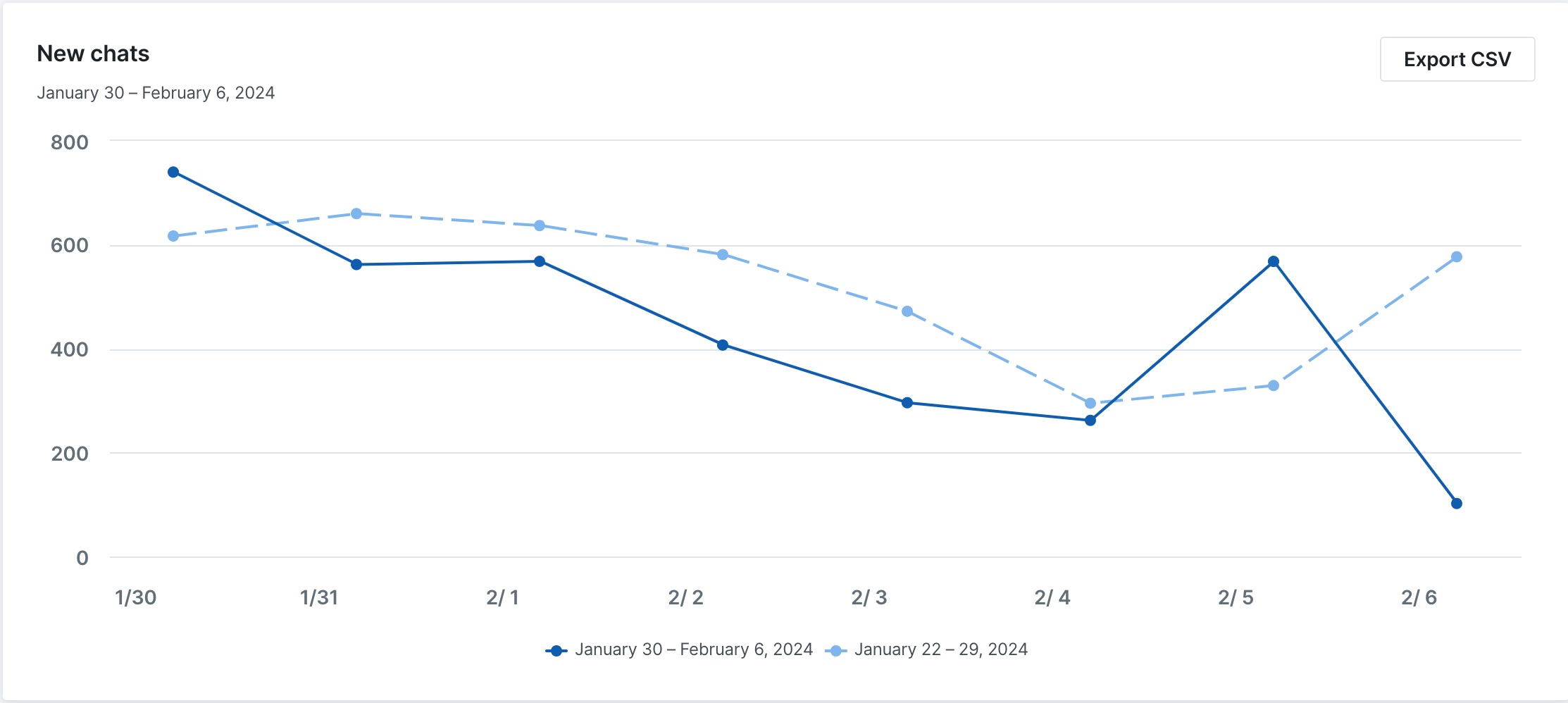
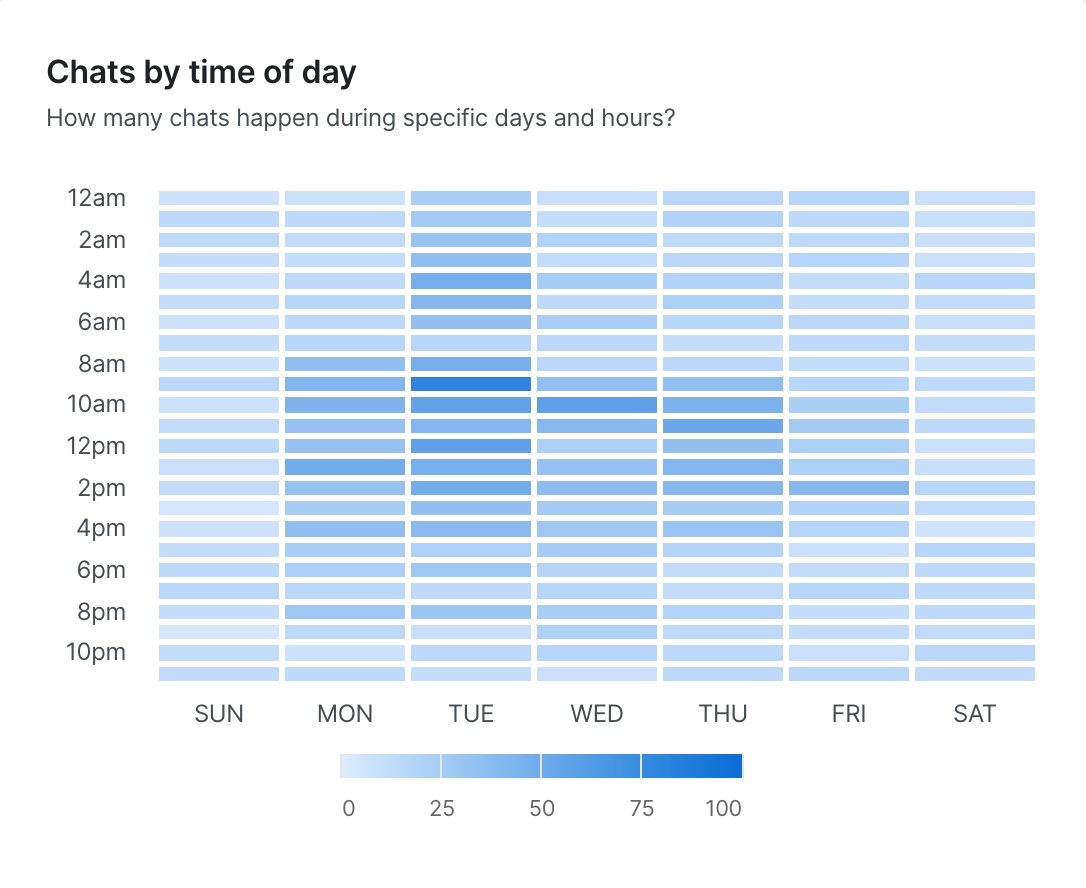
Chats By Time of Day
This heat map shows what times of the day are the most popular for new conversations. A darker color means more conversations are happening in that hour-long window. You can hover your mouse over the specific time block to see exact metrics.
Can I export this? Yes! Click on any section of this to open up an expanded drill-down that you can also export as a CSV.
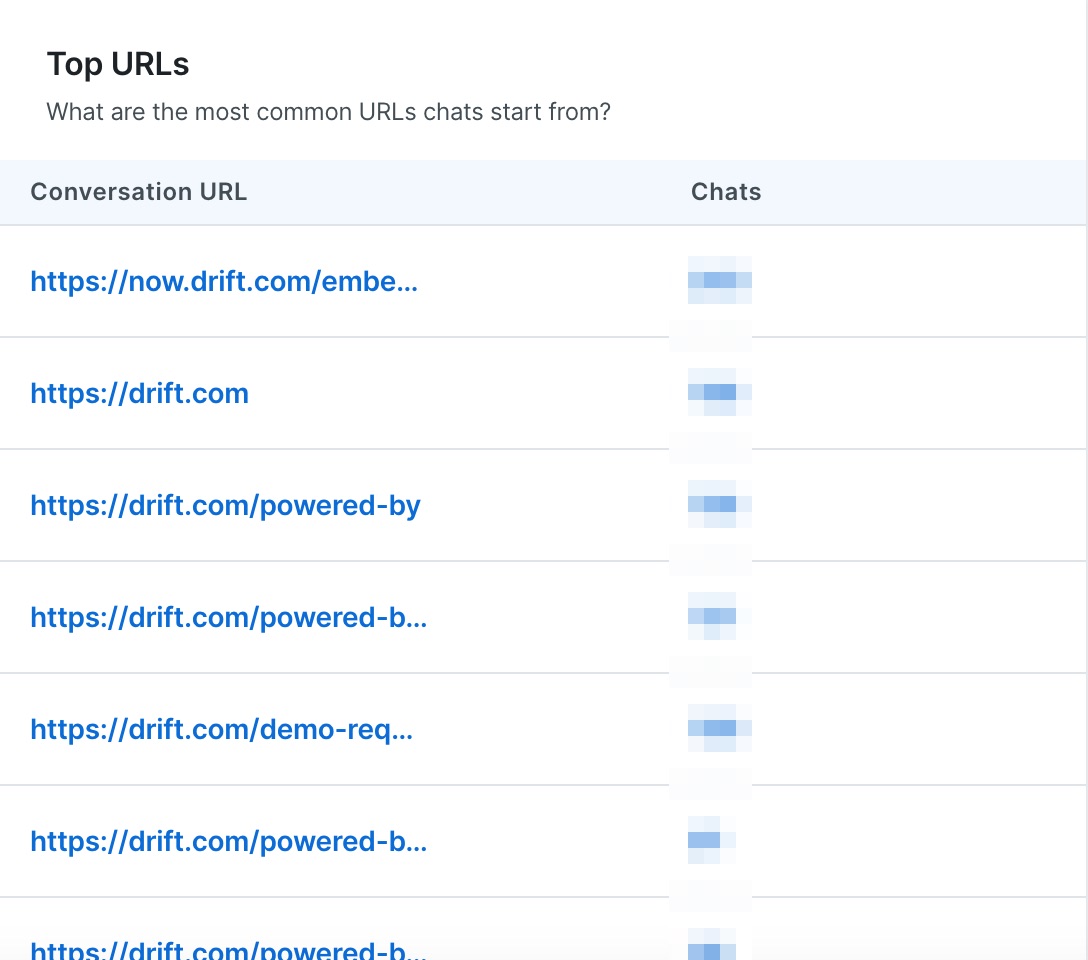
Top URLs
This lists the top 10 URLs site visitors are on when a conversation is started, from most frequent to least frequent. You can search your different URLs, as well as export a CSV with conversation counts from every URL a chat has been started from.
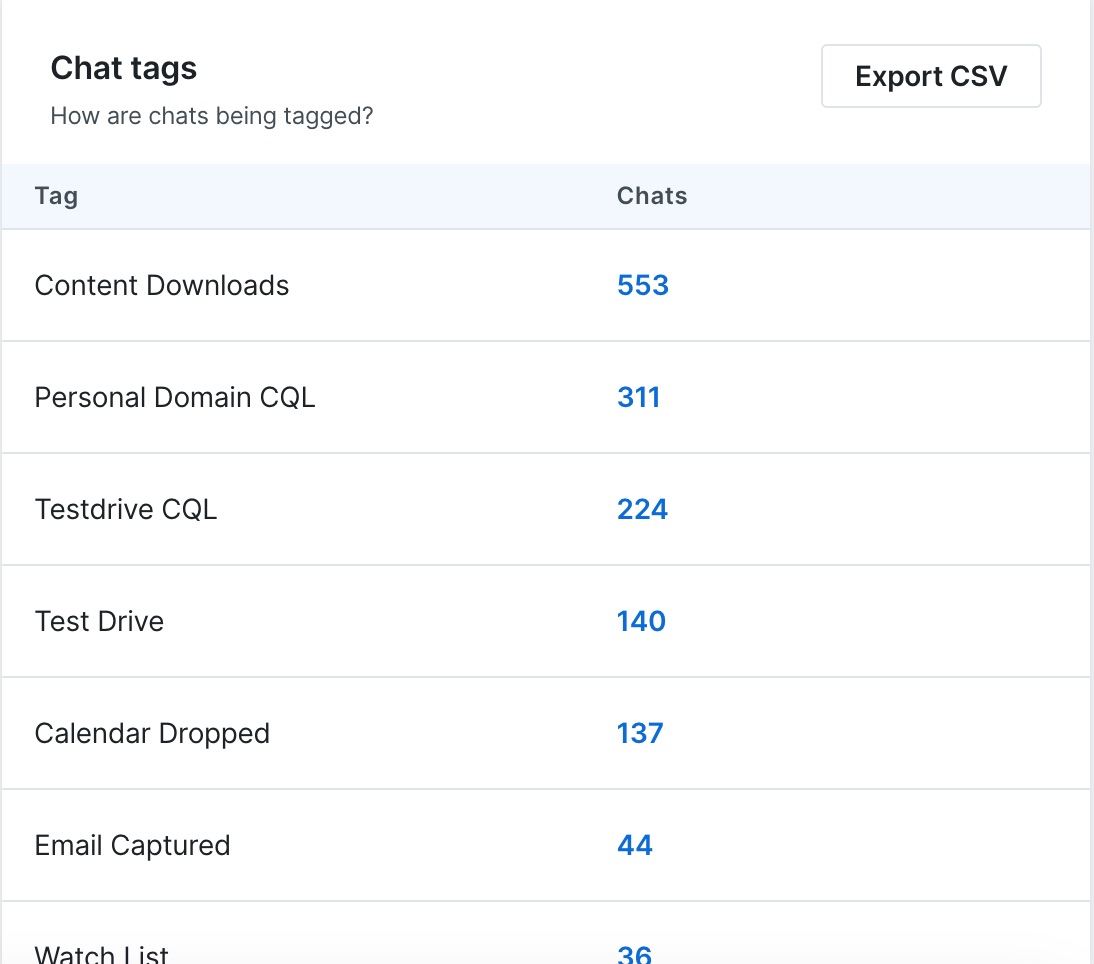
Chat tags
This report shows you how many times tags have been applied to conversations and what type of tag is being applied to conversations. If the source is listed as "Lead Stage" that indicates the bot has applied a lead stage tag to a lead. If the source is listed as "manual" that indicates that either the bot or an agent applied a conversation tag to the conversation. You can export a CSV with a complete list of your tags, the number of new conversations they were applied to as well as see the percentage of new conversations the tag was applied to.
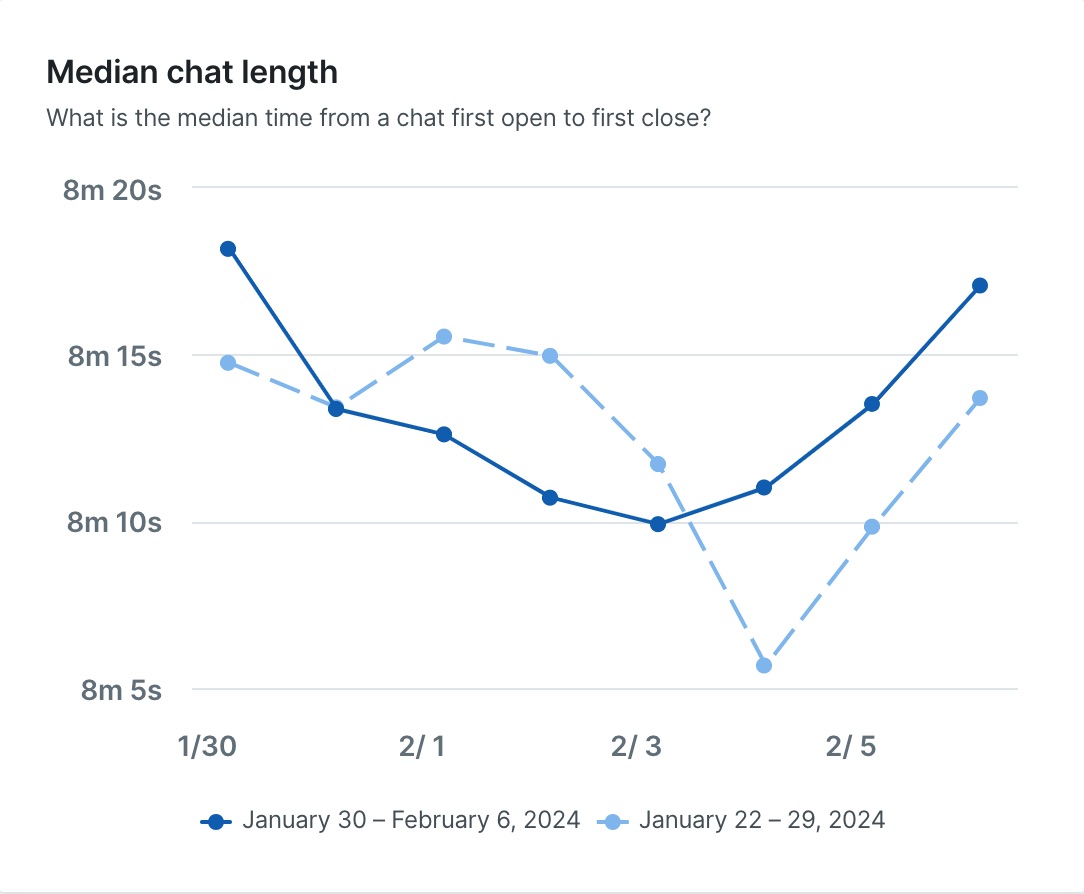
Median Chat Length
This metric indicates the median amount of time that passes from when a conversation is opened to when a member of your team closes it. You can hover your mouse over individual days to see exact metrics as well as click on any part of the graph to open a drill-down that you can export as a CSV.
You can also export your conversation data (minus the messages themselves) in Chats section.
When you export this data, each row is a conversation, and the columns are: Id, Conversation Link, Status, End User First Response (24 H), Date Closed (24 H), First Agent To Respond, Agent Name, End User, End User Email, Agent First Response Time, Playbook Id, CQL Score, Lead Stage, Tags, Page URL, and Bot Participation
Note that we've updated one of the columns from "Date created" to "End user first response." So in the case of end users responding later to bot playbooks, for example, the "start time" of the conversation won't be when that bot message sent out, but rather when the site visitor responded. Our query for conversations by date has always worked this way, but now we represent it properly in the export.
