You've probably noticed that Drift offers other types of Playbooks besides Bot Playbooks. These include Live Chat/Welcome Message Playbooks, Slider Playbooks, Takeover Playbooks, and Email Capture Playbooks. Just like with Bot Playbooks, we have reporting available for all of these types of Playbooks!
You can find reports on these Playbooks by clicking Reports > Playbooks > Chat. Simply click into the playbook you would like to see a report on for more details!
Billing Plan: The reports in this article are available on the Premium, Advanced, and Enterprise plans.
Intended Audience:
Note: You can view up to two years worth of data via Drift's reports.
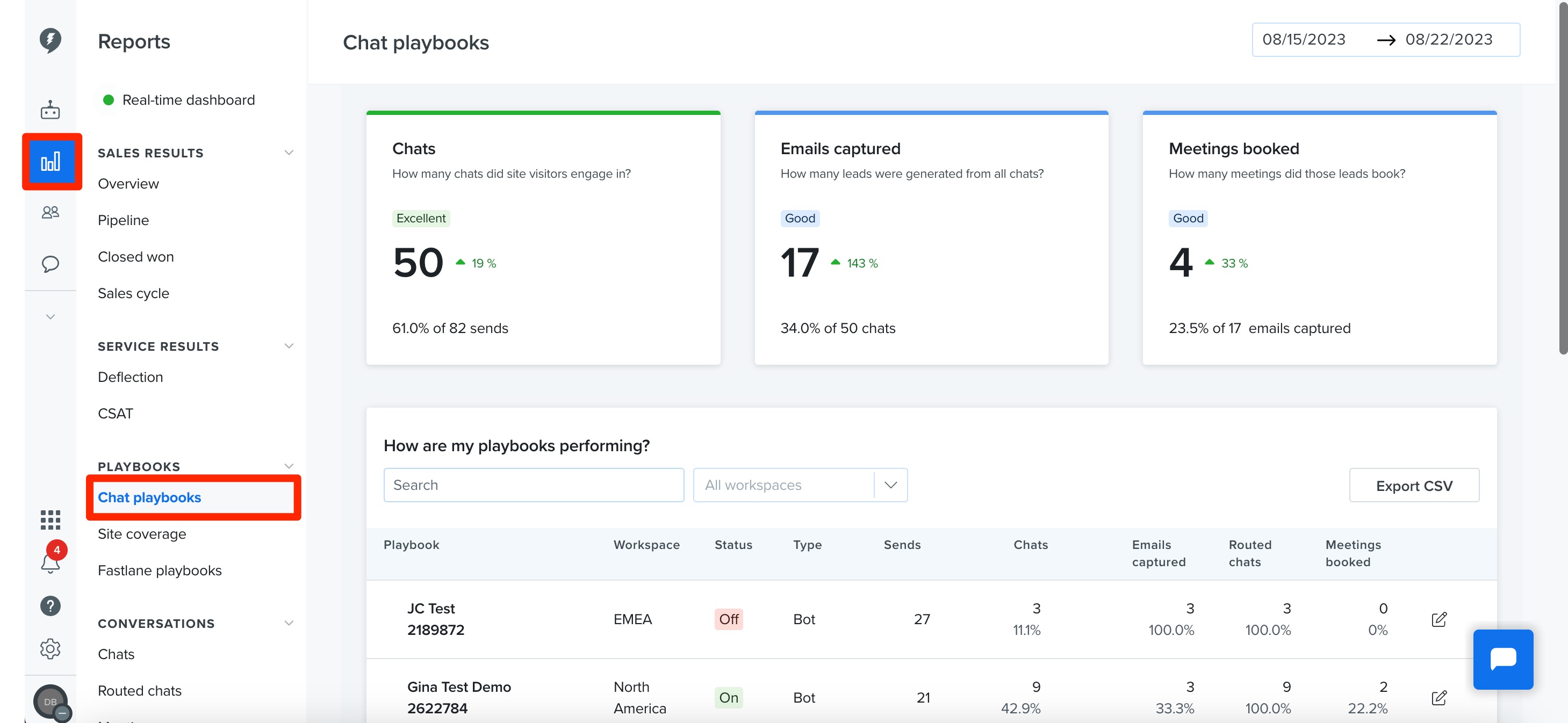
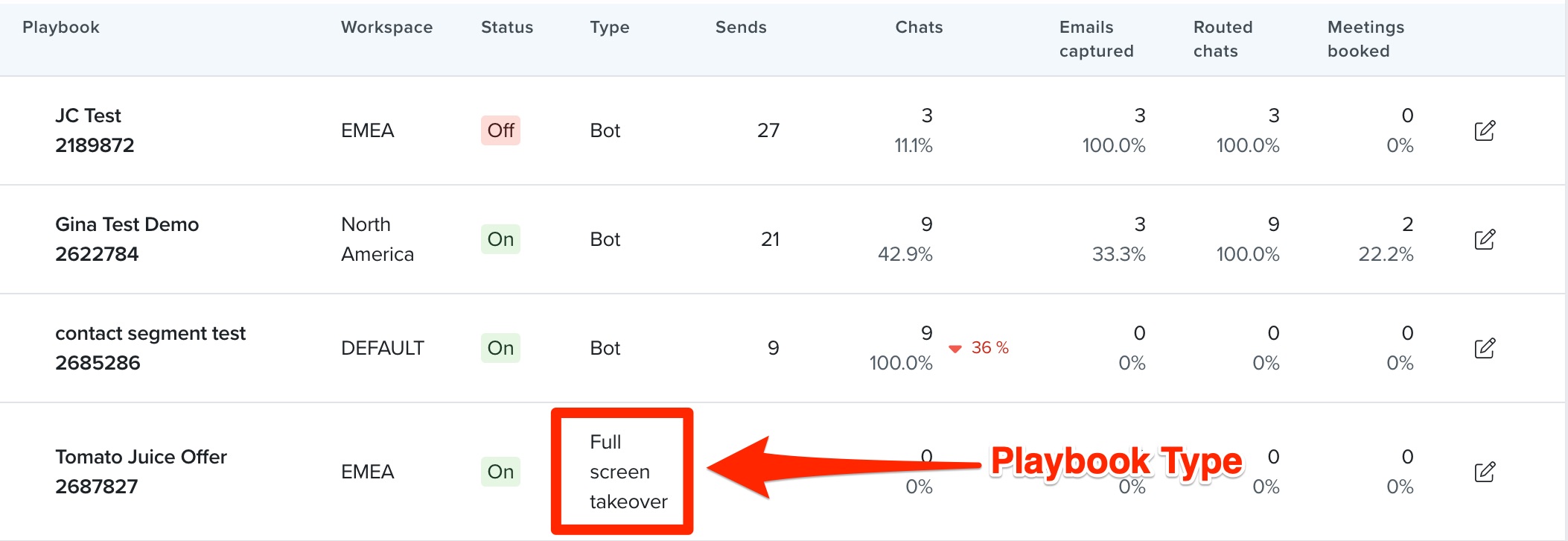 Welcome Message/Live Chat Playbook reports will default to the Performance tab when clicked on. On this page you will see metrics for Sends, Conversations, Emails captured, and Meetings. Definitions for all these metics can be found at the bottom of this page! On this tab you can also set the date range displayed and export a CSV of your data using the buttons at the top of the page!
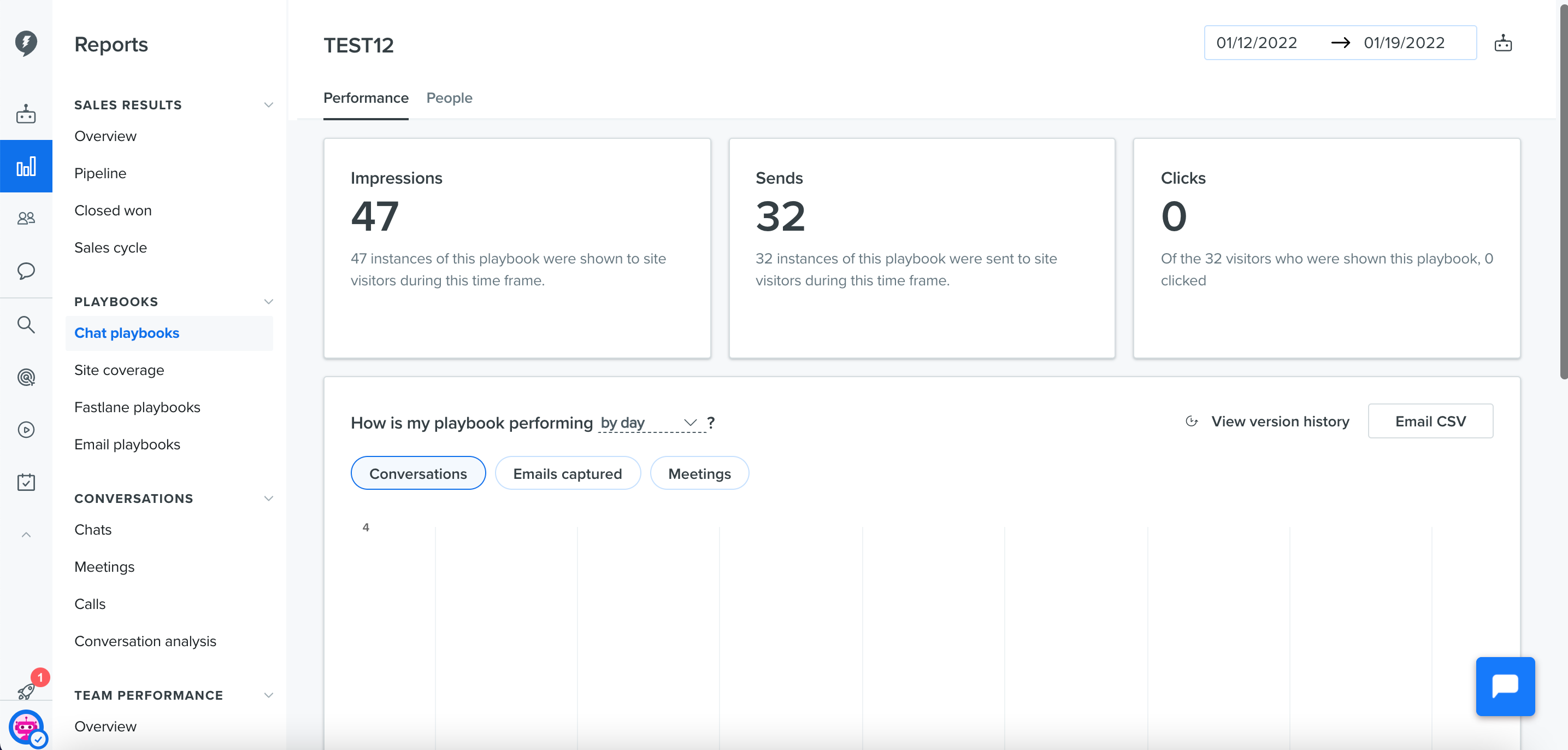
The People tab will bring you to a list of people, anonymous or not, who have interacted with the particular playbook! On this page you'll see their name if available, their role/company if available, when the playbook was sent, whether they had a conversation, had an email captured, or booked a meeting! There is also a link to the conversation that each person had with this playbook. Here you can also set the date range and export a CSV of this report using the buttons at the top of the page.
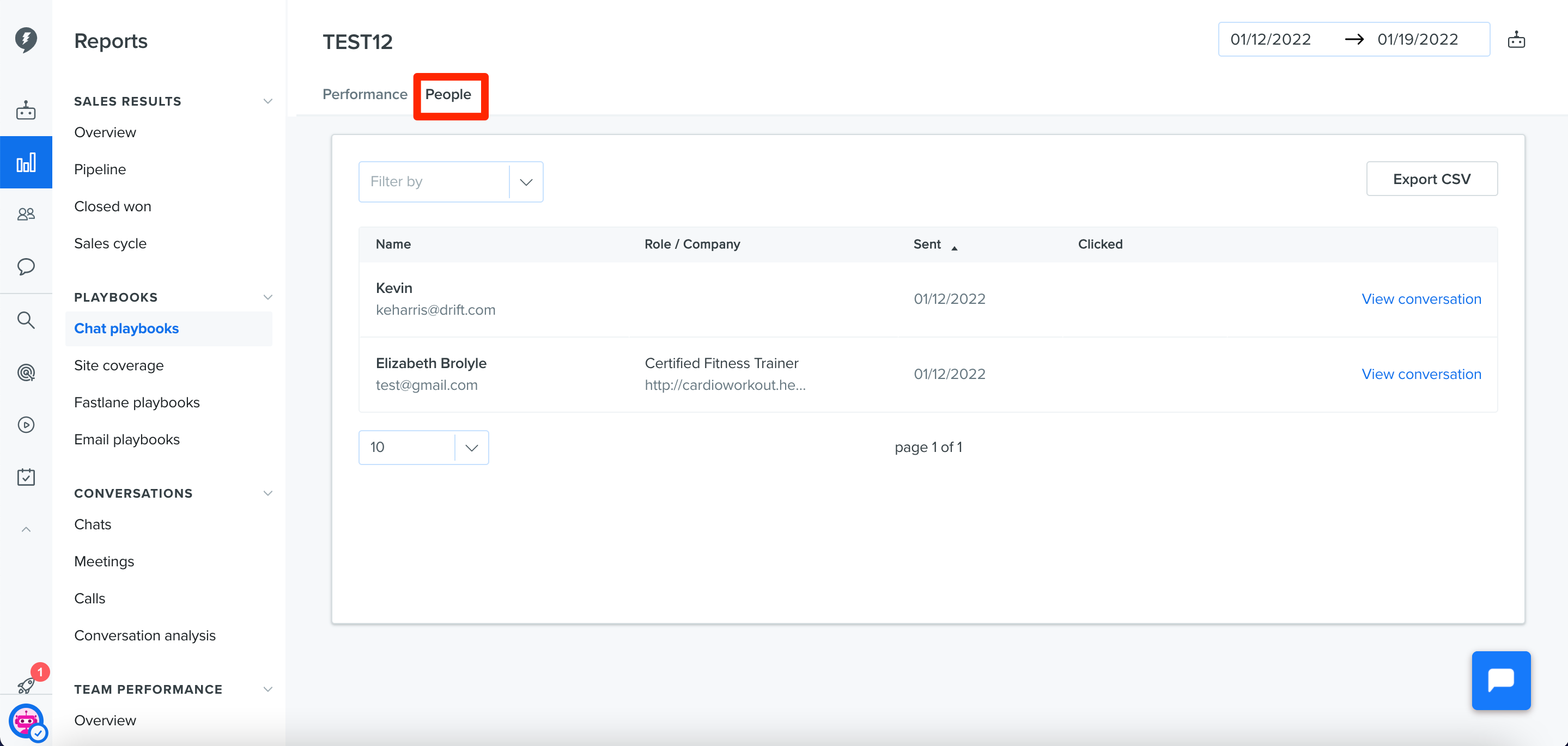
Slider Playbook reports will also show metrics for Sent, Conversations, Emails captured, and Meetings.
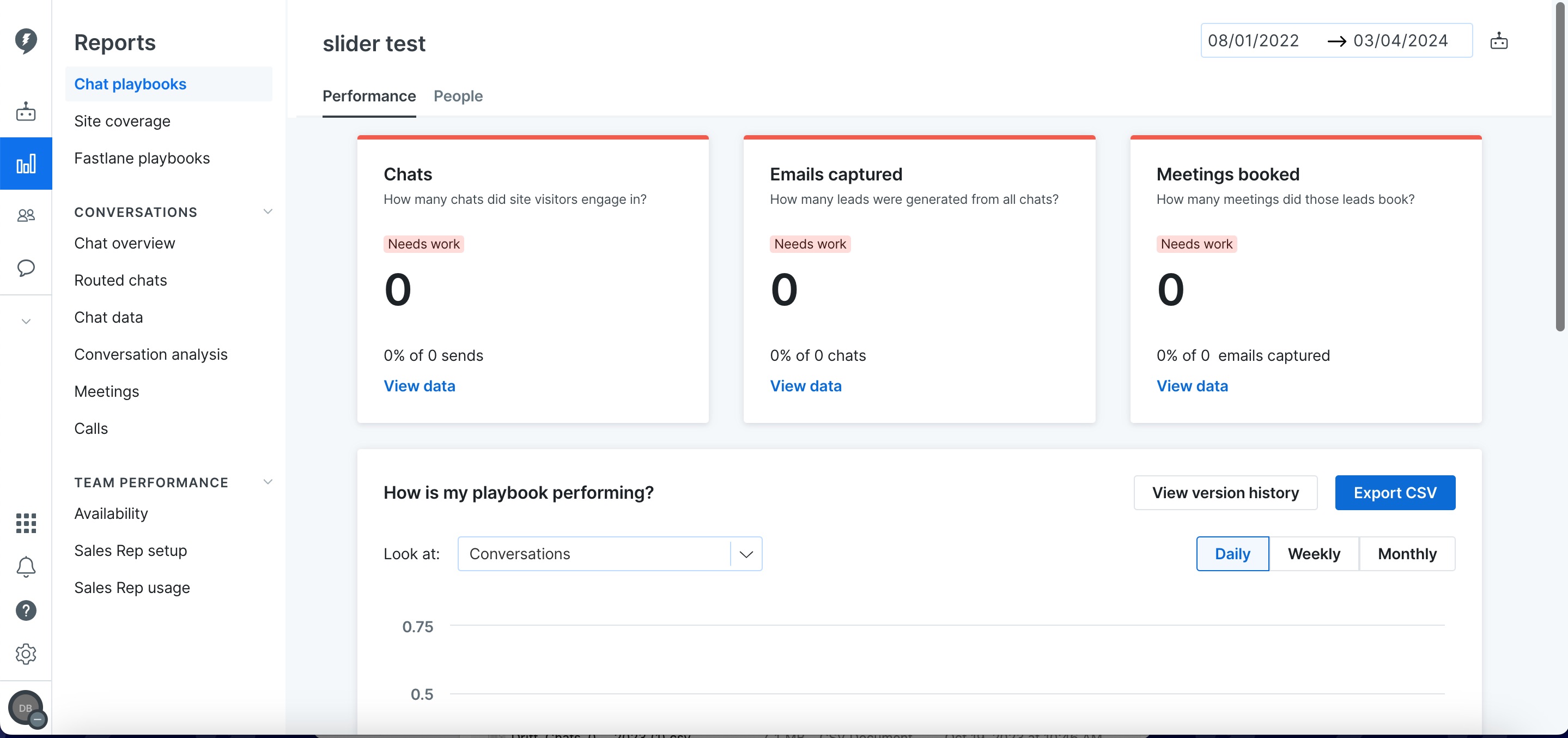
Just like in a Welcome Message Playbook, the People tab will bring you to a list of people, anonymous or not, who have interacted with the particular playbook! On this page you'll see their name if available, their role/company if available, when the playbook was sent, whether they had a conversation, had an email captured, or booked a meeting! There is also a link to the conversation that each person had with this playbook. Here you can also set the date range and export a CSV of this report using the buttons at the top of the page.
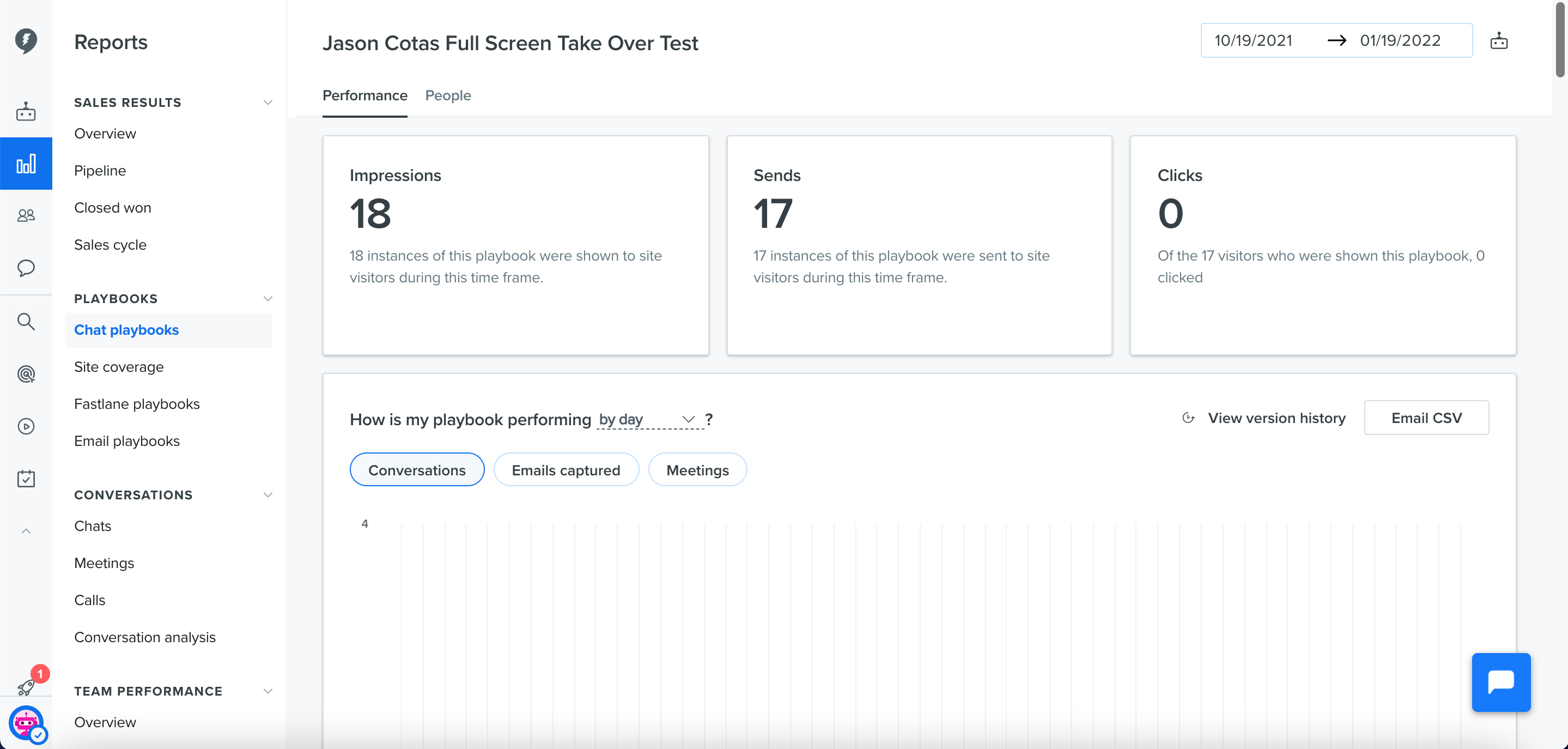
For Takeover Playbooks you will see all the same metrics as Welcome Message and Slider Playbooks but you will also see the "clicks" metric displayed at the top of the page! Here you can also change the date range and export a CSV of the report by using the buttons at the top of the page!
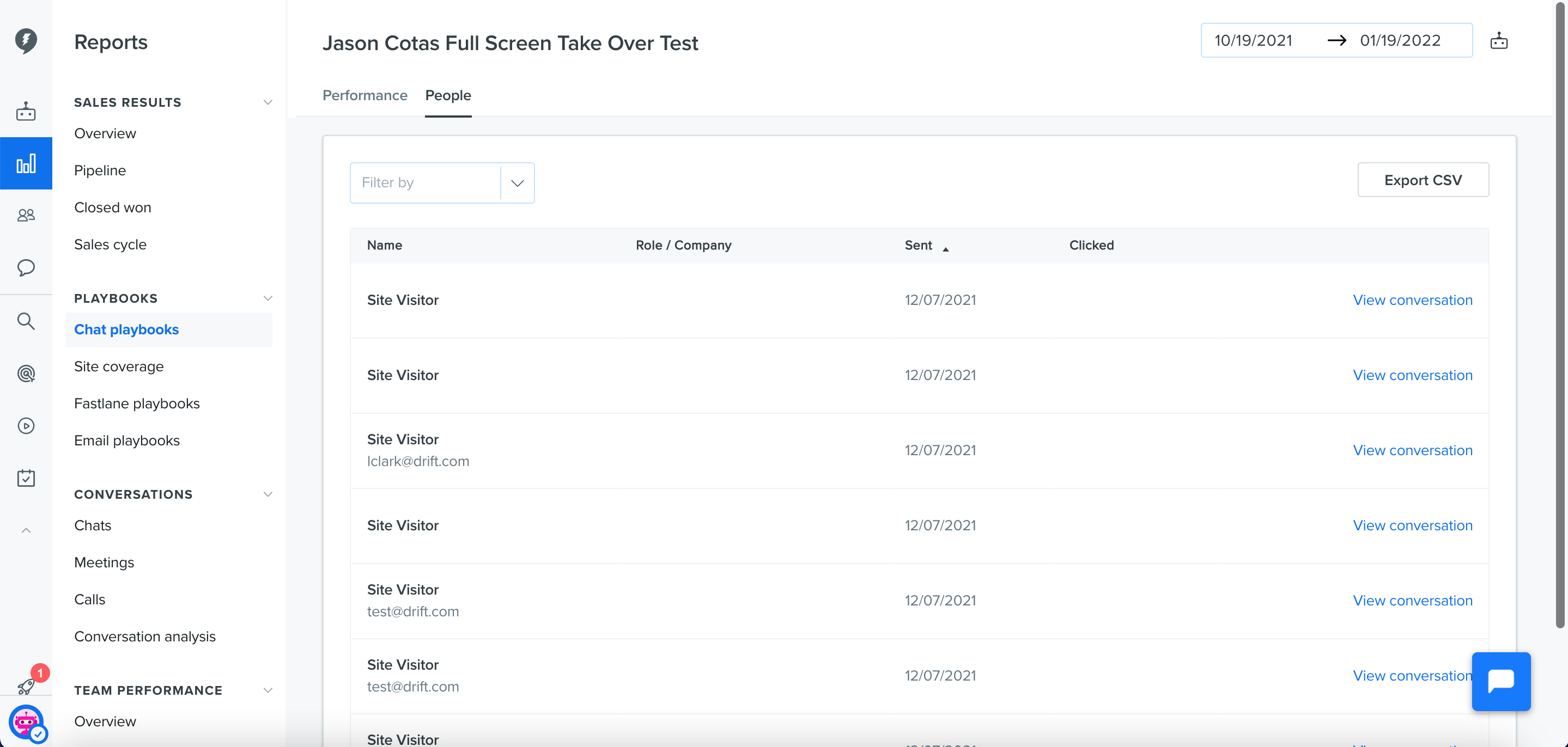
The People tab for Takeover Playbooks is going to look a little different from the People Tab for other Playbooks. It will still show Name, Role/Company, and Sent those are available, and it will also show Clicked. Again, you are able to change the date range and export a CSV report using the buttons at the top of the page.
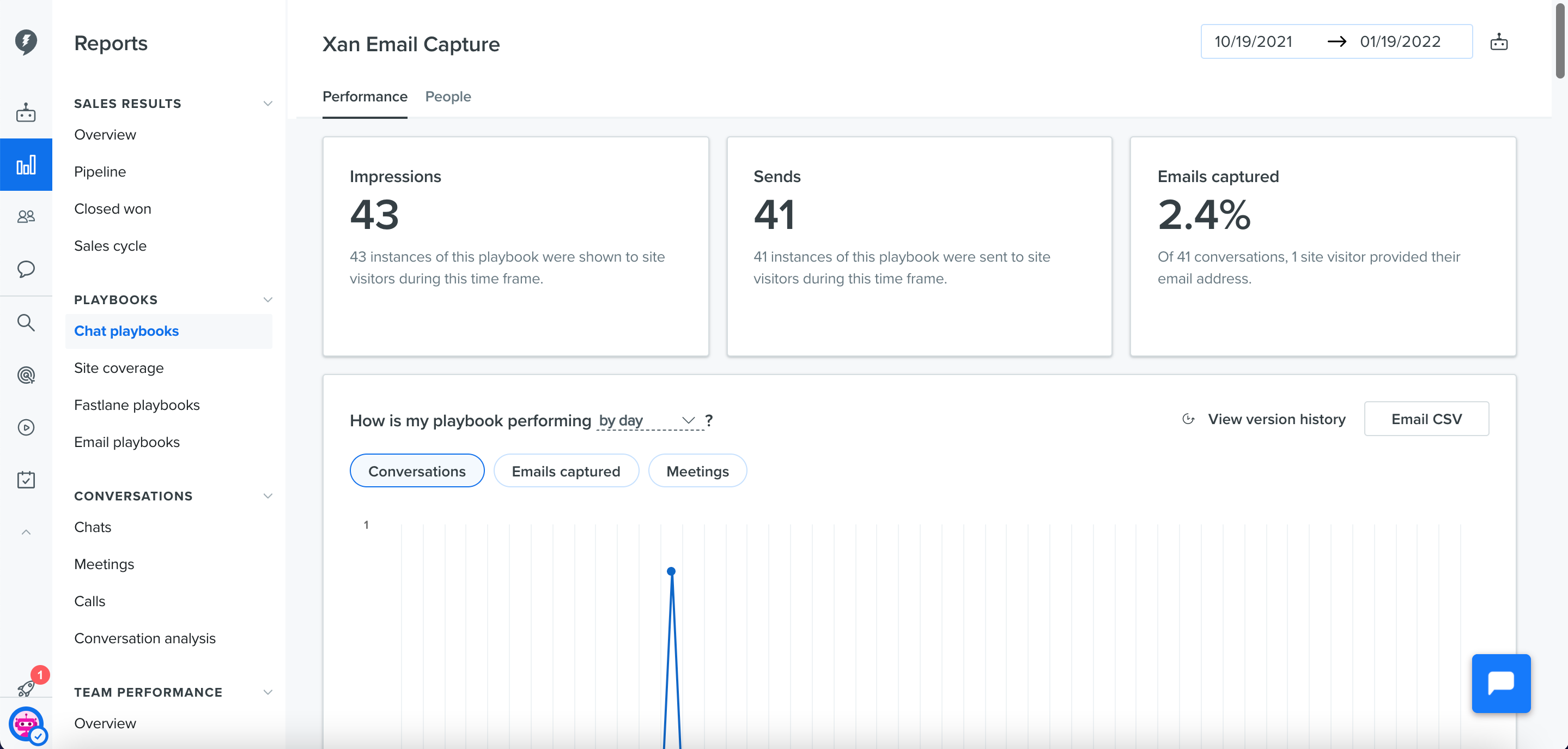
Finally, Email Capture Playbooks will show Send, Conversations, Emails captured, and Meetings but the only ones that will apply here are Sends and Emails captured! Again, you can use the buttons at the top of the page to change the date range and export a CSV report.
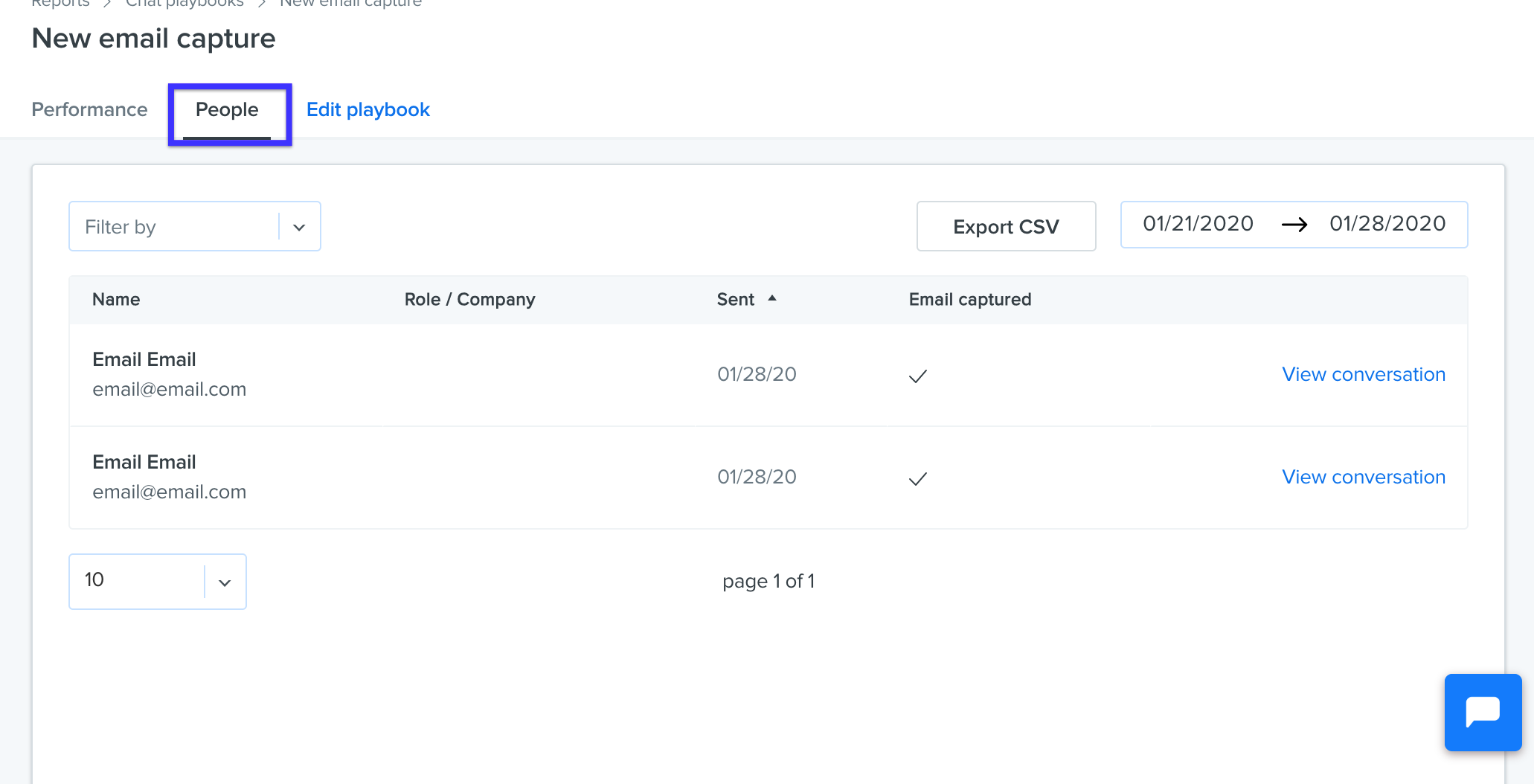
The People tab for Email Capture Playbooks will show Name, Role/Company if available, Sent and Email Captured! You can adjust the date range and export a CSV using the buttons at the top of the page.
The Metrics You See Are Described Below:
- Sends: The number of visitor session where this playbook was shown. Sessions begin when a user first visits a page with the Drift Widget and ends when the user has not visited a page for 30 minutes or at midnight UTC.
- Conversations: Will apply to any playbook where there is the possibility to start a conversation
- Emails Captured: Will measure the amount of users who have given their email address after starting a conversation.
- Meeting: Will apply to any playbook where there is a Book a Meeting option.
