The Revenue Report is a detailed report that shows you how Drift contributes to your opportunities and closed won deals.
Billing Plan: The Revenue Report is currently available on the Premium, Advanced, and Enterprise billing plns.
In this article, we'll cover:
Note: You must have Drift
integrated with Salesforce to use the Revenue Report.
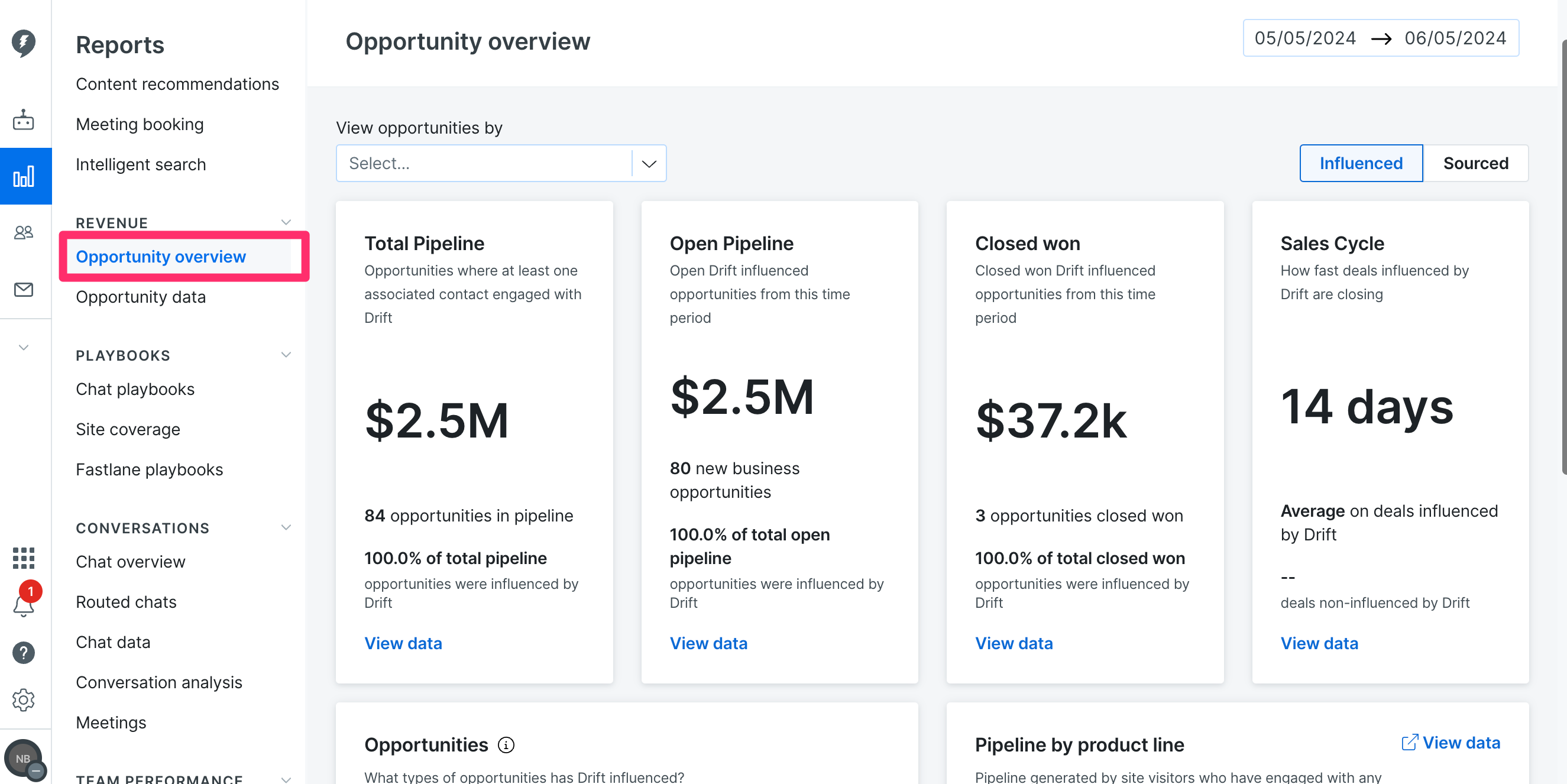
To access the Revenue Report, navigate to
Reports > Revenue > Opportunity Overview.
The Revenue Report has two different views,
Influenced and
Sourced.
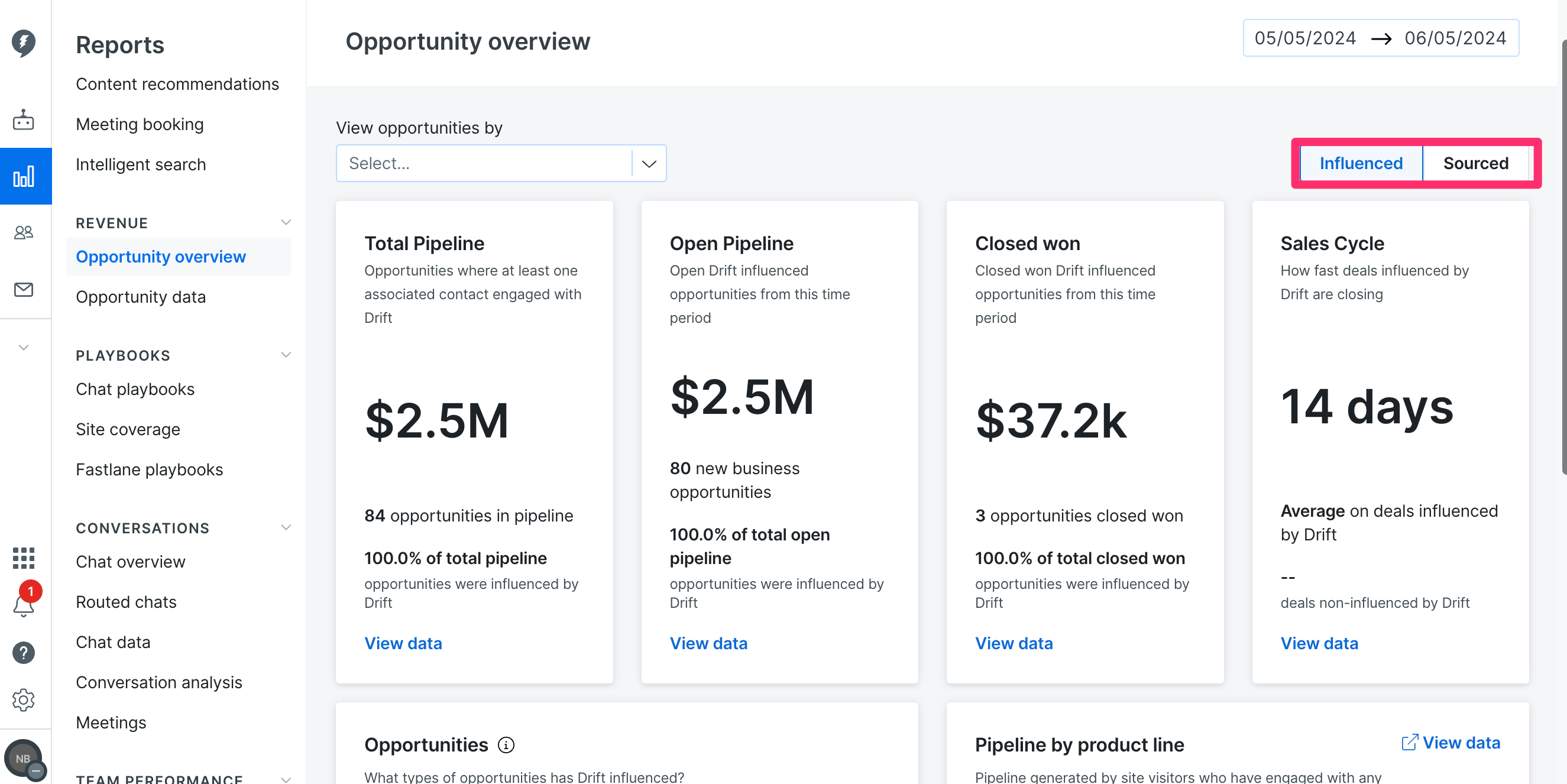
The report defaults to showing
Influenced but you can change which one you are viewing by clicking the toggle on the right side of the screen. The definitions for influenced and sourced are as follows:
- Influenced - We found conversation(s) linked to this opportunity during the lifetime of the opportunity or up to 90 days before it was created.
- Sourced - We detected that a contact associated to this opportunity that was captured using Drift during the lifetime of the opportunity or up to 90 days before it was created.
If both of the above statements are true, Drift will define the opportunity as sourced.
At the top of the Overview Dashboard you'll see four metrics Total Pipeline, Open Pipeline, Closed Won, and Sales Cycle. Below we'll go into more detail about each of these metrics.
Total Pipeline
Total Pipeline shows you a dollar value based on how many opportunities had at least one associated contact engaged with Drift. Clicking
view data will open up an expanded view of the Pipeline data that you can also export as a CSV. Please see the
Opportunity data section of this document for more details on the drill down.
Open Pipeline
Open Pipeline shows you a dollar value based on how many opportunities Drift influenced from the time period. Clicking
view data will open up an expanded view of the Pipeline data that you can also export as a CSV. Please see the
Opportunity data section of this document for more details on the drill down.
Closed Won
Closed Won shows you the dollar amount of Drift influenced opportunities from the selected time period that were closed won. Clicking
view data will open up an expanded view of the Closed won data that you can also export as a CSV. Please see the
Opportunity data section of this document for more details on the drill down.
Sales Cycle
Sales Cycle shows you how fast deals influenced/sourced by Drift are closing. Clicking
view data will open up an expanded view of the Sales Cycle data that you can also export as a CSV. Please see the
Opportunity data section of this document for more details on the drill down.
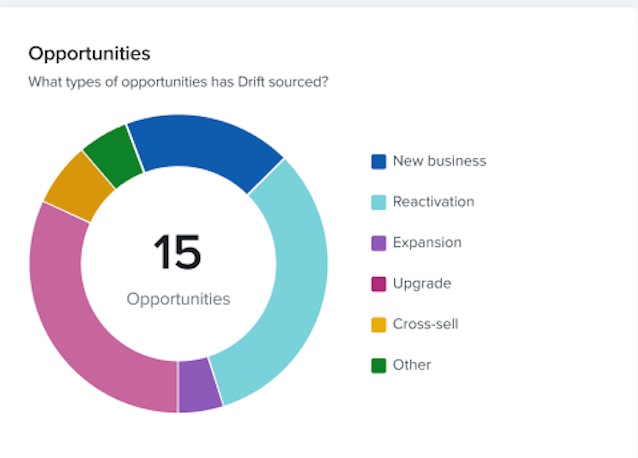
Opportunities
If you scroll down on the report you will see the Opportunities chart. This chart shows you a breakdown of what type of opportunities have been influenced by Drift. The different types of opportunities that are displayed are:
- No Change
- New Business
- Expansion
- Churn
- Contraction
- Services
- Upgrade
You can hover over each section of the chart to see how many of each type of opportunities there are.
Top Opportunities
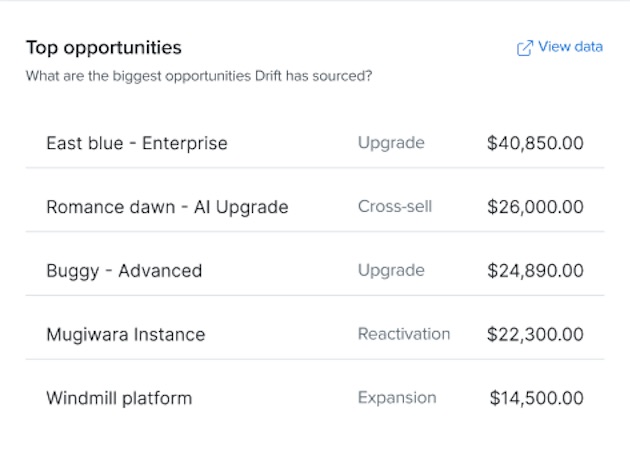
Next to the Opportunities graph is the Top Opportunities section. This will show you the biggest opportunities that Drift has influenced. Here you can find the opportunity. name, the type of opportunity, and the dollar amount of the opportunity. Clicking
view data will open up an expanded view of the Top Opportunities data that you can also export as a CSV. Please see the
Opportunity data section of this document for more details on the drill down.
Opportunity Data
The Opportunity Data drill down can be accessed from two different places. You can navigate to
Reports > Revenue > Opportunity Data, or you can click on the
View data link on any of the metrics that are in the
Opportunity Overview report. Accessing this report from the
View data links will open up the report with a preset filter based on the metric you clicked on.
You can use the filter button on the left side of the screen to set custom filters for the Opportunity Data report. The gear icon on the right side of the report is used to show or hide columns in the report.
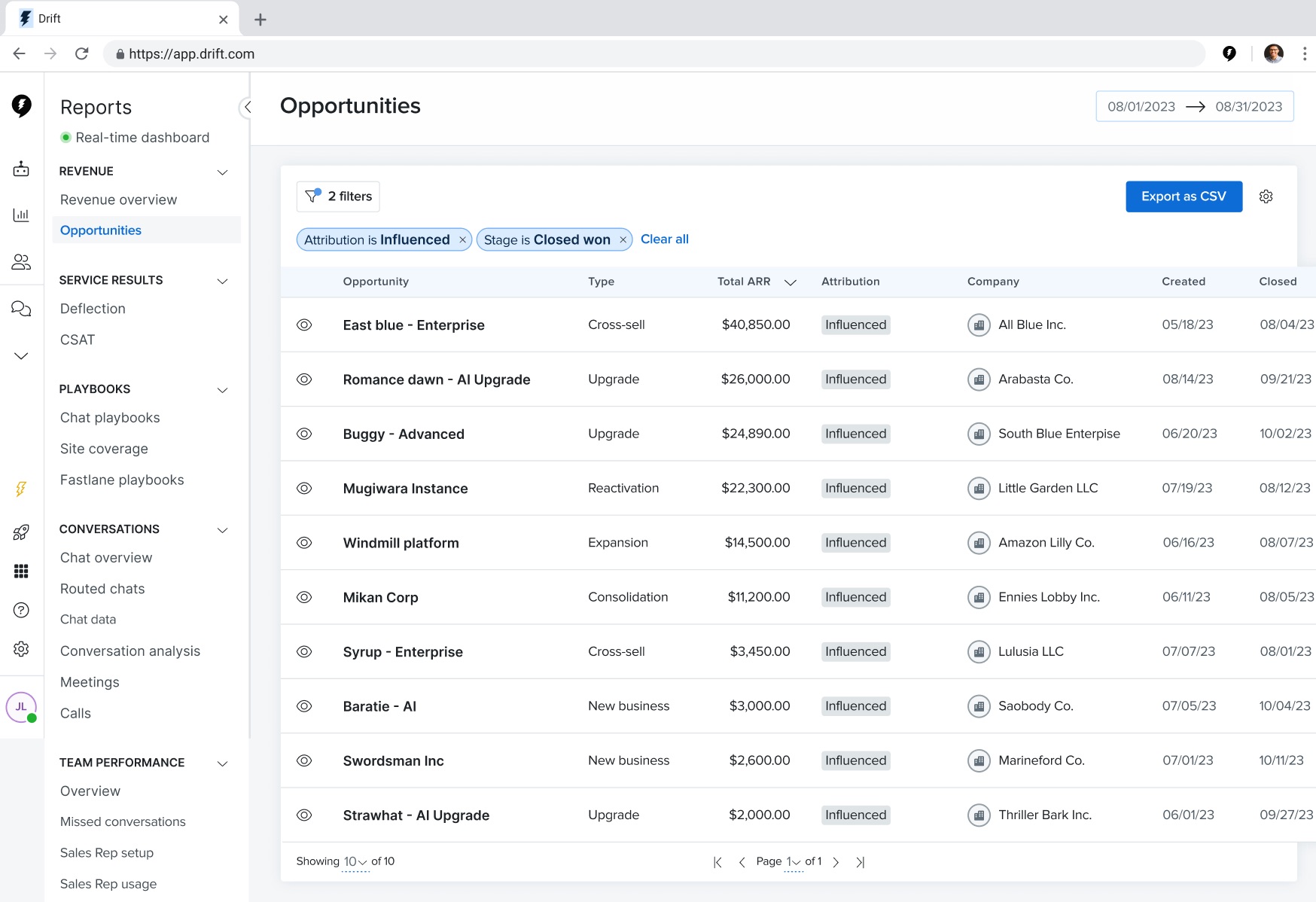
The data you'll find in this report is as follows:
- Opportunity - The name of the opportunity.
- Type - The opportunity type (these are the same types as what are listed for the Opportunity report mentioned earlier in this document.).
- Amount - The dollar amount of the opportunity.
- Attribution - Shows whether the opportunity Sourced or Influenced by Drift.
- Contact - The name or email address of the associated contact that chatted in.
- Company - The name of the company associated with the opportunity.
- Created - The date the opportunity was created.
- Closed - The date the opportunity was closed.
- Stage - The current stage of the opportunity.
- Salesforce - A link to view the opportunity within Salesforce.
- Days in cycle - How many days the opportunity has been in the sales cycle for.
- Conversations - How many Drift conversations are associated with the opportunity.
- Meeting booked by - The agent (or chat bot) who booked a meeting with the opportunity.
- Outcomes - The outcome of the conversation. The values you'll see here are: Teammate Responded, Calendar Drop, Ticket Created, and Away Message Sent.
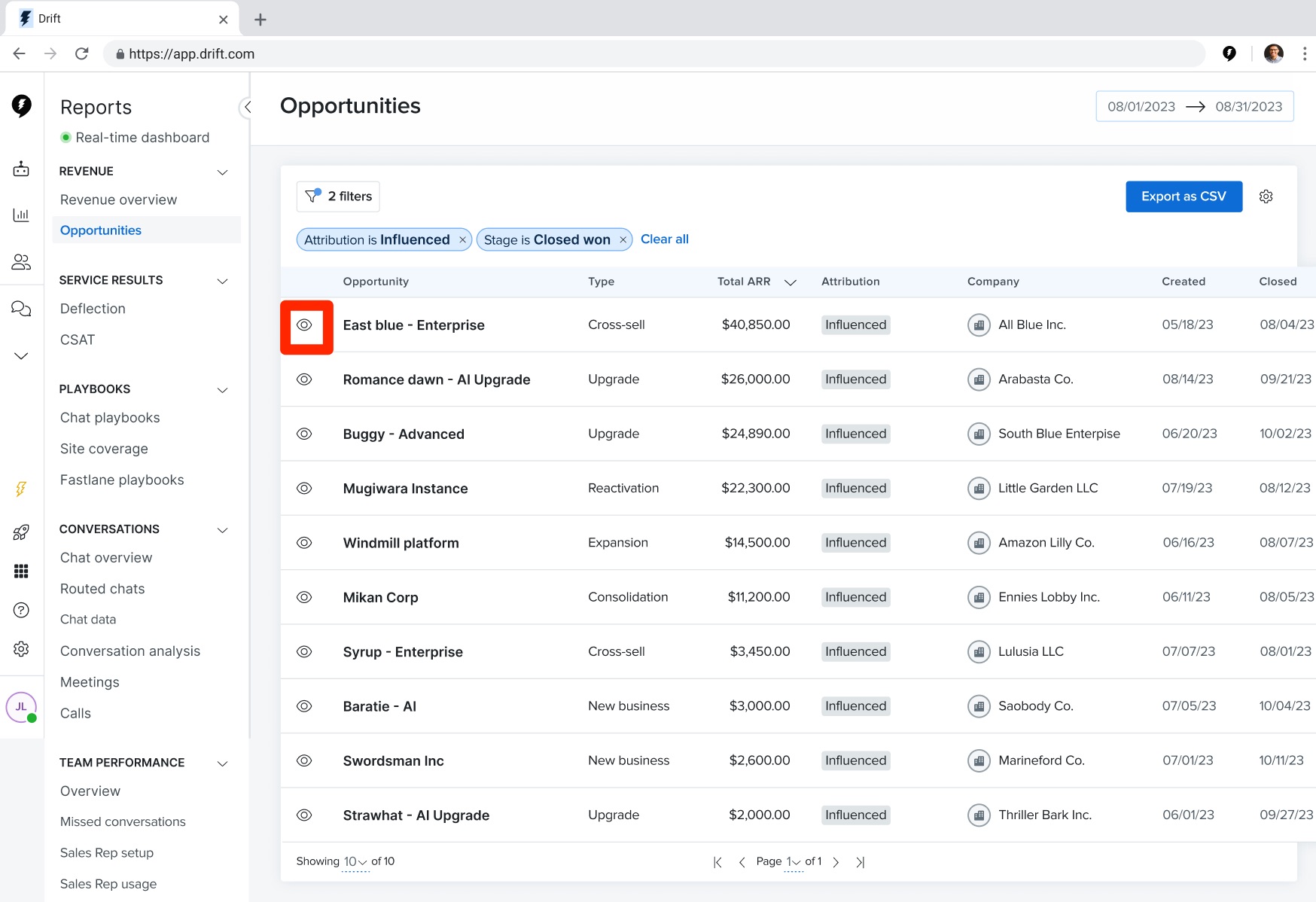
Click the
eye icon to open up the Opportunity Timeline.
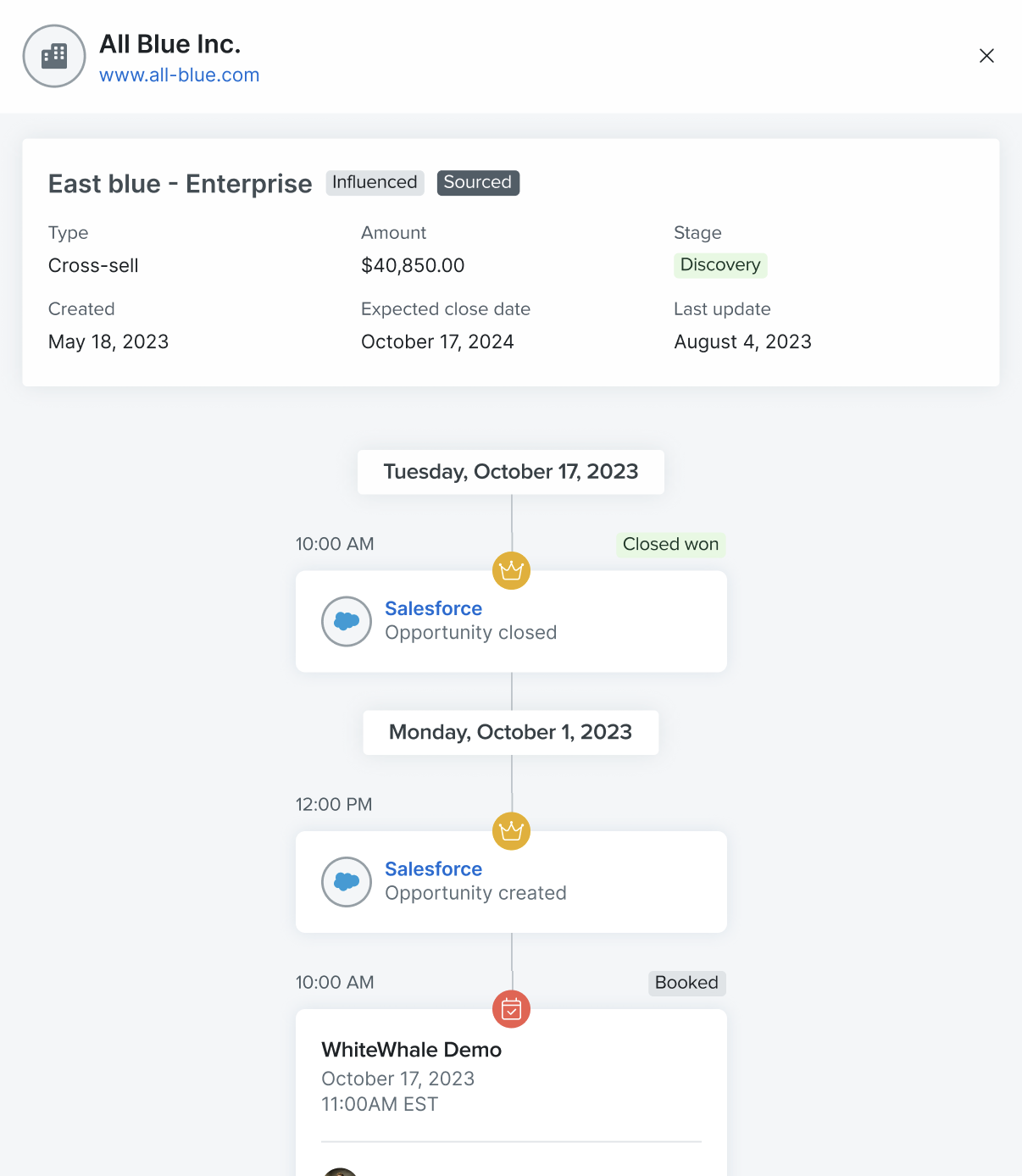
The Opportunity Timeline shows you a timeline of breakdown of opportunity activities for the opportunity you clicked on. Here you can view:
- Opportunity type
- Creation date
- Total ARR
- Status
- Last updated date
Below this you can see the date and time for any changes to the opportunity (like when it was created and when it closed) as well as Drift conversation activity. The Drift activity includes a link to the chat as well as a link to the Playbook the site visitor was chatting in through.
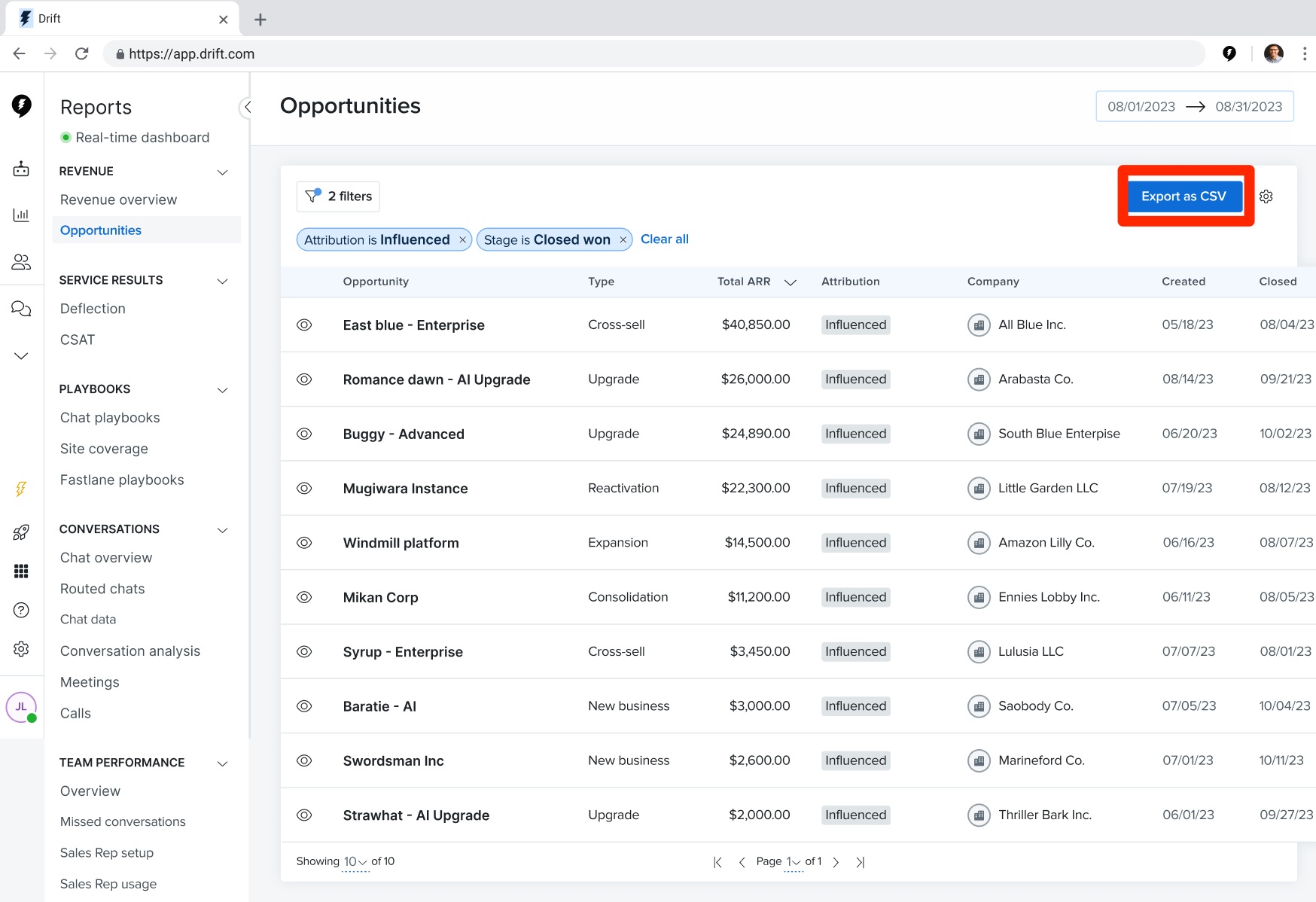
You can export the report as a CSV using the
Export CSV button.
The CSV contains the following data:
- Opportunity ID - The Salesforce opportunity ID.
- Opportunity Domain - The web domain of the opportunity.
- Company Name - The name of the associated with the opportunity.
- Opportunity Name - The name of the opportunity.
- Opportunity Amount - The dollar amount of the opportunity.
- Opportunity Type - The type of the opportunity.
- Opportunity Stage - The stage of the opportunity.
- Is Sourced - Is the opportunity sourced?
- Is Influenced - Is the opportunity influenced?
- Opportunity Created at with Zone - The time and timezone the opportunity was created at.
- Opportunity Closed at with Zone - The time and timezone the opportunity was closed at.
- Opportunity Created at - The time the opportunity was created at.
- Opportunity Closed at - The time the opportunity was closed at.
- Opportunity Days in Sales Cycle - The number of days the opportunity has been in the sales cycle.
- Conversation Count - The number of conversations the opportunity has had within Drift.
- First Conversation Created at - The date and time that the first conversation with the opportunity occurred within Drift.
The ROI report is powered by the concept of opportunities generated via Salesforce and is defined by their docs in the following way: An opportunity represents a potential sale in progress. It's where you track all the details of a deal you're working on.
Among the details of the opportunity that are being tracked, the most important ones to consider for attribution are:
- Creation Date
- Closing Date
- Stage (Open, Closed, Closed Won)
- Amount (The value of the potential deal)
- Domain (Identifier for the company associated to this deal.)
The definition of an opportunity is configured by the customer and what Drift represents in our reports is data synchronized every 24hrs coming directly from the Salesforce integration.
Attribution
Once we have the opportunity data imported from SFDC we try to connect it with relevant entities we have in Drift products such as Conversations, End Users, Meetings, Playbooks, etc.
The main difference with the legacy report is that previously we were consuming contacts directly from SFDC and finding the connections to conversations through the activity linked to those contacts.
Now, we use the end users data, but the intel is scoped down to make it the closest possible to contacts in SFDC. Using end users instead of contacts is letting us connect with all of the products in Drift and is what provides more value to the new version of the report since these references can be found in the timeline view of the opportunity and create actionable data where we can jump from the ROI report to the actual attribution we're making which could be a conversation, playbook, meeting, etc.
Quick example on how we do look for connections between opportunities and end users.
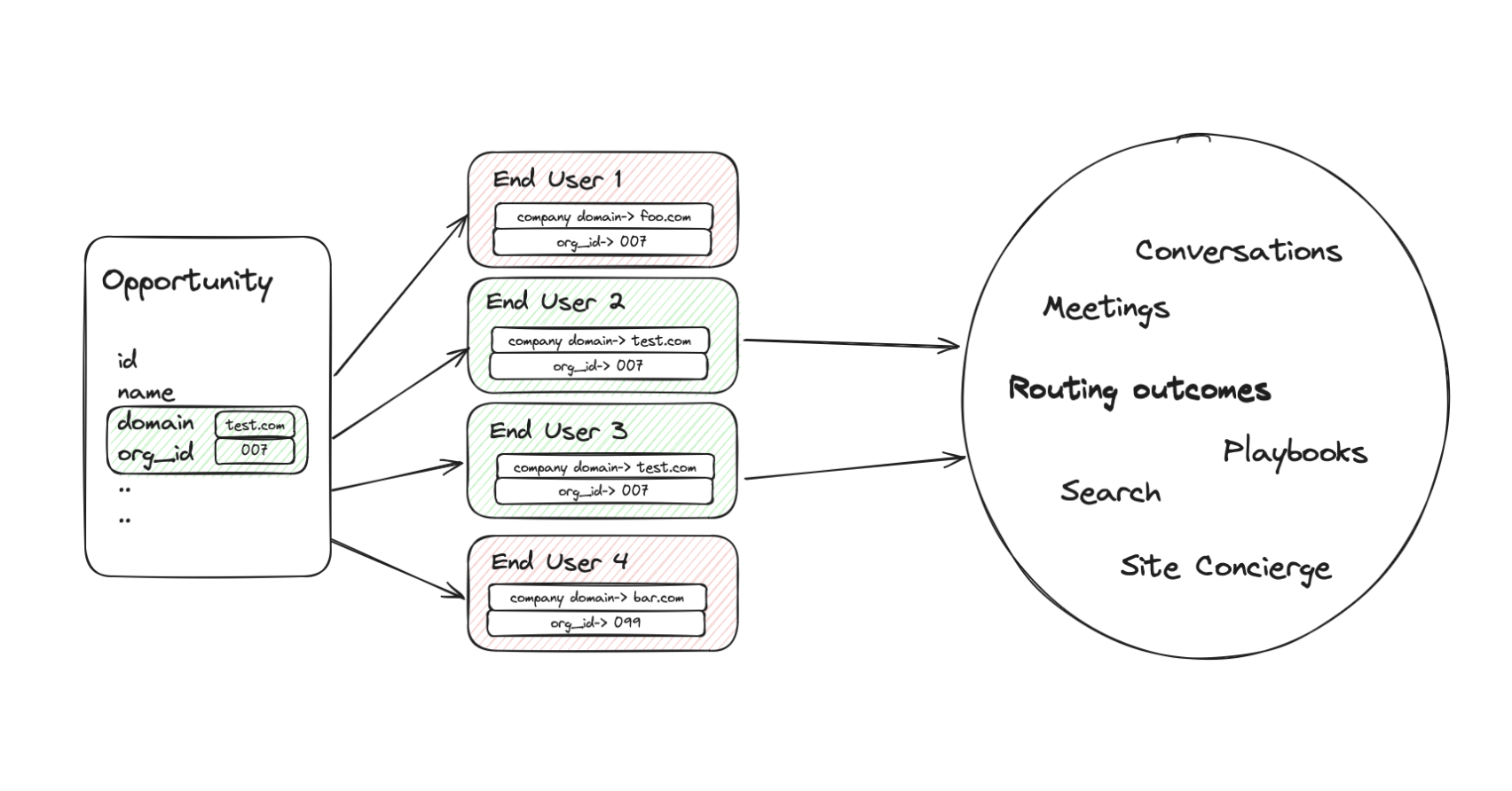
In order to filter down which end users we're using, we have the following constraints:
- End user must have an email associated to it.
- Creation date shouldn't be older than 180 days before the opportunity was created.
- Have a company domain associated.
- Match with a company domain associated to an opportunity.
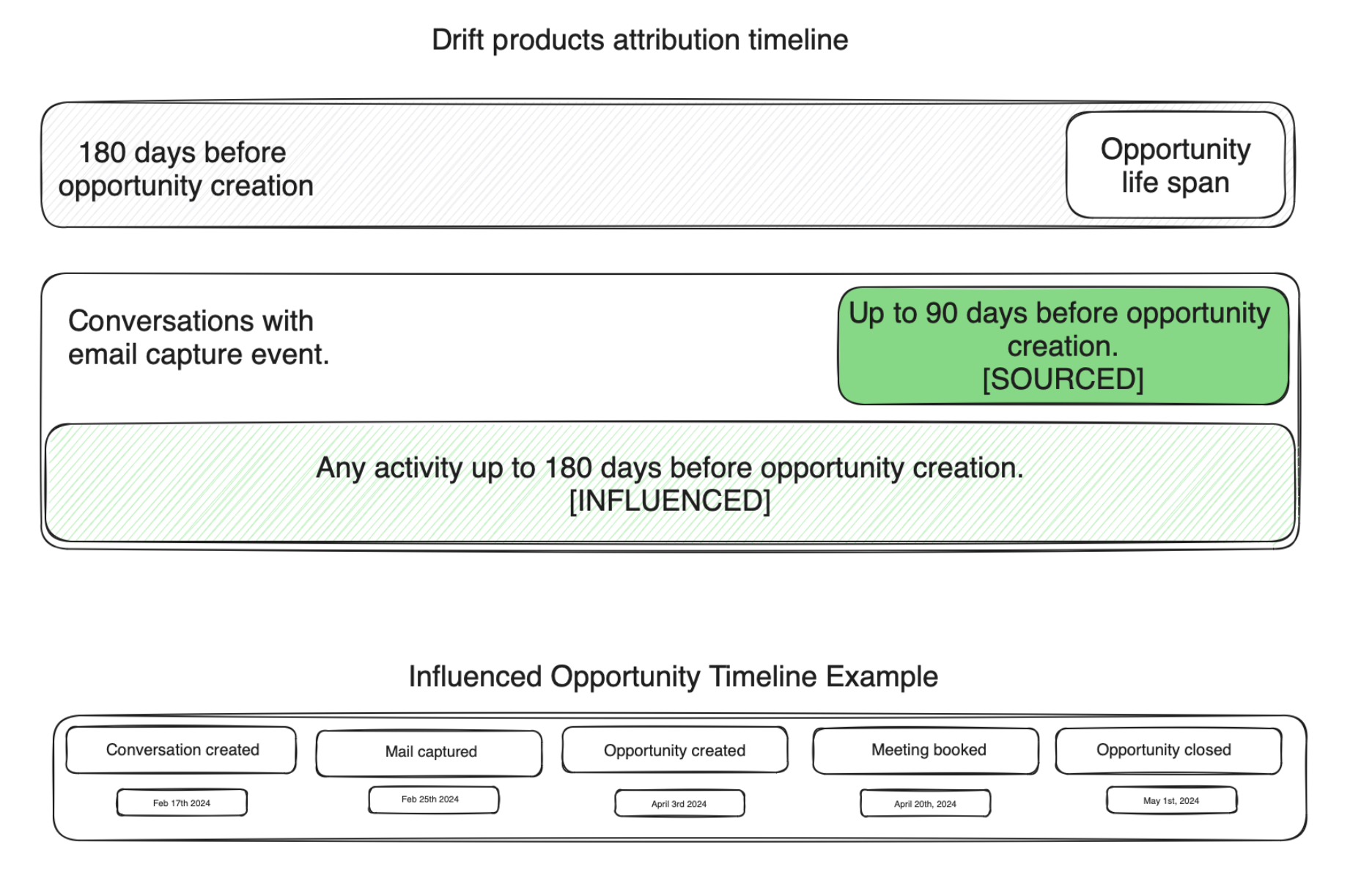
The other linking we need to do in order to connect an opportunity to our products at Drift are conversations, once we have the end users that have a link to an opportunity, we track all the activity they have had through conversations which is what lead to our two main concepts in the ROI report: Sourced and Influenced.
Sourced is the attribution type that has a smaller time window, in order to be considered an opportunity to be sourced we need to find connections to an end user created up to 90 days before the opportunity, and need to have a mail captured event attached to it in the same timeframe.
In the other hand we have Influenced which is the broader way of attribution we have, here the time window is expanded to 180 days. Any conversation or activity of an end user linked to an opportunity in that timeframe would mark the opportunity as influenced.
Discrepancies with the legacy report
We at Drift have been testing and comparing data between reports. Getting 1:1 comparisons have been difficult and is very unlikely to happen since the main source of data has been changed as it was mentioned above. Using end users instead of contacts as the legacy report has been lead to two main discrepancies.
New report having higher Influenced/Sourced pipeline
The end users table which is the source of truth we're using in the new report has more data than SFDC which is a positive situation since there are more possibilities of finding influence but sometimes this is leading to situations where we are considering a not so meaningful conversation to have influence over an opportunity. This is a broader problem now which is finding a way to detect which conversation is valuable and which one isn't. As mentioned this could be inflating the numbers in some situations, but other various instances we're able to catch attribution that was being skipped by the legacy report.
Some opportunities are only appearing in the legacy report.
Our way of creating a link to an opportunity is through domain matching, we have found situations where the domain attached to the contact in SFDC is not the same domain that is attached to the opportunity, this breaks our dependency on the end users table since the domain we're expecting to match is never found in our data and missing these possible connections.
In conclusion, we're seeing a positive change between reports now that we're completely sure that the connections we're making are backed by data we have in our reporting app and not something that is coming from activities tracked through SFDC as SFDC was limiting our way of making the legacy report actionable with linking to data.
