The Chat Data Report gives you an in-depth breakdown of your agent’s chats, providing you insight into data such as how many messages were sent and how long the chat was.
Billing Plan: The Chat Data Report is available on the Premium, Advanced, and Enterprise plans.
In this article, we’ll cover:
- Accessing the Chat Data Report
- Reading the Chat Data Report
- Exporting the Chat Data Report
Things to Note: The Chat Data Report is currently a Beta feature and is subject to change and only includes meetings booked during active chat conversations. This means meetings booked through other sources (e.g., Drift Profile links) may appear in the Meetings Report but not in the Chat Data Report.
Accessing The Chat Data Report
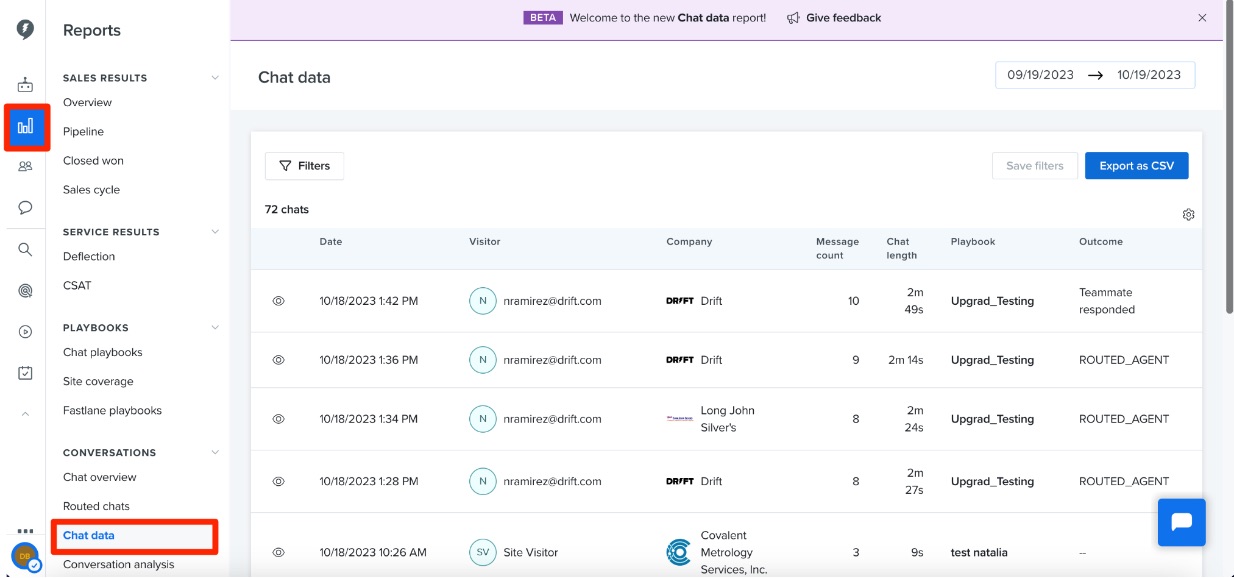
To find the Chat Data Report click on the Reports tab > Conversations > Chat data.
Reading The Chat Data Report
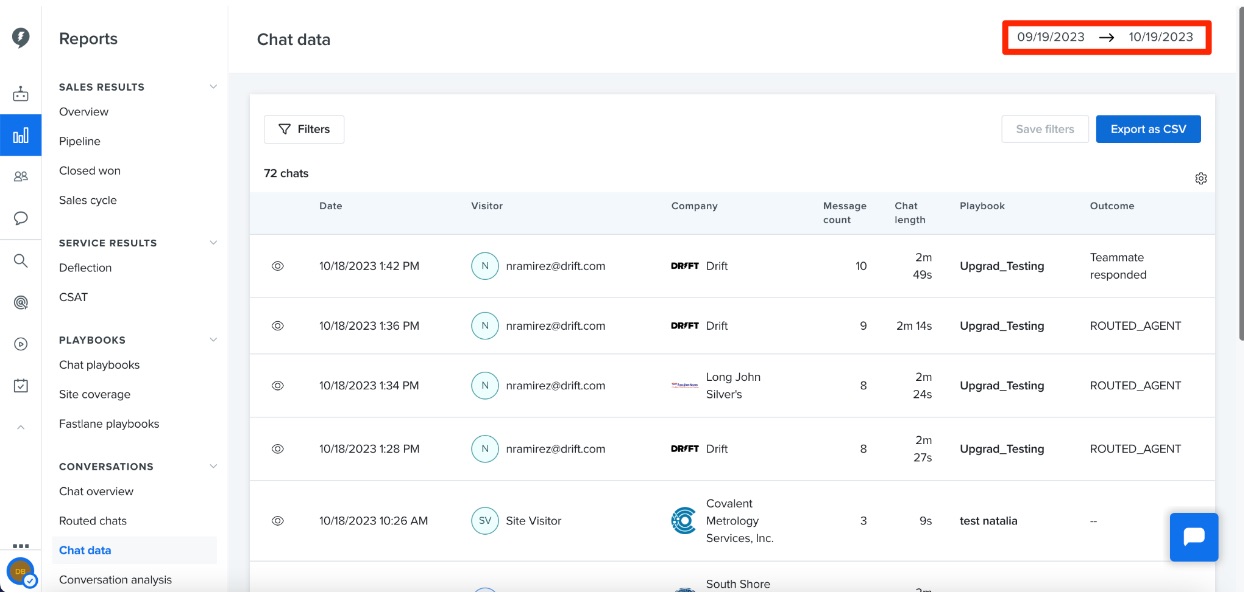
The Chat Data Report defaults to showing you chats from the past thirty days but you can use the date selector on the top right side of the screen to expand or decrease the range.
Note: A conversation must have engagement from the site visitor for it to appear in this report. If a site visitor does not respond to a conversation, it will not be shown here.
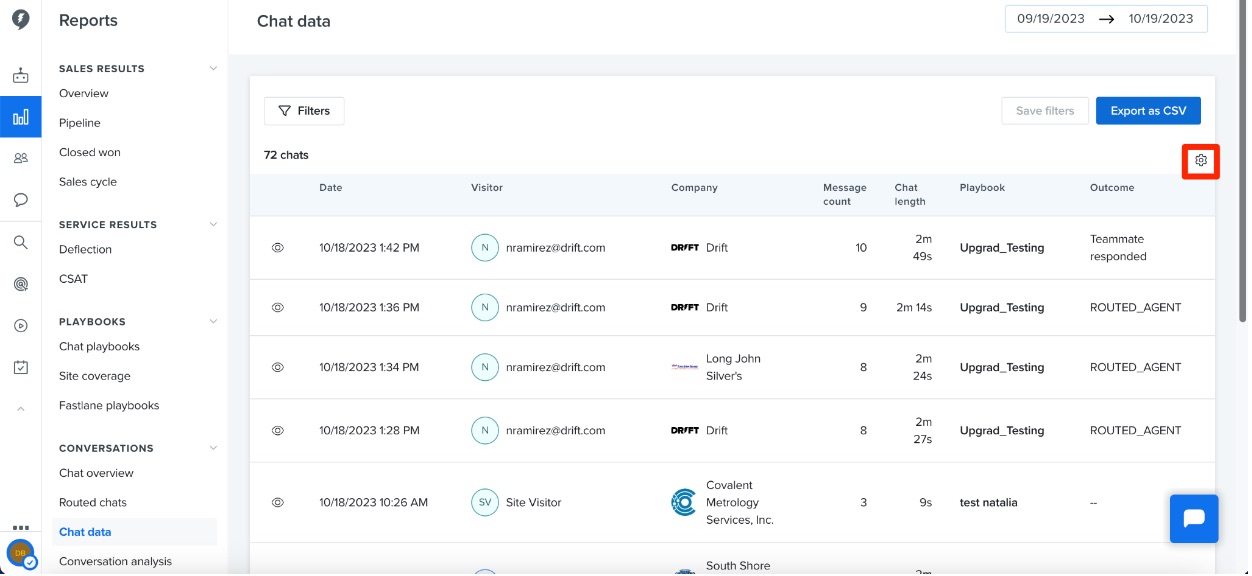
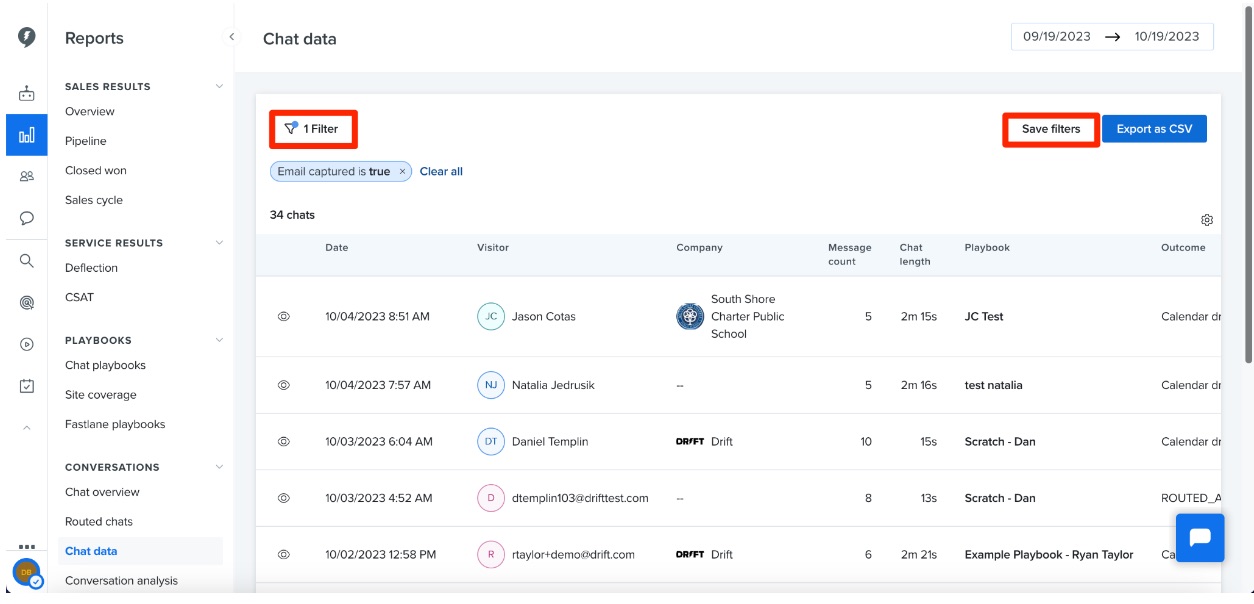
 The Chat Data Report has several columns; you may need to scroll the report over to the left to view the last column. You can also use the gear icon on the right side of the screen to edit which columns appear in the report.
The Chat Data Report contains the following pieces of information:
-
Date - the date and time that the chat took place.
-
Visitor - the email address or name of the person chatting in. If name or email address is unknown it will say “site visitor”.
-
Company - the company the site visitor is from (if available).
-
Message count - the total number of messages sent in the chat by both the site visitor and agent.
-
Chat Length - the length of the chat from the time of the site visitors first response to the time the conversation is closed.
-
Playbook - the name of the Playbook that the chat was started from.
-
Routing Outcome - the outcome of the routing event that occurred within the chat (ex. Teammate Responded, ROUTED_AGENT, Away Message Sent, Calendar Dropped, etc.)
-
Region - the region the site visitor is located in.
- CQL - the site visitors CQL score
-
Time to first response - the time from when the site visitors first message is sent in chat to when an agent responds back.
-
First routed at - the time at which the conversation was first routed.
-
First routed Drift user responded at - the time at which the first Drift user routed into the conversation sent a response.
-
Tag names - the name of any tags that were added to the conversation.
-
Participants - the names of any Drift users that were listed as a participant in the conversation.
-
CSAT - the CSAT score of the conversation.
- CSAT comments - the comments that were left as part of the customer satisfaction survey.
First Drift user participated at - the timestamp in which a Drift user engages in a chat.
-
First conversation close at - the time at which the conversation was first closed.
- Visitor sentiment - the ML perceived sentiment of the visitor, which may be positive, neutral, or negative.
The Filter button at the top of the report allows you to create custom filters based on a number of different criteria. Click the Save filter button to save the filter you currently have applied.
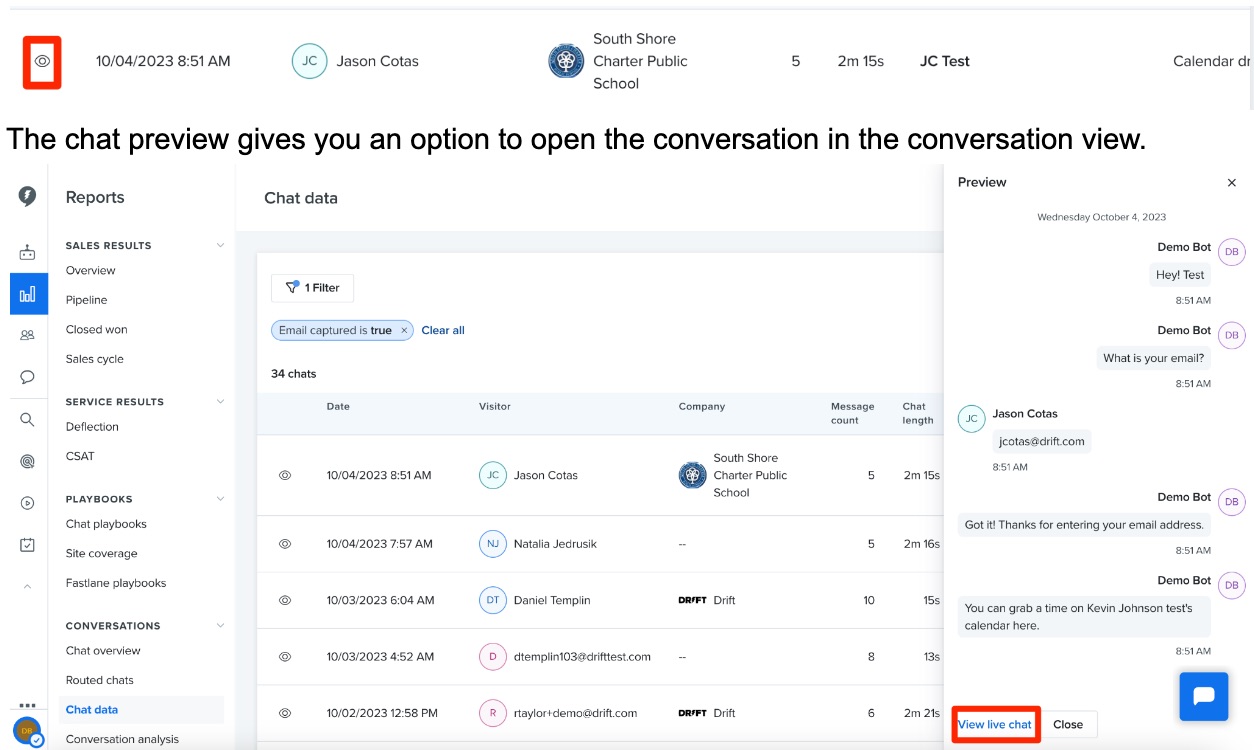
 The eye icon next to each chat allows you to view a preview of the chat you selected without leaving the report.
Exporting The Chat Data Report
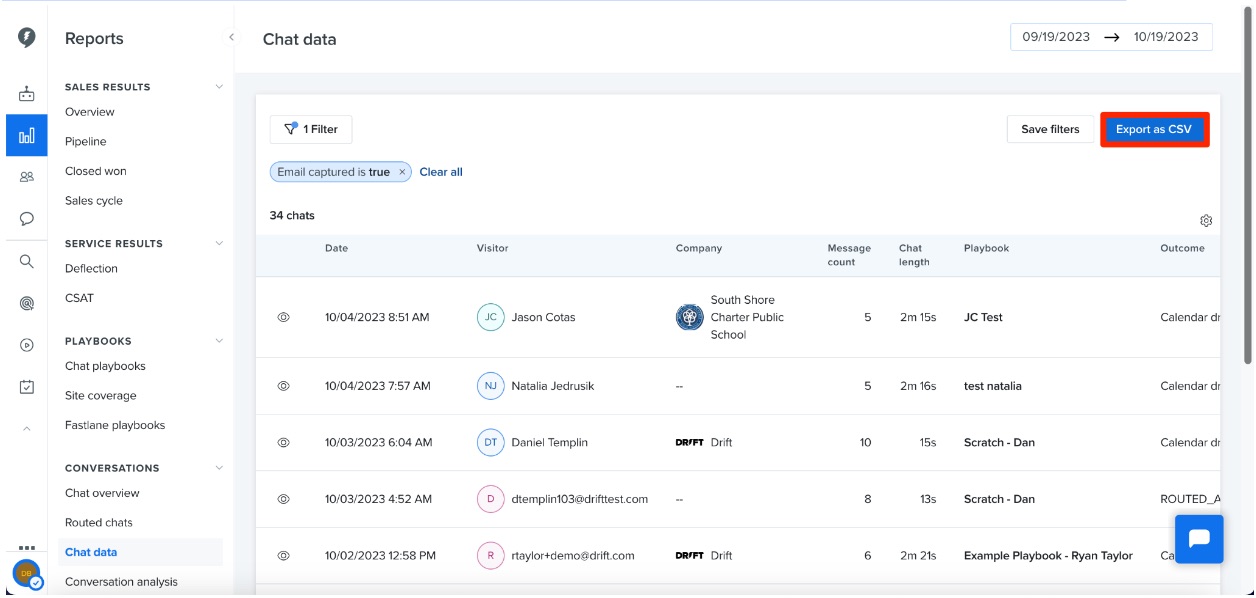
Use the Export as CSV button to download a CSV of the Chat Data Report.
Note: In the CSV there is a column titled UserId and a column titled EnduserId. The UserId is ID number for the Drift user while the EnduserId is the ID number for the Drift Contact.